6.2.1 Adding MIT Log Data
To add MIT log data, follow these steps:
- Click Add on the Monetary Instrument Log List grid. The
Add Monetary Instrument Log window is displayed.
Figure 6-3 Add Monetary Instrument log
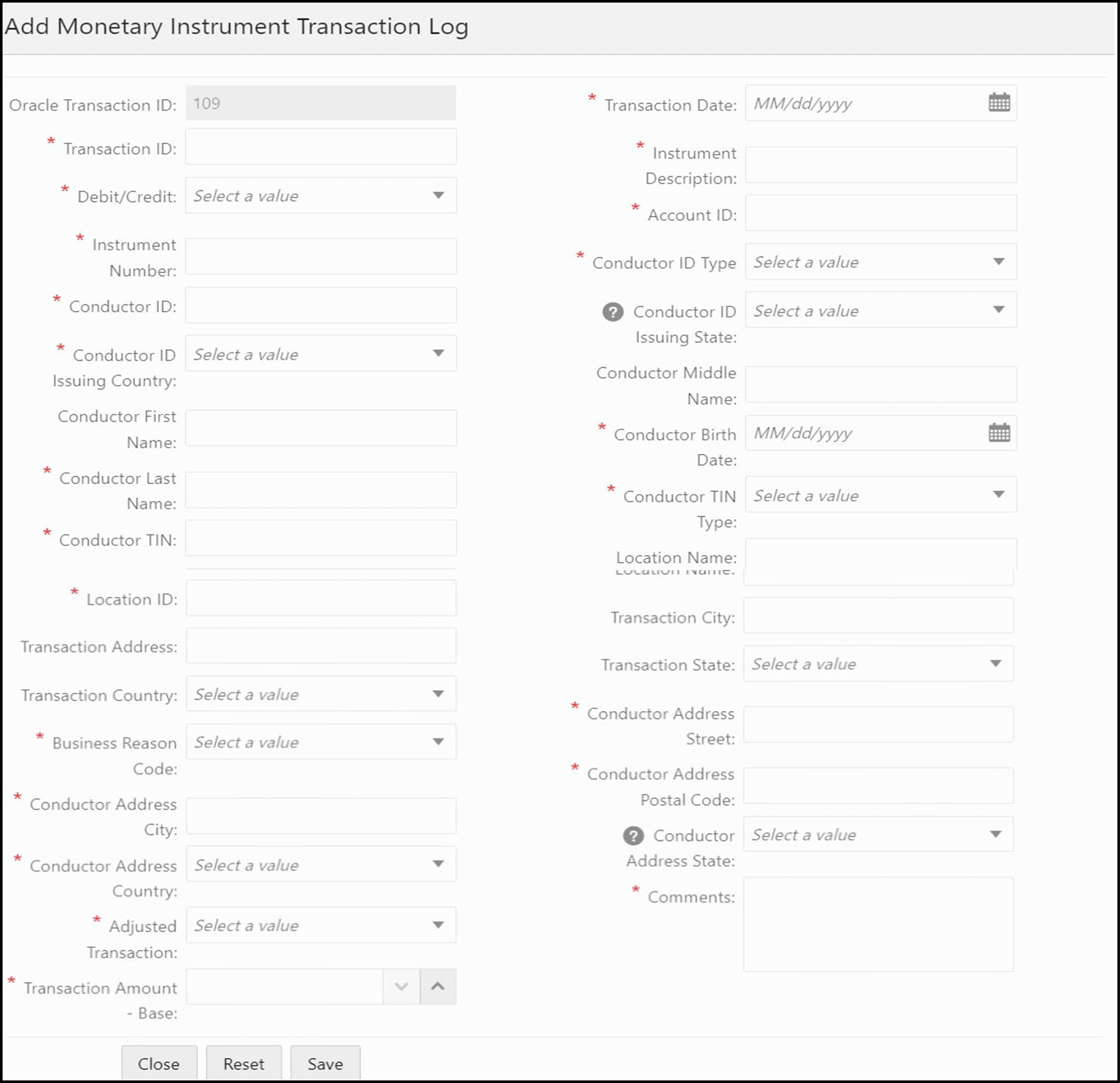
- Enter the details in the fields as explained in the following table:
Adding MIT Log Data Components
Fields Description Oracle Transaction ID This field displays the Oracle transaction ID. This field is non-editable and pre-populated with generated sequence ID. Transaction Date Select the transaction date from the calendar. Transaction ID Enter the transaction ID. Instrument Description Enter the serial number of the monetary instrument associated with this transaction. Debit/Credit Select the type of transaction as either Debit or Credit. Account ID Enter the Account ID in which the transaction was conducted. Instrument Number Enter the serial number of the monetary instrument associated with this transaction. Conductor ID Enter the ID of the conductor. Conductor ID Type Select the Verification ID Type of the conductor from the following options available: - Unknown
- Driver’s license/State ID
- Passport
- Alien registration
- Customer
- Other
Conductor ID Issuing Country Select the conductor ID issuing country from the drop-down list. Conductor ID Issuing State Select the ID issuing state of the conductor from the drop-down list. Conductor First Name Enter the first name of the conductor in the transaction. Conductor Middle Name Enter the middle name of the conductor in the transaction. Conductor Last Name Enter the last name of the conductor in the transaction. Conductor Birth Date Select the birth date of the conductor from the calendar. Conductor TIN Enter the Taxpayer Identification Number (TIN) of the conductor in the transaction. Conductor TIN Type Select the conductor TIN type from the list of available options: - EIN
- Foreign
- GIIN
- ITIN
- SSN
- Tax ID
Location ID Enter the location ID. Location Name Enter the name of the location where the transactions were done. Transaction Address Enter the address where the transactions were done. Transaction City Select the city where the transactions were done from the drop-down list. Transaction Country Select the country where the transactions were done from the drop- down list. Transaction State Select the state where the transactions were done from the drop-down list. Business Reason Code Select the business reason code from the drop-down list: - Credit Advance
- Gaming Device
- Currency Exchange
- Deposit l Funds Transfer
- Gaming Instrument
- Negotiable Instrument
- Other l Prepaid Access
- Payment
- Travel Expenses/Gaming
- Tournament/Contest
- Withdrawal
- Wagers
Conductor Address Street Enter the street address of the conductor involved in the transaction. Conductor Address City Enter the city of the conductor involved in the transaction. Conductor Address Postal Code Enter the postal code for the address provided. Conductor Address Country Select the country of the conductor from the drop-down list. Conductor Address State Select the state of the conductor from the drop-down list. Adjusted Transaction Select the adjusted transaction as Yes or No. Transaction Amount - Base Enter the amount of fees paid on this account expressed in base currency. Comments Enter the comments in the text box. - Click Save. The MIT log data details are added.