2.6 Creating a Currency Transaction Report
A CTR can be created either manually or through system generated alerts. A corrected report is amended with reference to the new report.
To manually create a CTR, follow these steps:
- On the Currency Transaction Reporting LHS menu, select Create New
Report. The Create New Report window displays.
Figure 2-11 Create a New Report
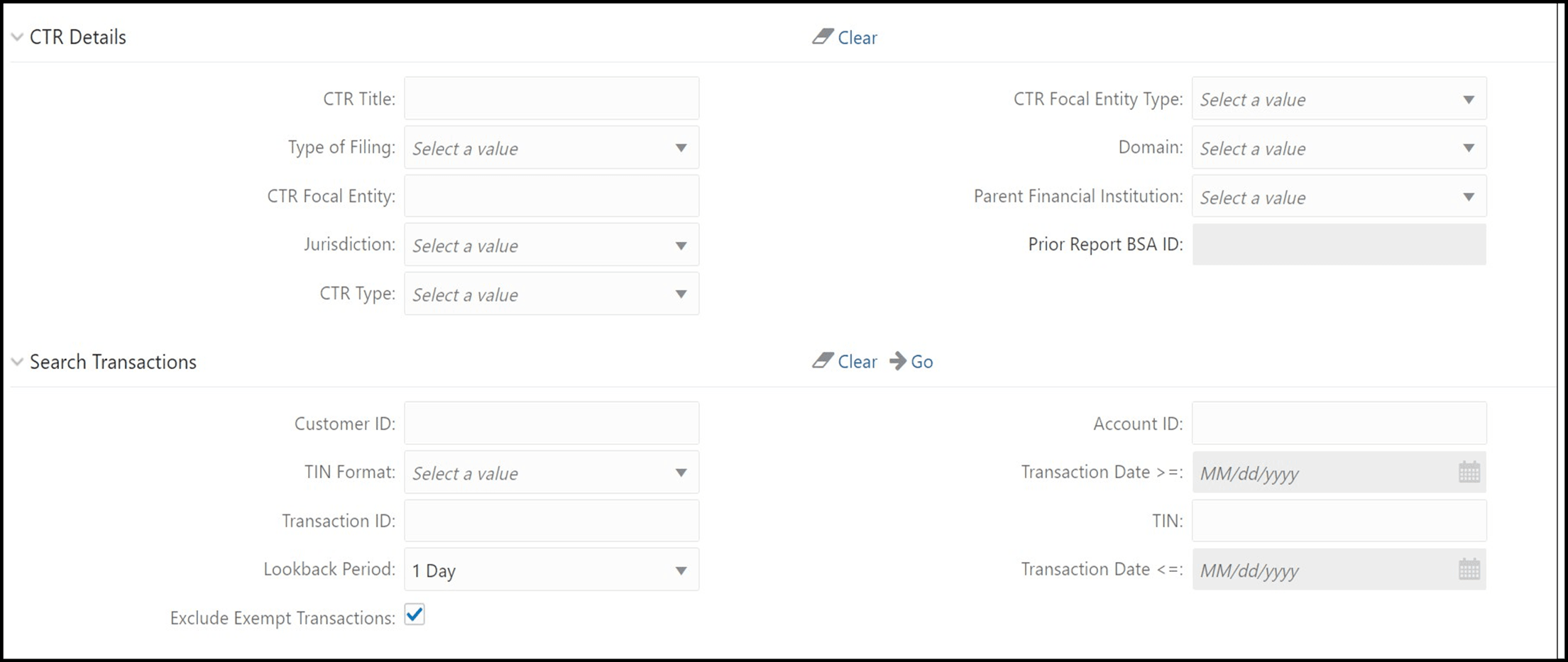
- Enter the CTR Details fields as explained in the following table:
Field Name Description CTR Title Enter the CTR Title in this field. CTR Focal Entity Type Select a CTR Focal Entity Type as Conductor, Customer, or TIN. Type of Filing Select a type of filing such as Initial report, Correct/amend prior report, or FinCEN directed Backfiling. Domain Select the required domain from the listed drop-down options. CTR Focal Entity Enter the CTR Focal Entity in this field. Parent Financial Institution Select a parent financial institution from the listed drop-down list. The selection of Parent Financial Institutions will auto-populate the associated contact for information fields based on the establishment of the contact information for the reporting institutions. Jurisdiction Select a jurisdiction from the listed drop-down options. Prior Report BSA ID Enter the Prior Report BSA ID in this field. This field is enabled only if the type of filing is selected as Correct/Amend prior report. CTR Type Select the type of CTR you want to create, that is, the threshold set used to generate the scenario which created the case. For example, GTO or Base Threshold set. - Enter the Search Transactions details as explained in the following table
Field Name Description Customer ID Enter the Customer ID in this field to search for accounts associated with the entered customer in the controlling role and search for transactions that have the same accounts. Transaction ID Enter the Transaction ID in this field. You can enter multiple transaction IDs separated by a comma. Account ID Enter the Account ID to search for transactions associated with the entered accounts. TIN Enter the TIN to search for transactions where the conductor’s TIN matches the entered value. CTR also searches for transactions with non-null account where the TIN of the customer with a controlling role matches the entered value. TIN format Select a TIN format from the listed drop-down options Lookback Period Select a lookback period from the listed drop-down options namely, 1, 3, or 5 days. CTR searches for transactions with transaction date from today’s date. For example, X days to today’s date, where X=1, 3 or 5. Transaction Date >= Select a date using the calendar icon. CTR searches for transactions with the transaction date greater than or equal to the entered date. Transaction Date <= Select a date using the calendar icon. CTR searches for transactions with the transaction date less than or equal to the entered date. Exclude Exempt transactions Select this option to exclude exempt transactions from the search results. - Click Go to search for transaction based on the entered
criteria.
Transactions that match the entered criteria are displayed in the results lists with the following details:
- Transaction Date
- Transaction ID
- Account ID
- Conductor Name
- Conductor ID
- Conductor ID Type
- Conductor Issuing Authority
- Debit/Credit
- Transaction Amount – Base
- Transaction Channel Type
- Transaction Business Reason
- Business Reason Description
- Transaction Amount – Incoming
- Transaction Amount – Incoming Country
- Transaction Amount – Outgoing
- Transaction Amount – Outgoing Country
- Select the required transactions from the list and click
Create. A new CTR is created for the selected
transactions.If a CTR shares a transaction with another CTR from the current day’s batch, an error message displays in the Audit tab for each CTR. You must investigate and decide how to resolve, such as bringing the additional transactions from one CTR to the other and closing one or choosing to file as is.