Cash Flow Output Export
This module discusses the procedure to download the Cash Flow Output details. When you download the data, it moves to Object Store. To export the Cash Flow Output, follow these steps:
- Enter the following details in the Task Details section:
- Task Code: Enter a code for the task.
- Task Name: Enter name for the task.
The Task Name must be alphanumeric and must not start with a number. The Task Name must not exceed 60 characters in length. The Task Name must not contain any special characters except underscore (_).- Description: Enter the Task Description. Special characters are not allowed in Task Description. Words like Select From or Delete From (identified as potential SQL injection vulnerable strings) should not be entered in the Description.
- Select Component as “Cash Flow Output Data Export”.
- Leave Batch Service URL blank.
- Enter the following Mandatory Task
parameters:
- Output Table Name: Select one table for the displayed list.
- Execution IDs: Select one or more execution IDs from displayed list. You may prefer to select only one Execution ID at a time so that separate files get created for each else one file may have data from multiple executions.
Save the task and execute the batch with Batch ID and MIS Date. For more information, see the Scheduler Service.After the batch is completed successfully, navigate to Data Management Tools, select the Data File Administration, and then select File Upload and Download. Download the exported file from object store.
Figure 4-105 Cash Flow Output Export
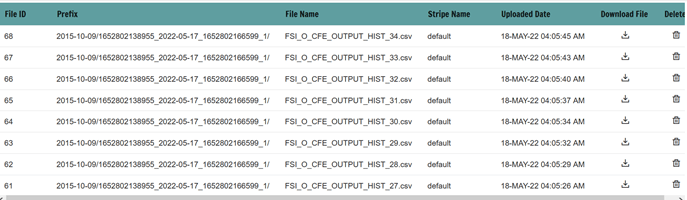
You can define the maximum number of rows to include in the file using the EXPORT_FILE_ROW_COUNT. For more information, see the Application Preferences.
For example, if you have 11000 records in a table and the EXPORT_FILE_ROW_COUNT parameter is set to 10000, then two part files will be created. The first file will have 10000 records and the second file will have rest 1000 records. When these part files are created, a suffix number such as _1, _2 and so on will be added to Name of these files.
The File Name Column shows the name of file with Part number. The Prefix is displayed as a combination of As of Date, Process ID and Run execution ID.
Data can be exported from the following list of tables:
- Cash Flow Process Output
- Cash Flow Process Messages
- Forecast Interest Rates
- Forecast Economic Indicators
- Cash Flow Edits Messages
You can export the Cash Flow Output using Export option of Cash Flow Process UI. For more information, see the View Cash Flow Process Log section.
Cash flows can also be exported from Data Management Interface. You can select table and columns to export as one time activity or schedule as recurring job. Exported file can then be downloaded by using File Upload and Download Utility. For more information, see the Data Management Interface section.