Creating Sandbox Workspace
On the Workspace Summary page, click Add Workspace. The Create Workspace window is displayed with the following process:
- Basic Details
- Workspace Schema
- Data Sourcing
- Metadata Sourcing
- Validate
- Summary Basic Details.
To create a basic details of the production workspace, follow these steps:
-
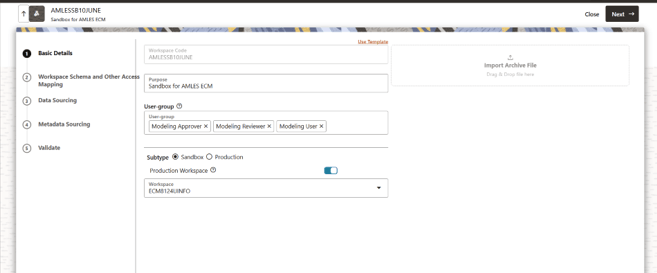
- Enter the Workspace Code and Purpose of the workspace.
- From the drop-down list, select the User-group.
- Select the subtype as Sandbox.
- Select the workspace created in AML Event Production Workspace from the Production Workspace drop-down.
- Click Next.
Figure 5-79 Basic Details
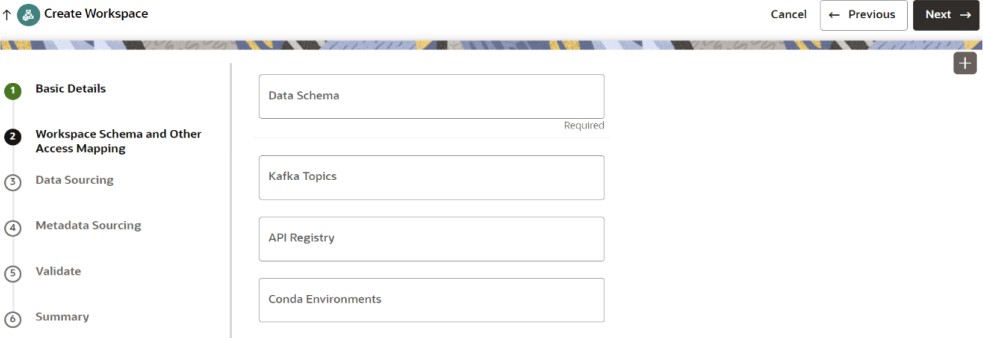
To create the workspace schema, follow these steps:Data Sourcing- Select the Data Schema as ECM Schema alias name.
Note:
Leave the Kafka Topics and API Configurations fields as blank.For more information about creating Data Store, see How to Create Data Store.
- Select the following Conda Environments:
- default_8.1.2.9.4
- ml4aml_8.1.2.9.4
- Click Next.
Data sourcing is not required as AMLES related tables are inserted from the
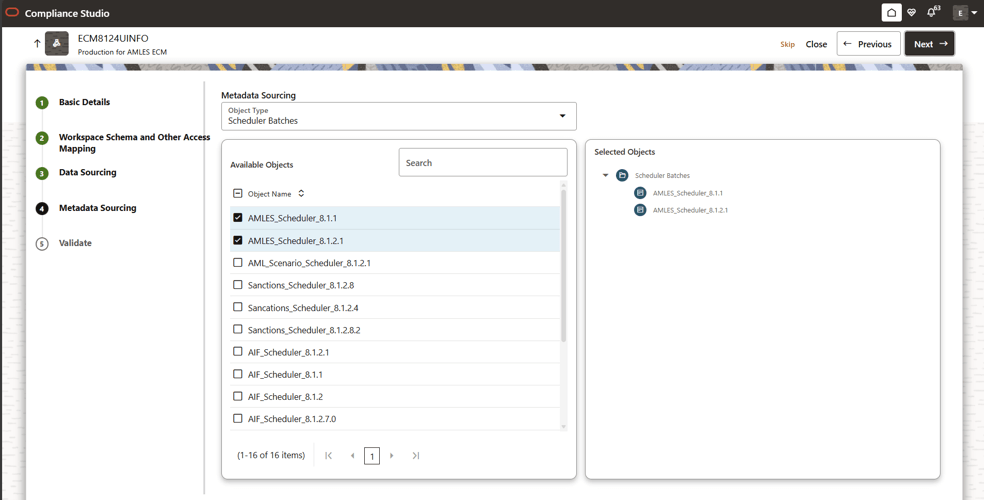
Metadata SourcingImportWorkspaceSQL.shfile, which is part of post installations steps (Importing Workspace Metadata). Click Next to navigate to the Metadata Sourcing tab.To select available objects from the Metadata Sourcing, follow these steps:Validate Workspace- From the Object Type drop-down list, select AMLES related Scheduler batches.
- In the Available Objects, select AMLES_Scheduler_8.1.1 and AMLES_Scheduler_8.1.2.1.
- Click Next.
Figure 5-81 Metadata Sourcing
You can validate the Basic details, Workspace schema, Data Sourcing and Metadata sourcing before you physicalize the workspace.
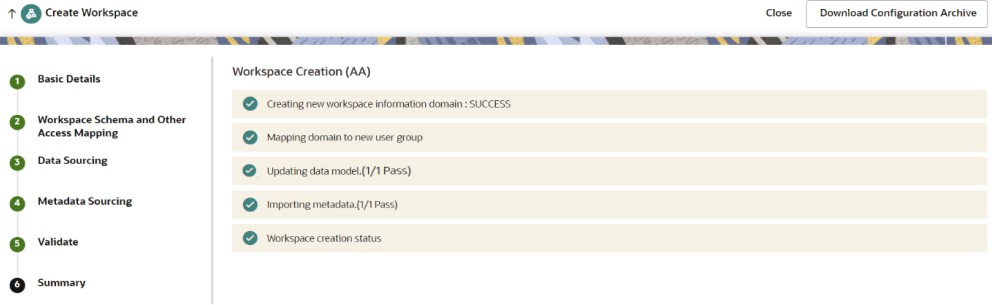
To Physicalize the workspace, Click Finish and then select Physicalize Workspace.SummaryFigure 5-82 Physicalize Workspace
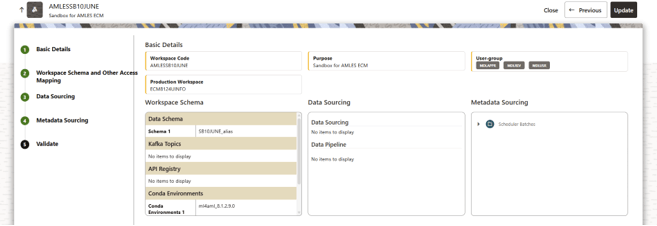 You can view summary of the created workspace.