3.4.1 Glossary Mapping Extension
Glossary mappings act as a blueprint to ensure that OCI Applications (PBSMCS) and DFCS interpret business terms consistently. Without these mappings, connectors may exchange values correctly, but the business meaning could differ (for example, Asset Value in DFCS versus Asset Amount in PBSMCS).
Glossary Mapping Extension allows users to extend existing glossary mappings
between PBSM and DFCS by adding or linking new or updated business terms. This ensures
that new attributes, such as Home Equity Amount, maintain the same business
meaning across both systems.
- Go to Glossaries → Glossary Mapping page.
- Use filters to locate the mapping:
- Primary Catalog
- Target Catalog
- Created By
- Or use the search bar for quicker access to specific mappings.
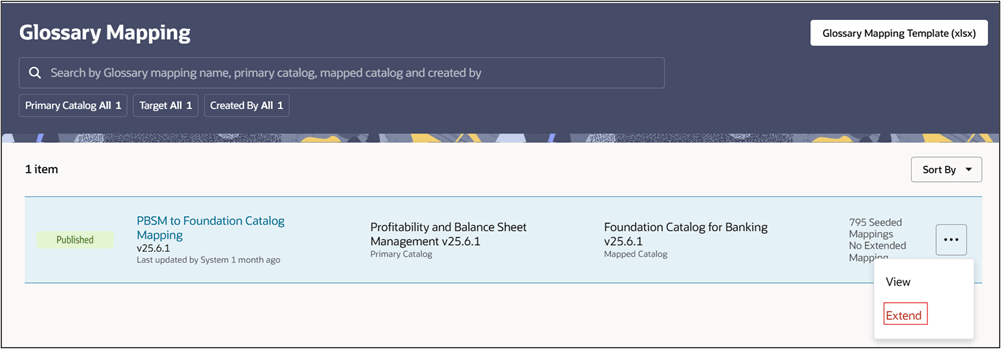
- Click on the three dots and select Extend. The Glossary
Mapping Extension window appears.
Figure 3-3 Glossary Extension Mapping
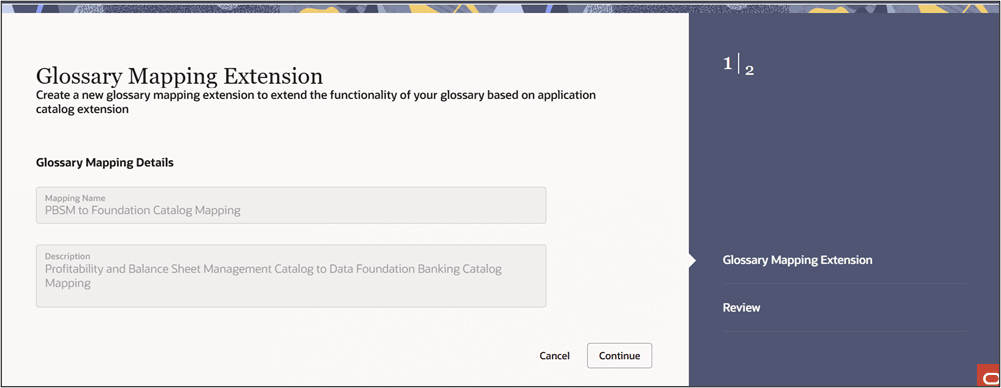
- The Mapping Name and Description fields are predefined and non-editable.
- These are derived from the original mapping:
- Mapping Name: e.g., PBSM to Foundation Catalog Mapping
- Description: e.g., Profitability and Balance Sheet Management Catalog to Data Foundation Banking Catalog Mapping
- Click the three-dot menu (⋮) next to the required mapping and select
Extend.
Figure 3-4 Extend Glossary Mapping
- Click on Select a glossary mapping data file (xlsx) or drop one here. to
drag a pre filled template with the required details.
Note:
The maximum file size is 5mb. Use the provided Glossary Mapping Template (xlsx) as a base to prepare your mapping file. If you see an error indicator, it means the file is missing or invalid. - Add the logical column name (e.g., Home Equity Amount) and its description.
- Link the Primary Catalog Business Term (DFCS) with the Mapped Catalog Business Term (PBSM).
- Ensure the logical column name prefix matches the glossary extension prefix.
- Save and upload the configured file to complete the glossary extension.
Note:
If the business term already exists (e.g., Home Equity Amount in Stage Loan Contracts), proceed directly to Glossary Mapping.Note:
If the business term does not exist, determine its source:- Customer-sourced: Create a new Business Term (BT) in DFCS using the Issues and Actions framework. For more information on creating Business Terms, see Create Business Terms.
- Not customer-sourced: Create a Derived Business Term (Derived BT) using existing BTs. For more information on how to Derive Business Terms, seeDerived Business Terms.
- After uploading a valid file, click Continue to proceed to the Review step. If the file isn't uploaded or valid, the Continue button will not proceed.
- Click Review and Confirm to review all entered details. Make changes if necessary and submit to finalize the mapping. At any point, click Cancel to exit without saving your progress.