2.4.3.1.1 Viewing Entities
To use the Entity Viewer User Interface, do the following
- Select the required Entity to view its Attributes,
Sourcing, Process Info,
Governance, Data and
Use Cases details in the tabs.
- On the Attributes tab, you can search and see the list of Attributes of the Entity. Click on the required Attribute to see its Details and List of Values. The Details List displays the Data Type and Description of the selected Attribute. In the List of Values Section, you can sort the Value and Description information by ascending or descending order. The Attribute, which is a PII (Personally Identifiable Information), is marked with a Red colored symbol.
- The Sourcing tab shows where the
entity’s data originates, including the ingest connectors and source
systems used to populate the entity. In the Connector section, you can
do the following:
- To see the details of any Connector, click that Connector. The Connector page displays the details.
- To add a Connector to the Entity, click Add.
- To delete a Connector, click the Delete button associated with it.
- On the Process Info tab, the Data
Flow Information in the Entity from the Source to the Target is
displayed.
Note:
When a custom dimension is created, the associated Slowly Changing Dimension (SCD) is automatically generated in the system.Note the following while searching for the SCD in PMF:
- Custom SCDs are not created using the logical name of the dimension.
- The SCD is created using the CR (Change Request) number generated during the dimension creation process.
- Therefore, when searching for the SCD in PMF, users must
use either:
- Physical SCD name, or
- CR number(Recommended) associated with the dimension creation.
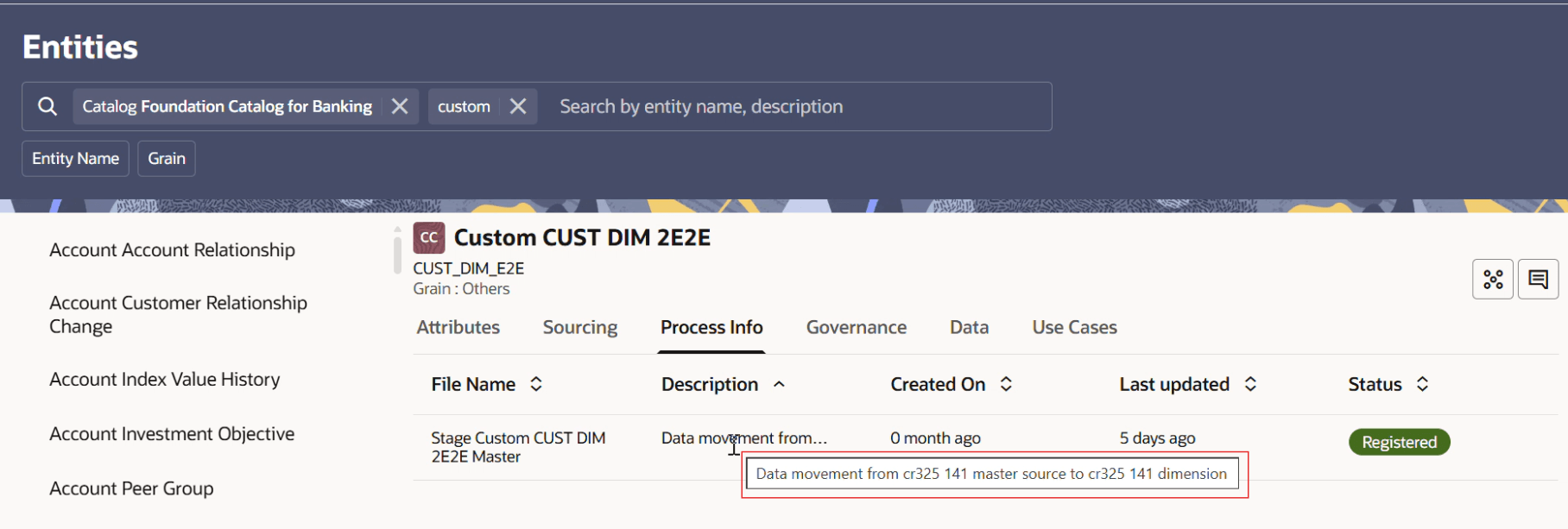
- Navigate to Home → Entity → <Custom Dimension Name>.
- Open the Process Info tab.
- Hover the mouse over the Description field
to view the CR number.
Figure 2-3 SCD Change Request Number
- The Governance tab shows the rules
and standards that control how the entity’s data should be defined,
validated, and maintained. You can click on the selected entity to view
the details.
Note:
The Attributes and Governance tabs are clickable links that open detailed views, while the remaining tabs are view-only. - The Data tab displays the actual data records for the selected entity, allowing users to view sample or time-based values as they exist in source systems.
- The Use Cases tab shows how the entity is used across business processes, applications, or analytical scenarios, providing context on where and why the data is consumed.