7.1.2 ADS Credential Validation through the IDCS Integrated Application
The Integrated App Migration feature allows tenants registered in OPC (Oracle Platform Cloud) Support to transition their Application Data Services (ADS) subscription to an Integrated Application model. You can configure this migration from the OCI Application Data Services Subscriptions interface.
Note:
Tenants with existing credentials can continue using the older automatic Oracle Cloud Services (OPC), based setup until further notice.- First-time Subscription: Enter the Client ID and Client Secret from the Integration Application, along with any other required credentials.
- Existing Subscription: Update your subscription by replacing the current credentials with the new Client ID and Client Secret generated from the Integration Application.
- Go to Oracle Cloud Console and navigate to Identity & Security > Domains.
- On the Domains list page, select the domain in which you want to make changes. Select your domain to Open Details tab.
Figure 7-1 Domain Page
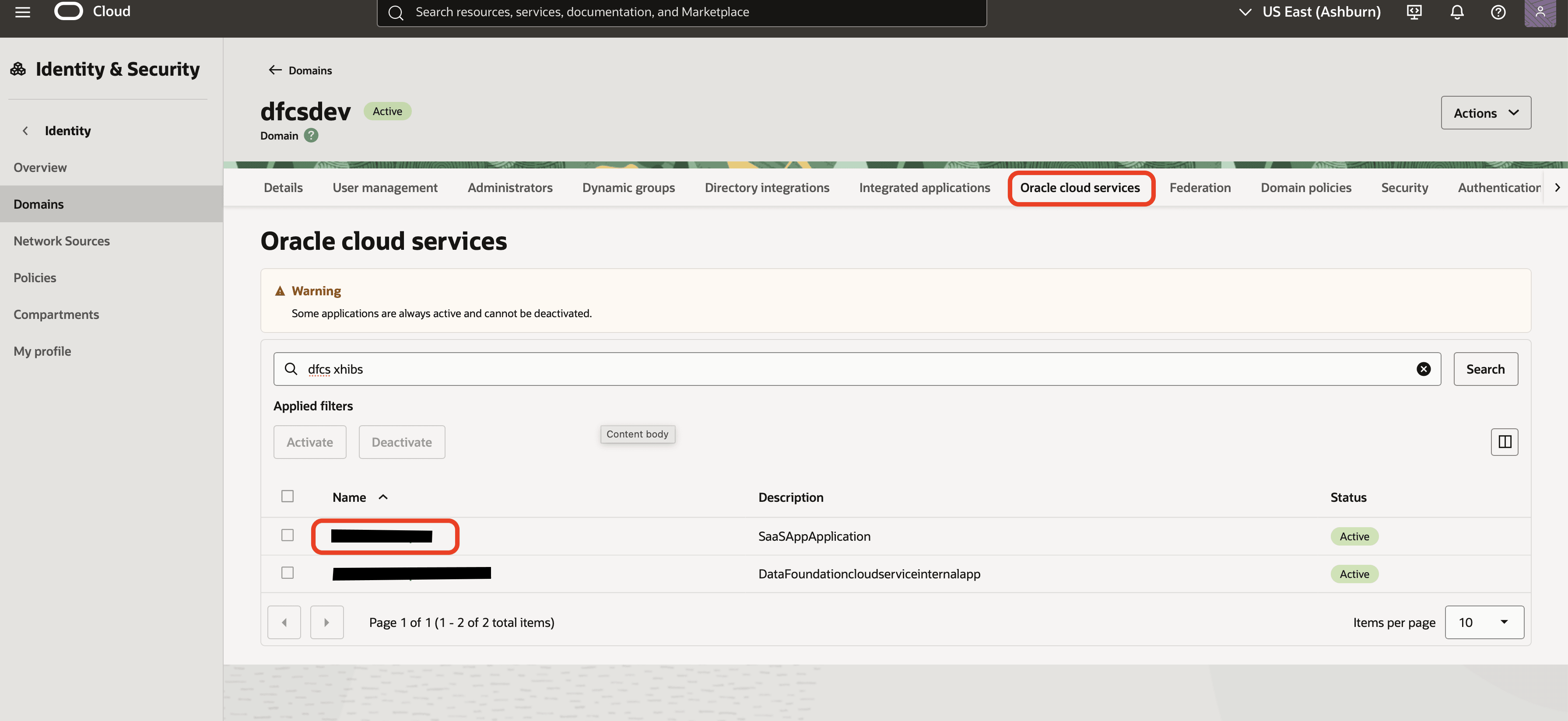
- On the details page, select Integrated applications. A list of applications in the domain is displayed.
- Select Add application.
- In the Add application window, select Confidential Application.
Figure 7-2 Confidential Application
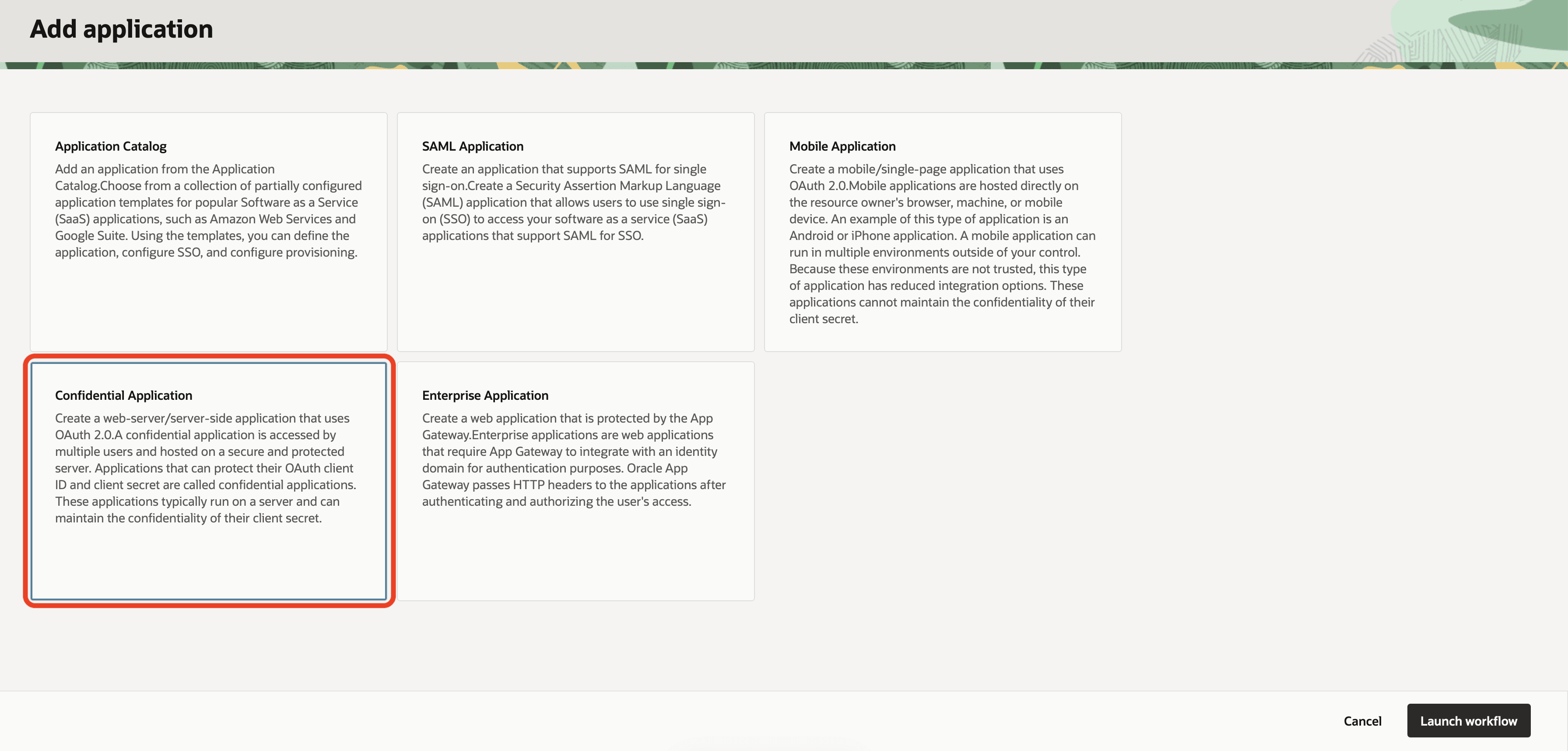
- Click Launch workflow.
- In the Add application details page, use the following table to configure application details and the display settings.
Option Description Name Enter a name for the confidential application. You can enter up to 125 characters. It is recommended to enter the tenant name. For applications with lengthy names, the application name appears truncated in the My Apps page. Consider keeping application names as short as possible.
Description Enter a description for the confidential application. You can enter up to 250 characters. Figure 7-3 Client OAuth window
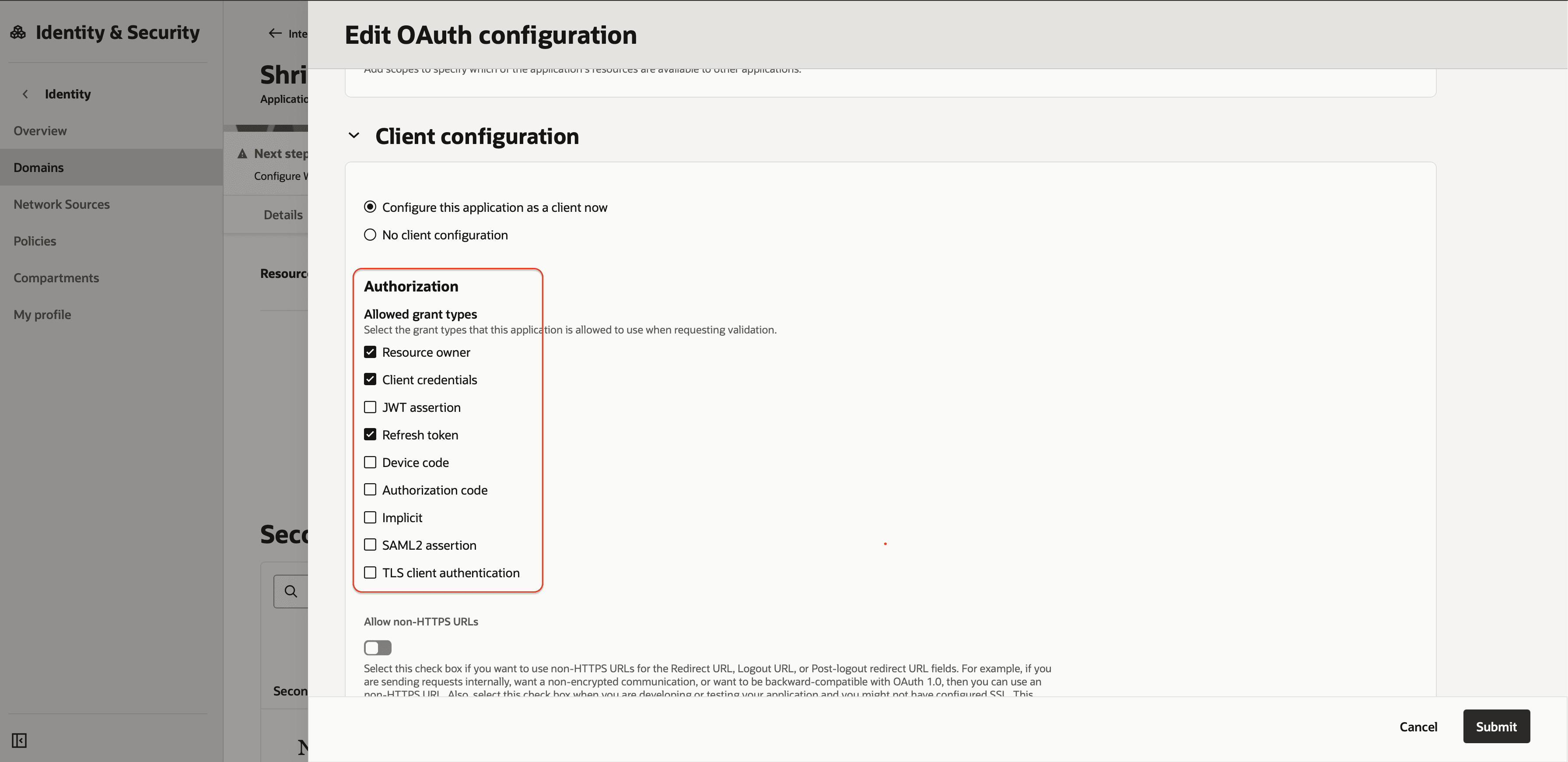
- On the Client configuration OAuth pane, select Configure this application as a client now.
Use the following table to provide the information needed to configure this application as a client.
Option Description Resource owner Use when the resource owner has a trust relationship with the confidential application, such as a computer operating system or a highly privileged application, because the confidential application must discard the password after using it to obtain the access token. Note:
DFCS_PBSM_INTEGRATION must be mapped to the application.Client credentials Use when the authorization scope is limited to the protected resources under the control of the client or to the protected resources registered with the authorization server. The client presents its own credentials to obtain an access token. This access token is either associated with the client's own resources, and not a particular resource owner, or is associated with a resource owner for whom the client is otherwise authorized to act.
Refresh token Select this grant type when you want a refresh token supplied by the authorization server, and then use it to obtain a new access token. Refresh tokens are used when the current access token becomes invalid or expires and don't require the resource owner to reauthenticate. - Click Submit.
- Select Finish.
- Record the Client ID and Client secret in the Application added dialog box.
To integrate with your confidential application, use this Client ID and Client Secret as part of your connection settings.
- Select Close.
The new application's details page is displayed.
- To Update Subscription UI, open the ADS Subscription UI and enter the following details.
- Domain URL
- Client ID
- Client Secret
- Username
- Password
Note:
Note:
Do not check in the Integrated App Migration check box.
- Click Update Credentials.
- To test connection, click Test Connection. The system validates the subscriber, publisher.
- If successful, the connection is established, credentials are saved.
Note:
OPC to Integrated App Migration is one-time only and you cannot revert to old (OPC) method.
- On the Domains list page, select Integrated applications tab. A list of applications in the domain is displayed.
- Select the confidential application for which you want to regenerate a client secret.
- Depending on the options you see, do one of the following:
- Select the OAuth configuration tab and then select Regenerate secret, or
- In the General information section of the application detail page, select Regenerate.
-
Figure 7-4 Integration Application
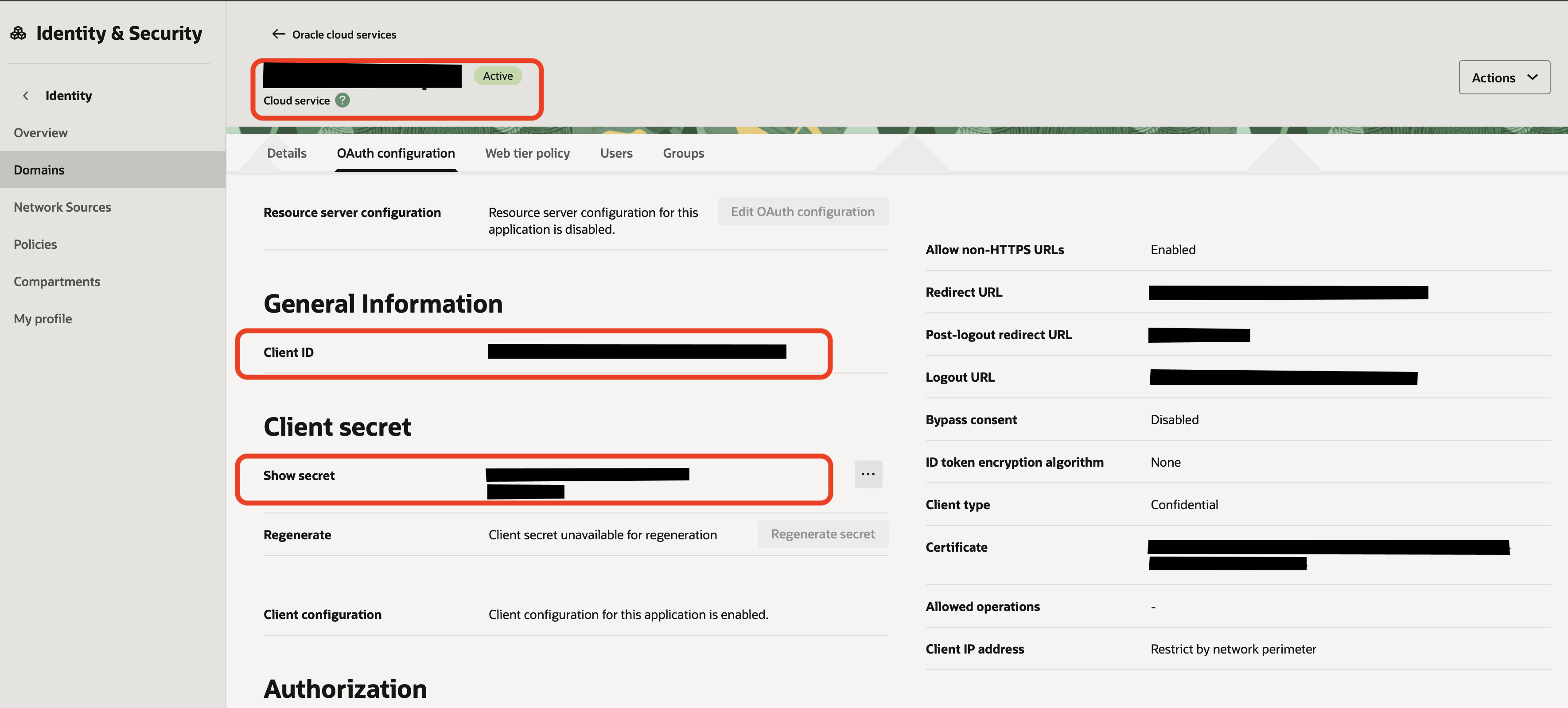
- Confirm your choice to regenerate the secret. The new Client Secret appears in the New Client Secret dialog box.
- Update the ADS subscription credentials with the new Client Secret.