20.34.1 Scope
Below are the major category of changes under LILAC. If any custom tabs/menus/pages prior to LILAC need to go through following changes if applicable.
- Vertical LHS Menu configuration (Redwood icon-based tabs)
- Menu URL parameter configuration for enabling LILAC theme
- Type 14 (Settings) control configuration
- Screen-level CSS customization
Vertical LHS Menu Configuration (Redwood Icon-Based Tabs)
For the Vertical LHS Menu, use the latest Redwood Icons from Oracle Images_lilac.pdf available at End User Documents of Oracle Enterprise Case Management.
- Select the required icon from the Redwood Icons list. Ensure the selected icon has a corresponding Ligature value.
- Copy the corresponding CSS class name.
- Modify the class name:
- If the class name is oj-ux-ico-warning, replace the first hyphen (-) after oj with an underscore (_).
Example: Original Icon: oj-ux-ico-warning
Modified Icon: oj_ux-ico-warning
- If the class name is oj-ux-ico-warning, replace the first hyphen (-) after oj with an underscore (_).
- Query the following table:
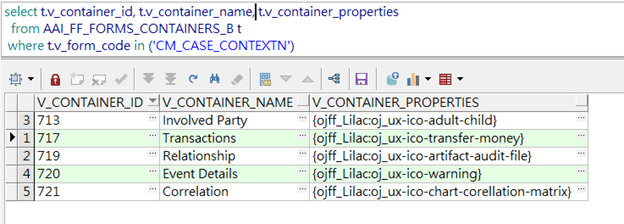
select * from AAI_FF_FORMS_CONTAINERS_B t where t.v_form_code in ('CM_CASE_CONTEXTN')
- Update the V_CONTAINER_PROPERTIES column in the AAI_FF_FORMS_CONTAINERS_B table.
- Add the ojff_Lilac key with the corresponding modified CSS icon class value.
- Ensure the display text is replaced with the icon.
Example: { ojff_Lilac: oj_ux-ico-warning }
Figure 20-42 Display text
Menu URL Parameter Configuration (Enabling LILAC theme)
To enable the LILAC theme, update the URL parameters as follows.
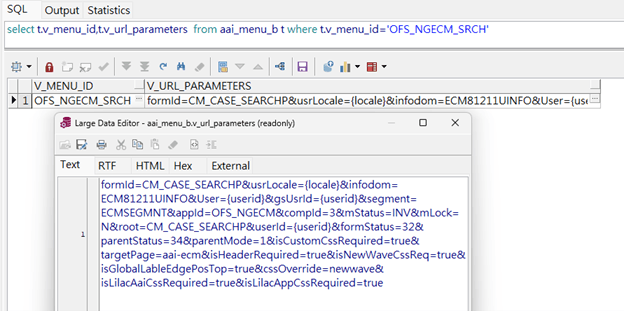
- Add the flags isLilacAaiCssRequired=true and isLilacAppCssRequired=true to the V_URL_PARAMETERS column of the AAI_MENU_B table.
- These parameters must be appended to the existing URL parameters.
- Ensure the existing parameters are preserved and the new flags are added using the appropriate delimiter (&).
Figure 20-43 2. Menu URL Parameter Configuration
Type 14 (Settings) Control Configuration
Figure 20-44 More actions Button
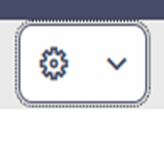
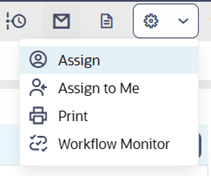
Figure 20-45 On selection
- To enable the Setting buttons, entries must be created in the following tables:
- AAI_FF_FORM_CONTROLS_B
- AAI_FF_FORM_CONTROLS_TL
- AAI_FF_CONTROL_PROPERTIES
- AAI_FF_FORM_CONTROL_MAPPINGS
Ensure that the same V_UNIQUE_CONTROL_ID is consistently maintained across all related tables.
- The following Out-Of-Box (OOB) queries can be used as reference entries.
- select t.*, t.rowid from AAI_FF_FORM_CONTROLS_B t where t.v_unique_control_id in ('CM_CASE_CONTEXTN_695_371');
- select t.*, t.rowid from AAI_FF_FORM_CONTROLS_TL t where t.v_unique_control_id in ('CM_CASE_CONTEXTN_695_371');
- select t.*, t.rowid from AAI_FF_CONTROL_PROPERTIES t where t.v_unique_control_id in ('CM_CASE_CONTEXTN_695_371');
- select t.*, t.rowid from AAI_FF_FORM_CONTROL_MAPPINGS t where t.v_grouped_control_id in ('CM_CASE_CONTEXTN_695_371');
- The AAI_FF_FORM_CONTROL_MAPPINGS table is used to map Secondary Controls to the Settings control.
Table 20-26 Control mapping
Table Column name Description V_GROUPED_CONTROL_ID Represents the primary control V_MAPPED_UNIQUE_CONTROL_ID V_UNIQUE_CONTROL_ID of the Secondary action controls like Workflow, Print, and so on. N_DISPLAY_ORDER Order in which controls to display V_ACTIVE_FLAG It should be ‘Y’ V_LOCALE_CODE en_US Example: If the Assign button needs to be displayed under the Settings (Type 14 Control) , then Identify the V_UNIQUE_CONTROL_ID of the Assign button “CM_CASE_CONTEXTN_695_347” and map to the AAI_FF_FORM_CONTROL_MAPPINGS table V_MAPPED_UNIQUE_CONTROL_ID column. This configuration ensures that the Assign button appears under the Settings drop-down in the specified display order.
Screen-level CSS customization
All screen-level CSS changes related to the LILAC theme must be added only in OFS_NGECM_lilac.css under ##DEPLOYED_PATH##/ojff/css/appCss.