6.3.9.3.3 Product Selection
In the Product Selection screen, you define the Folder, Filter Type, and Filter Name for the standard process.
Figure 6-135 Product Selection screen
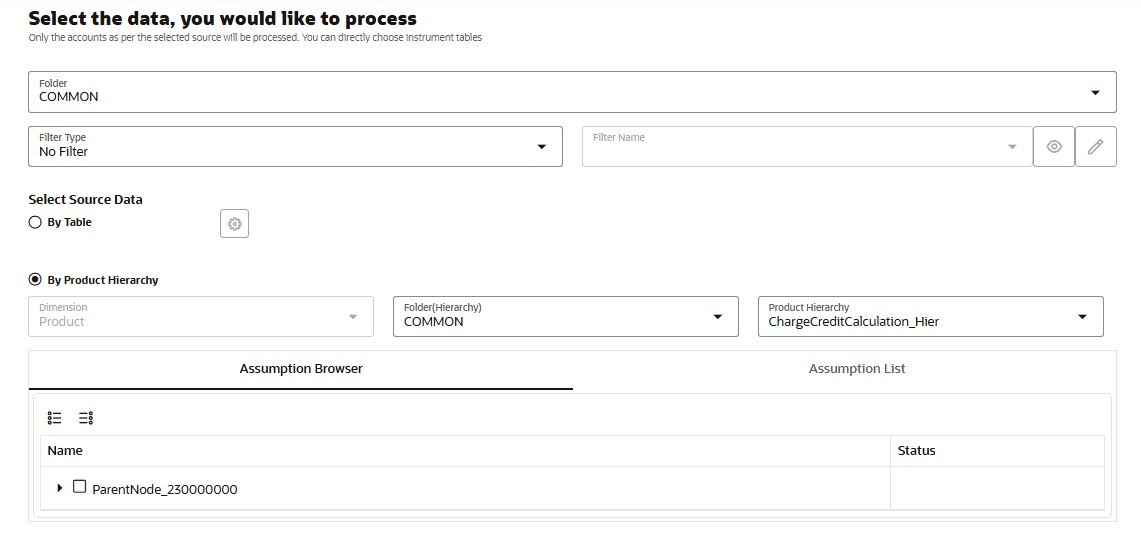
- Select the Folder, Filter Type, and Filter
Name.
The Filters field displays the View and Edit buttons.
- You can verify the existing Filters by clicking the View button. Click the Edit button if you want to modify the Filter condition.
- Click By Table under Select Data and then
click the Settings icon to display the Source table Selection
window.
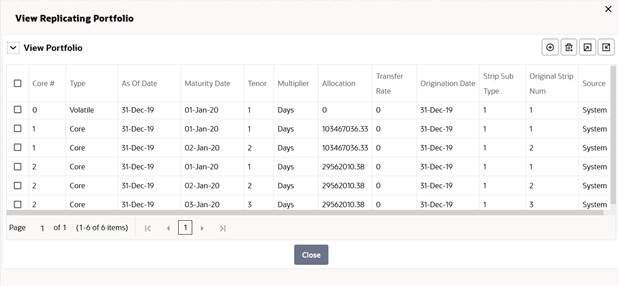
Figure 6-136 Source Selection Window
- Click By Product Hierarchy under
Select Data.
The Product Dimension field is auto-selected based on the dimension on which standard process is being defined.
- In the Folder field, select the desired option in the drop-down list.
- In the Product Hierarchy field, select the
desired hierarchy from the drop-down list.
The available hierarchies are determined by the selected folder.
Note:
Ledger migration is not supported when Source is set as Hierarchy. - Select the Source (Product) by expanding the Instrument Tables or Ledger Tables in the Available box and select the instrument table as source on which selected calculations need to be performed.
- Move the selected source table using the Move buttons to the Selected box.
- Click Save to come back to the Product Selection screen.
- Click Apply to navigate next to the next screen.