4.3.3 Add a Subscription
To add a Subscription, follow these steps:
- Navigate to Data Services Subscriptions page.
- Click Add Subscription button. The Subscription window is displayed.
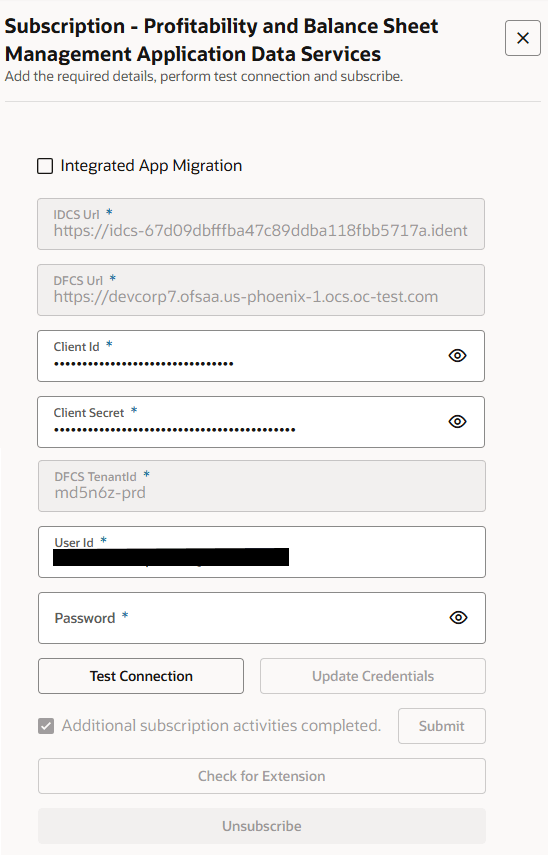
Figure 4-35 Subscription window
Note:
Do not select the Integrated App Migration check box when using Oracle Cloud Services (OPC) or the Integrated Application method during subscription. To identify which method you are using, see the DFCS Integration with PBSMCS for ADS User Guide. Once the OPC Integrated App is created, ensure that the Client ID and Client Secret fields are updated with the credentials generated specifically for that Integrated App. These credentials are unique and will differ from the common Client ID and Client Secret shared among all tenants. - Enter the following fields (all fields are mandatory):
Table 4-8 Application Data Service
Field Description IDCS URL The URL of the Identity Cloud Service (IDCS) instance used for authentication. This allows PBSMCS to authenticate securely with DFCS. Note:
For more information on how to obtain the IDCS URL, see Get the OAuth Client ID and Client Secret section in the Application Data Services (DFCS Only) chapter.DFCS URL The base URL of the Data Foundation Cloud Service (DFCS) instance. It specifies the source environment from which PBSMCS will receive data. Note:
For more information on how to obtain the IDCS URL, see Get the OAuth Client ID and Client Secret section in the Application Data Services (DFCS Only) chapter.Client ID A unique identifier registered in IDCS for the application (PBSMCS). It is used as part of the OAuth2 authentication process when establishing a connection with DFCS. Note:
When using the OPC Integrated App, the Client ID must be updated with the one generated specifically for that Integrated App. This will be unique and different from the common Client ID shared among all tenants.Note:
For more information on how to obtain the IDCS URL, see Get the OAuth Client ID and Client Secret section in the Application Data Services (DFCS Only) chapter.Client Secret A confidential key associated with the Client ID. It is used to authorize the PBSMCS application to access DFCS data securely. Note:
When using the OPC Integrated App, the Client Secret must be updated with the one generated specifically for that Integrated App. This will be unique and different from the common Client Secret shared among all tenants.Note:
For more information on how to obtain the IDCS URL, see Get the OAuth Client ID and Client Secret section in the Application Data Services (DFCS Only) chapter.DFCS Tenant ID The unique identifier for your DFCS tenant environment. It ensures that the connection and data transfer are scoped correctly to your organization's DFCS instance. Note:
DFCS and PBSMCS must use the same tenant type (-prd or -nprd). Cross-tenant usage is not supported. For example, if DFCS is a production tenant then the subscriber tenant must also be a production tenant.User ID The DFCS application user's login ID authorized to access and retrieve data from the DFCS environment. This user must have the appropriate roles and permissions for data publishing. Note:
The User ID is case-sensitive and must be created in lowercase letters.Password The corresponding password for the DFCS User ID. It is used during authentication to validate the user's access when connecting PBSMCS to DFCS. - After entering the details, click Test Connection. If all the details are
correct, then the Subscribebutton will get enabled.
Note:
This checks if the current credentials are working or if there's a connection issue. - Once the credentials are entered correctly, you can click Update Credentials to save your changes.
- If successful, a message “Operation successfully connected” appears at the top of the pane, and the Subscribe button is enabled.
- If the test fails, recheck and verify the entered details.
- Click Subscribe.
- When the subscription starts, a message “Please Contact Oracle Support to
Complete Additional Activities” will appear.
Note:
Subscription completion may take a few minutes. - If you've already subscribed, you can unsubscribe from the service or make changes
to your subscription, click Unsubscribe. The pop-up message informs you that
unsubscribing from the DFCS Tenant is permanent and cannot be
undone.
You have two options:
- Cancel: If you change your mind and do not want to unsubscribe, click the Cancel button. This will close the prompt and allow you to continue using the service.
- Yes, Continue: If you’re sure you want to unsubscribe, click the Yes, Continue button. This will confirm the action and unsubscribe you from the service permanently.
- If you have already subscribed to DFCS and are upgrading from 26A to 26B, perform the following additional steps:
- After the subscription is completed, raise a Service Request (SR) with the DFCS Tenant details and PBSMCS Tenant details to finalize the additional subscription process. The additional subscription is applicable for the existing subscribed users.
Note:
When you are raising the SR for additional subscription process, you must provide the IDCS URL and DFCS URL details in SR details. The SR should be raised under DFCS product - Once the SR is processed and confirmation is received, select the Additional Subscription Activities Completed check box to upload the wallet details. After this step, you will be connected to the Data Foundation Cloud Service tenant. For Wallet Upload, contact to Oracle Support.
Note:
Following any G2 certification renewal or update of the PBSM tenant, the updated PBSM wallet must be re-uploaded to DFCS. Oracle communicates G2 certificate renewal timelines via official release notes and patch notifications. Customers are advised to monitor Oracle's official release communications or contact Oracle Support to stay informed of upcoming G2 certificate renewals. Failure to upload the updated wallet after a G2 certificate change will result in ADS batch execution failures with an SSL/TLS certificate path error (ORA-17002: PKIX path building failed). To re-upload the wallet after a G2 certificate update, contact Oracle Support and raise an SR under the DFCS product.
- After the subscription is completed, raise a Service Request (SR) with the DFCS Tenant details and PBSMCS Tenant details to finalize the additional subscription process. The additional subscription is applicable for the existing subscribed users.
- Click Submit to complete the subscription.
After the subscription is successful, in the dashboard, expand the Application Data Service Name and verify if the ADS Pipeline Code is displayed for the services.
Figure 4-36 Data Services Subscriptions top pane

You can expand each of the Application Data Service Name to see the Name, Description, Application Entities, Number of Attributes received, and ADS pipeline code.
Note:
ADS pipeline code is displayed only when you have subscribed for DFCS.