3.8.5 Reconciliation using Batch Process
You can perform Reconciliation using the Scheduler Services. The steps below use the GL RECON component, which does not require a Service URL selection.
To run the Reconciliation using Batch Process, follow these steps:
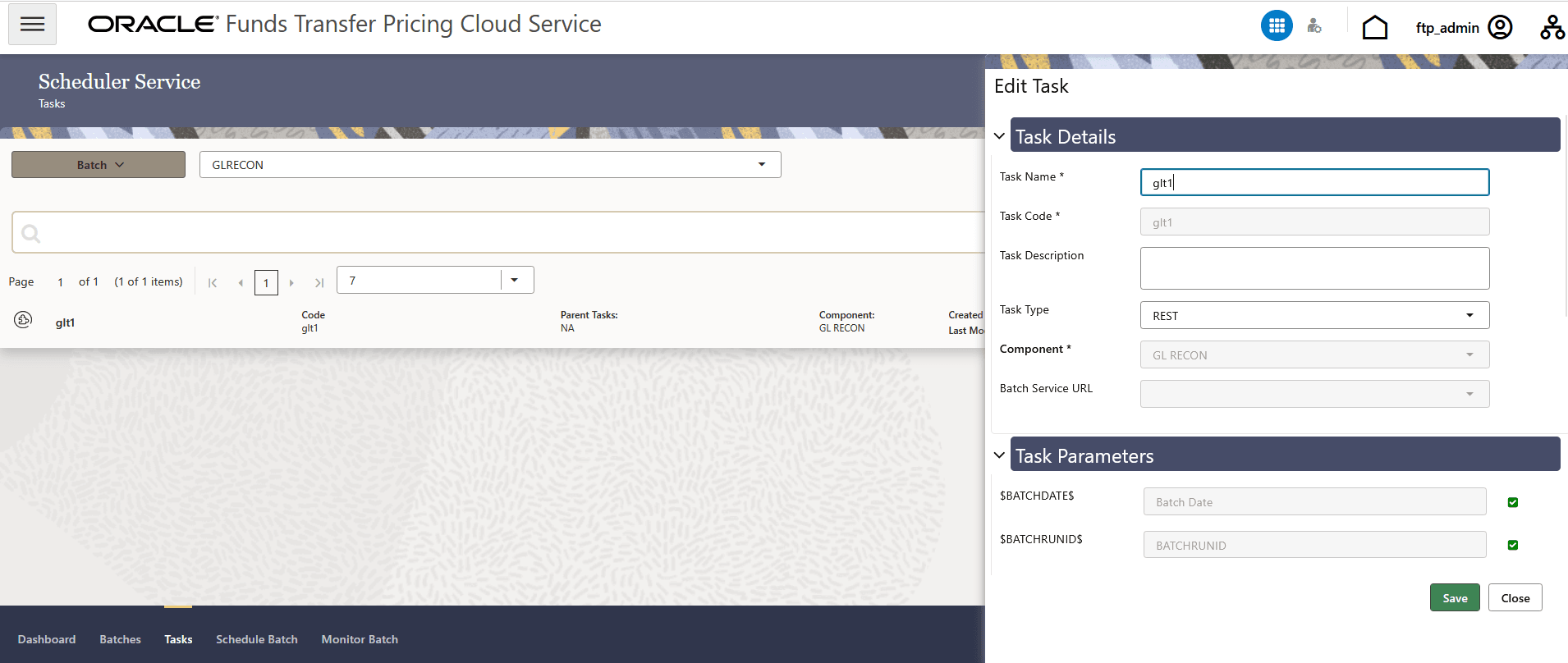
- In the Create Task screen, enter the following values:
- Task Code (Spaces are not allowed in the code section). b.
- Task Name.
- Select the task type as REST.
- Select the Component as GL RECON.
- Click Save.
Note:
When the GL RECON component is selected, the Batch Service URL field is not displayed and does not require configuration.Figure 3-63 Define Task
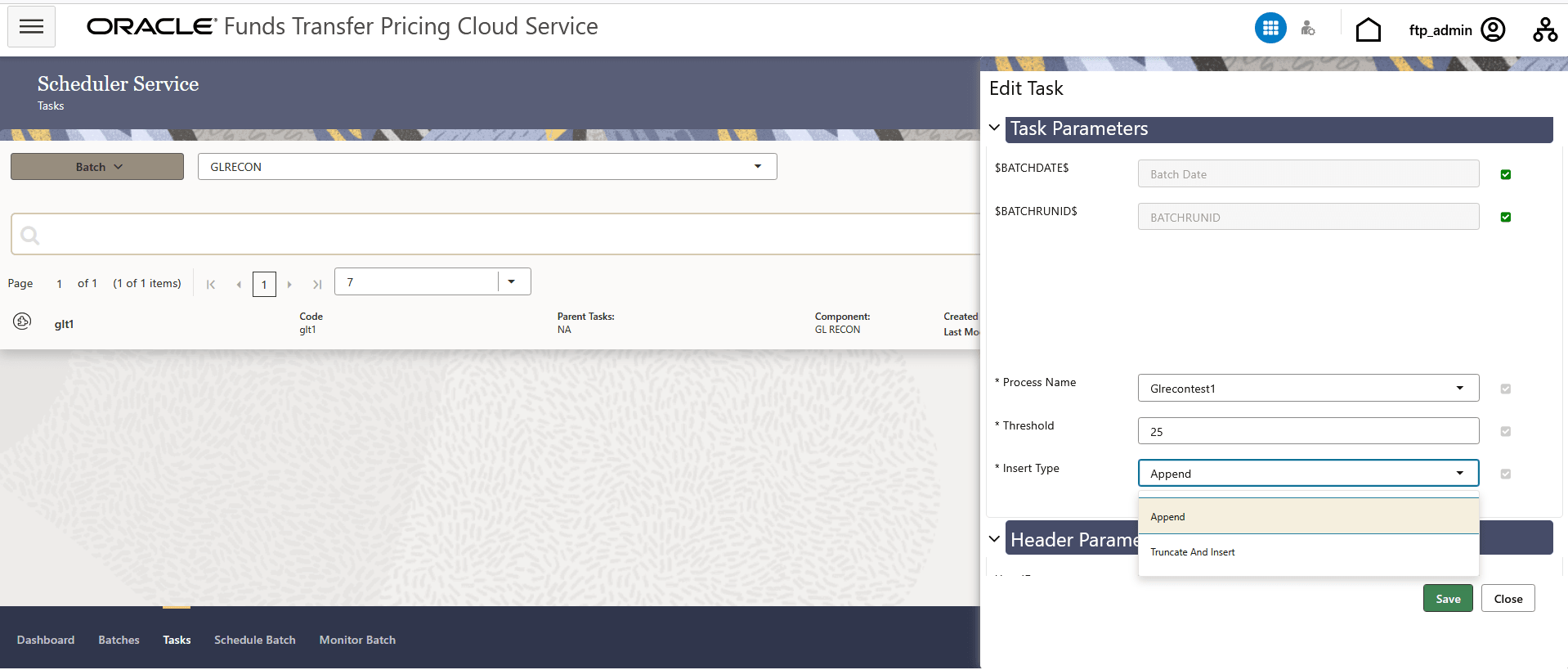
- In the Task Parameter section, enter the following values:
- Process Name — Select the Reconciliation Definition for which the batch should be executed. Ensure you select the correct definition to avoid errors in the batch process.
- Threshold — Enter a numeric threshold value.
Note:
The value must be greater than or equal to zero (0). Negative values are not supported. A null (blank) value is also accepted, in which case all data will be inserted into the Ledger Instrument and Reconciliation Difference Audit tables. - Insert Type — Select one of the following options from the dropdown:
- Insert only — Appends reconciliation data on top of any existing data for the concerned AS_OF_DATE/MIS_DATE. Use this option when different Reconciliation Definitions are being executed for different instrument tables.
- Truncate And Insert — Truncates all existing data for the concerned AS_OF_DATE/MIS_DATE and inserts fresh reconciliation data. Use this option when intermediate day runs have taken place and a final global run is required.
Figure 3-64 Task Parameter
Sometimes a batch may fail. The reason for batch failure could be one of the following:
- Selecting an incorrect or invalid Process Name (Reconciliation Definition).
- Entering an invalid Threshold value. Only null or a value ≥ 0 are supported. Negative values are not permitted.
- Not selecting an Insert Type — this field is mandatory.
Note:
The following role mappings to the SKU User group must be present to enable GL RECON listing and execution:- RCMDREAD
- RCMDADVND
For detailed instructions for defining, executing, and monitoring a Batch, see the Scheduler Service documentation.