6.3.4.3 Creating Transfer Pricing Rules
You create a Transfer Pricing Rule to map Transfer Pricing Methodologies for your products.
To create a Transfer Pricing Rule, from the LHS menu, select Assumption Specification, and then select Transfer Pricing Rules.
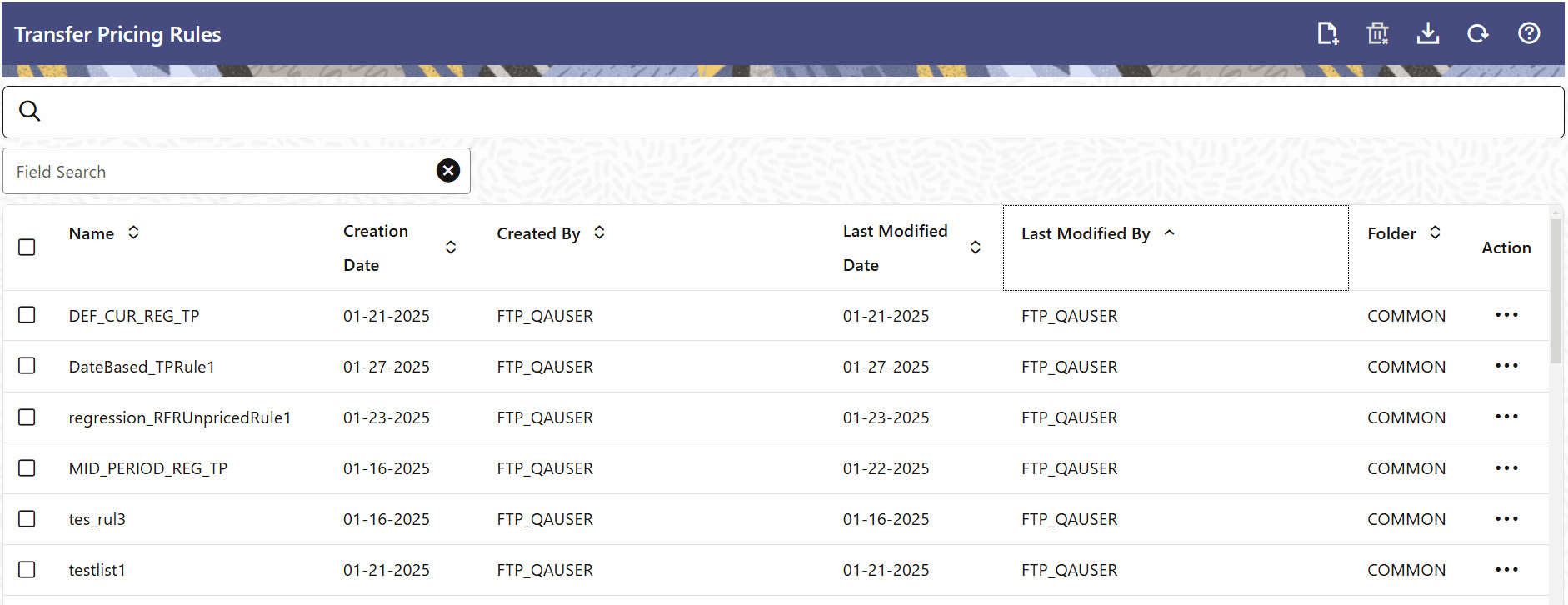
The Transfer pricing Rules summary screen is displayed showing a set of Transfer Pricing Rules. Using search criteria, you can control the set of rules that are displayed. When you Add, Edit, or View a rule, a detailed screen is displayed.
Figure 6-76 Transfer Pricing Rules summary
Adding a New Transfer Pricing Rule
To create a new rule:
- In the Transfer Pricing Rules summary screen, click Add.
- In the Code field, the code is auto-generated.
Note:
- You can also manually enter a numeric code.
- Only numerical values are allowed; special characters are not permitted.
- In the Name field, enter a descriptive name for the rule (1–120 characters). This is a required field.
- Optional: In the Description field, enter a description (0–1000 characters).
- In the Folder, Product Hierarchy, and Currency Selection fields, values are provided by default.
Note:
- You can search the rule on any of the product dimensions.
- The searched dimension and currency will be auto-populated while defining the rule.
- If needed, you can change the default product dimension.
- Under the Assumption Details section, do the following:
- Expand the Assumption Details section.
- For each product node, click either Add or Conditional Assumption.
Figure 6-77 Transfer Pricing Rule definition screen
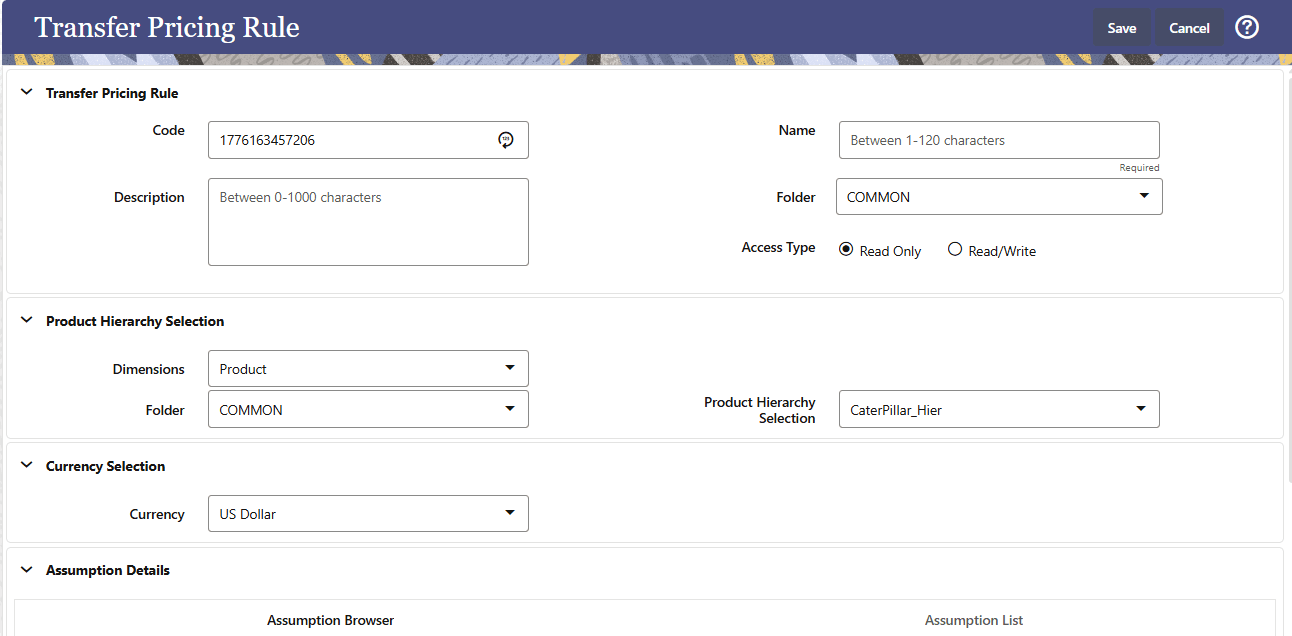
You can search the rule on any of the product dimension, searched dimension will be auto-populated while defining the rule; if you like, you can change the default product dimension.