3.10 Data Retention
Data Retention enables you to view policies that manage data lifecycle by archiving or deleting data based on retention criteria, and to monitor execution history. Retention policies visible on screen depends on the type of environment - Production, Non-Production - as different policies apply to them.
To access Data Retention, from the LHS menu, navigate to:
- Admin Tools > Data Retention > Data Retention Policy
- Admin Tools > Data Retention > Data Retention Execution History
Roles and Access
The following roles and access are required to use the Data Retention UI.
Table 3-26 Roles and Access
| Role Code | Description |
|---|---|
| CLEANUP_ADMIN | Provides access to execute and monitor data retention policies |
| CLEANUP_VIEWER | Provides read-only access to view policies and execution history |
Data Retention Policy
The Data Retention Policy screen displays predefined retention policies available in the system.
Note:
Users cannot create or modify policies. Policies are system-defined and vary based on the environment (Production and Non-Production).Figure 3-65 Data Retention Policy Screen
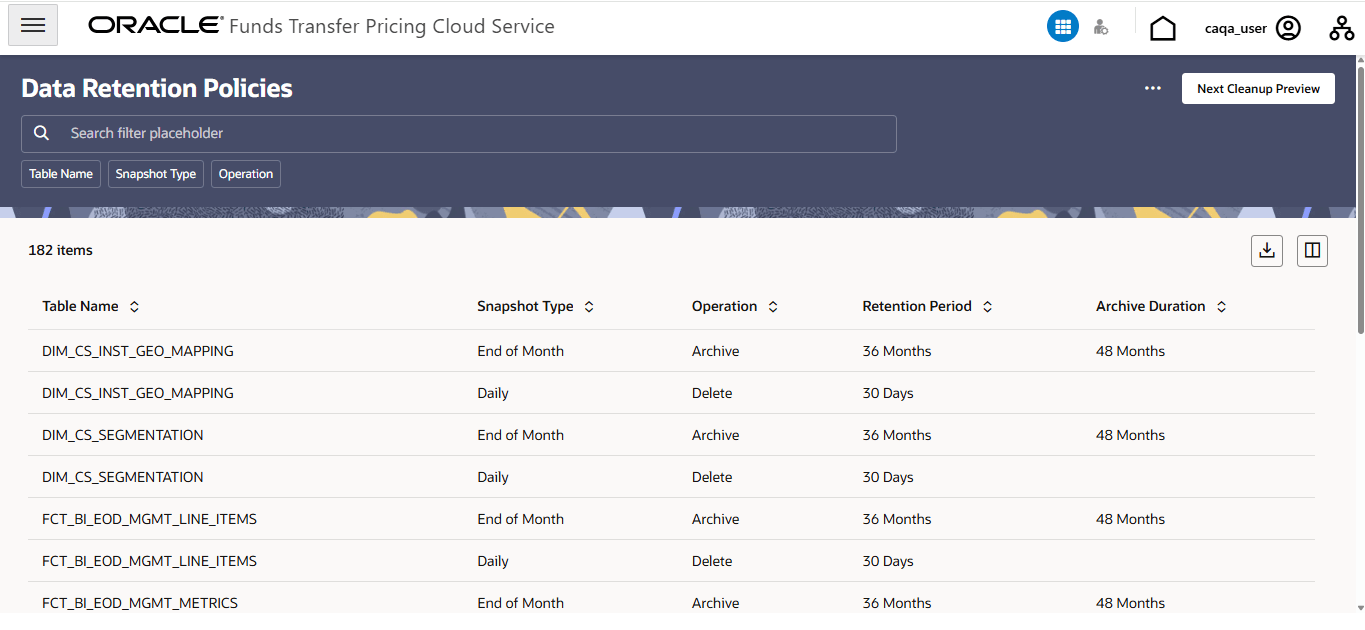
- Table Name
- Snapshot Type (for example, Daily, End of Month)
- Operation (Archive or Delete)
- Retention Period
- Archive Duration
- Next Cleanup Preview: Displays a preview of upcoming cleanup operations based on defined policies.
- Refresh: Reloads the data on the screen.
- Reset: Clears applied filters and restores default view.
Executing Data Retention via Scheduler Service
Data retention policies are executed through the Scheduler Service.
- Navigate to Operations and Processes > Scheduler Service.
- Click Batches and create a new batch (or use an existing batch)
- Click Tasks.
- Click Add to open the Create Batch screen.
- Enter the required Batch Details.
- Click Save.
A confirmation message is displayed:
Batch is saved successfully. Would you like to navigate to Task Screen?
- Click Yes to navigate to the Define Task screen.
- In the Define Task screen, click Add.
- In the Create Task screen, enter the following details:
- In the Task Type field, select REST from the drop-down list.
- In the Component field, select Data Retention Policy from the drop-down list.
- Verify the Task Parameters:
- $BATCHDATE$ is auto-populated.
- $BATCHRUNID$ is auto-populated.
- Click Save.
- Navigate to Schedule Batch.
- Select the required batch.
- (Optional) Click Edit Parameters and verify the MIS Date.
- Click Execute to run the batch.
- Navigate to Monitor Batch.
- Select the Batch Name and MIS Date, and click Start Monitor.
- Verify the execution status
- To view execution results, navigate to: Admin Tools > Data Retention > Data Retention Execution History.
- Review the execution details such as Batch Run Id, Table Name, Operation, and Status. Click Download Logs if required.
Note:
- Data Retention policies are predefined and cannot be created or modified by users.
- Policies may differ based on the environment (Production or Non-Production).
- Scheduler execution triggers the predefined policies configured in the system.
Data Retention Execution History
The Data Retention Execution History screen provides details of executed data retention jobs.
Figure 3-66 Data Retention Execution History
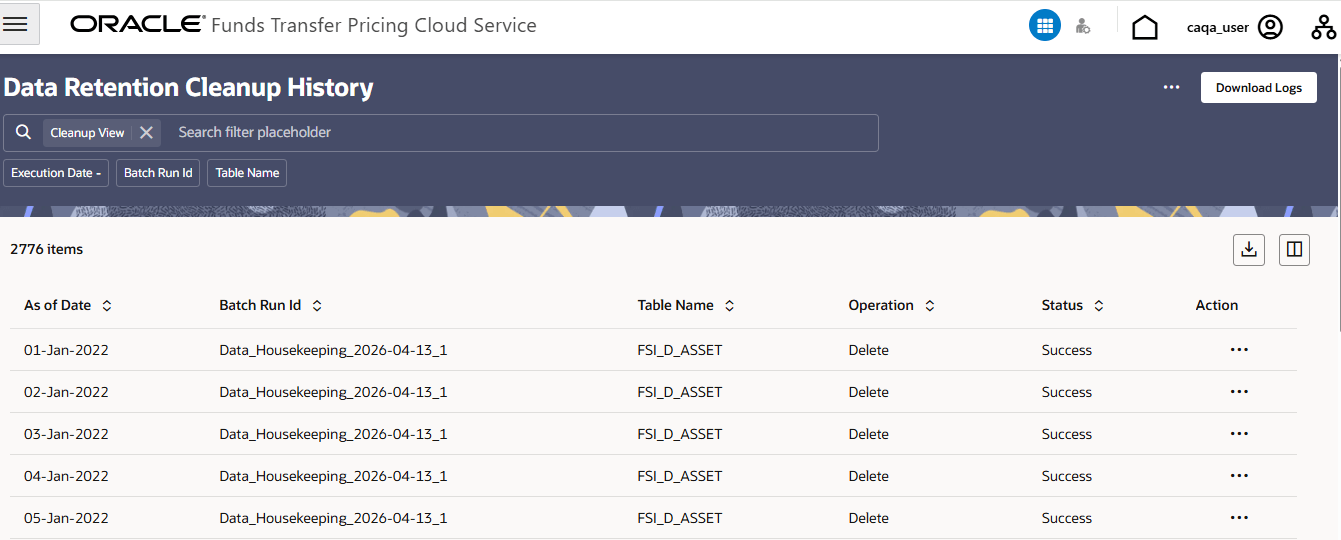
- As of Date
- Batch Run Id
- Table Name
- Operation (Delete or Archive)
- Status (for example, Success or Failed)
- Action menu
- Download Logs: Downloads execution logs for analysis.
- Refresh: Reloads the execution history data.
- Reset: Clears applied filters.
Data Retention Features
- Delete data from selected tables based on retention criteria
- Archive data for long-term storage
- Automatically execute cleanup jobs based on defined policies
- Track execution status and history for audit and monitoring purposes