3.5 Data Verification
The Data Verification UI helps you to verify the data that is loaded from the source systems to the Cloud Service’s stage and processing tables, make minor corrections/adjustment to the data, and add new data directly into the tables. This UI allows you to add one record at a time and is not recommended for high volume additions as entering data is a lengthy process.
To open the Data Verification screen, from the LHS menu, select Data Management Tool, and then select Data Verification.
Figure 3-17 Data Verification Dashboard
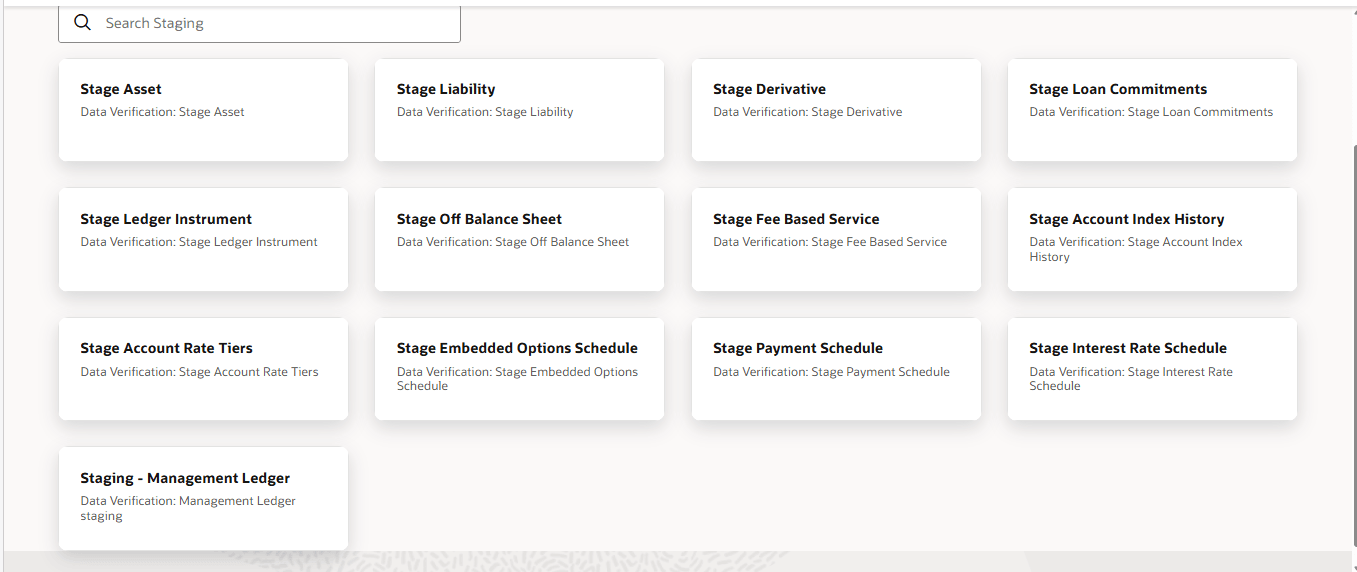
This screen displays two tabs namely Staging and Processing. The Staging tab displays the tables that are in the staging level where you can select a table, see the data, carry out corrections, or add new data. The Processing tab displays the tables that are at the processing level and you can do all the actions similar to Staging tables.
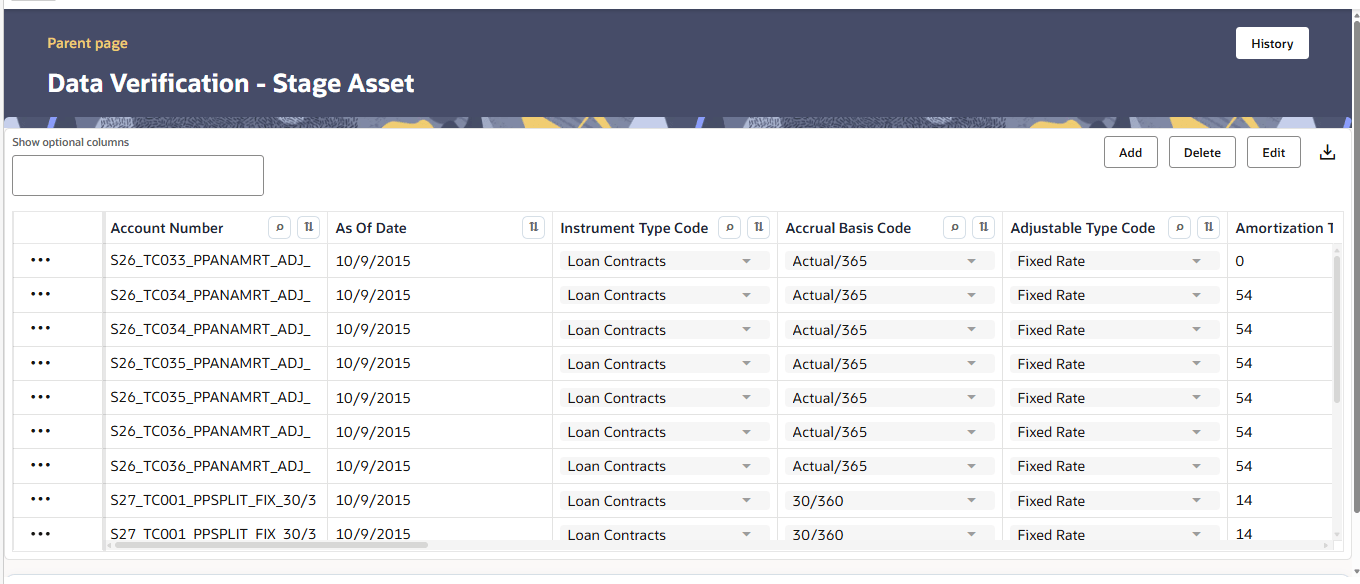
When you select a table, a new window is displayed with a grid where you can see the selected columns.
Figure 3-18 Data Verification – Stage Asset (sample Staging table)
Navigating through Data Verification
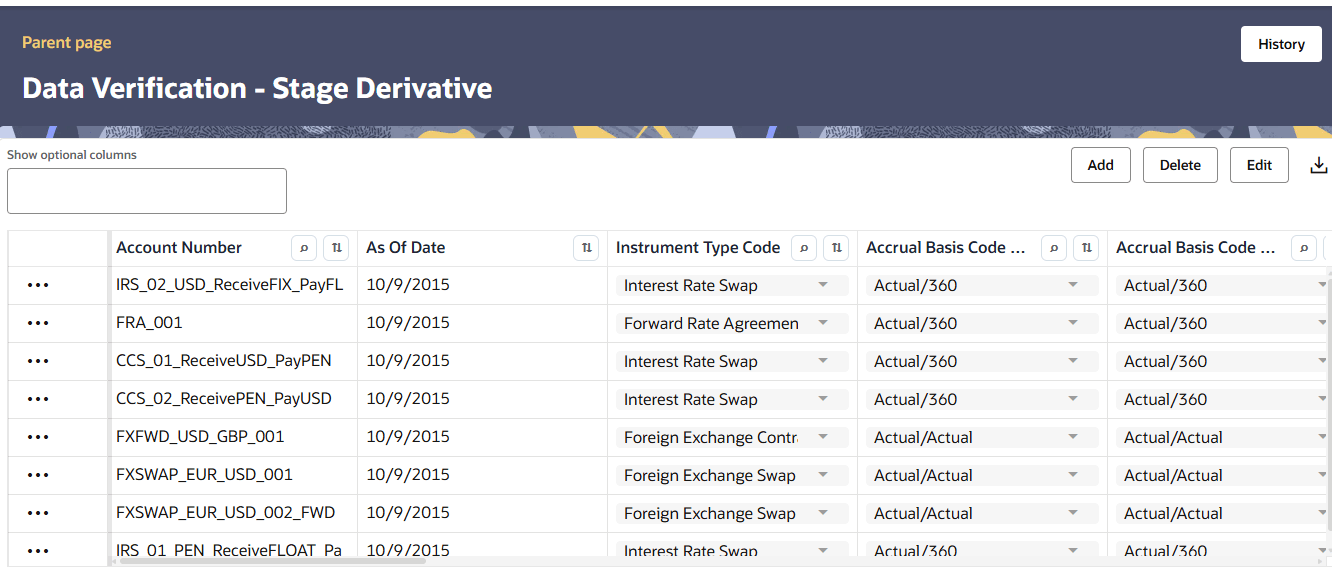
Once you select a table and modify or verify your details, you can navigate back to the Dashboard or other tables using the application’s standard navigation options, such as the navigation menu or breadcrumb links available in the user interface.
Use the left-hand navigation panel or the application menu to switch between the Dashboard and available tables.
Figure 3-19 Navigation through Data Verification
Users and Roles
The following roles and functions are required to use the Data Verification UI, edits the data, and add data to the Stage and Processing tables.
Table 3-20 Roles and Role Names
| Role | Role Name |
|---|---|
| DVACCROLE | Data Verification Access Role |
| STGTABACCROLE | Data Verification Staging Tab Access Role |
| STGTABEDITROLE | Data Verification Staging Tab Tables Data Edit, Delete Role |
| STGTABAUTHROLE | Data Verification Staging Tab Tables Data Authorizer Role |
| PROCTABACCROLE | Data Verification Processing Tab Access Role |
| PROCTABEDITROLE | Data Verification Processing Tab Tables Data Edit, Delete Role |
| PROCTABAUTHROLE | Data Verification Processing Tab Tables Data Authorizer Role |
The access to the users can be restricted up to table level because all the users need not have access to all the tables.
Add a New Record
Note:
Before adding a new row to a Stage table (for example, Stage Asset), ensure that data has already been loaded into the table through the loader. The table must not be empty, as the loader creates the required partitions and sub-partitions during the initial load. The Input File Name field will only be available after this initial load. Adding rows to an empty Stage table is not supported; the ability to create new sub-partitions is planned for a future release.To add a new record to a selected stage/processing table, click Add. Enter/populate the mandatory and the relevant columns and then click Save. When you click Add, you must enter the mandatory key columns first, and then click ellipsis (…) icon. After this your can click the ellipsis (…) icon to open the Edit Table window, fill the relevant details and then save the details.
Delete a Row
To delete a row, select the row and click the Delete icon to collapse the menu where you can select Delete Row.
Duplicate a Row
You can select a row and click Duplicate Row from the hamburger menu. This creates duplicate row with the same values in the Data Verification - <Table> screen.
Edit a Record
To edit a record, select a row from the Data Verification window. There are two ways in which you can edit the columns from the table.
- Select a row from the Data Verification grid and click the Edit button. This enables the columns that are exposed. You can double-click the entry to edit. Editing the key columns in the table is restricted.
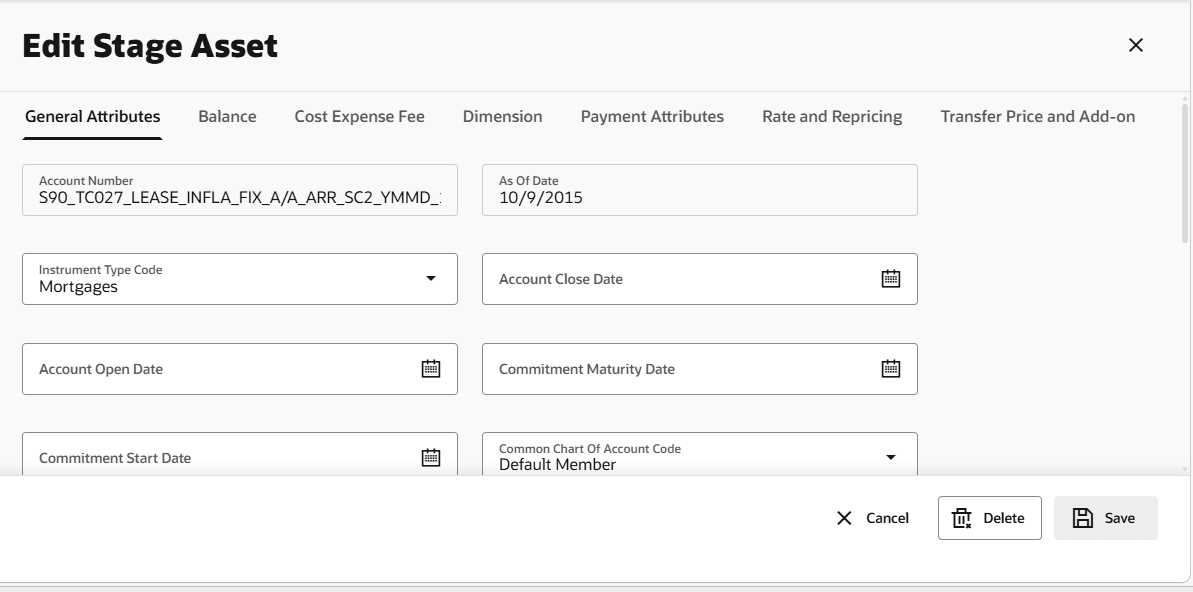
- Select a row from the Data Verification grid and click the ellipsis (…) icon, and then click Edit. This opens the Edit Table window. This window displays all the columns from the table. The columns are categorized based on their nature and displayed in different tabs. You can select the relevant columns and edit. After you update the relevant details, click Save.
Figure 3-20 Sample Edit Table
View History
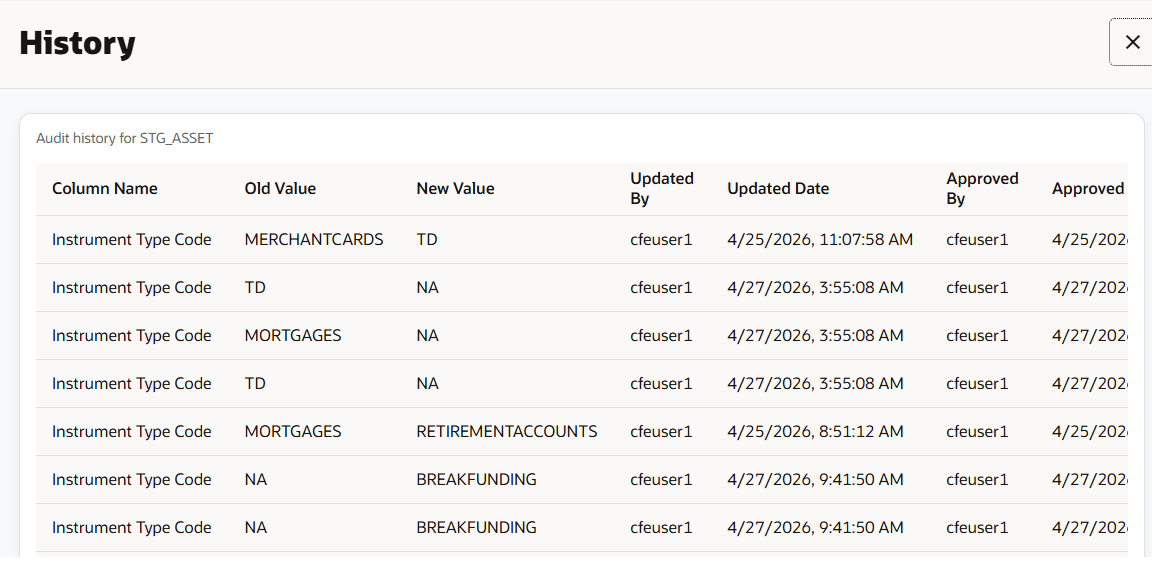
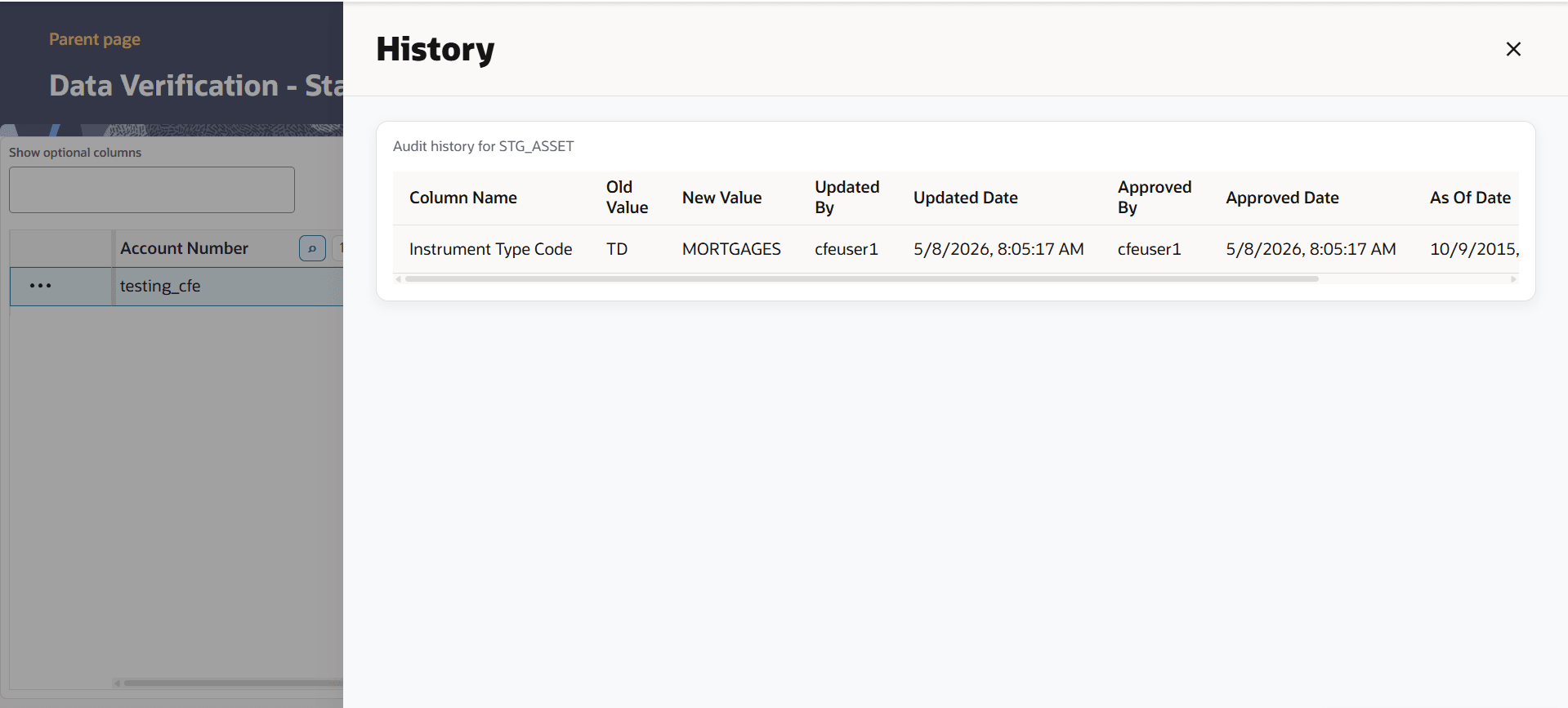
This option displays the changes carried out on a selected record. To see the history on a record, select the record, click the ellipsis (…) icon, and then select View History. This displays the history of updates on the selected record with details such as Column Name, New Value, Old Value, Updated Date, and Updated By.
Figure 3-21 History at Record Level
To navigate back to the Dashboard or the selected table’s Data Verification screen, click the Parent Page link available at the top-left corner of the screen. You can also type the table name in the search option for quick access.
To see the history of all the records on a particular table, select the record and click the History button on the top right-hand corner of the screen. This displays all the updates done on the all the records in the table. A sample screen of the history on the table is as follows:
Figure 3-22 History at Table Level