3.2.5.3 Uploading/Downloading a File Using PAR URL

Complete the following steps to upload or download a file using the PAR URL.

Figure 3-18 Get PAR URL
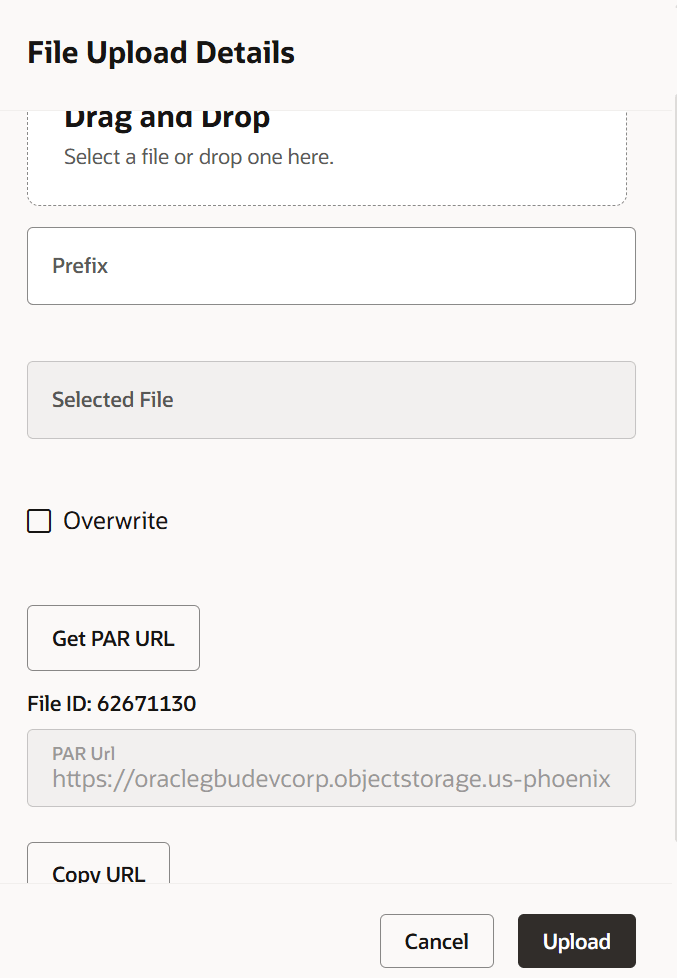

Get PAR URL

  1. Click Drag and Drop to browse and select a file for upload from the local directory.
    You can also browse to the local directory from the File Explorer and select the file and drop it. The file name is automatically updated in the Selected File .

    Note:

    Upload only one file at a time. If multiple files are dragged and dropped, only the last file will be uploaded and processed.
  2. Enter the Prefix to be added to the file name.
  3. Click Get PAR URL, to generate the PAR URL and File ID which are required to upload the file.
    You can also generate PAR URL using Rest API. For more information refer to, Calling the API to Generate the URL.
  4. Copy the PAR URL and note the related File ID.
  5. Upload the file content referred with the specific PAR URL into the object store using the Console, CLI, or SDK.
    To upload using the CLI, enter the following curl command directly in local Gitbash.
    curl -X PUT --data-binary '@<local-filename>' <unique-PAR-URL> 
    You can also use the following command.
    curl -T '<Filepath>' -X PUT <PAR_URL>
  6. Scan the file referred with the specific File ID (obtained in Step 3) using Console, CLI, or SDK.
    Use the following CURL command, to Scan using CLI:
    curl -k --location --request PUT 'https://<Host:Port>/<Tenant-ID>/utils-service/v1/file/scan/<FileID>' \
    --header 'ofs_tenant_id: <Tenant-ID>' \
    --header 'ofs_service_id: <Service-ID>' \
    --header 'ofs_workspace_id: <WorkspaceId>' \
    --header 'Authorization: Bearer <Generated_Token>'
    To generate a bearer token, refer to Generate access token.
    A confirmation message is displayed after successful upload and the file is listed in the Uploaded Files list.
    Search Prefix
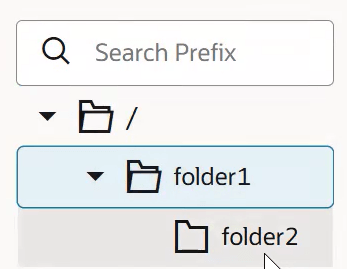
    Use the Search Prefix field on the left hand side to search and navigate records in a tree view folder structure. Enter the required prefix value to filter and display the relevant folders and associated records in the hierarchy. Expand or collapse folders to refine navigation and quickly access the required information.

    Figure 3-19 Prefix tree view


    Prefix tree view