6.1.1.1 Currency Setup
Financial institutions transact business in more than one currency. Transacting business in multiple currencies demands functional capabilities for multi-currency accounting and currency rate management.
Currency module supports the definitions and maintenance of currencies. Currency definitions are fundamental to the definition of both interest rate yield curves and currency exchange rates. A key attribute of every yield curve is the currency with which it is associated, and currency exchange rates can only be established between defined currencies. A comprehensive list of ISO-defined currencies is provided; you can also define and add your user-defined currencies.
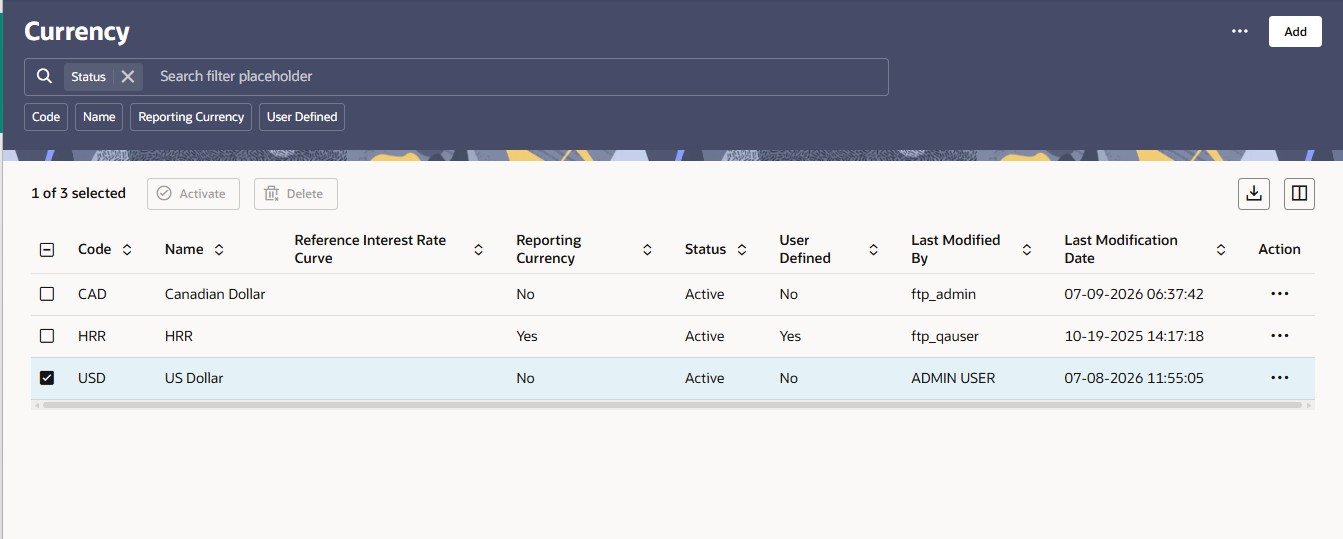
Currency Summary
This page is the gateway to all Currencies and related functionality. You can navigate to other pages relating to Currencies from this point.
Figure 6-1 Currency Summary
Search Currency
Prerequisites: Predefined Currency
To search for a Currency:
Click Search after entering the search criteria. The search results are displayed in a table containing all the Currencies that meet the search criteria.
Or
An alternative method to search a Currency Rule is through the Field Search option. This is an inline wildcard UI search that allows you to enter a search value (such as code, name, etc.) partially or fully. Rows that contain the string you are searching for are fetched and displayed in the Currency Rule Summary. Enter the Code, Name, Status, Reporting Currency, or User Defined of the Currency and click Search .
The Currency Summary toolbar provides the following actions:
- Add: Click the Add icon to build a new Currency.
- Activate: Select one or more Inactive currencies from the summary table to enable the Activate button, and click Activate to change the status of the selected currencies to Active.
- Delete: Select one or more currencies from the summary table to enable the Delete button, and click Delete to remove the selected currencies.
Activate and Delete are enabled only when at least one row is selected.
- More Actions (): Click the ellipsis icon in the top-right corner of the Currency Summary page to access:
- Refresh: Reloads the Currency Summary table with the latest data. ○
- Reset: Clears the selected filters and refreshes the summary page. ○
- Help: Redirects you to the latest documentation.
Add: Click the Add icon to build a new Currency Rule.
Activate: Select one or more Inactive currencies from the summary table to enable the Activate button, and click Activate to change the status of the selected currencies to Active.
Delete: Select one or more currencies from the summary table to enable the Delete button, and click Delete to remove the selected currencies. Activate and Delete are enabled only when at least one row is selected.
The Currency Summary displays the following information:
- Code: The 3-letter ISO code of Currency
- Name: The Currency's short name.
- Reference Interest Rate Curve: Displays the Reference Interest Rate Curve of Currency
- Reporting Currency: Indicates whether currency is marked for use as Reporting Currency
- Status: Displays the Active or Inactive status of Currency.
- User Defined: Identifies any user-defined currency, that is, a currency not seeded by Cloud Service
- Last Modified By: Displays the user name of the user who last created or modified the Currency.
- Last Modification Date: Displays the date and time the Currency was last created or modified.
- Action: Click this icon to
view a list of actions that you can perform on the Currency
Rule.
- View: Opens the Currency in read-only mode. Available regardless of your privilege level.
- Edit: Opens the Currency in editable mode. To edit a Currency, you must have Read/Write privilege.
- Activate: Changes the status of the selected Currency to Active. This option is disabled (greyed out) if the Currency is already Active.
- Delete: You can delete Currency Rules that you no longer require. Note that only Currency Rule owners and those with Read/Write privileges can delete Currency Rules. A Currency Rule that has a dependency cannot be deleted. A rule cannot be retrieved after deletion. This option is disabled (greyed out) if the Currency has a dependency.
- Dependency Information: Opens the Dependency Information window, which lists the Higher Order and Lower Order Dependencies of the selected Currency. Before deleting a Currency, it is good practice to check its dependencies to confirm it is not in use elsewhere.