8.3 Creating a Simplified Batch
To create a Simplified Batch Rule, follow these steps:
- Click Add from the Simplified Batch Rule summary page.
Figure 8-3 Simplified Batch details window to create a new Simplified Batch Rule
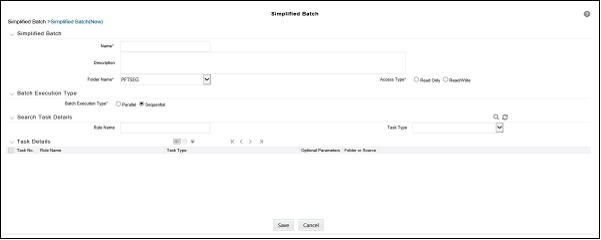
- Enter the following information in the Simplified Batch Rule details window:
- Name * and Description: Simplified Batch Name and
Description.
You cannot edit the Name after you have created the rule.
The maximum length for the Name is based on (name and Infodom), subject to the total length not exceeding 42 characters. Underscore (_) is the only special character allowed for a Simplified Batch name.
The maximum length for the Description is 300 characters. Allowed special characters for a Simplified Batch description are underscore (-), hyphen (-), Colon (:), Dot (.), and Space.
- Folder Name*: Select a folder in which the batch is to be stored.
- Access Type*: Specify whether you want the batch rule
to be Read, Write, or Read-Only.
* indicates Mandatory UI element.
- Name * and Description: Simplified Batch Name and
Description.
- Click Save. To build out your Simplified Batch Rule, enter
the data within the Simplified Batch Rule details page. For more information, see
the following sections:
- Batch Execution Type
- Searching Task Name
- Task Details
- Task Selection
- Batch Execution Type
Select the tasks in the batch to run in Parallel or Sequentially. To run some tasks sequentially and some in parallel, utilize the OFSAA Infrastructure Operations batching framework to construct the batch. The Simplified Batching Framework provides a simpler and faster pathway to specify many of the batches that require, but the OFSAA Infrastructure Operations framework offers more flexibility. - Searching Task Name
You can construct batches containing dozens or even hundreds of tasks. In such cases, it can become difficult to isolate a specific task. - Task Details
For a new batch rule, the Task Details pane will initially be empty. Use the Task Selector to populate the Task Details pane with the processes to run in the batch. For a Sequential batch, the Task Details pane presents the tasks in the order in which they will be run. For a Parallel batch, all tasks are initiated in parallel. - Task Selection
Click Task Selector from the Task Details pane to open the Task Selector window to support the maintenance of tasks in a batch.
Parent topic: Simplified Batches