33.3 Rate Report Templates
Rate Card Report templates help you to create a customized Rate Card Report by choosing the columns you want to see in your report. These columns can include/exclude standard out of the box columns as well as other columns that are properly registered. Following is the updated flow with an extra (new) step of defining column templates, while defining Rate Card Report:
Figure 33-15 Rate Card Report Flow
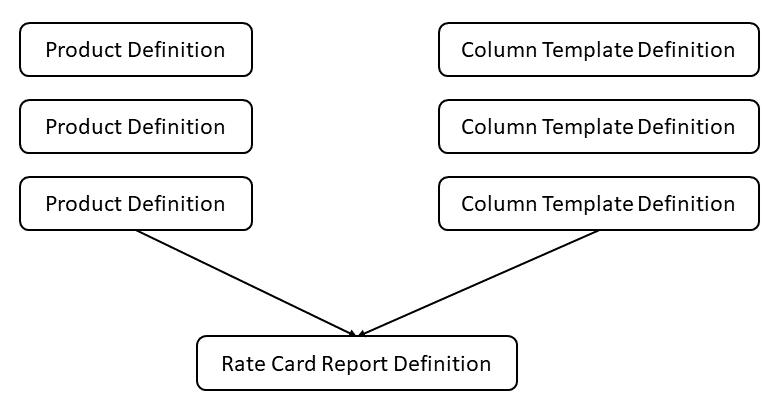
Each template contains a user specified set of product attributes selected from the master table (FSI_PM_GENERATED_INSTRMTS). Templates is an added functionality, which will allow you to change rate card reports on the Run. Each report can be defined with more than one template, which can change on the Run as per your requirement.
- Search for the Rate Report Templates
Search for a rate report template to perform any of the following tasks: - Creating a Rate Report Template
Template creation is a role specific activity, only the users with the creation rights can create a new template. - Viewing or Editing a Rate Report Template
To view or edit an existing template, navigate to FTP Rate Card, and select Rate Report Template. Select the template that you want to edit or view. Click the Edit or View icons in the summary screen. You can remove existing columns and add new columns along with changing the column names, which appear in the Rate Card Report. - Copying an Existing Rate Report Template
To copy an existing template, navigate to FTP Rate Card, and then select Rate Report Template. Select the template to be copied and click the Copy icon in the summary screen. - Deleting an Existing Rate Report Template
To delete an existing template, navigate to FTP Rate Card, and then select Rate Report Template. Select the check-box against the template that you want to delete. You can select more than one template for deletion.
Parent topic: FTP Rate Card