Create a Pipeline
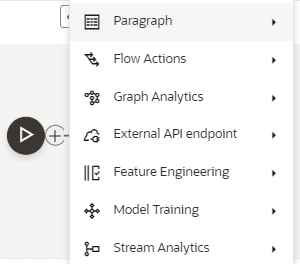
- Hover over the Start widget and new nodes can be added by using the
Add button in the Pipeline
Canvas. When the Add button is clicked, a menu opens that contains all the widgets sectioned into different categories. The spectra diagram builder is based on row and column positioning.
Figure 11-85 Create a Pipeline menu
Note:
Click each menu option to select the required widgets.You cannot edit or delete the Start widget. Whenever a new draft is created, not by importing dump files, the default paragraph that is created is converted into a Start widget. The visibility of code or result or the title in the notebook of this node will be invisible.Whenever the notebook is opened, the script execution, including the workspace attachment will happen in this node.Table 11-17 Widgets
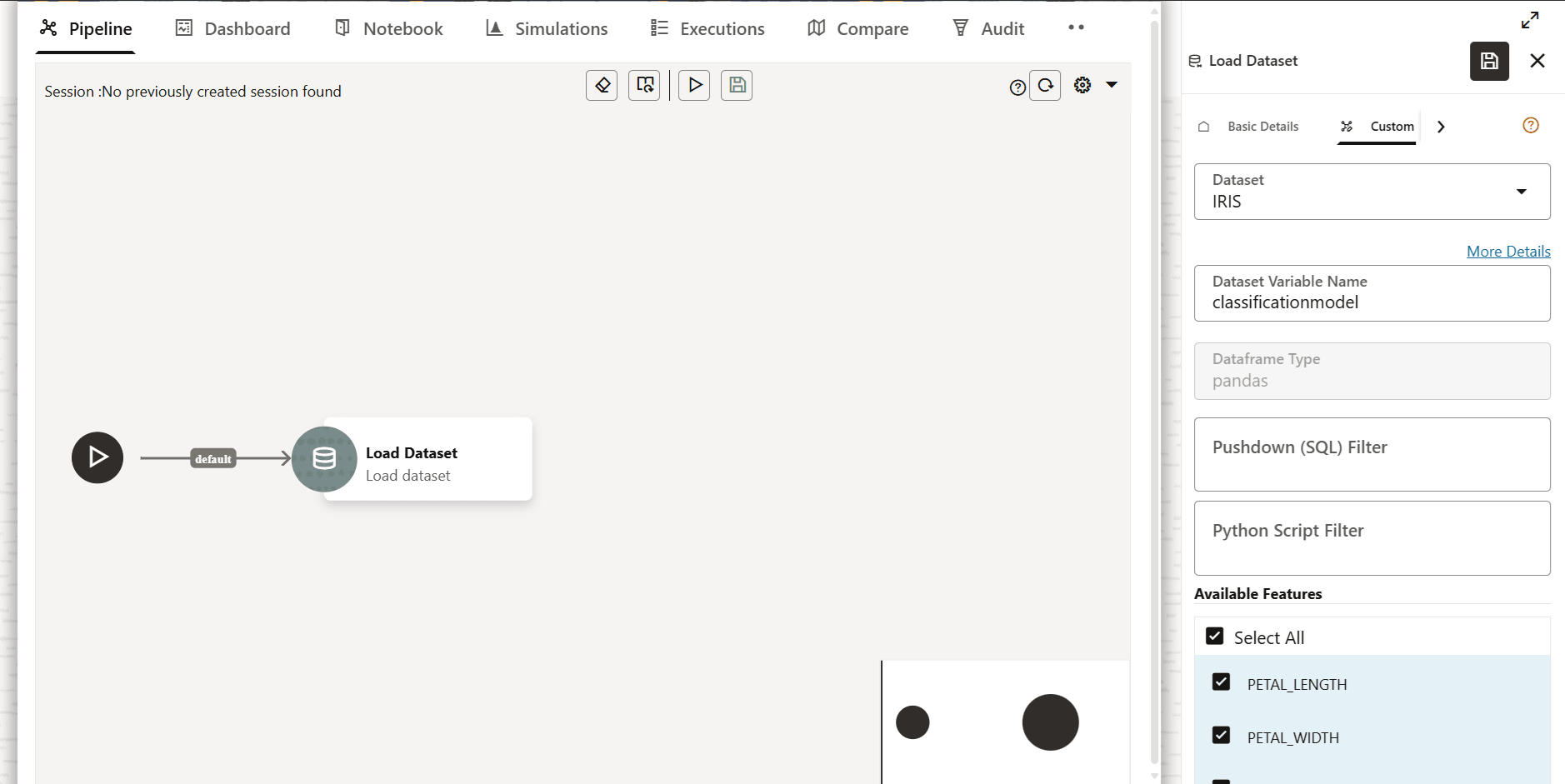
Widget Description Load Dataset Widget Push Down Filtering (SQL Filters) and Python Script Filtering is available for the Load Dataset widget in the pipeline. Figure 11-86 Pushdown (SQL) Filter and Python Script Filter
Examples:
Pushdown (SQL) Filter:
- column1 > 100 and column2 < 1000
Python Script Filtering:
df_out = df_prev[df_prev['column'] > 100]
Start Widget Publish, download, import, and promoting a model to production can be done via this widget. When you publish a model from the Model Summary page, you can select the Start widget paragraph from the list of paragraphs and then the start widget will appear in the published model. Exploratory Data Analysis (EDA) Widget This widget provides a one-click, automated evaluation of any dataset within OFS MMG. It provides a rapid insight into the structure, quality, and characteristics of data, and generates visual summaries, statistics, and distribution plots without requiring any coding or a manual setup.
This widget automatically generates the following analyses for a dataset:- Missing Value & Schema
Summary
- Creates a table that lists each feature or column.
- Shows the number and percentage of missing values per column.
- Displays the inferred data type (e.g., numeric, categorical, text).
- This helps users to quickly identify columns with significant missing data or non-standard data types that may need cleaning or attention.
- Numeric Feature Analysis (For
Columns Detected as Numeric)
- Distribution Plots: Histograms combined with a smooth density (KDE) curve display how data points are spread across ranges of values.
- Box Plots: Allows quick detection of outliers, medians, and interquartile ranges.
- Purpose: Enables users to see which values are common, detect skewness or unusual patterns, and spot potential anomalies.
- Correlation Heatmap
- Displays a color-coded matrix showing how strongly pairs of numeric features are correlated.
- Helps in detecting strong associations, redundancy (collinearity), or identifying which variables might influence each other.
- Categorical Feature Analysis
(For any Column Detected as Categorical or
Text:)
- Frequency Plots: Bar charts that display how often each category appears within the column.
- Purpose: Visualizes dominant and rare categories, helping to find class imbalance or need for further grouping.
- Missing Value & Schema
Summary
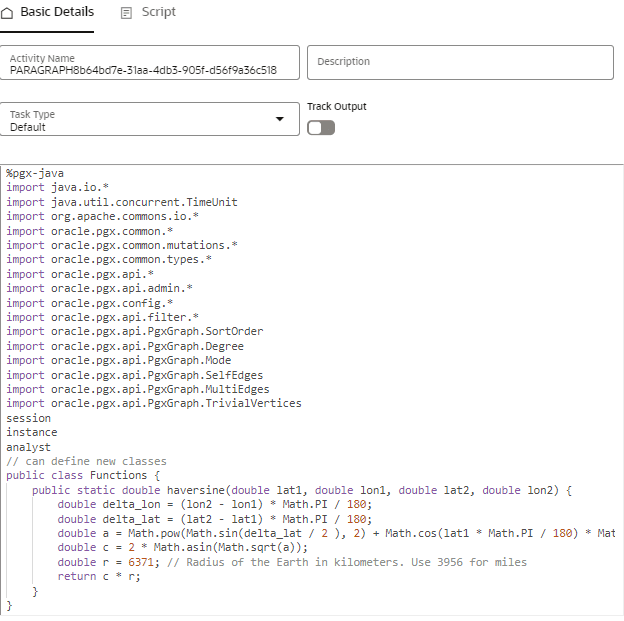
- Click the node to add the basic details.The Basic Details page is displayed.
Figure 11-87 Basic Details for the Paragraph