Register a Conda Environment

To register a Conda environment:
  1. Click Conda Environmentsto navigate to the Environment Summary page from any window in the application.
    This page displays the Conda environments.
  2. In the Environment Summary screen, click Register Environment.
    The Register Environment page is displayed.

    Figure 8-7 Register Environment Window
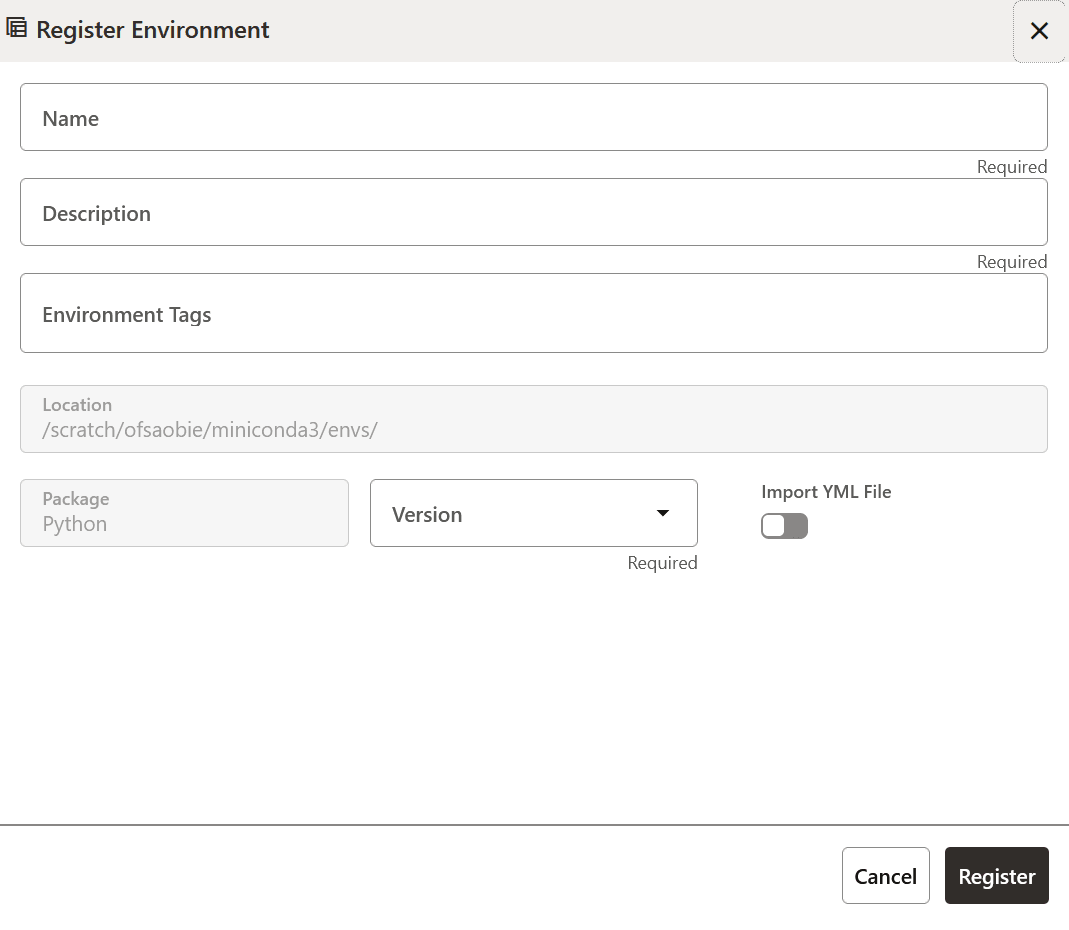

    Register Environment Window

  3. Enter the Name for the environment. This field is mandatory.
  4. Enter the Description for the environment. This field is mandatory.
  5. Enter a tag in the Environment Tags field. You can add multiple tags.

    Note:

    The Location of the Conda environment is displayed. This field is greyed out and cannot be modified.
  6. The Location and Package fields are populated by default.
  7. Click the Version drop-down list to select a Python version. Different Conda environments can be created by using different Python versions.
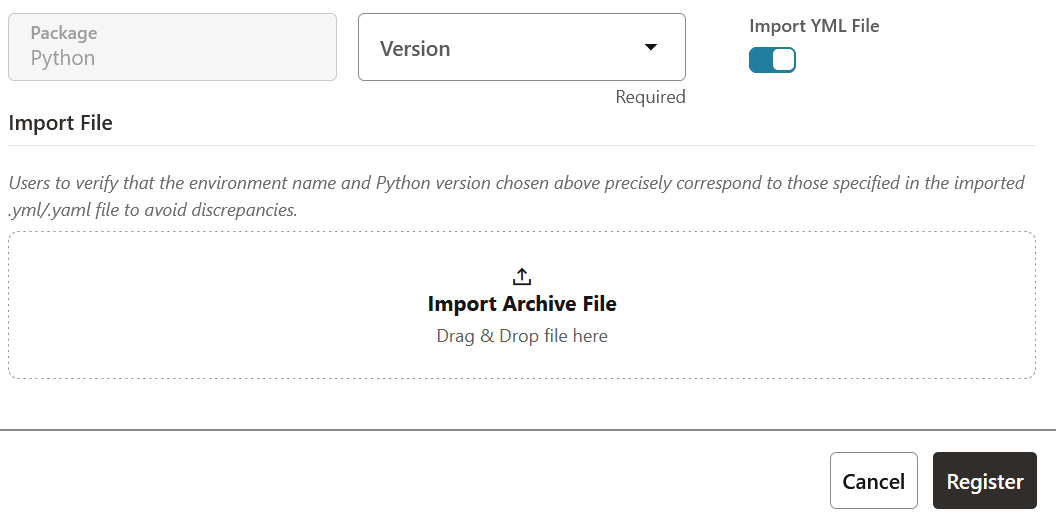
  8. Click the Import YML File slider to import a .yml/.yaml file. You must ensure that the environment name and Python versions that have been selected in the Version field match those specified in the imported .yml/.yaml file.
    Import YML Section

  9. Click the Import Archive File or drag and drop the desired .yml/.yaml file from your local system.
    OFS MMG now processes Conda environment imports asynchronously in the background. When you begin an import operation, the Environment Summary page automatically displays the current status of the import. This allows you to continue using the application while your Conda environment is being imported, so you don’t have to wait or keep the page open.
    The Import status on the Environment Summary will keep you informed so that you do not have to wait or keep the page open.
    Until the environment is imported, on the Environment Summary page, the actions that you can perform in the Action icon, such as Edit, View, and Deregister will be temporarily disabled.

    Note:

    If you do not see the Creation Status on the Environment Summary page update automatically, you can refresh this page to view the latest status.
  10. Click Register.
    The Conda environment is registered and displayed in the Environment Summary page.
    After the environment registration is complete, you must create the Conda environment. For more details, see the Create a Conda Environment section.