Executions
This section of the Pipeline Designer displays the history of the executed pipelines.
Note:
The Add File Output button in the execution history tab opens the file manager at a specific path depending on the Save dataframe widget in the Pipeline window. When the Save dataframe widget is not available in the pipeline, it displays that the path does not exist from file manager.Figure 11-113 Executions
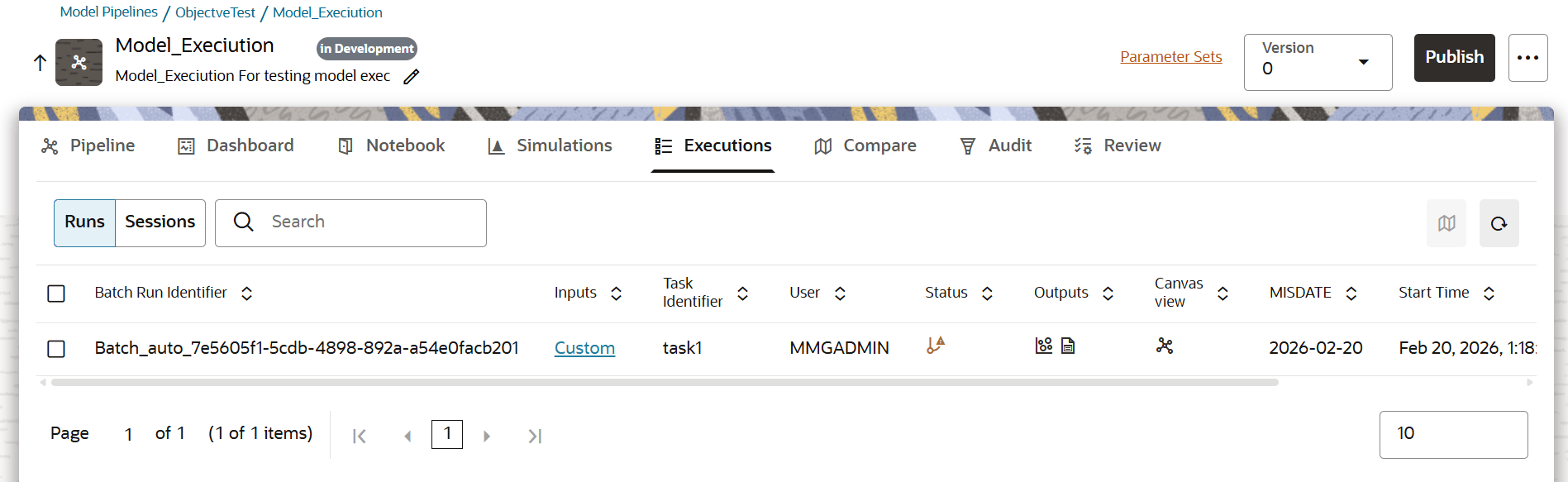
Runs Tab
You can compare and refresh the executions by clicking the Compare and Refresh icons.
Click the link in the Inputs column adjacent to an execution to open the Input Parameters window. This window displays the input parameters details of the execution.
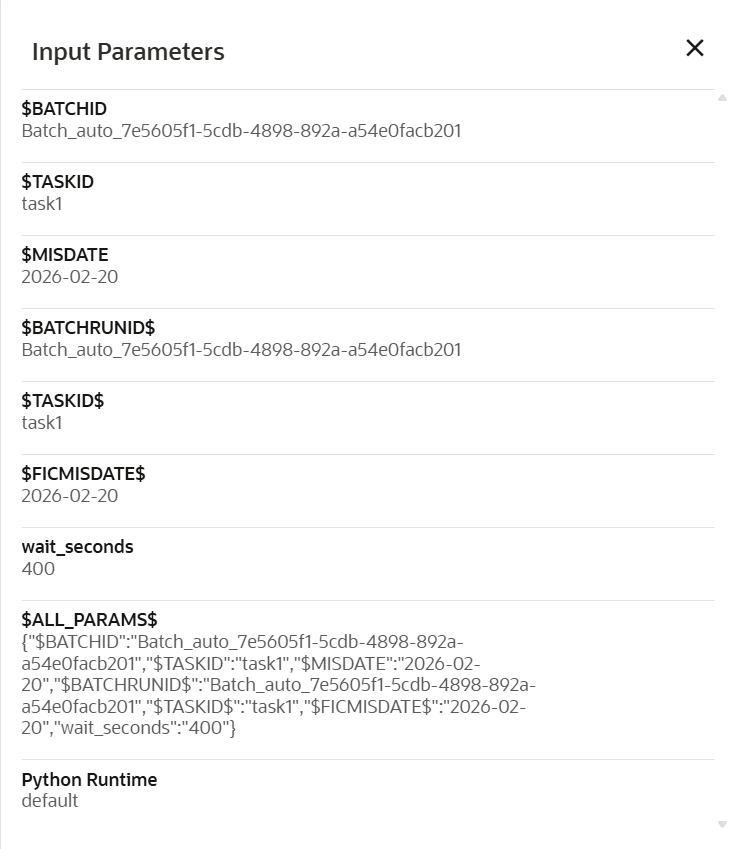
Figure 11-114 Input Parameters window
In the Outputs column, click either of the following icons:
- Show Outputs: When you click this icon, the Output Details window appears, displaying the Executed-only paragraph outputs. By default, this option is enabled, you can disable this option based on your requirements. From the View Type drop-down list, you can select either Paragraph List View or Notebook View. In the Output Visibility section, select either Tracked or All. By default, the Tracked option is selected and displays the outputs tracked from the time of the execution.
- Output File: When you click this option, the File Manager window appears. For more information on the File Manager feature, see the File Manager topic.
Click the View in canvas icon in the Canvas View column to view the executions via the Pipeline View window.
Sessions Tab
Click the Sessions tab to view the sessions information:
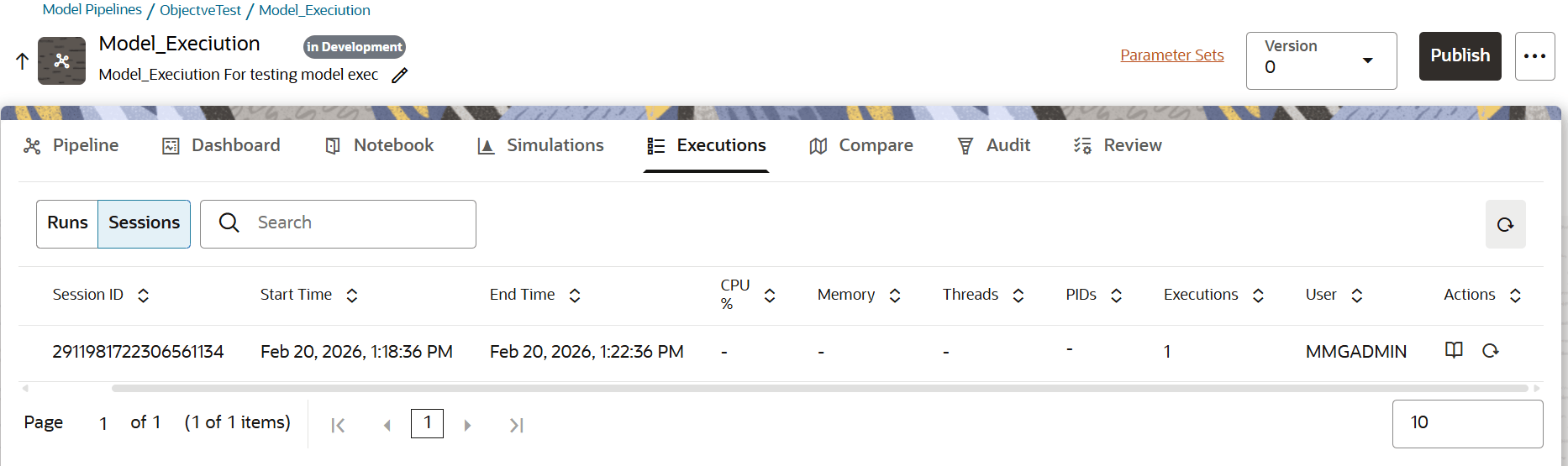
Figure 11-115 Sessions Tab
- Cancel: Click this icon to cancel a session.
- Refresh: Click this icon to refresh the page.
- The form displays the session information via the following columns:
- Session ID
- Start Time
- End Time
- CPU %
- Memory
- Threads
- PIDs
- Executions
- User
- Actions - This column contains the folling icons:
- Open Notebook: When you click this icon, the Session Notebook window appears.
- Refresh: Click this icon to refresh the session.
Note:
The data that appears in the CPU%, Memory, and PIDs columns are fetched via the data-studio APIs.