Publish Model Draft
After creating the Draft Models, publish the Notebooks, which have the Model
script.
You can publish a model draft to Data Studio from the Pipelines flow. Publishing can be initiated from either of the following locations:
- From the pipeline or draft screen.
- From the Model Summary screen by using the Actions icon (three dots)
- From Model Summary (Actions menu)
To publish from the Model Summary screen:
To publish:
- Navigate to the Model Summary screen.
- Click the Actions icon (three dots).
- Select Publish Model Draft.
Note:
(Limitation): When you are publishing from the Model Summary screen, the link information (for example, training and scoring links) is not retained because the Publish action is executed from the summarized content (selected paragraphs). As a result, the trainingor scoring links are defaulted to default in the published output. To preserve the configured links, publish the model draft from the pipeline or draft screen.
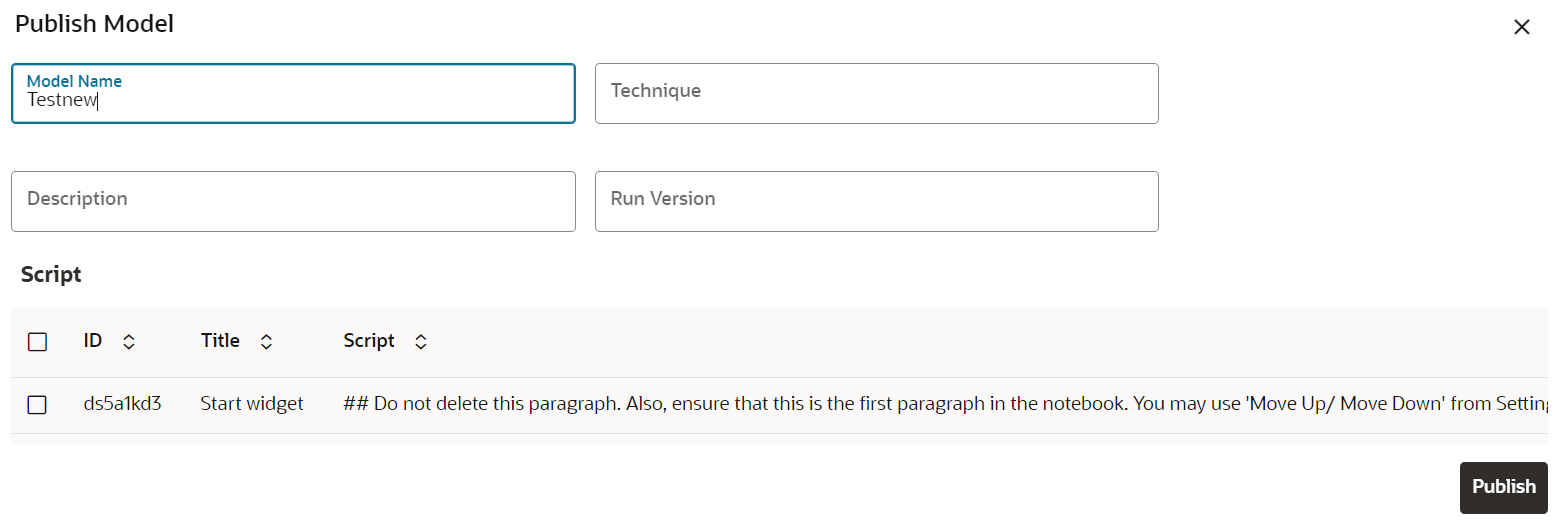
- Click next to corresponding Draft Model and select Publish Data
Studio option. The Publish Model window is displayed.
Figure 11-97 Publish Model