Create Draft Models
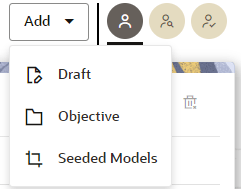
- Click Add and then select Draft
from the list to display the Add Draft dialog box.
Figure 11-71 Draft Option
- Create New Model is the default setting in the
Model Details dialog box. Click the toggle button to
select Import Dump. You can also create a draft under
Objective (Folder) also. Click an Objective to open it. OR
Drag the toggle button to select Import Dump. Import Dump lets you drag and drop an existing file with model data and modify it. To import a model data dump from another model, see the Import a Workspace Model Data into a New Model section.
To create a new model:- Enter details for Draft Name and
Description.
Figure 11-72 Model Details- Create New Model
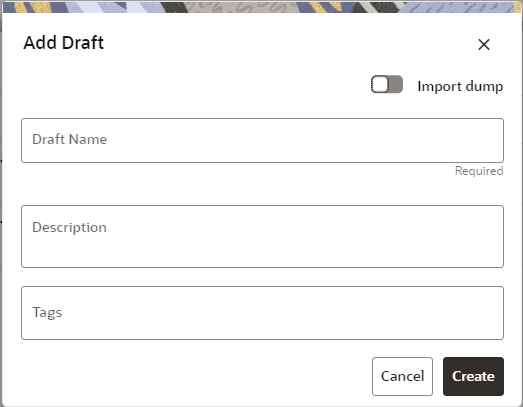
- Enter a tag in the Tags field.
- Click Create.
Creating Drafts from within an Objective- From the Model Pipelines list of objectives,
select Draft from the
Add drop-down list.
Figure 11-73 Add Draft from an Objective
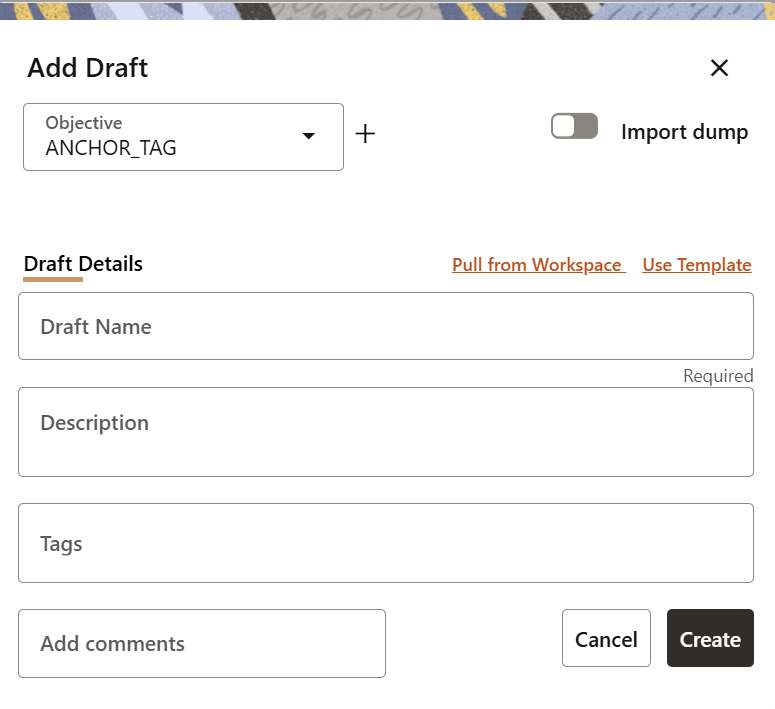
- Populate the following fields:
- Draft Name: Enter a name for the draft.
- Description: Enter a description for the draft.
- Tags: Add tags for the draft.
- Comments: Add comments for the draft.
- Additionally, you can use different methods to create drafts:
- Create a draft from an objective
- Click the Add in new
Objective icon, adjacent to the
Objective drop-down
list.
Figure 11-74 Objective Details

- Perform the following actions to populate the
form:
- Objective: Select an objective from the drop-down list.
- Objective Name: Enter a name for the objective.
- Description: Enter a description for the objective.
- Tags: Enter tags for the objective.
- Draft Name: Enter a name for the draft.
- Description: Enter a description for the draft.
- Tags: Add tags for the draft.
- Comments: Add comments for the draft.
- You can also select the Pull from Workspace or Use Template options to add the information via a selected workspace or a template.
- Click Create.
- Click the Add in new
Objective icon, adjacent to the
Objective drop-down
list.
- Pull from Workspace
Figure 11-75 Pull from Workspace
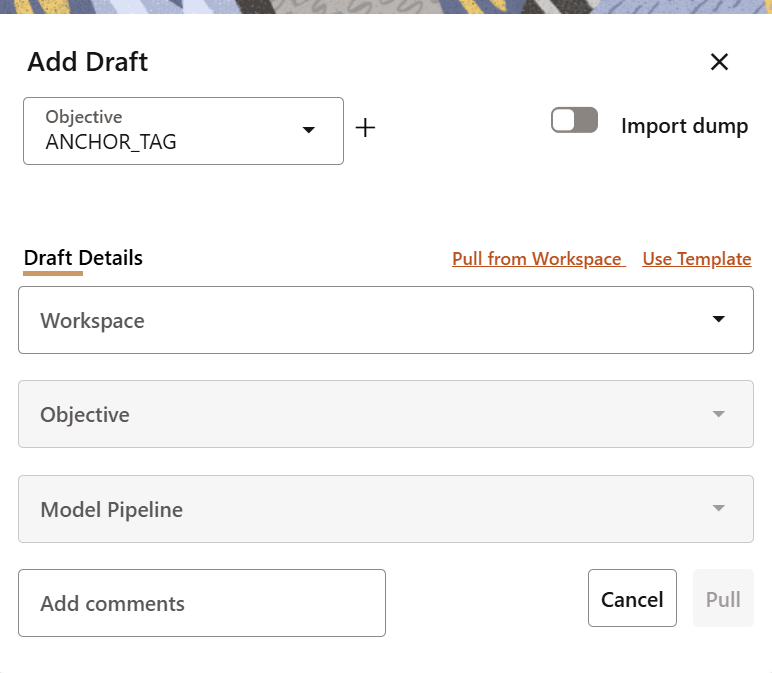
- Workspace: Select a workspace from the drop-down list.
- Objective: This option is enabled when a worspace is selected from the Workspace drop-down list. Select an objective from the drop-down list.
- Model Pipeline: This option is enabled when an objective is selected from the Objective drop-down list. Select a model pipeline from the drop-down list.
- Comments: Add comments for the draft.
- Pull: Click this option to pull all the selected details from the workspace.
- Use Template
Figure 11-76 Use Template

Select a template from the Templates drop-down list. Note that any pre-filled values will be overridden with the values from the template that has been selected from the Templates drop-down list.
- Create a draft from an objective
- Enter details for Draft Name and
Description.