Details Screen
The Details screen enables you to edit and view a workspace.
Log in to the application. From the Workspace Summary
screen.
Figure 6-16 Details screen
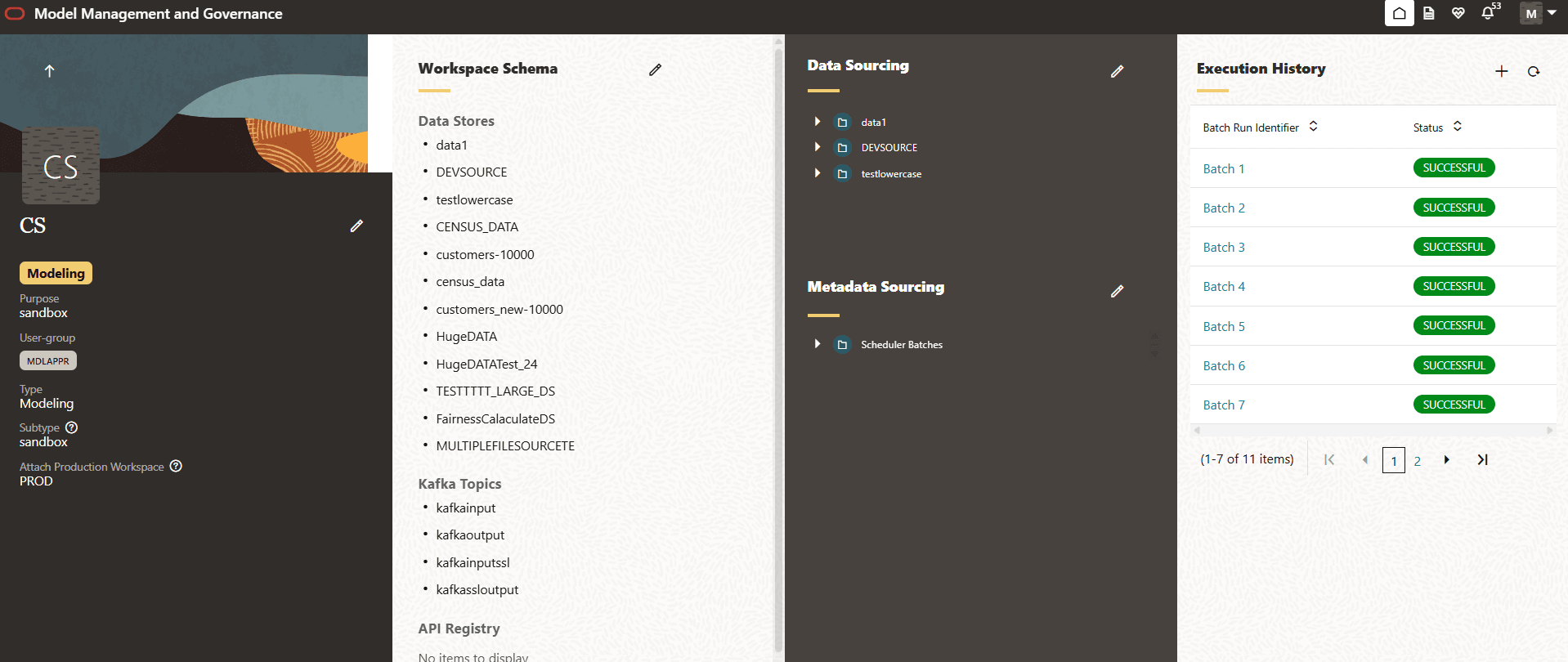
This screen is divided into four columns: The first three columns, basic details, Workspace Schema, and Data Sourcing, provides information about the workspace and fourth column, Data Population Jobs, focuses on the execution history of the workspace population.
The information present in first three columns is the one that users configure when creating or editing a workspace.
The workspace data or information is given by the user when they create or edit a workspace.
The first columnis the basic details screen. It contains the workspace name, purpose, user-group, type, subtype, and the attach production workspace details. You can edit the details in this section if you have edit rights.
Workspace Schema
- Data Stores
- Kafka Topics
- API Registry
- Conda Environment
Figure 6-17 Workspace Schema
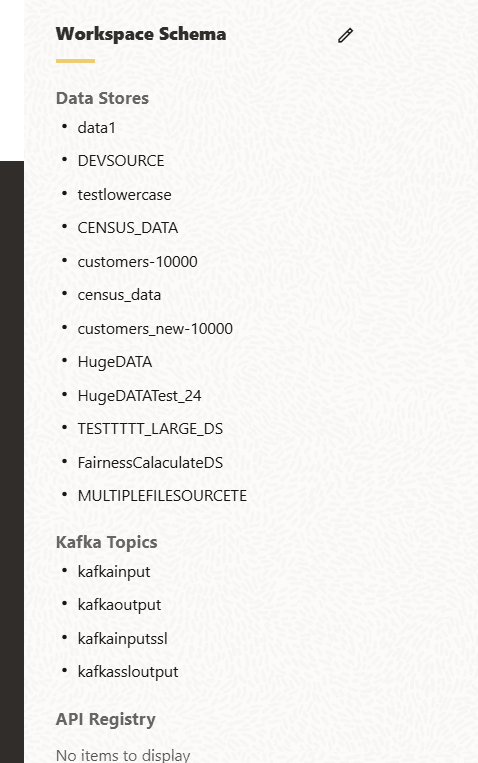
Click theEdit icon adjacent to Workspace Schema to edit the same.
Figure 6-18 Workspace Schema
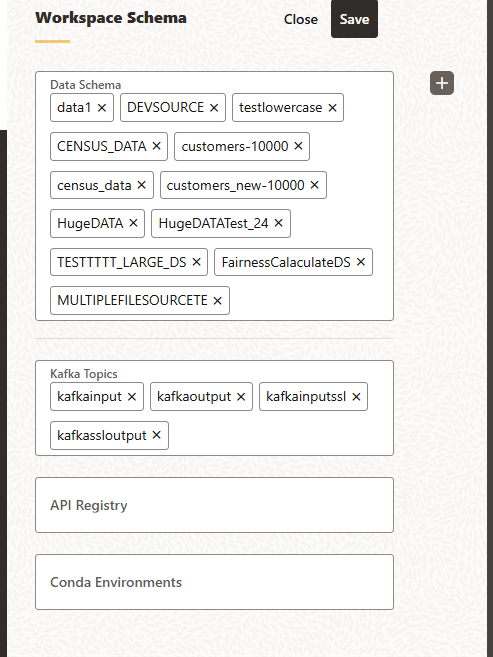
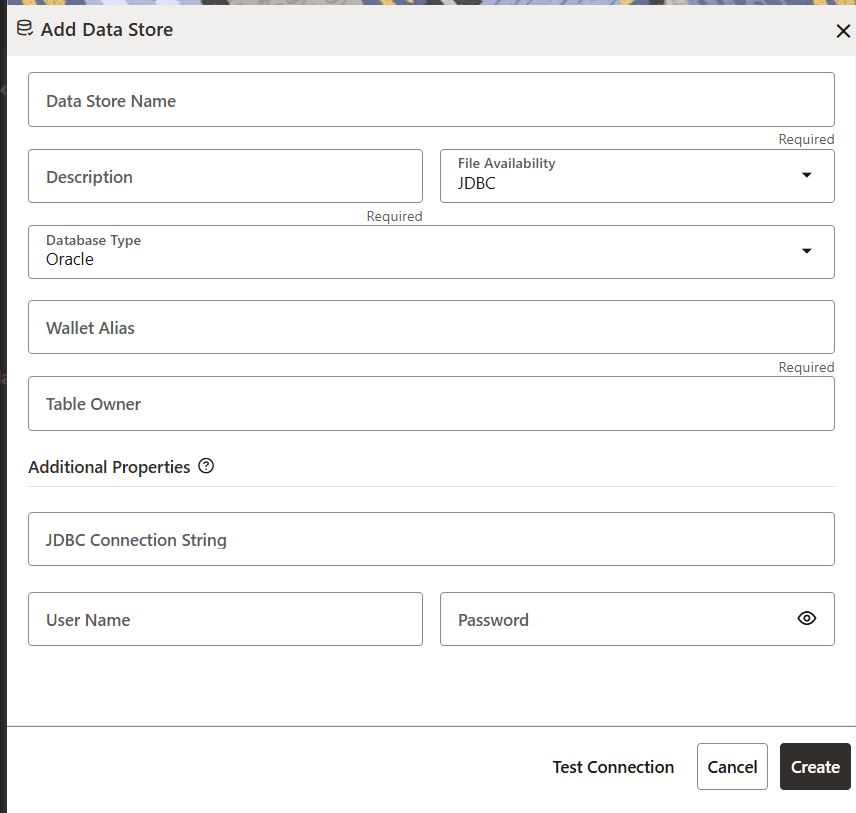
Figure 6-19 Add a Datastore
Data Sourcing
- Data Sourcing
- Metadata Sourcing
Figure 6-20 Data Sourcing
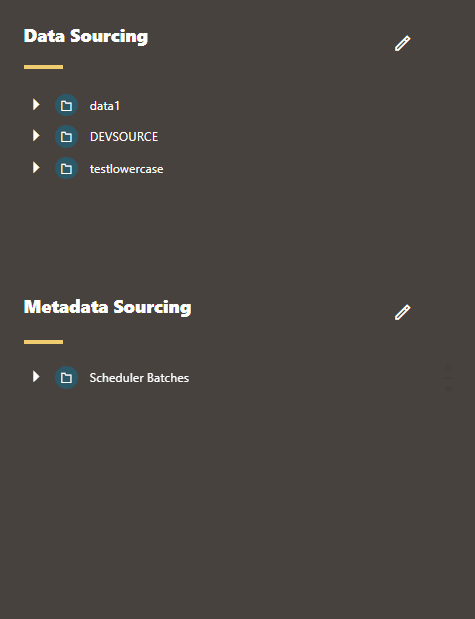
Figure 6-21 Edit Data Sourcing
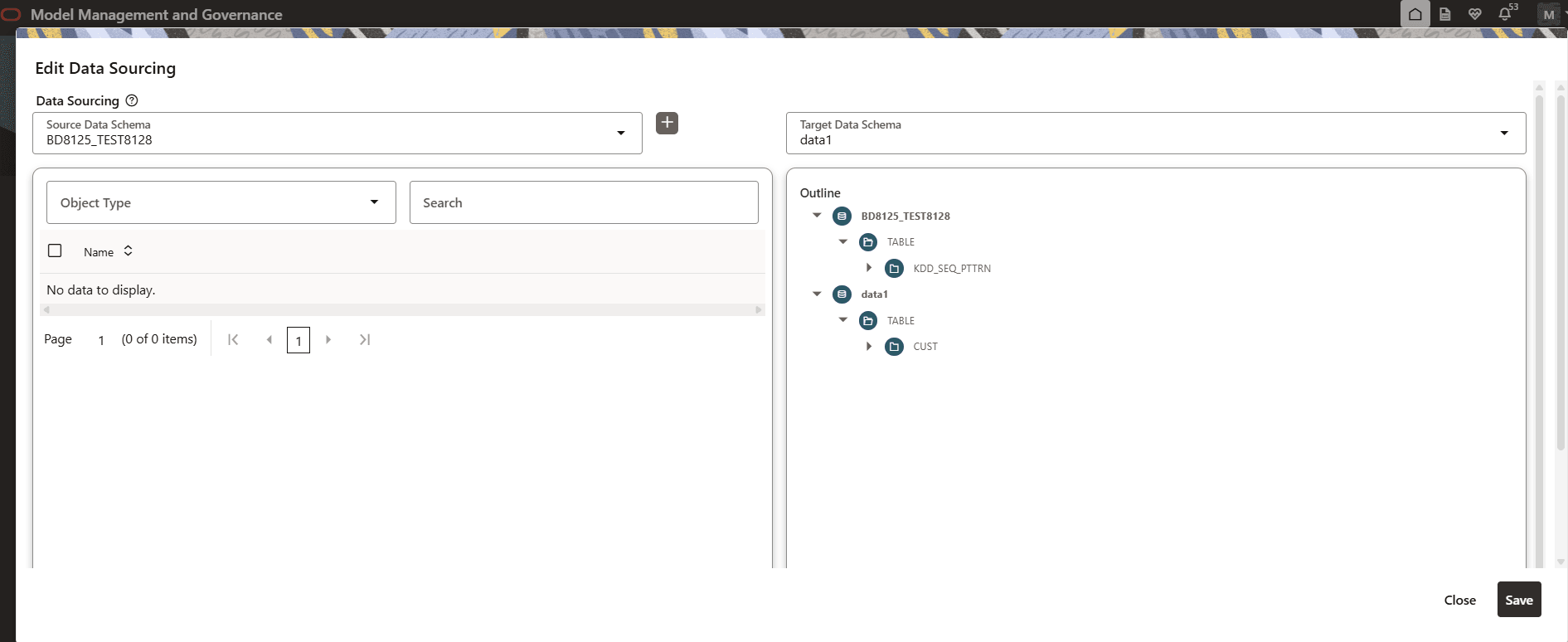
Modify the desired details and then click Save.
Click the Add icon adjacent to Metadata Sourcing to edit it.
Figure 6-22 Edit Metadata Sourcing page
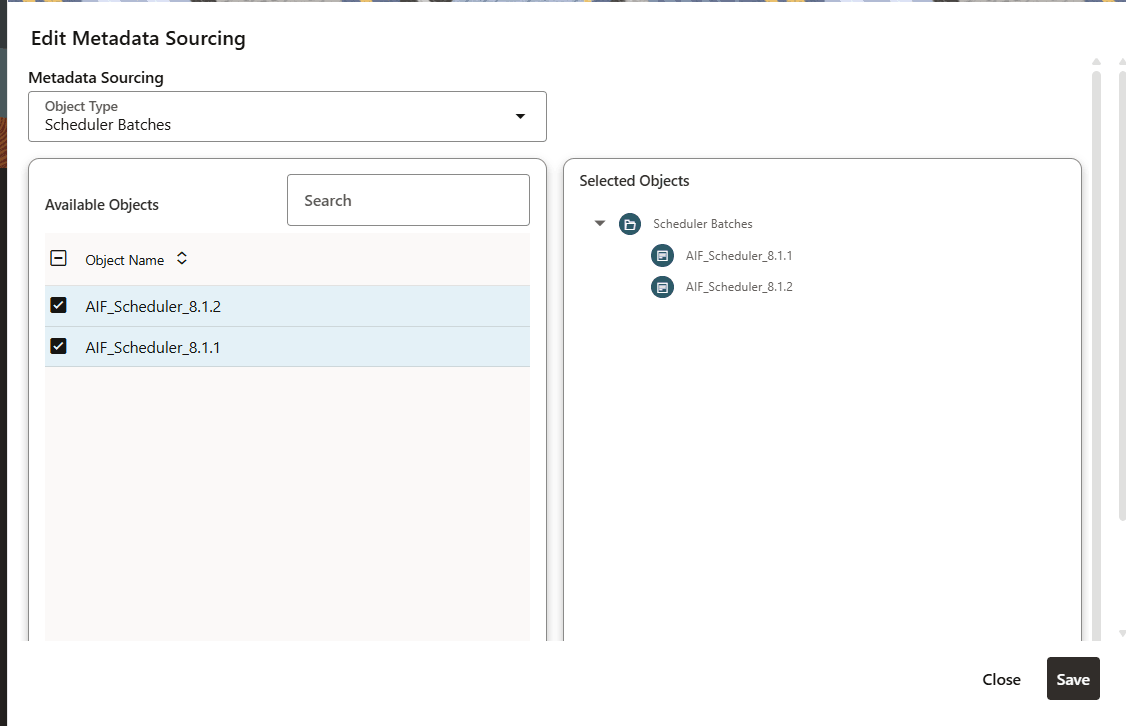
In this window, you can add new objects or edit the existing ones.
Modify the desired details and then click Save.
Data Population Jobs
Figure 6-23 Data Population Job
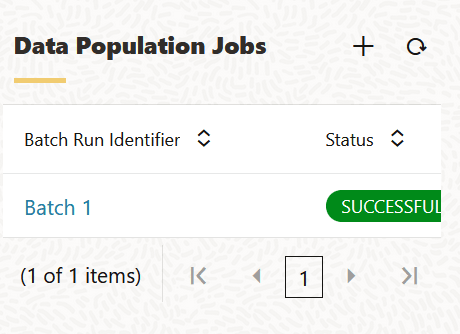
Figure 6-24 Task details
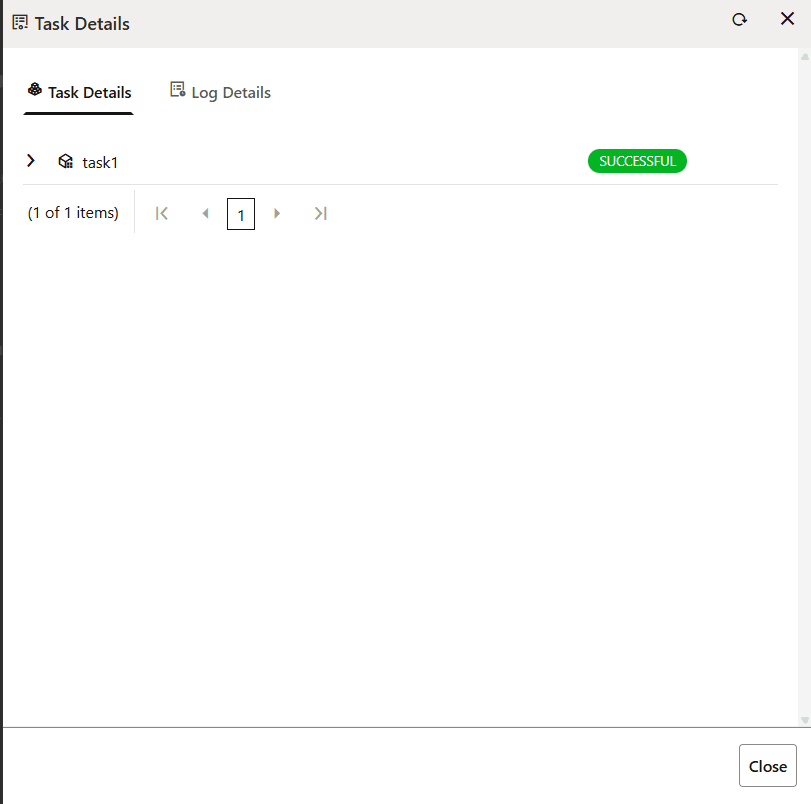
Click Close to close the window.
Figure 6-25 Populate Workspace page
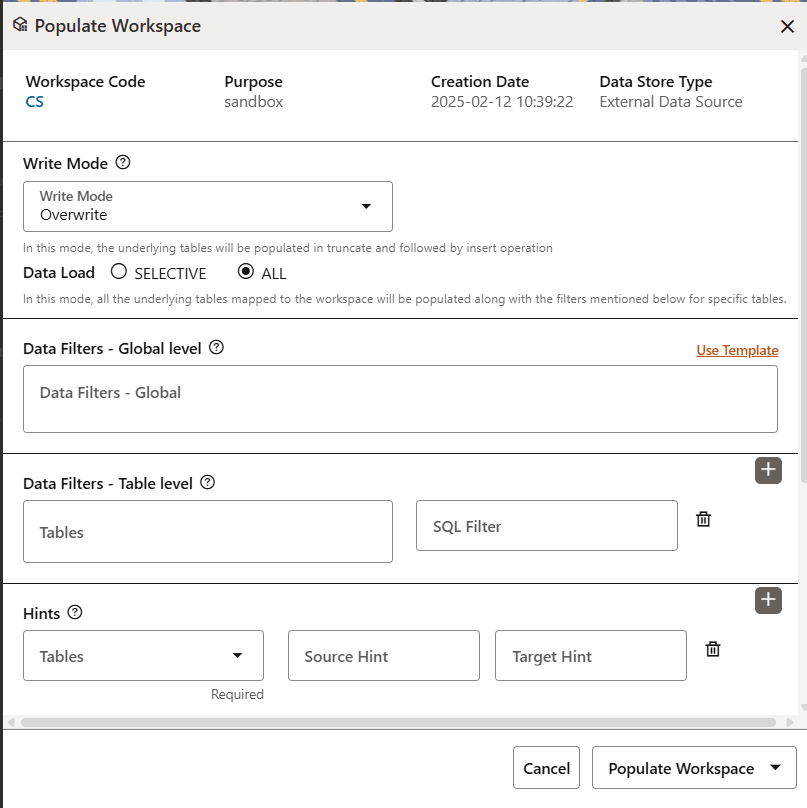
- Write Mode - Select either Overwrite or Append.
- Data Load - Select either SELECTIVE or ALL.
- Data Filters - Global level - Enter values or click the Use Template link to select a template from the Template the drop-down list.
- Data Filters - Table level - Select a table from the Table drop-down list. Add an SQL filter in the SQL Filter field. Additionally, click the Delete icon to delete the data.
- Hints - Select a table from the Table drop-down list. Add a value for the Source Hint and Target Hint fields. Additionally, click the Delete icon to delete the data.
- Additional Parameters - Enter values in the Source Prescript and Target Prescript fields. You can also modify the values in the Fetch Size and Batch Commit Size fields.
- Additional Parameters - Select either Unlimited or Custom Rejection Threshold. If Custom Rejection Threshold is selected, then the Rejection Threshold fields is enabled for editing.
Click the Populate Workspace drop-down list and click either Create Batch or Create and Execute Batch.
Click Save.
Note:
The View Workspace screen and the Edit Workspace screen has been merged into one screen and is known as the Details screen.