File Uploads
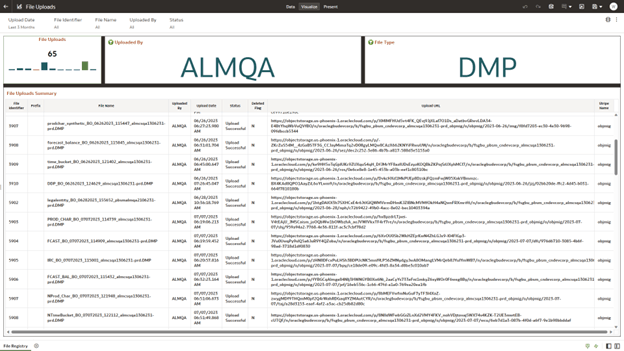
To access the File Uploads report, from the LHS menu, select Operational Analysis, and then select File Uploads.
Figure 10-21 File Upload Report
Report Common Filters
You can use a series of canvas level pinned Prompts to filter the data according to Functional Key Attributes as follows:
Figure 10-22 Canvas Prompt Filters

The following filters are available:
- Update Date: Use this filter to select the Update Date. The selection default is Last 3 Months.
- File Identifier: Use this filter to select a specific File Identifier.
- File Name: Use this filter to select a specific File Name.
- Upload By: Use this filter to select Upload By.
Canvas File Uploads
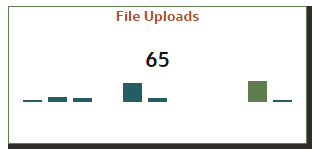
This chart shows the total number of files uploaded based on a reporting period.
Figure 10-23 Canvas File Uploads
Canvas Uploads by
This filter enables you to view the details of the users who have uploaded the files via the UI or batch process.
Figure 10-24 Canvas Uploads by

Canvas File Type
This filter the data by the file type. In this case, it's DMP, but it can be CSV, TXT, or other formats supported by the UI.
Figure 10-25 Canvas File Type

Canvas Summary
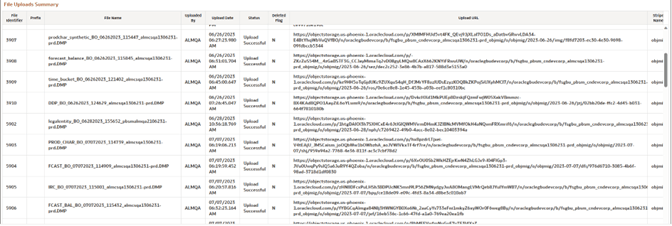
This table gives a clear view of detailed file upload information, that is displayed based on the search filters. Here, you can see the file identifier, prefix, File Name, the user who uploaded the file, Upload Data, status, Deleted Flag – which identifies if the file has been deleted, and the Upload URL.
Figure 10-26 Canvas Summary