Machine Learning Churn Model Properties
Customer retention is a key driver of profitability in the banking sector. The ability to accurately identify customers at risk of attrition enables the bank to implement timely and targeted retention strategies, such as offering incentives or personalized services, to preserve high-value customer relationships. At the same time, incorrectly identifying customers as churn risks can lead to unnecessary marketing costs and inefficient use of resources.
To address this, a machine learning–based solution is introduced to improve the accuracy of churn prediction. The model is trained on a newly created, high-quality banking dataset, with the aim of enabling better decision-making, optimizing retention efforts, and ultimately supporting revenue growth.
ML Model Properties
Figure 7-37 ML Model Properties
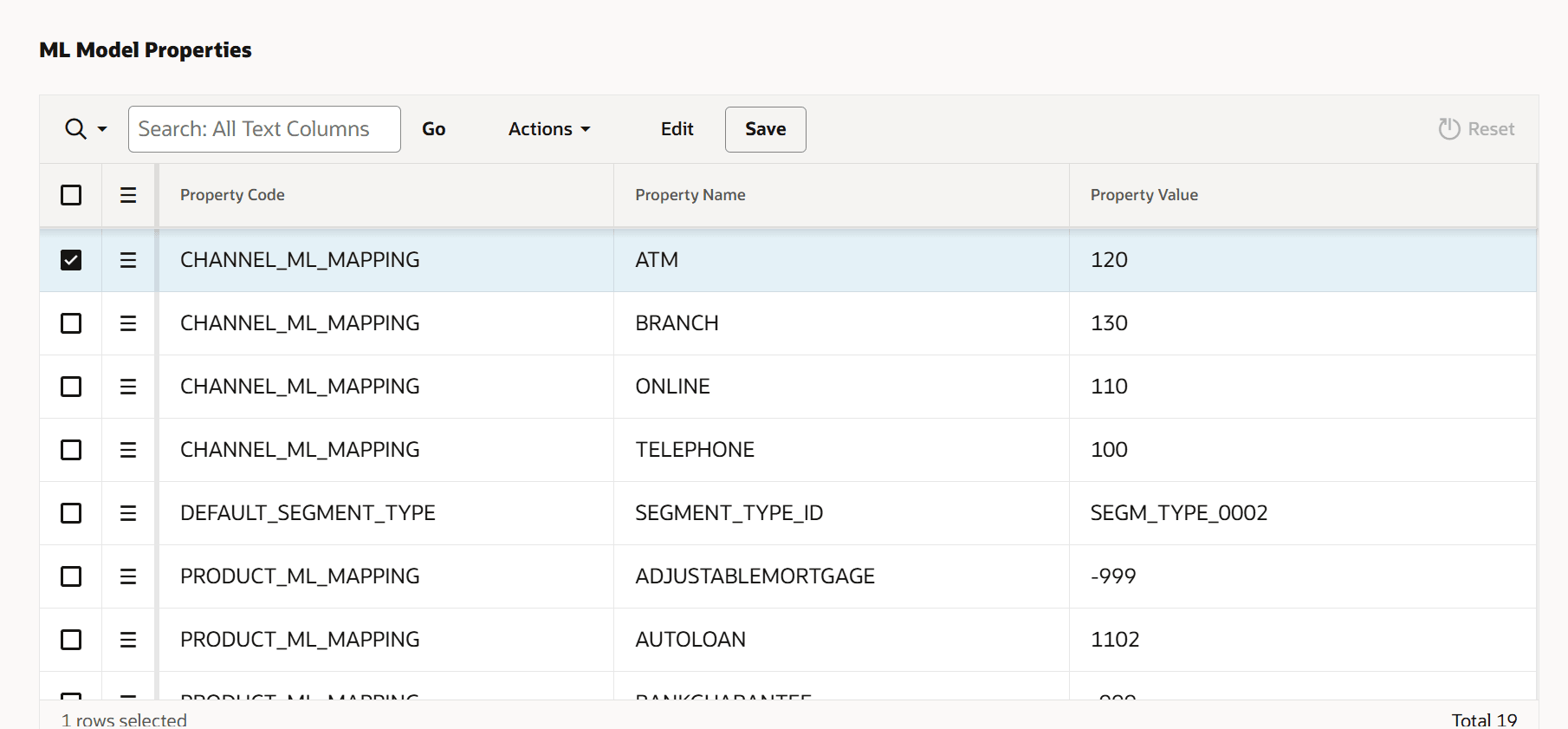
- From the LHS Menu, navigate to Maintenance , and select ML Model Properties to view the ML properties table .
Table 7-3 Property Code Details
Property Code Property Code Description Property Name CHANNEL_ML_MAPPING This property maps the transaction channels (for example, Online, ATM, Branch) to corresponding Channel Numeric Identifier(s) in Channel Dimension. - BRANCH
- ATM
- ONLINE
- TELEPHONE
PRODUCT_ML_MAPPING This property maps the products (for example, Auto Loan, Personal Loan, CASA) to corresponding Product Numeric Identifier(s) in Product Dimension. - AUTOLOAN
- PERSONALLOAN
- STUDENTLOAN
- OFFSETMORTGAGE
- FIXEDMORTGAGE
- ADJUSTABLEMORTGAGE
- CREDITCARD
- CURRENTACCOUNT
- REGULARSAVINGS
- TERMDEPOSIT
- STUDENTSAVINGS
- BANKGUARANTEE
DEFAULT_SEGMENT_TYPE This property sets the default segment type to be used for populating the churn model dataset. SEGMENT_TYPE_ID - The table lists all defined ML model properties with the following columns:
- Select: Checkbox to select one or more rows.
- Reorder: Drag handle to change row order.
- Property Code: Logical grouping of the property (for example,
CHANNEL_ML_MAPPING,PRODUCT_ML_MAPPING). - Property Name: Specific attribute within the property code (for example, ATM, BRANCH, ONLINE).
- Property Value: Assigned value for the property.
The Property Value field is the only editable column in the ML Model Properties table. Enter a property value that corresponds to the associated Property Code and Property Name.
Note:
Enter -999 if a property code is not applicable.
- Use the Actions panel to configure and manage the data displayed in the table. The panel provides the following options:
- Columns: Show or hide table columns and adjust their display order.
- Filter:Filter the dataset based on row and column properties
- Data: Use the Data menu to manage and update the dataset displayed in the table using the following options:
- Refresh: Reload the data to display the most current information.
- Flashback: View data as it existed at a specified time in the past.
- Selection: Use the Selection menu to perform actions on selected rows or columns using the following options:
- Cell Selection (F8): Enable cell-level selection or row-level selection based on your preference.
- Copy to Clipboard (Ctrl+C): Copy the selected data to the clipboard.
- Refresh Rows: Reload the selected rows to display the most current data.
- Revert Changes: Undo unsaved changes for the selected rows. This option is available only when changes exist.
- Copy Down: Copy the value from the selected cell to other cells below.
- Fill: Populate selected rows with a value.
- Clear: Remove values from the selected cells.
- Format: Use the Format menu to modify the visual presentation of data using the following options:
- Control Break:Define grouping of table data based on a selected column
- Highlight:Highlight row or column based on defined conditions.
- Stretch Column Widths: Manually adjust column widths to fit the available screen space.
- Chart: Use the Chart menu to create a visual representation of the current dataset.
- Report: Generate a formatted report based on the displayed data.
- Download: Export the data for offline use in supported file formats.
- Click Save to confirm the changes or click Reset to reset the custom configuration.