3.9.1 Adding New Rules
Creating a Business Rule follows a guided six-step workflow. The progress panel on the right side of the screen shows all steps and your current position.
To create a new rule:
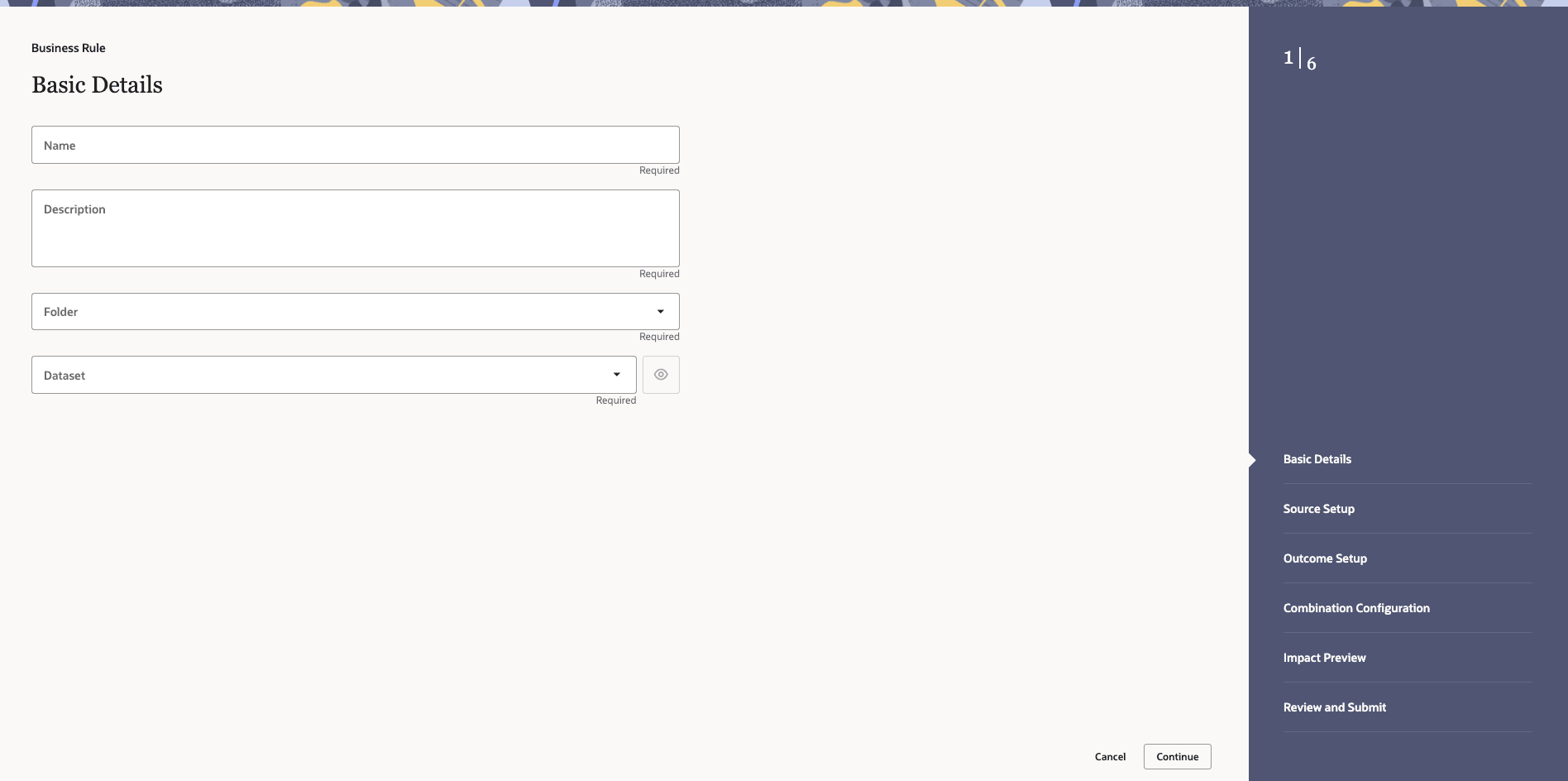
- In the Business Rule — Basic Details page, do the following"
Figure 3-65 Business Rule — Basic Details
- In the Business Rule — Source Setup screen that opens, do the following:
- Select the Source Type:
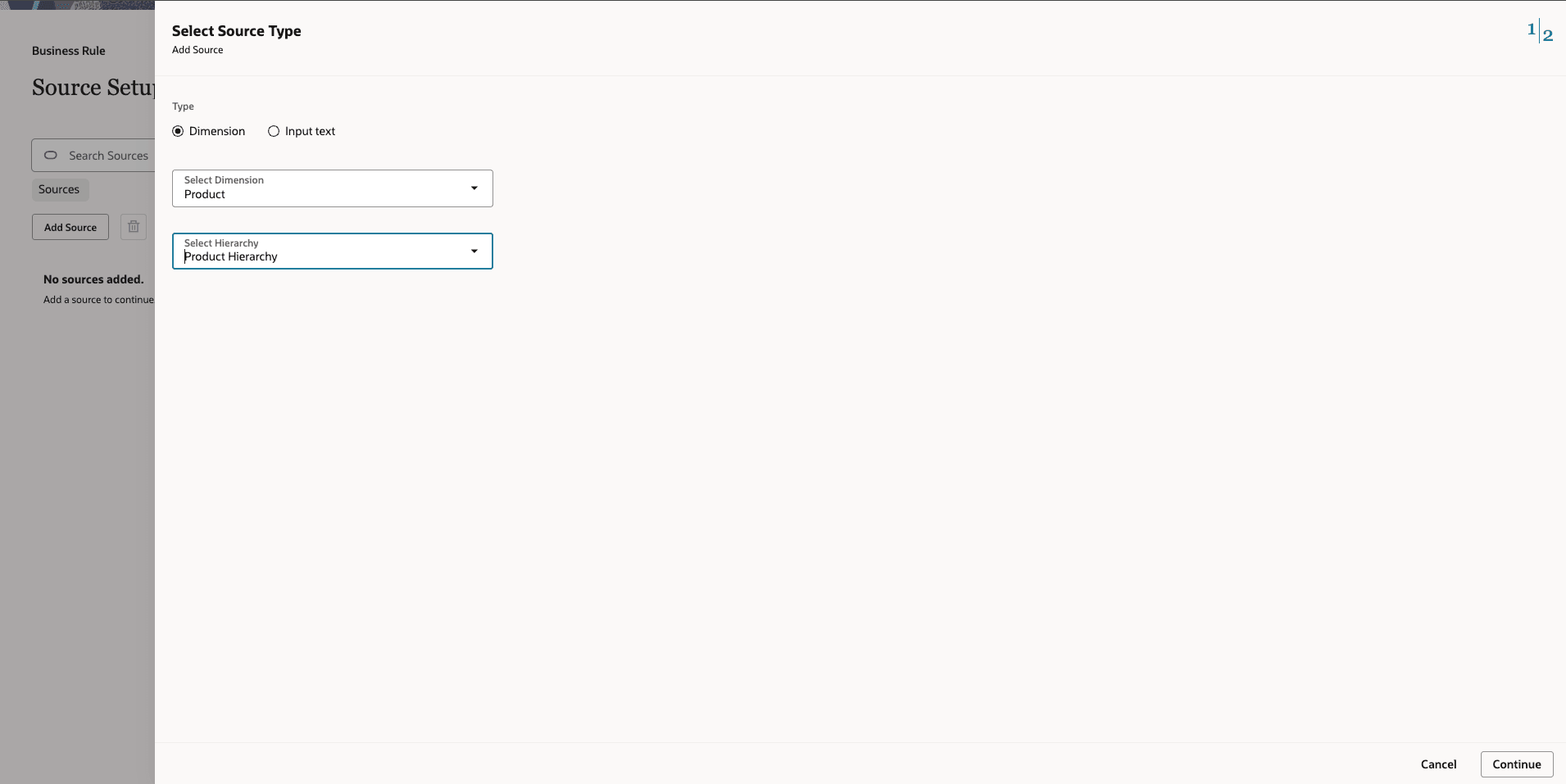
- If you select Dimension, to configure a Key Dimension source:
- Select Key Dimension as the source type.
- Select the desired Key Dimension (for example, Product or Organization).
- Select the Hierarchy associated with the dimension.
- Select one or more Hierarchy Members from the hierarchy.
- Click Add Source to confirm.
Figure 3-66 Dimension Source
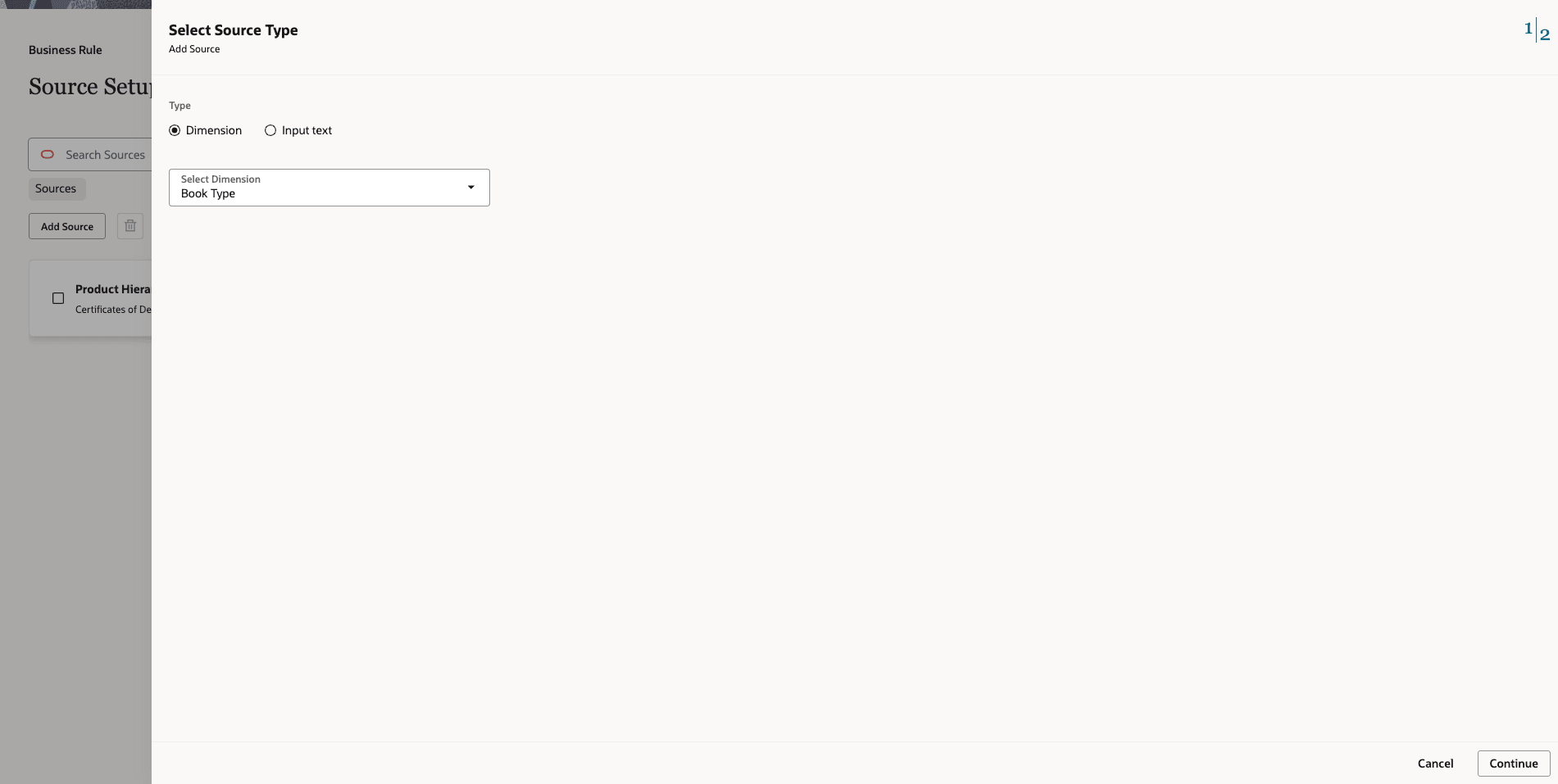
- To configure a Non-Key Dimension source:
- Select Non-Key Dimension as the source type.
- Select the desired Non-Key Dimension.
- Select one or more Dimension Members.
- Click Add Source to confirm.
Figure 3-67 Non-Key Dimension
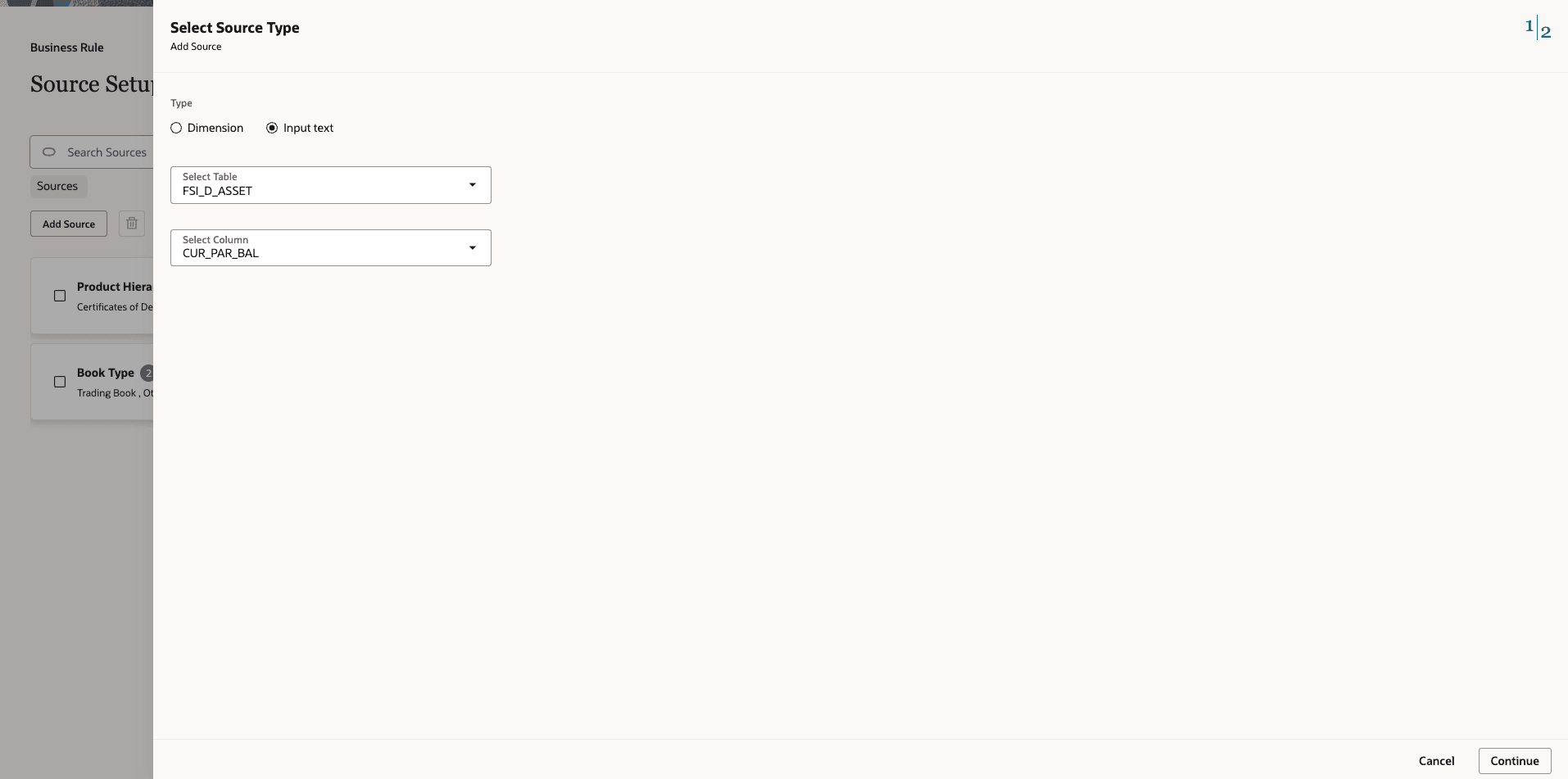
- If you select Input text, do the following:
- Select the Table from the Select Table dropdown.
- Select the Column from the Select Column dropdown.
- Click Continue. The Add Custom Input Values screen is displayed.
- In the Enter value field, type the value and click Add to add it to the Created Custom Values list.
- Click Add Source to confirm.
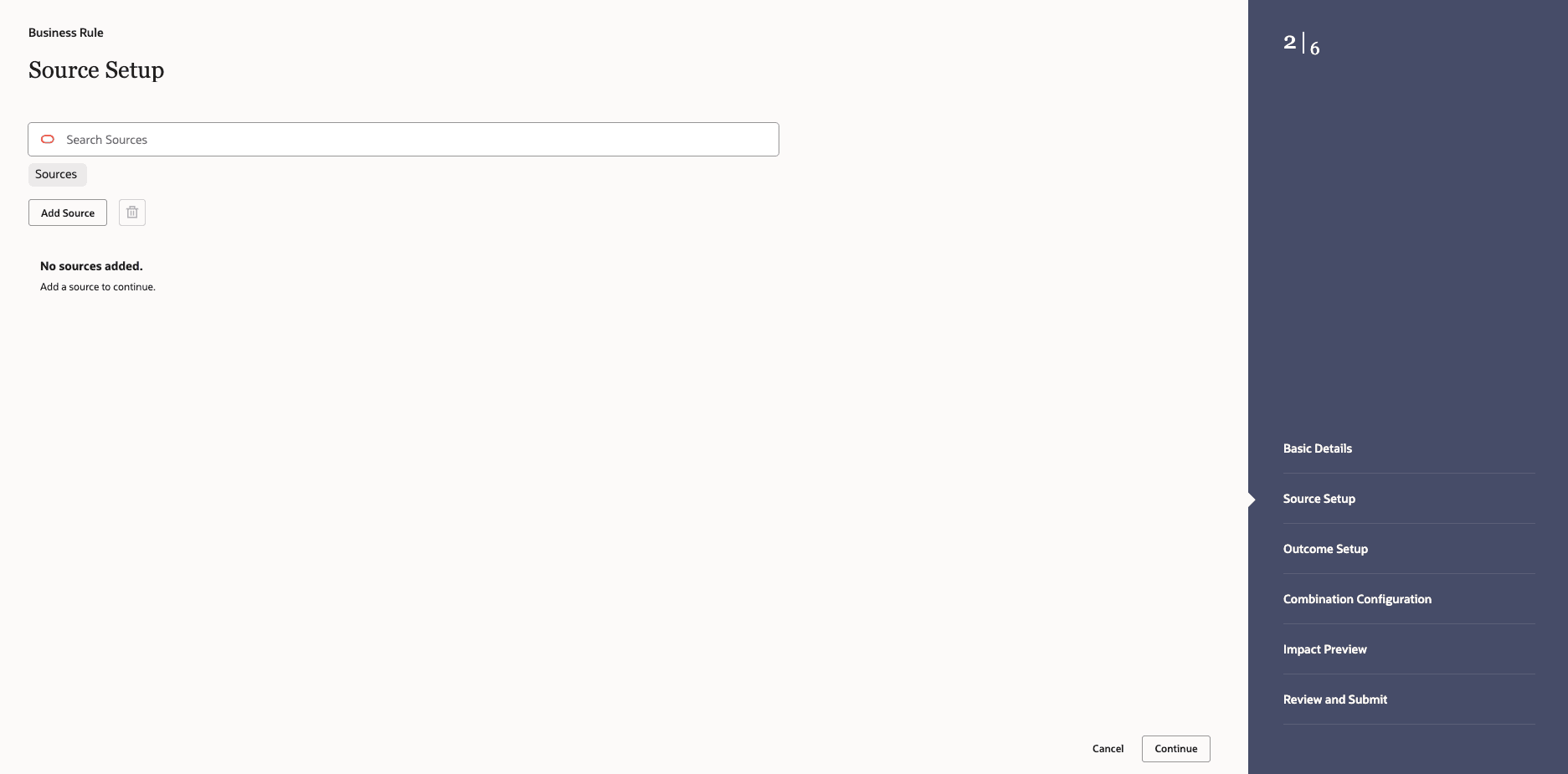
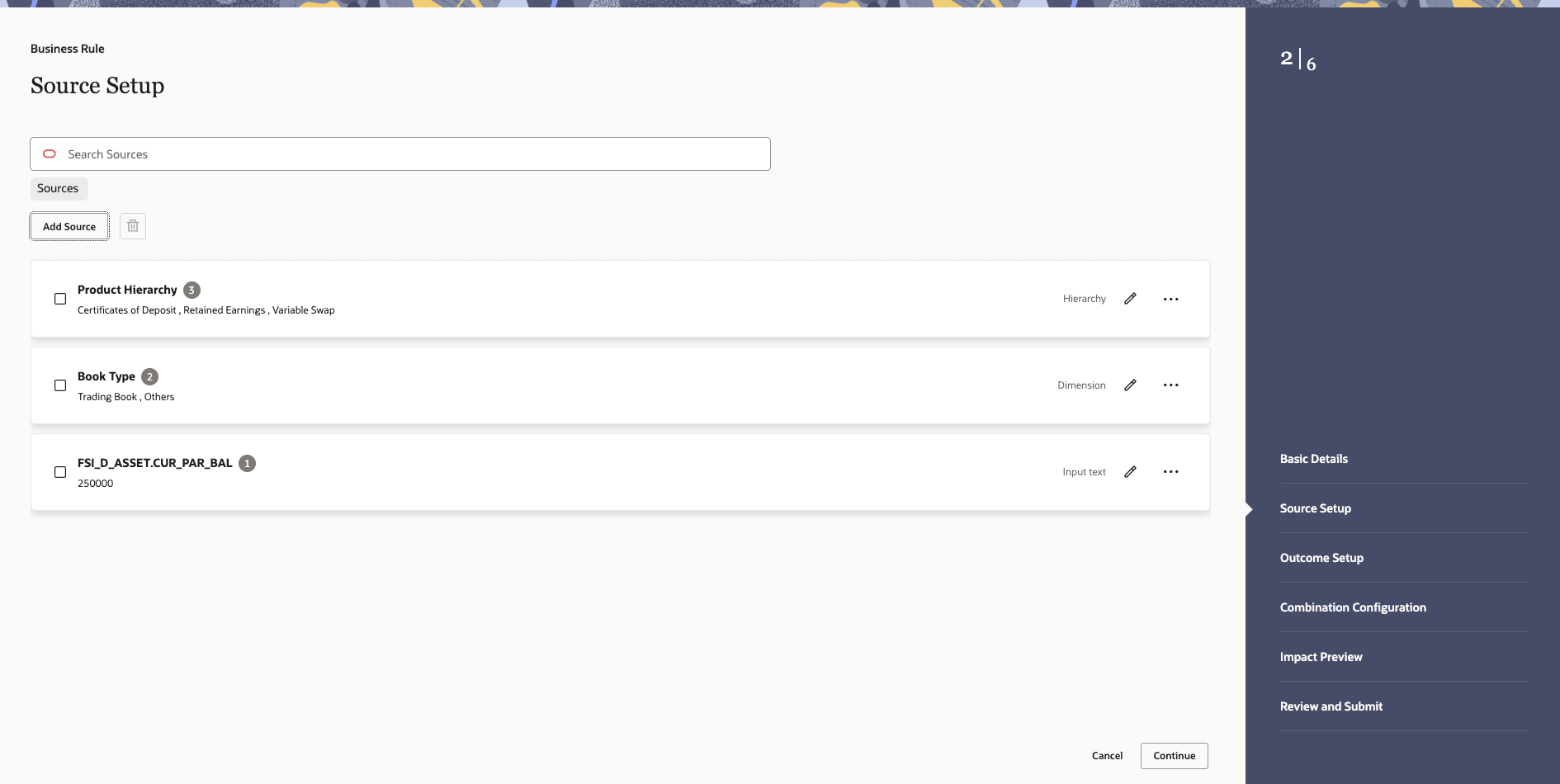
After all sources have been added, the Source Setup screen displays the configured sources as filter tabs at the top of the screen.
Figure 3-68 Input text
- If you select Dimension, to configure a Key Dimension source:
Figure 3-69 Business Rule — Source Setup
- Select the Source Type:
- In the Business Rule — Outcome Setup screen that opens, do the following:
- Click Add Outcome.
The Add Outcome page opens.
Figure 3-70 Select Outcome Type screen

- Select the Outcome Column:
- If you select Dimension based, do the following:
- 2. Select the required Dimension from the Select Dimension dropdown.
- Select one or more Dimension Members.
- Click Add Outcome to confirm.
- If you select Expression based, do the following:
- Select the expression type.
- Predefined
- Custom
- Click Continue.
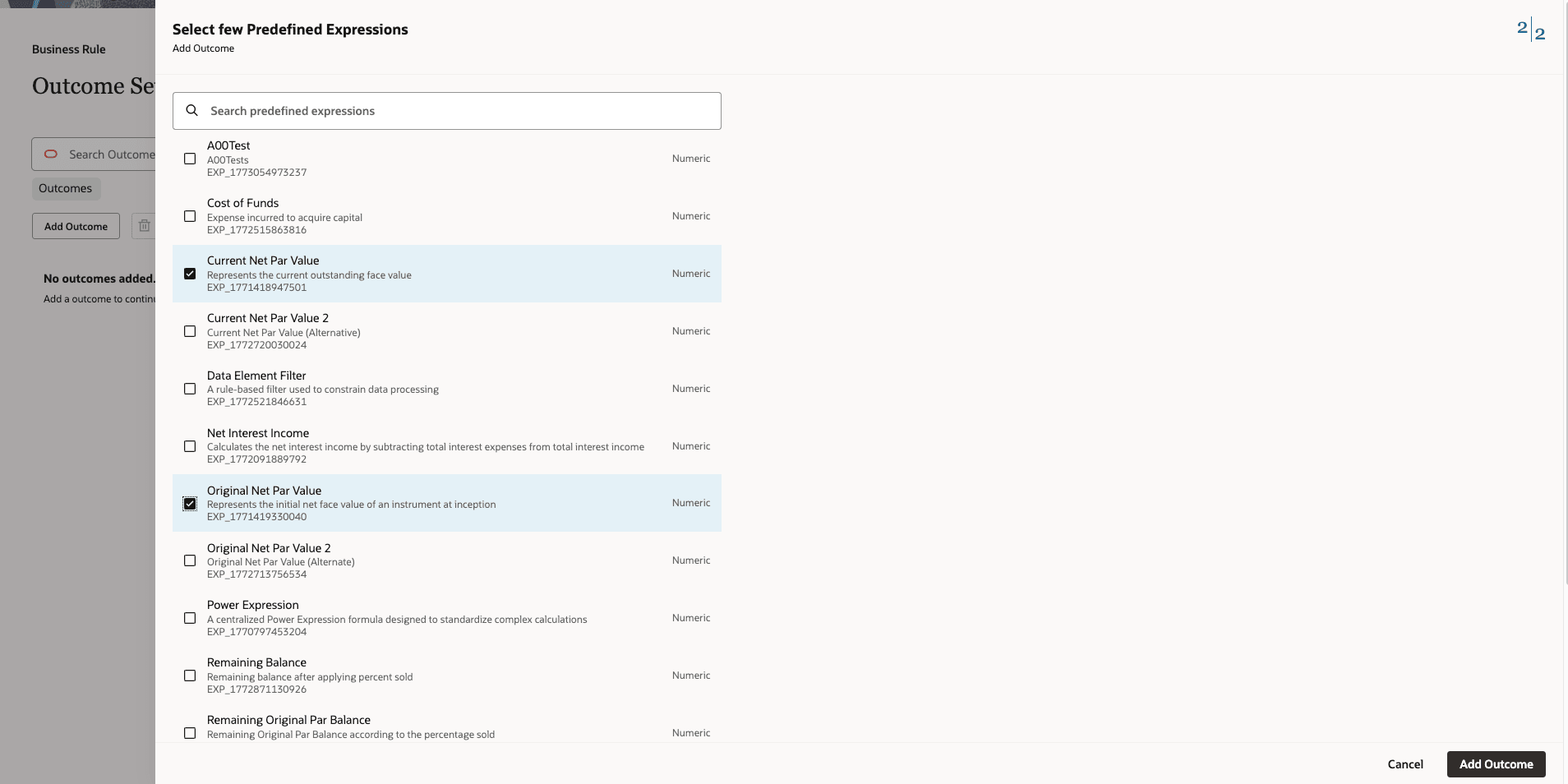
- If you select Predefined, then select one or more expressions from the available list and click Add Outcome to confirm
Note:
If no predefined expressions have been configured in the system, the message "No expressions available." is displayed.Figure 3-71 Predefined Expression screen
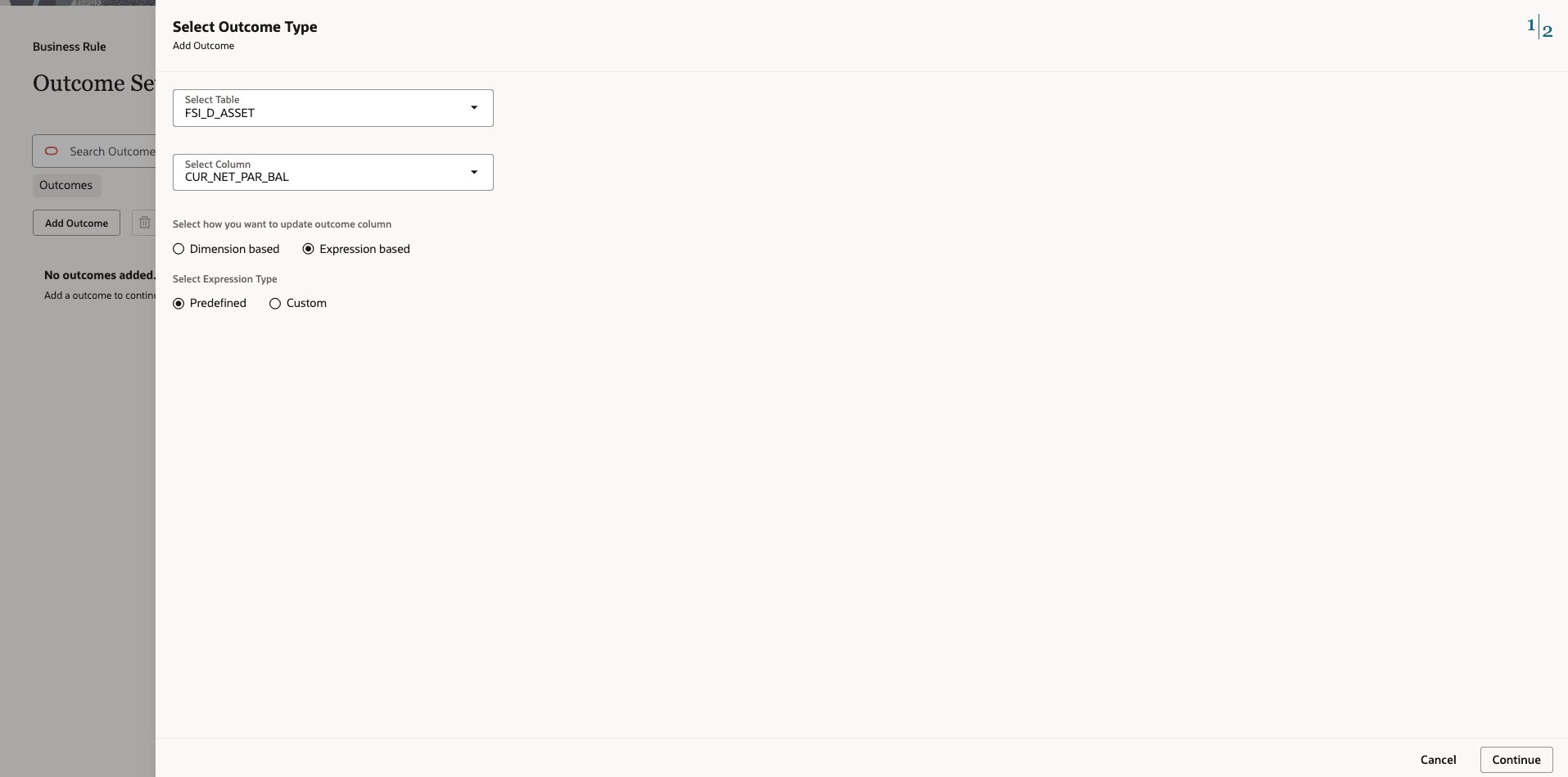
Figure 3-72 Predefined Expression List
- If you select Custom, then do the following:
- In the Do you want to use already created custom expression? field, select either of the following option:
- Yes — to reuse an expression already created in this session (shown in the Created expressions list on the right).
- No — to create a new expression.
Figure 3-73 Custom Screen
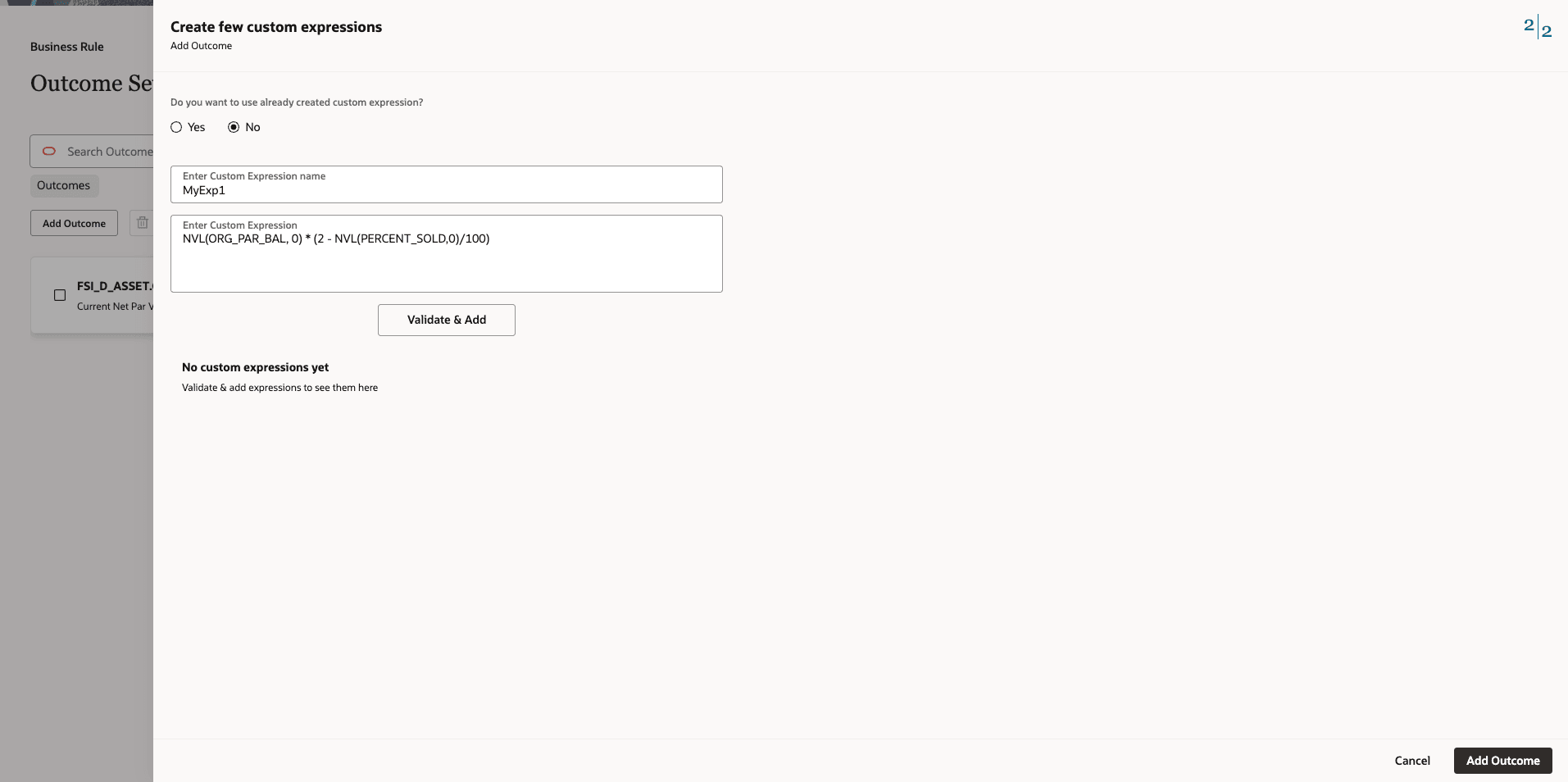
- If you select No, enter a Custom Expression Name in the Name field.
- Enter the SQL expression in the Enter Custom Expression field.
- Click Validate & Add to validate the expression syntax and add it to the Created expressions list.
- Click Add Outcome to confirm.
- In the Do you want to use already created custom expression? field, select either of the following option:
- Select the expression type.
- If you select Dimension based, do the following:
Figure 3-74 Source Setup Summary
- Click Add Outcome.
- In the Business Rule — Combination Configuration page that opens, do the following:
Figure 3-75 Business Rule — Combination Configuration
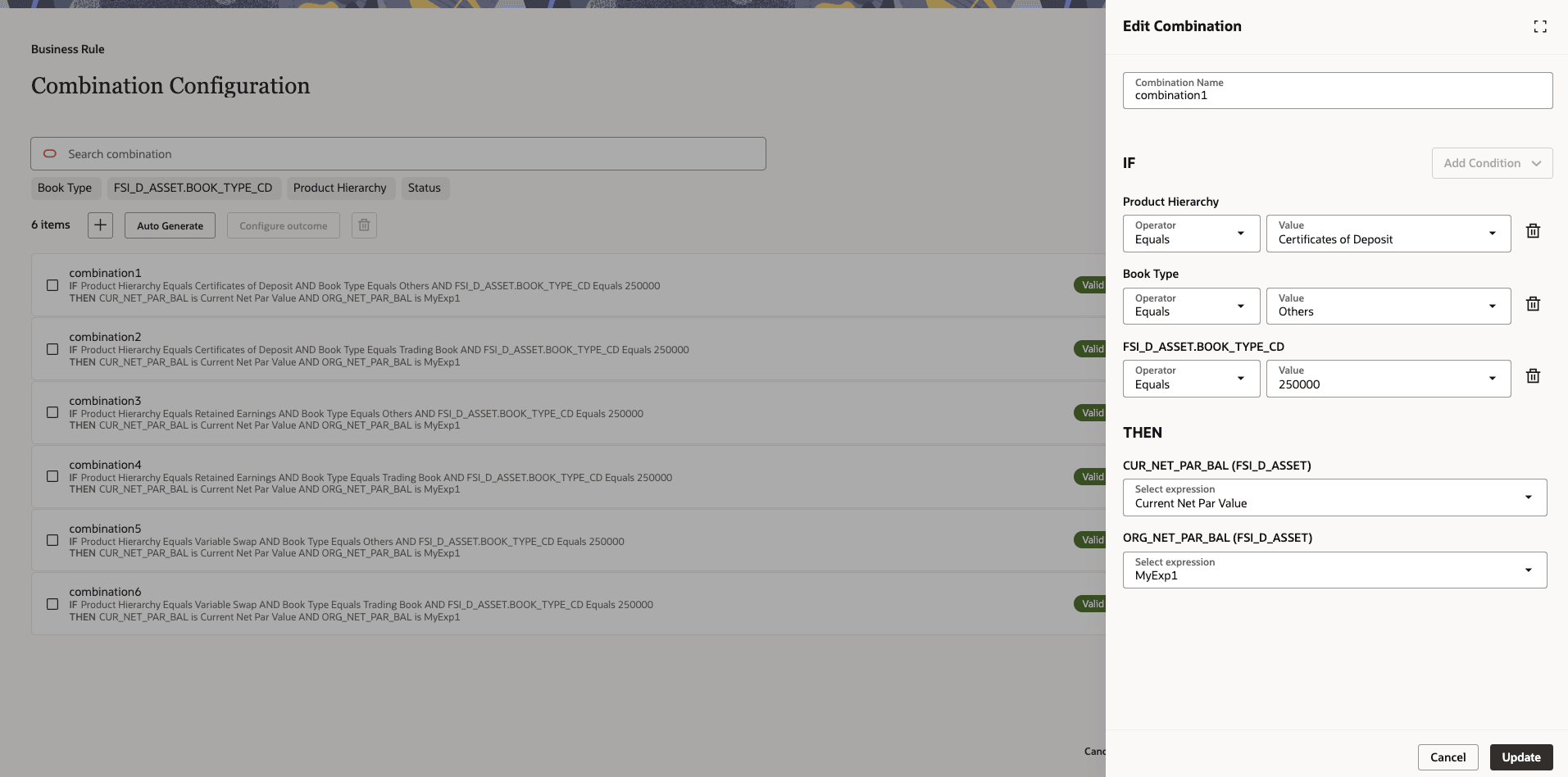 The system provides two methods for creating combinations:
- Auto Generate
- Manual Addition
- Do either of the following:
- Click Auto Generate to allow the system to automatically create all possible combinations based on the configured source conditions.
Note:
Auto Generate saves time, ensures complete coverage of all condition permutations, and reduces manual errors. - Click + to manually add a combination. The Add Combination panel opens on the right side of the screen. Do the following:
- Enter a Combination Name.
- Under the IF section, the source column is displayed. Configure the condition:
- Select the Operator (for example, Equals).
- Select or enter the Value to match.
- Click Add Condition to include additional conditions in the same combination.
- Under the THEN section, select the expression to apply from the Select expression dropdown for the outcome column.
- Click Create to save the combination
- Click Auto Generate to allow the system to automatically create all possible combinations based on the configured source conditions.
- Click Continue.
Each combination in the list displays a status indicator:- Missing Outcome — no target outcome has been configured for this combination. The rule is incomplete and cannot be submitted.
- Valid — the outcome is properly configured and the combination is ready for execution.
You can assign outcomes to combinations in two ways:- Individual Configuration — click the Edit icon on a specific combination to configure its outcome individually.
- Bulk Configuration — select multiple combinations using the checkboxes, then click Configure Outcome to assign the same target configuration to all selected combinations simultaneously.
You can search combinations using the Search combination bar, and filter the displayed combinations by source attributes such as Book Type, Product Hierarchy, or Status using the filter tabs.
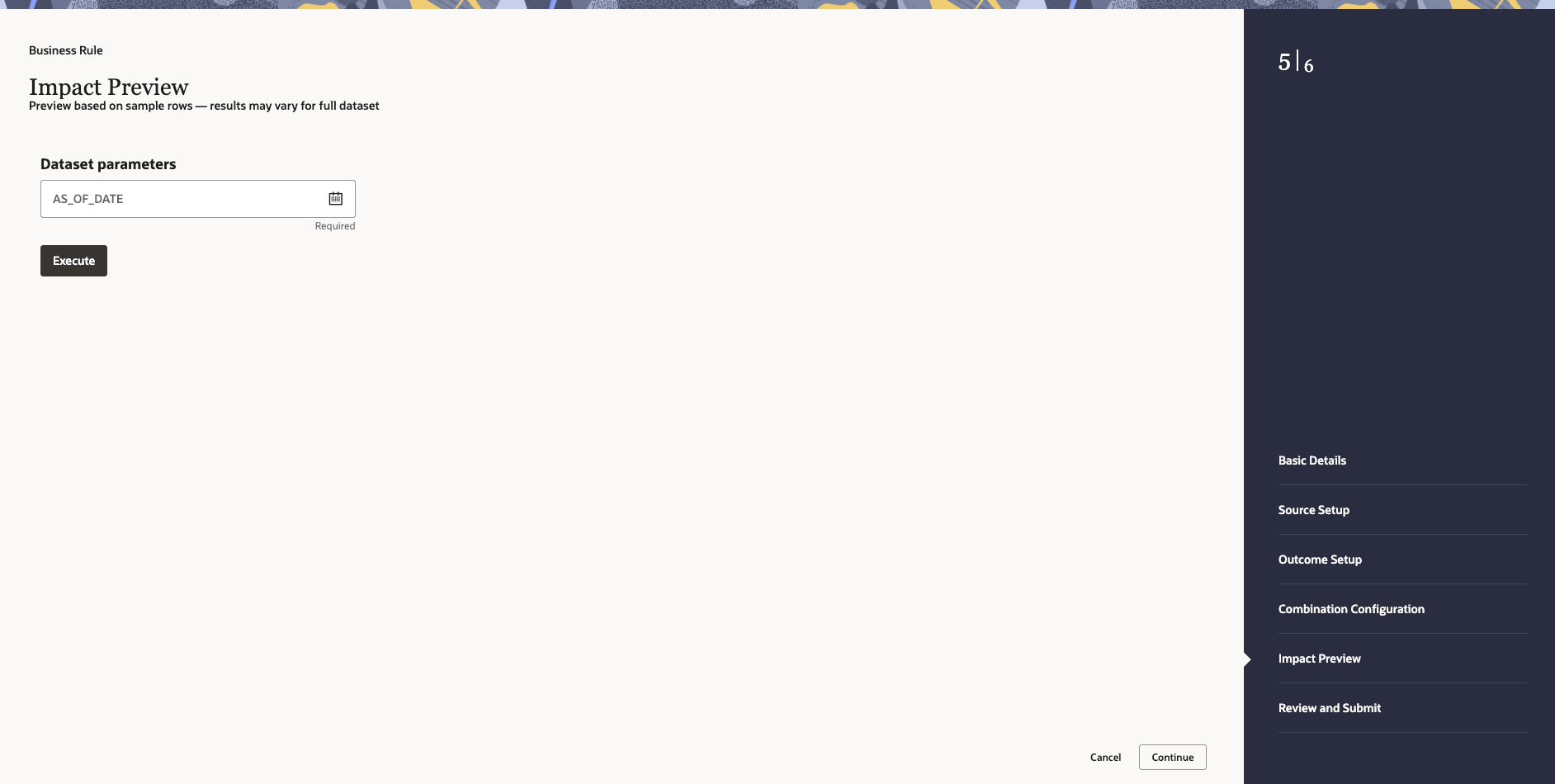
- In the Business Rule — Impact Preview page that opens allows you to test the Business Rule against a sample of the dataset before submission, validating that the configured combinations and outcomes produce the expected results.
Note:
The preview is based on sample rows only. Results may vary for the full dataset.The Business Rule — Impact Preview screen displays the following:- Dataset parameters — if the selected dataset requires runtime parameters, they are listed here for input prior to execution. If none are required, the message "No parameters required for dataset." is displayed.
- Execute button — click to run the preview against the sample data and display the projected output.
If the preview cannot be loaded, the message "Unable to load impact preview. Please try again or verify your combinations." is displayed. In this case, return to the Combination Configuration step to verify that all conditions and expressions are correctly defined before retrying.
Click Continue.
Figure 3-76 Business Rule — Impact Preview
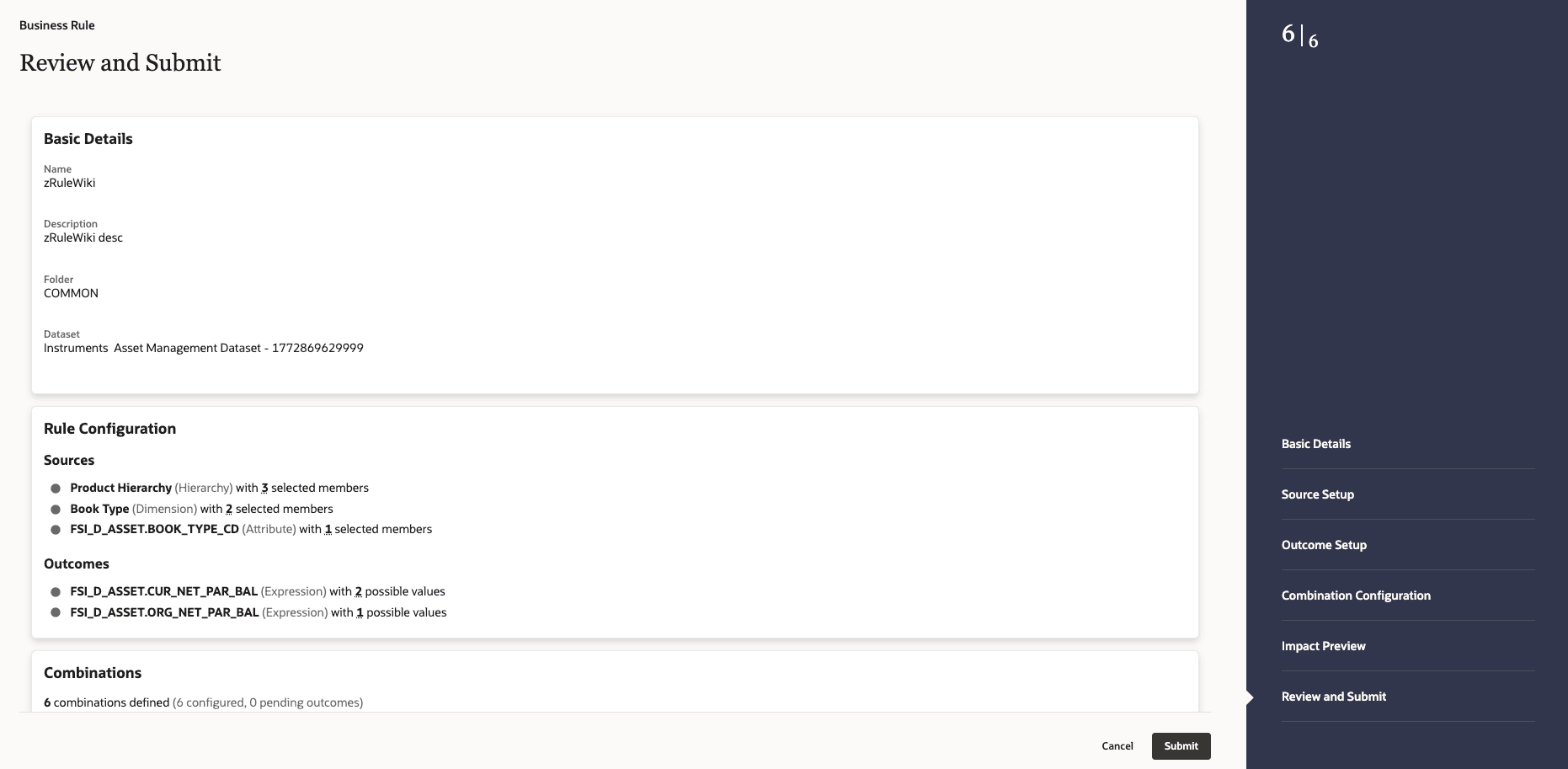
- The Business Rule — Review and Submit page that opens provides a consolidated view of the complete rule configuration across all previous steps.
Do the following:
- Review all details carefully before saving the Business Rule.
The screen displays a summary of:
- Basic Details — Name, Description, Folder, and Dataset.
- Source Setup — all configured source conditions.
- Outcome Setup — all configured outcome columns and their derivation logic.
- Combination Configuration — all defined IF-THEN combinations.
- Generated Merge Query — scroll down to view the SQL merge query that the system has generated based on the rule configuration. This allows you to verify the underlying logic before execution.
- Once you have reviewed all details, click Submit to save and activate the Business Rule.
After submission, the Business Rule is saved and appears in the Business Rule Summary screen.
Figure 3-77 Business Rule — Review and Submit
Note:
Once a Business Rule has been submitted, it can be viewed, edited, or deleted from the Business Rule Summary screen using the Action menu against the respective rule entry. Only users with Read/Write privileges can edit or delete a Business Rule. A rule that has active dependencies cannot be deleted.
- Review all details carefully before saving the Business Rule.