6.3.1.2 Detail Screen
Click on Add from the Title bar of Summary Screen or Edit/View an Allocation Rule from Summary to launch into the Allocation Rules detail screen.
Navigation in Detail screen
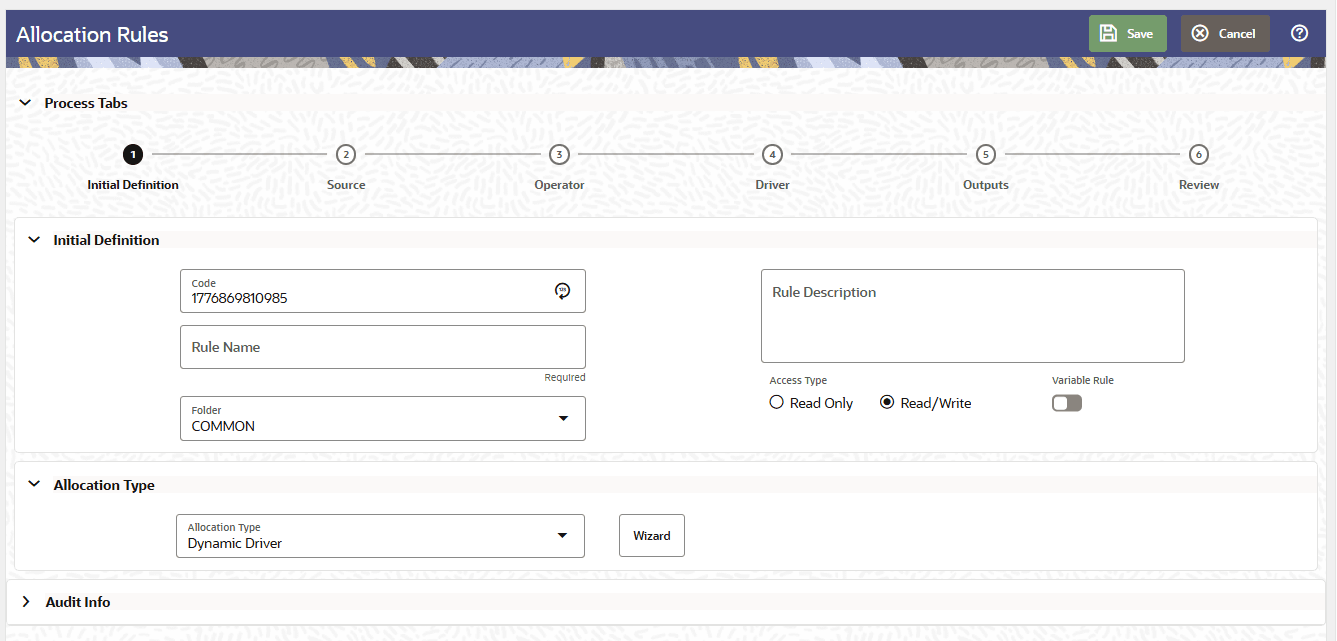
The Allocation Rules detail screen is composed of six Process Tabs that are described in the following sections. The appearance of the Detail Screen depends on the Tab that is active, which in turn is dependent on the Allocation Type selected for the Rule.
This screen allows you to define new allocation rule by entering code, rule name, description, folder, access type, and variable rule.
Figure 6-15 Allocation Rules Detail screen
Note:
In the Code field, the code is auto-generated. You can also manually enter a numeric code. Only numerical values are allowed; special characters are not permitted.Run Execution Parameters
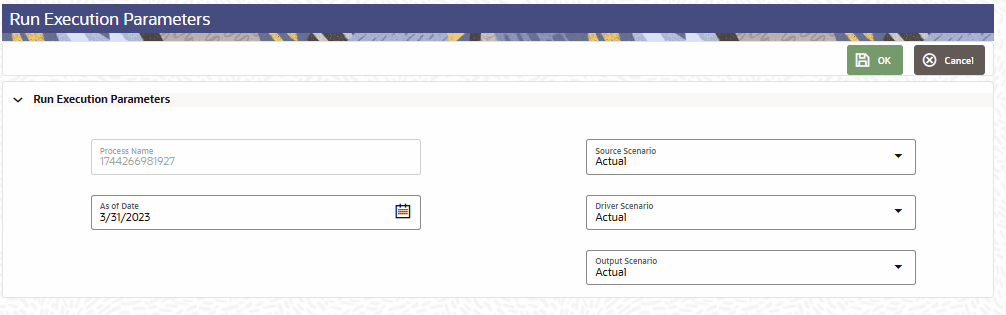
When you run an allocation rule, the Run Execution Parameters screen displays the runtime parameters required for the rule. In addition to the existing parameters such as Process Name and As of Date, the screen can display scenario parameters based on the rule definition.
Scenario runtime parameters are applicable only when the rule uses a Management Ledger table. Scenario is currently supported as a dimension only for the Management Ledger class of tables.
Figure 6-16 Run Execution Parameters screen with scenario fields
Note:
The figure above shows all three scenario fields — Source Scenario, Driver Scenario, and Output Scenario — populated with the value Actual, which is the default scenario from Application Preferences. The fields are enabled, indicating that all three are set to Use Application Preferences in the rule definition.The following scenario fields can appear on the Run Execution Parameters screen:
Table 6-14 Run Execution Parameters screen
| Field | Description |
|---|---|
| Source Scenario | Displays the scenario used by the source. |
| Driver Scenario | Displays the scenario used by the driver. |
| Output Scenario | Displays the scenario used by the output. |
The scenario fields are displayed and enabled based on the tables and scenario values defined in the allocation rule:
Table 6-15 Scenario values defined in the allocation rule
| Rule Definition | Runtime Behavior |
|---|---|
| Rule DefinitionRuntime BehaviorSource, Driver, and Output use Management Ledger tables, and all scenario fields are set to Use Application Preferences | Source Scenario, Driver Scenario, and Output Scenario are displayed and enabled. Each field defaults to the scenario value set in Application Preferences and can be changed at run time. |
| Source and Output scenarios are set to Use Application Preferences, and Driver Scenario is set to a specific value such as Forecast | Source Scenario and Output Scenario are enabled. Driver Scenario is displayed as Forecast and is disabled for user input. |
| Only one of Source, Driver, or Output uses a Management Ledger table | Only the scenario field for the Management Ledger table is displayed. For example, if only Source uses a Management Ledger table, only Source Scenario is displayed. |
| The allocation type does not include all processing tabs | Scenario fields are displayed only for the available processing tabs. For Dynamic, Static Table, and Leaf allocation types, Source, Driver, and Output scenario fields can appear. For Static allocation types, only Source and Output scenario fields can appear. For Constant allocation types, only Output Scenario can appear. |
If a scenario field is set to Use Application Preferences, the field displays the default scenario from Application Preferences and remains enabled for modification at run time. If a scenario field is set to a specific scenario value in the rule definition, the field displays that value and is disabled for run-time modification.