3.6.1 Navigation in Summary Screen
When you navigate to the Lookup Tables summary screen, the rules stored within your current Default Folder are presented in a summary table. The Lookup Tables summary screen has two panes: Search and Lookup Tables summary table.
The title bar of the summary page provides the following actions:
- Add: Click Add to create a new Lookup Table rule. The Add button is disabled if any rows in the table are selected.
- Actions: Click the ellipsis icon at the top right of the title bar to access the following options:
- Refresh: Refreshes the summary table to display the latest data.
- Reset: Resets the search filters applied.
- Help: Opens the Help page.
The grid bar at the top of the summary table provides the following buttons:
- Delete: Select one or more rules and click Delete to remove them simultaneously.
- Export: Downloads the summary table data in .xls format.
- Columns: Opens a column selector to choose which columns to display on the summary screen.
Search
To search Lookup Tables:
- Click the Search icon on the Search pane to expand the criteria window.
- Enter the Lookup Table Name or Description and click Search to display matching Lookup Tables.
- Click Reset to remove the applied filter criteria and refresh the window.
The search results are displayed in a table containing all Lookup Tables that meet the search criteria.
Lookup Table Summary Table
This section presents a table containing all Lookup Tables that meet your search criteria. The summary table displays the following columns:
- Name: Displays the Lookup Table's short name. Hovering over the name displays the object code and object ID.
- Folder: Displays the folder in which the Lookup Table was created.
- Target Table: Displays the target instrument table associated with the Lookup Table.
- Created By: Displays the name of the user who created the rule.
- Creation Date: Displays the date and time at which the rule was created.
- Last Modified By: Displays the name of the user who last modified the rule.
- Last Modified Date: Displays the date and time of the latest modification.
- Access Type: Displays whether the rule is Read/Write or Read Only. Only the creator of a rule may change its Access Type.
- Status: Displays the current status of the Lookup Table. Possible values are: Creation in Progress, Table Created, Failed, and Deletion in Progress.
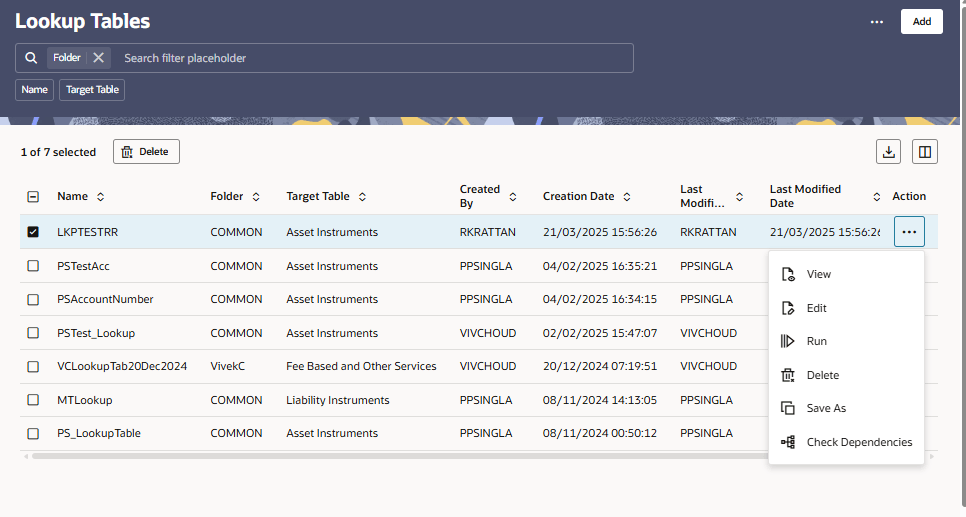
- Action: Displays the list of actions available for the Lookup Table rule.
- If status is Creation in Progress, only View is available.
- If status is Table Created, the available actions are View, Edit, Run, Delete, Save As, and Check Dependencies.
- If status is Failed, the available actions are View and Delete.
- If status is Deletion in Progress, only View is available.
The Creation in Progress status transitions to either Table Created or Failed, depending on whether the physical lookup table creation in the database succeeds or fails.
- View: Opens the Lookup Table in view mode. Available for all status values.
- Edit: Opens the Lookup Table in edit mode. Available for Table Created status only.
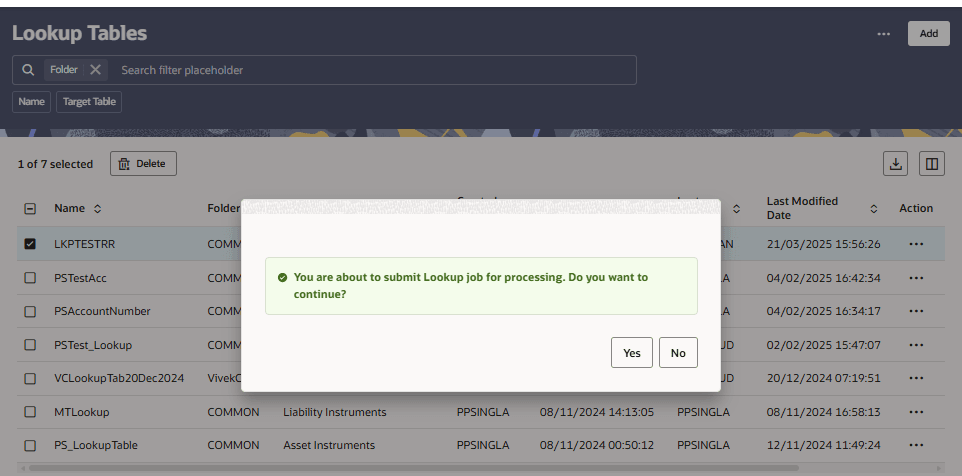
- Run: Submits the Lookup Table for processing. When you click Run, a confirmation dialog displays the message: You are about to submit Lookup job for processing. Do you want to continue? Click Yes to proceed or No to cancel.
Figure 3-28 Lookup Tables — Run confirmation dialog
- Save As: Creates a copy of the Lookup Table rule. The Save As dialog allows you to enter the Name, Description, Folder, and Access Type for the copy.
- Delete: Deletes the selected Lookup Table rule. Available for Table Created and Failed status. For tables in Failed state, Delete removes only the row from the summary grid. Once Delete is initiated, the status changes to Deletion in Progress. When deletion completes successfully, the row is removed from the summary grid. If deletion fails, the table reappears in the summary with a Failed status.
- Check Dependencies: Checks for dependencies of the selected Lookup Table with other objects in the application. Available for Table Created status only.
Figure 3-29 Lookup Tables — Actions
You may select or deselect all Lookup Table rules in the summary table by clicking the check box in the upper-left corner of the summary table, directly to the left of the Name column header.