7.2 Creating Purge Batch

Use this section to set new parameters to create purge batch.

To create the batches, follow these steps:
  1. Log in as CRR Administrator user.
  2. Click Financial Services Regulatory Reporting. A Navigation List LHS is displayed.
  3. Click Compliance Regulatory Reporting. Select Common Tasks. A common Tasks menu is displayed.
  4. Click the Run sub-menu in Rule Run Framework. A Run page is displayed.
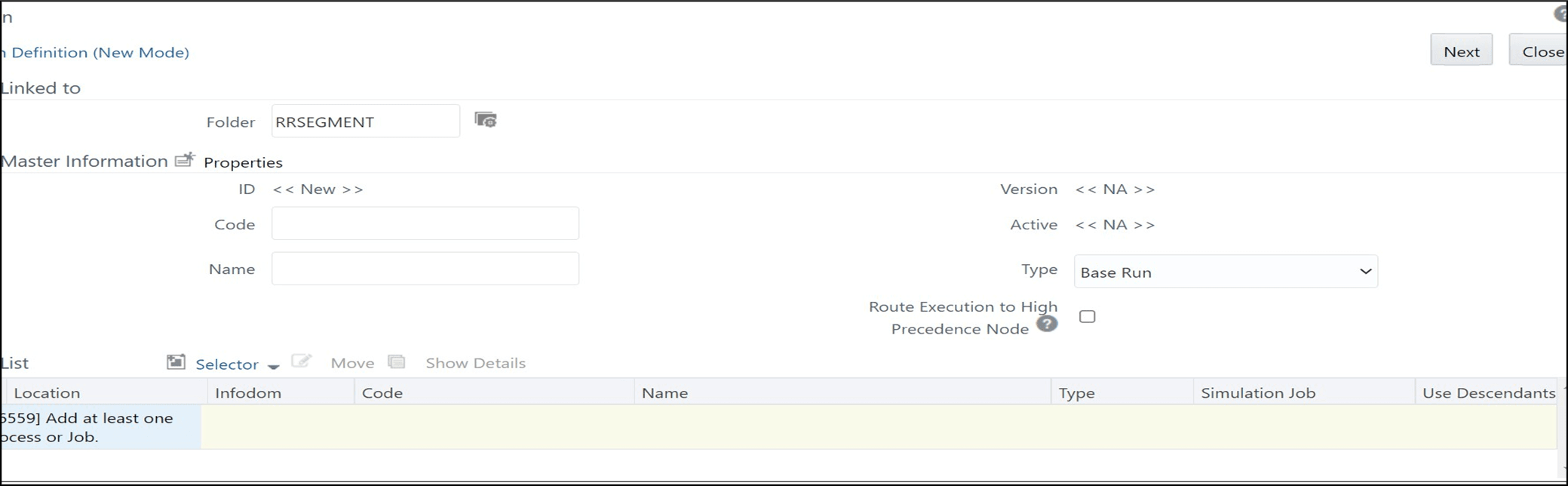
  5. Click the New button. A Run Definition page is displayed.
  6. Click Folder Icon. The Folder Selector window is displayed.
  7. Select RRSEGMENT folder from the list and click OK. The Run page is displayed.

    Figure 7-1 Run page

    Run page

  8. Enter a unique code and name in respective fields.
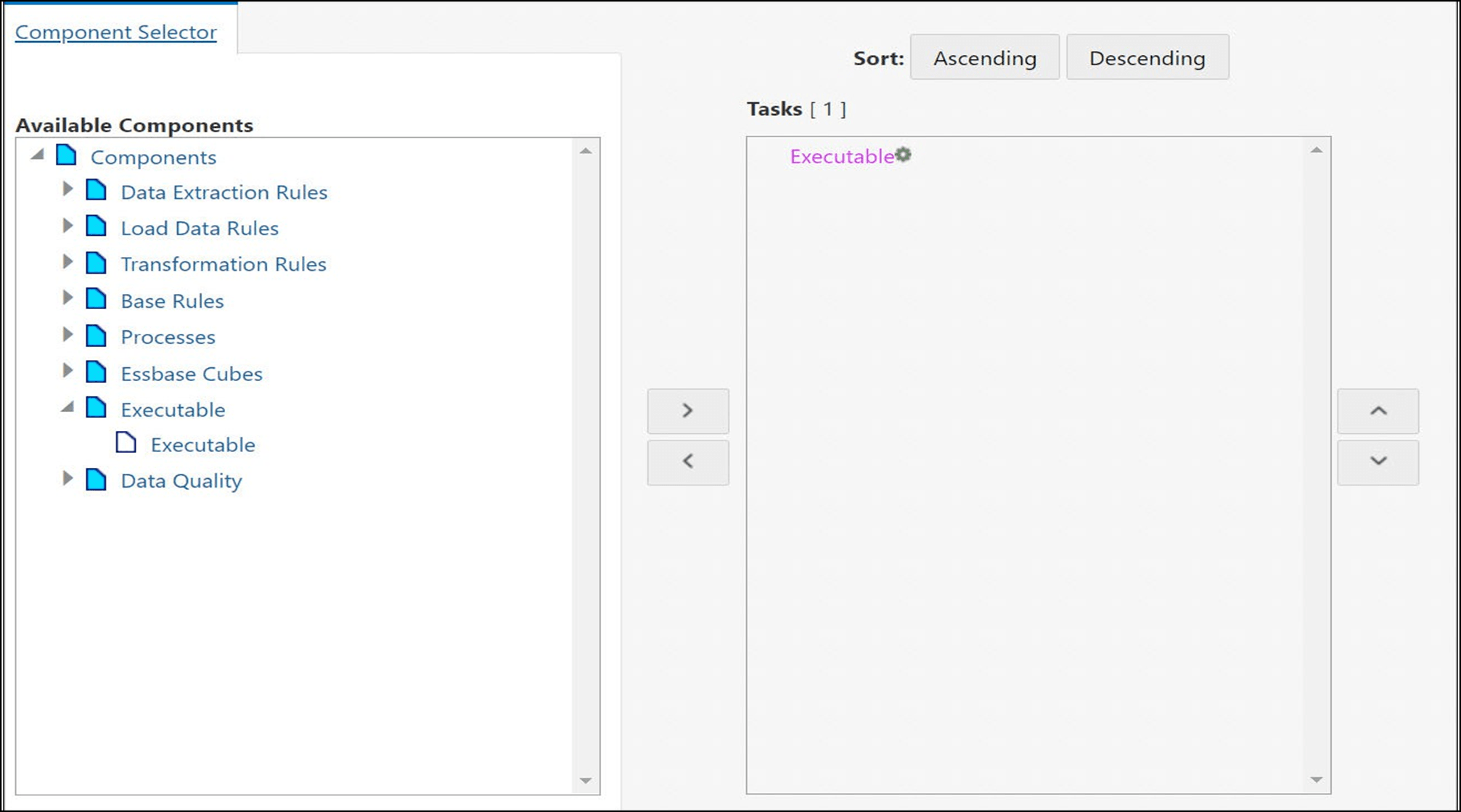
  9. Select Job from the Selector drop-down list. A Selector Component window is displayed.
  10. Under the Available Component list, expand Executable and select Executable component and click Right arrow. The selected component is displayed in the Task list.

    Figure 7-2 Task list

    Task list

  11. In the Task list, right click on the Executable to add parameters.
  12. Click on Add Parameters. The Parameters dialog is displayed.

    Note:

    Add values in double quotes. For example, “GoamlPurge.sh”
    • parameter 1 - sh file name to be invoked through batch.
    .sh file names for all the batches are as follows:
    Purge (cleanup) - GoamlPurge.sh
    • parameter 2 – Start Date – Date should be in DD-MM-YYYY format only. Start Date should not be Greater than End Date and should not be greater than SYSDATE
    • parameter 3– End Date – Date should be in DD-MM-YYYY format only. End Date should not be smaller than Start Date and should not be greater than SYSDATE
    For example: "GoamlPurge.sh","15-01-2026",”22-01-2026"
  13. Click OK to add the parameter and click OK again to close the window. The Run Definition page is displayed.
  14. Click on the Next button on the right top of the page. Click Save to complete the batch creation process. A confirmation message is displayed, and click OK.
    On successful creation, you are navigated to the Run page and the newly created batch is dis- played in the list.