12.2.2.9 Configuring the Data Source
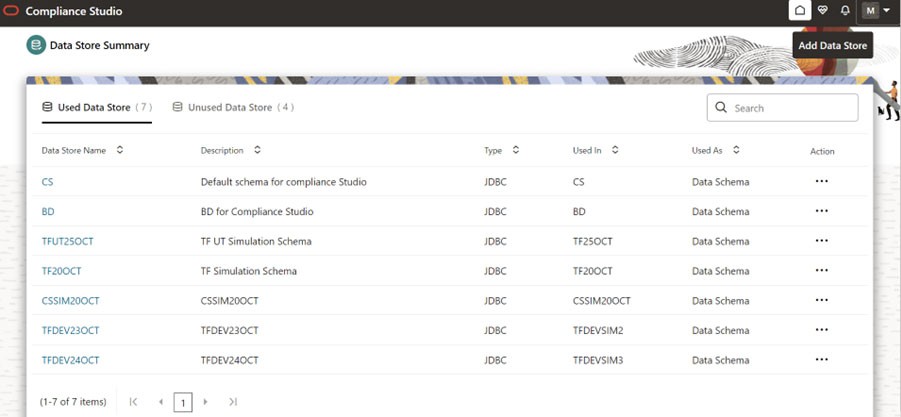
The Data Source allows you to manage the Data Schemas registered with the OFS Compliance Studio application. The Data Source Summary window shows the list of Data Schemas registered with OFS Compliance Studio. These Data Schemas can be used either for workspace or for sourcing data.
To view the Data Source details, click Action icon next to corresponding Workspace and select View.
After Pre-configuration procedures you must add new data source in the compliance studio
application.
Note:
Add the production schema data source from where the data will be moved to the Simulation schema.Follow the subsequent steps to add the new data source:
- Click on the User Icon.
- Click Data Source. The Data Source page is displayed.
- Click Add Data Source and
enter the value for the following fields:
- Data Source Name: Enter the workspace schema name.
- Description: Enter the description of database connection.
- Type: Enter the type of the database connection.
- Database Type: Select the Database Type as Oracle.
- Wallet Alias: Enter the Wallet Alias. This value should be same as configured using Oracle Wallet (<NEW SCHEMA>_alias)
- Table Owner: Enter the table owner name (<<NEW SCHEMA>>).
- Click Test Connection to check the status of the connection.
- Click Create to create the Data Source or Click Cancel to skip the changes.
Figure 12-7 Data Source Summary Page