11 Configuring Risk Scoring Rules
This chapter provides a brief overview of configuring Risk Scoring Rules for Transaction Filtering. These rules are configured in the Inline Processing Engine (IPE). Transaction Filtering has a few ready- to-use business rules. The following steps show the pre-configured business rules and how you can create your business rules based on the requirements.
Before you configure the rules, you must update the sequence ID for IPE. To do this, execute the following script in the Config schema as a post-installation step:
Begin p_set_sequence_value('TASKS','5000000','Y'); end;
Note:
The screenshots shown for these steps are taken for existing tables. You can perform similar steps for newly added tables.To configure rules in IPE, follow these steps:
- Navigate to the Financial Services Analytical Applications Transactions Filtering landing page. For more information, see the Inline Processing Menu.
- Click Inline Processing. The
Inline Processing page is displayed.
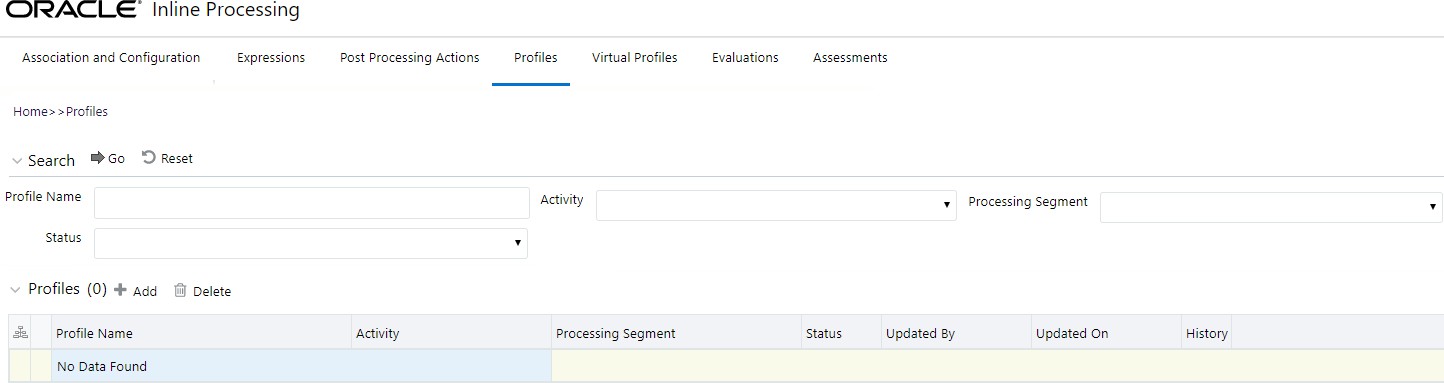
The following window shows the Profiles menu. Profiles are an aggregation of information. Pro- files can be based on different grouping entities (For example, account and customer) and can be filtered to only look at specific types of transactions. Profiles can also be based on time (last three months) or activity counts (last 100 transactions). For more information on Profiles, see the Managing Profiles chapter in the Oracle Financial Services Inline Processing Engine User Guide.
Figure 11-1 Profiles Menu
- Import data model tables into IPE using the Business Entities sub-menu. A Business Entity is a virtual layer that can be added to an existing table. You can add a new business entity and search for existing business entities to modify or remove a business entity For more information on Business Entities, see the Managing Business Entities section in the Oracle Financial Services Inline Processing Engine User Guide.
To import a table, follow these steps:
- Click the Association and Configuration menu, then click the Business Entities sub-menu.
- Select the Business Entity you want to import.
- Click Import Entity
Figure 11-2 Import Entity icon.

Figure 11-3 Import Table Action
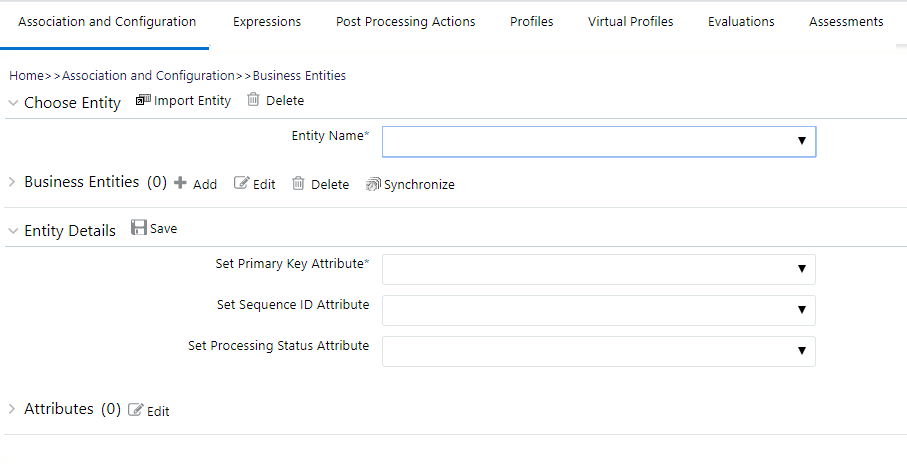
Figure 11-4 Entities List
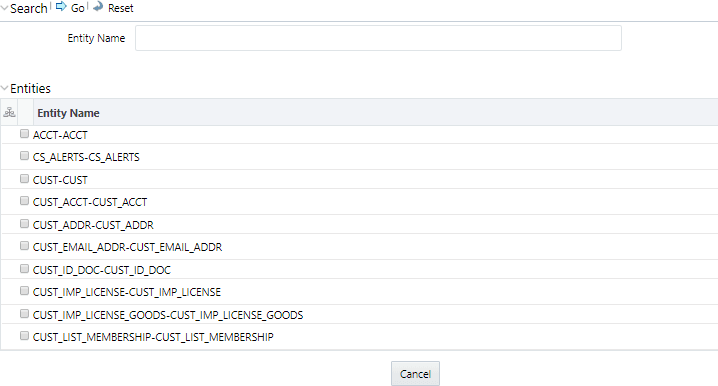
- Select an entity. The Business Entity fields are enabled. You can enter the following details:
Table 11-1 Business Entity Fields
| Field | Description |
|---|---|
| Business Name | Enter a unique Business Name of the Entity. By default, the Business Name is populated as the logical name provided for the Table in the data model. The details of this field can be modified. |
Table 11-2 Business Entity Fields
| Field | Description |
|---|---|
| Entity Type |
Select the Entity Type from the drop-down list. The following entity types are available:
After a table is imported, you cannot change the entity type of the table. |
| Processing Segment | Select the Processing Segment from the multi-select drop-down list. |
| Set Primary Key Attribute |
Select the Primary Key Attribute from the drop-down list. This shows all the columns of the table. This is a unique attribute of the table which is imported. It is a mandatory field. Composite Primary Keys are not supported. |
| Set Sequence ID Attribute | Select the sequence ID attribute from the drop-down list. Select the sequence ID attribute from the drop-down list. This field is enabled if you select Activity as the Entity Type. |
| DB Sequence Name |
Enter the DB sequence name. A DB Sequence must be created in the Atomic Schema. The name of that Sequence must be provided in this field. This field is enabled if you select Activity as the Entity Type. |
| Set Processing Status Attribute |
Select the processing status attribute from the drop-down list. This attribute is updated by IPE to indicate if the assessment has passed or failed. This field is enabled if you select Activity as the Entity Type. |
| Set Processing Period Attribute |
Select the processing period attribute from the drop-down list. This attribute defines the date or time when the activity has occurred. For example, Transaction Time. This field is enabled if you select Activity as the Entity Type. |
| Score Attribute |
This field is enabled ONLY if you select Lookup as the Entity Type. Select the Score Attribute from the drop-down list. This attribute can be used in evaluation scoring. |
- Click Save.
- Add a business entity. To do this,
follow these steps:
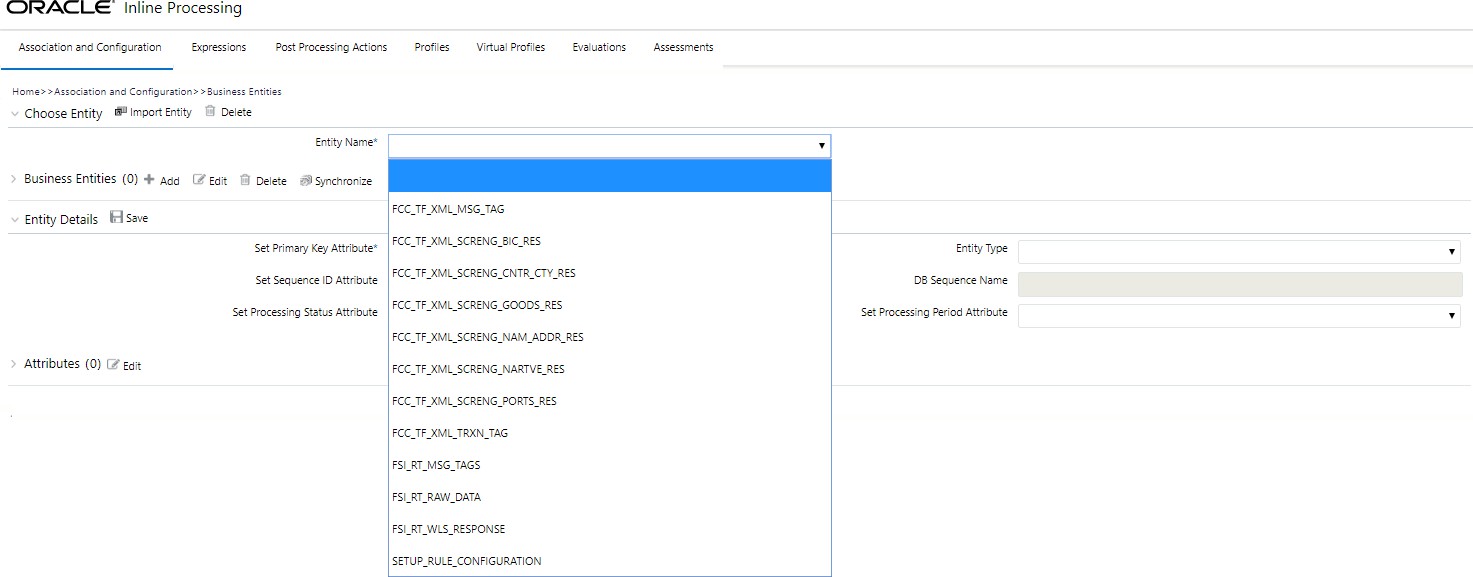
- In the Business Entities sub-menu, select an entity from the
Entity Name drop-down.
Figure 11-5 Entities List
- Click Add.
- In the Business Entities sub-menu, select an entity from the
Entity Name drop-down.
- Provide the name, processing segment,
and score attribute for the business entity.
Figure 11-6 Business Entity attributes
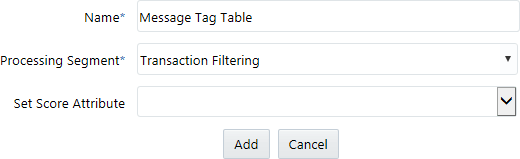
- Click Add. The new parameter is added to the list of Business Entities on the Business Entities page.
- Add a join in IPE from the Inline Datasets sub-menu in the Association and Configuration menu. Inline Datasets are joins between two Business Entities. When you create an Inline Data- set, you must define at least one join.
To add a join, follow these steps:
- On the Inline Datasets page, click Add.
Figure 11-7 Inline Datasets page
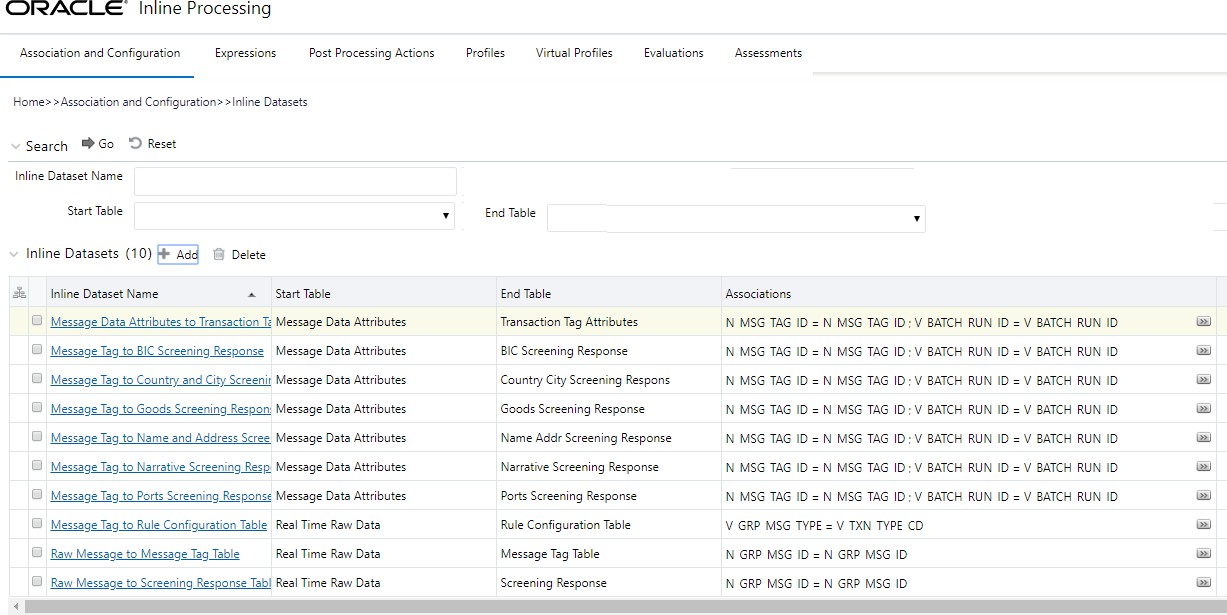
- Enter a name for the inline dataset.
- In the Start Table field, select the start table of the join.
- In the End Table field, select the end table of the join.
Figure 11-8 Inline Datasets Attributes
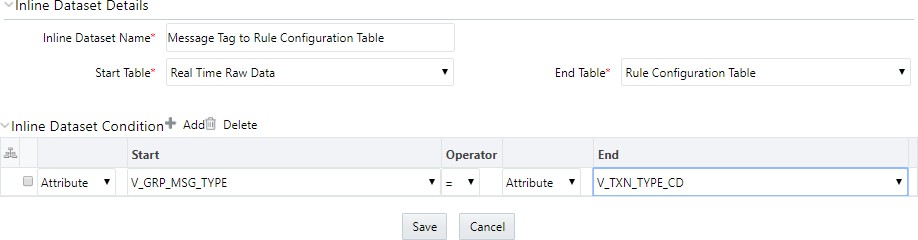
- Click Add.
- Click Save. The new dataset is added to the list of Inline Datasets on the Inline Datasets page. For more information on inline datasets, see the Managing Inline Datasets section in the Oracle Financial Services Inline Processing Engine User Guide.
- Add a traversal path for each join
defined in the Inline Datasets sub-menu. Traversal paths are the paths
between two or more entities. The traversal paths defined can be used to create
expressions, evaluations, and profiles.
To add a traversal path, follow these steps:
- Click the Traversal Paths sub-menu in the Association and Configuration menu.
- On the Traversal Paths page, click Add.
Figure 11-9 Traversal Paths Page
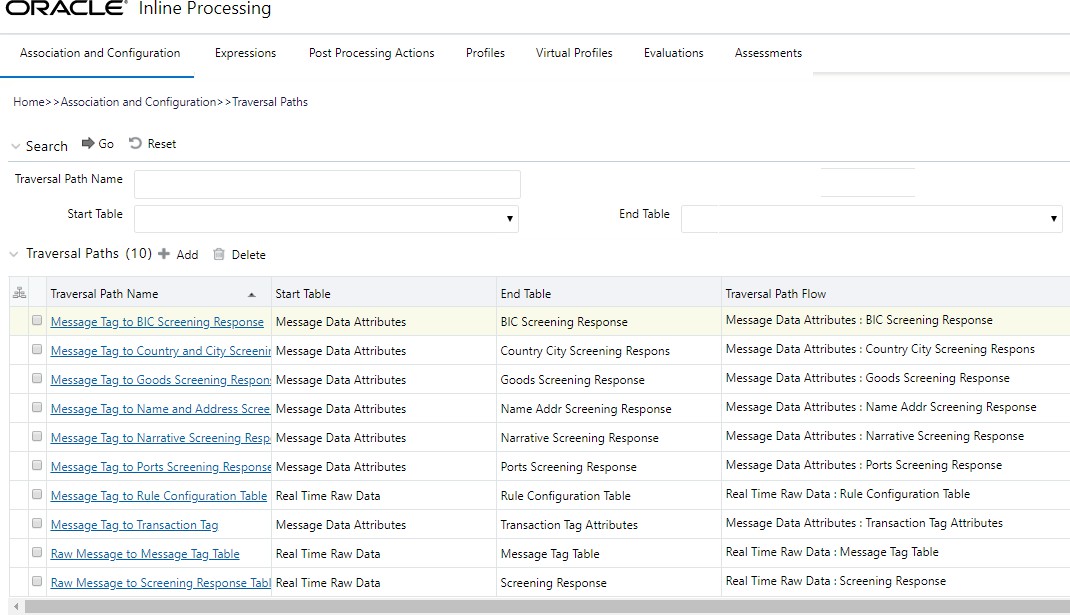
- Enter a name for the traversal path.
- In the Start Table field, select the same start table that you selected in step c.<XREF>
- In the End Table field, select the same end table that you selected
in step d.<XREF>
Figure 11-10 Traversal Paths Attributes
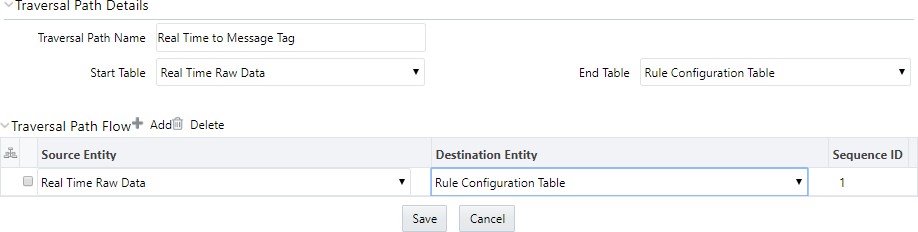
- Click Add.
- Select the values for the traversal path flow as shown in the figure.
- Click Save. The new path is added to the list of traversal paths on the Traversal Paths page. For more information on traversal paths, see the Managing Traversal Paths section in the Oracle Financial Services Inline Processing Engine User Guide.
- Add an Expression on the risk
score column of the newly created business entity which is to be scored as a
risk parameter from the Expressions menu. An expression is used as a filter
when creating evaluations or profiles. Expressions must only be created on the
activity table on which an evaluation is created.
In this example, two expressions are created. The first expression is for the column which holds the value of the new risk parameter, and the second expression is for the calculations that are needed to derive the risk score
To add an expression, follow these steps:- Click the Expressions menu.
- On the Expressions page, click Add.
Figure 11-11 Expressions Page
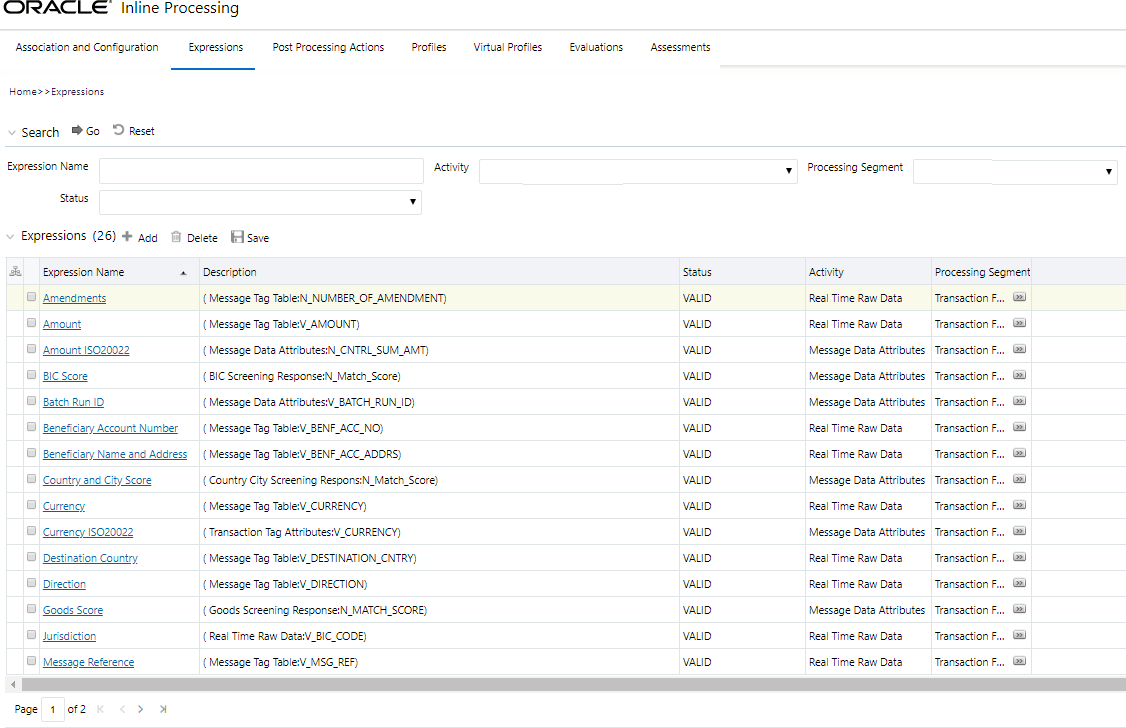
- For the first expression, enter a name for the expression and
select the values as shown in the figure.
Figure 11-12 First Expression Attributes
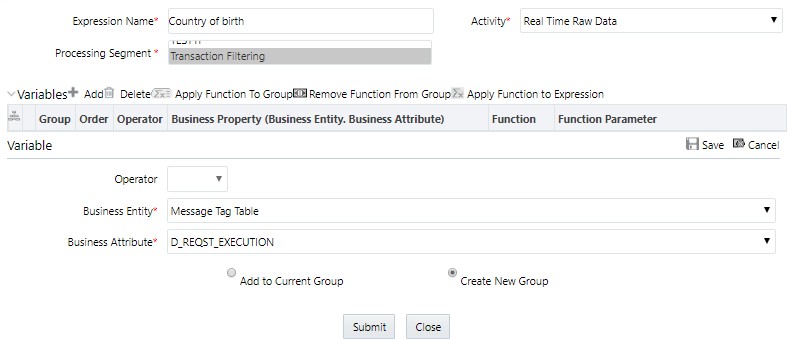
- Select the business entity and the business attribute where the value of the new parameter resides.
- Click the Save icon. The variable is displayed on the
window.
Figure 11-13 First Expression Displayed
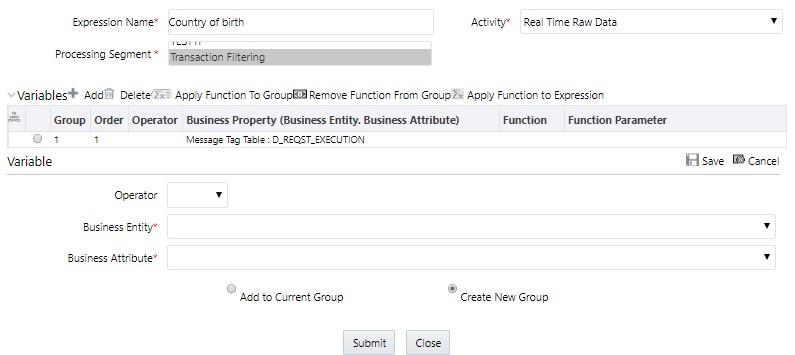
- For the second expression, enter a name for the expression and
select the values as shown in the figure.
Figure 11-14 Second Expression Attributes
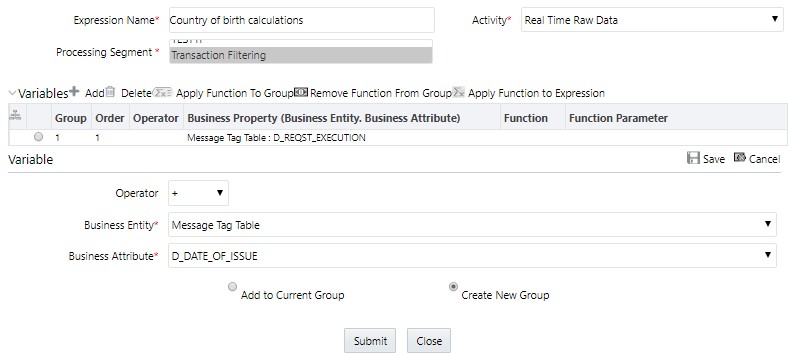
- Click the Save icon. The variable is displayed.
Figure 11-15 Second Expression Displayed
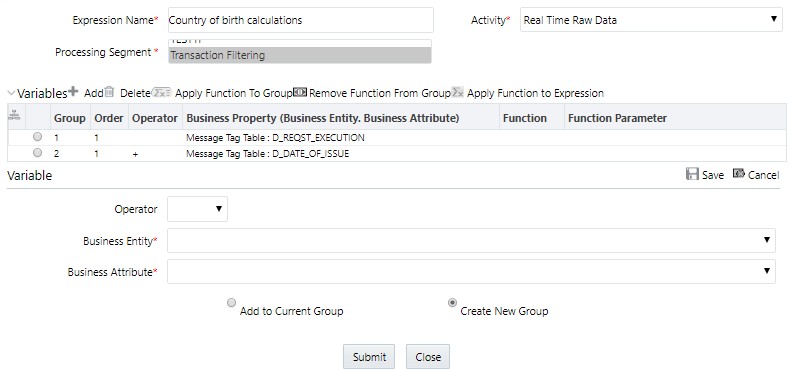
For information on applying a function to the group or expression, see the Managing Expressions chapter in the Oracle Financial Services Inline Processing Engine User Guide.
- Click Submit. The new expression is added to the list of expressions on the Expressions page.
- Add the following ready-to-use
evaluations from the Evaluations Menu. Evaluations are logical comparisons
against conditions that result in a score. For information on the conditions, see
the Managing Evaluations section in the Oracle Financial Services Inline
Processing Engine User Guide.
You can define new rules according to your requirement using the expressions defined in the earlier steps.
ISO20022 Risk-Currency VS Amount Threshold EvaluationFor all filter conditions mentioned in the following table, if the filter values are met as configured then add a risk score of 20.Note:
- This evaluation applies to the ISO message category.
- This score is configurable.
Risk- High Risk Party EvaluationTable 11-3 ISO20022 Risk-Currency VS Amount Threshold Evaluation Filters
Sl.No Filter Name Filter Clause 1 Batch ID ( Message Data Attributes:V_BATCH_RUN_ID ) = BATCH RUN ID 2 Amount ( Message Data Attributes:N_CNTRL_SUM_AMT ) >= 10000 3 Currency ( Transaction Tag Attributes:V_ CURRENCY ) = 'EUR' Risk-Currency VS Amount Threshold EvaluationTable 11-4 Risk- High-Risk Party Evaluation Filters
Sl.No Filter Name Filter Clause 1 Beneficiary Account Number ( Message Tag Table:V_BENF_ACC_NO) = ( Rule Configu- ration Table:V_COND1) 2 Rule Name ( Rule Configuration Table:V_RISK_RULE_CODE) = 'TF_HIGH_RSK_PARTY' 3 Message Type ( Real Time Raw Data:V_GRP_MSG_TYPE) = 'MT700' 4 Direction ( Message Tag Table:V_DIRECTION) in (('INBOUND', 'OUTBOUND')) For all filters conditions mentioned in the following table, if the filter values are met as configured then add a risk score of 25.Note:
This score is configurable.Risk-Currency VS Destination Country EvaluationTable 11-5 Risk-Currency VS Amount Threshold Evaluation Filters
Sl.No Filter Name Filter Clause 1 Message Type ( Real Time Raw Data:V_GRP_MSG_TYPE) in ('MT101', 'MT103', 'MT202COV', 'MT202') 2 Jurisdiction ( Real Time Raw Data:V_BIC_CODE) = 'CHASUS33XXX' 3 Direction ( Message Tag Table:V_DIRECTION) in ('INBOUND','OUTBOUND') 4 Currency ( Message Tag Table:V_CURRENCY) = 'USD' 5 Amount ( Message Tag Table:V_AMOUNT) >= 10000 For all filters conditions mentioned in the following table, if the filter values are met as configured then add a risk score of 20.
This evaluation works with reference table SETUP_RULE_CONFIGURATION, which is another way of configuring evaluation or risk scoring rule. This evaluation is done using one of the lookup tables from the database. Similarly, you can add more rules using the same table where columns are generalized.
Table 11-6 Risk-Currency VS Destination Country Evaluation Filters
Sl.No Filter Name Filter Clause 1 Currency ( Message Tag Table:V_CURRENCY) = ( Rule Configuration Table:V_COND1) 2 Destination Country ( Message Tag Table:V_DESTINATION_CNTRY) = ( Rule Configu- ration Table:V_COND2) Risk-High Risk Destination Country EvaluationTable 11-7 Risk-Currency VS Destination Country Evaluation Filters
Sl.No Filter Name Filter Clause 1 Direction ( Message Tag Table:V_DIRECTION) in ('INBOUND','OUTBOUND') 2 Message Type ( Real Time Raw Data:V_GRP_MSG_TYPE) = ( Rule Configuration Table:V_TXN_TYPE_CD) 3 Rule Name ( Rule Configuration Table:V_RISK_RULE_CODE) = 'TF_CCY_C- TRY_RSK' For all filters conditions mentioned in the following table, if the filter values are met as config- ured then add a risk score of 20.Note:
This score is configurable.Risk-High Risk Originator Country EvaluationTable 11-8 Risk-High Risk Destination Country Evaluation Filters
Sl.No Filter Name Filter Clause 1 Amount ( Message Tag Table:V_AMOUNT) >= 10000 2 Currency ( Message Tag Table:V_CURRENCY) = 'EUR' 3 Destination Country ( Message Tag Table:V_DESTINATION_CNTRY) in ('TH', 'PK') 4 Direction ( Message Tag Table:V_DIRECTION) = 'OUTBOUND' 5 Message Type ( Real Time Raw Data:V_GRP_MSG_TYPE) in ('MT101', 'MT103', 'MT202COV', 'MT202') For all filters conditions mentioned in the following table, if the filter values are met as configured then add a risk score of 20.Note:
This score is configurable.Risk-Trade Amendments EvaluationTable 11-9 Risk-High Risk Originator Country Evaluation Filters
Sl.No Filter Name Filter Clause 1 Amount ( Message Tag Table:V_AMOUNT) >= 10000 2 Currency ( Message Tag Table:V_CURRENCY) = 'EUR' 3 Message Type ( Real Time Raw Data:V_GRP_MSG_TYPE) in ('MT101', 'MT103', 'MT202COV', 'MT202') 4 Direction ( Message Tag Table:V_DIRECTION) = 'INBOUND' 5 Originator Country ( Message Tag Table:V_ORIGINATOR_CNTRY) in ('PK', 'TH') For all filters conditions mentioned in the following table, if the filter value conditions are met as configured then add a risk score of 20.Note:
This score is configurable.Risk-WatchList Screening EvaluationTable 11-10 Risk-Trade Amendments Evaluation Filters
Sl.No Filter Name Filter Clause 1 Message Type ( Real Time Raw Data:V_GRP_MSG_TYPE) = 'MT707' 2 Direction ( Message Tag Table:V_DIRECTION) in (('INBOUND','OUTBOUND')) 3 Number of Amendments ( Message Tag Table:N_NUMBER_OF_AMENDMENT)>= 5
This evaluation or risk rule returns the match score generated from the matching engine. In the case of multiple matches for a given message, it returns the maximum match score. The matching rules are configured with different match scores in EDQ.Watch List ScoreNote:
- This evaluation applies to the SWIFT message category.
- This score is configurable.
This evaluation or risk rule watch list response score. The matching rules are configured with dif- ferent match scores in EDQ.Note:
- This evaluation applies to the ISO message category.
- This score is configurable.
To add an evaluation, follow these steps:Table 11-11 Watch List Score Filters
Sl.No Filter Name Filter Clause 1 Watch List Score (Get Max Watch List Score(( Name Addr Screening Response:N_MATCH_SCORE),Goods Score,Country and City Score,BIC Score,Ports Score,Narrative Score)) > 50 2 Batch Run ID ( Message Data Attributes:V_BATCH_RUN_ID) =
:BATCH_RUN_ID
- Click the Evaluations menu.
- On the Evaluations page, click Add.
Figure 11-16 Evaluations Page
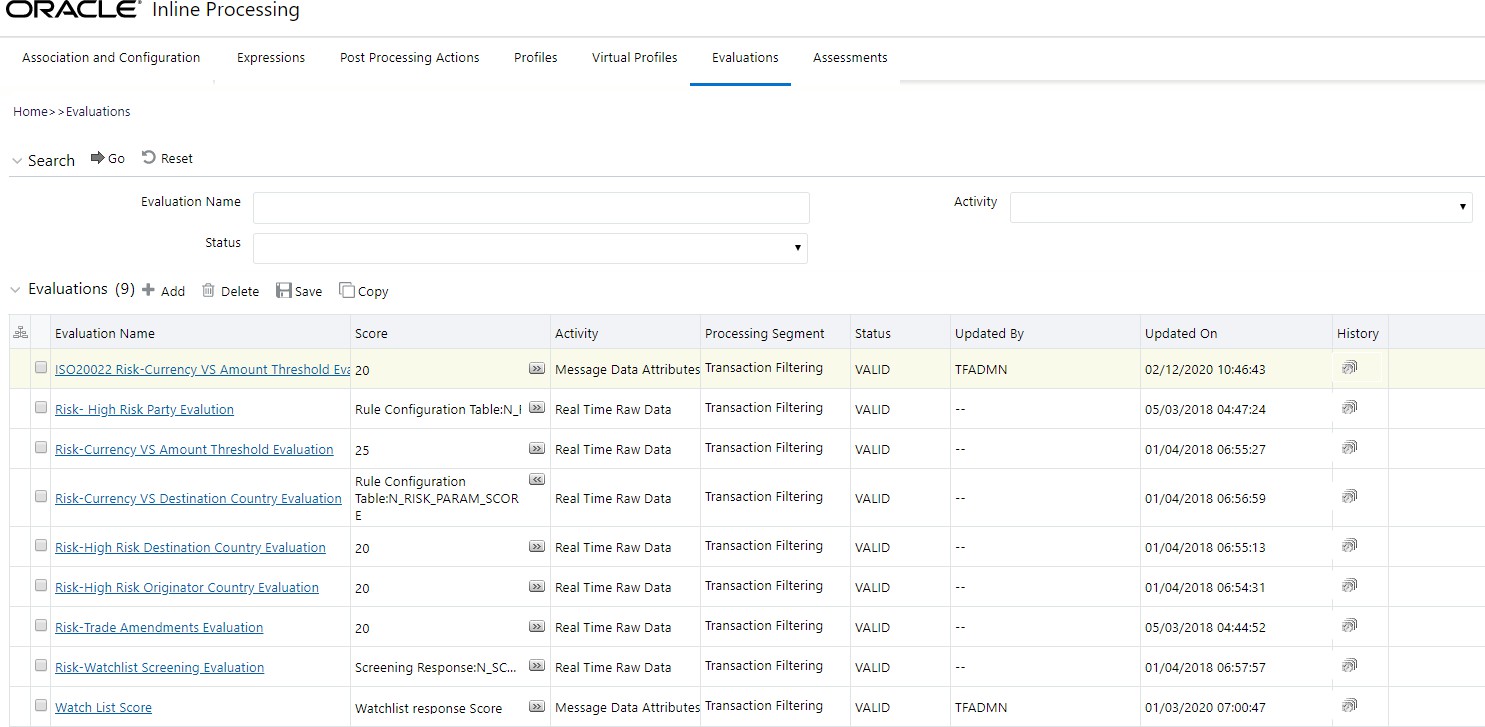
- Enter a name for the evaluation.
- Select an activity for the evaluation and the Transaction
Filtering processing segment.
Figure 11-17 Evaluations Attributes
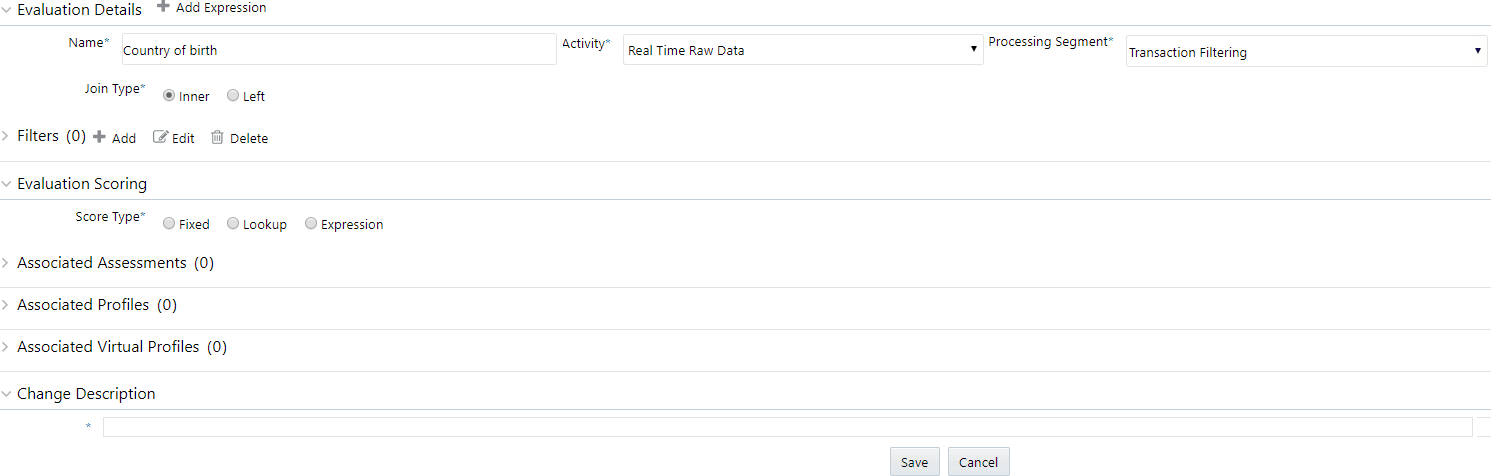
- To add a filter for the evaluation, click Add.
- Select the expression as mentioned in step f.
Figure 11-18 Evaluations Filters

- Click Save. The new evaluation is added to the list of evaluations on the Evaluations page.
- Create an Assessment for the
ready-to-use evaluations. The Assessments checks the logic of all the evaluations
and considers the sum of all the Evaluations for the output score.
Note:
You can adjust the risk score for any given evaluation depending on the requirement, but it must be within 40, because match rule score configuration starts with 45, and match score must always have high weightage than the individual evaluation risk score.
The risk score is calculated at the assessment level is as follows:
- The total risk score of a message is the sum of all risk scores derived from configured evaluations or risk rules including match score.
- In the case of multiple transactions, the risk score is the sum of all risk scores derived from different evaluations across transactions.
- If the same evaluation is true for multiple transactions within a message, then the score is considered once and the maximum one is considered.
- If different evaluations are true for different transactions, then it sums up all the risk scores across transactions within a message.
To add an Assessment, follow these steps:
- Click the Assessments menu.
Figure 11-19 Assessments Page
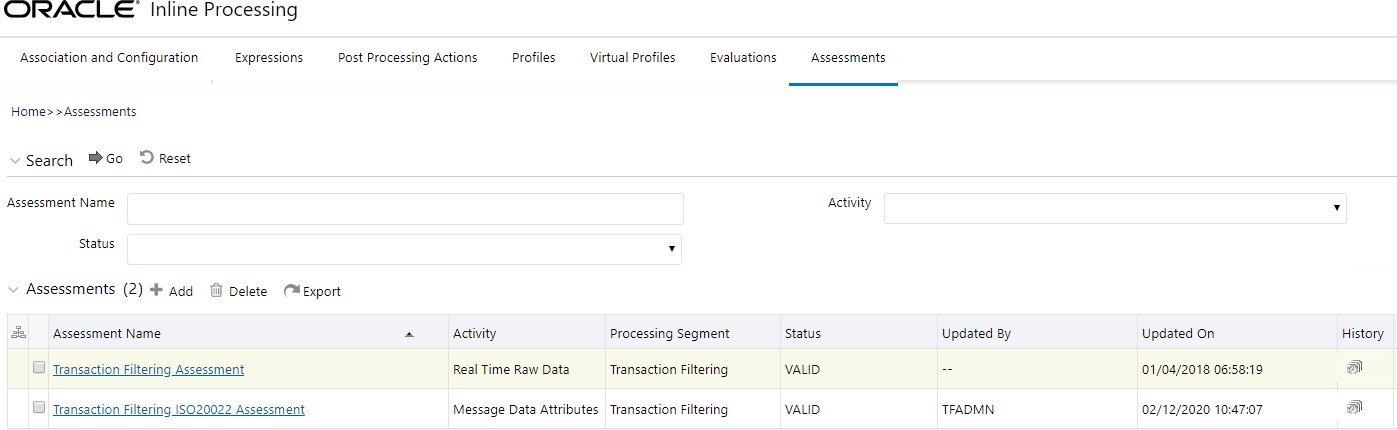
- On the Assessments page, click Add. The following image shows the
evaluations for the Transaction Filtering Assessment:
Figure 11-20 Assessments Attributes
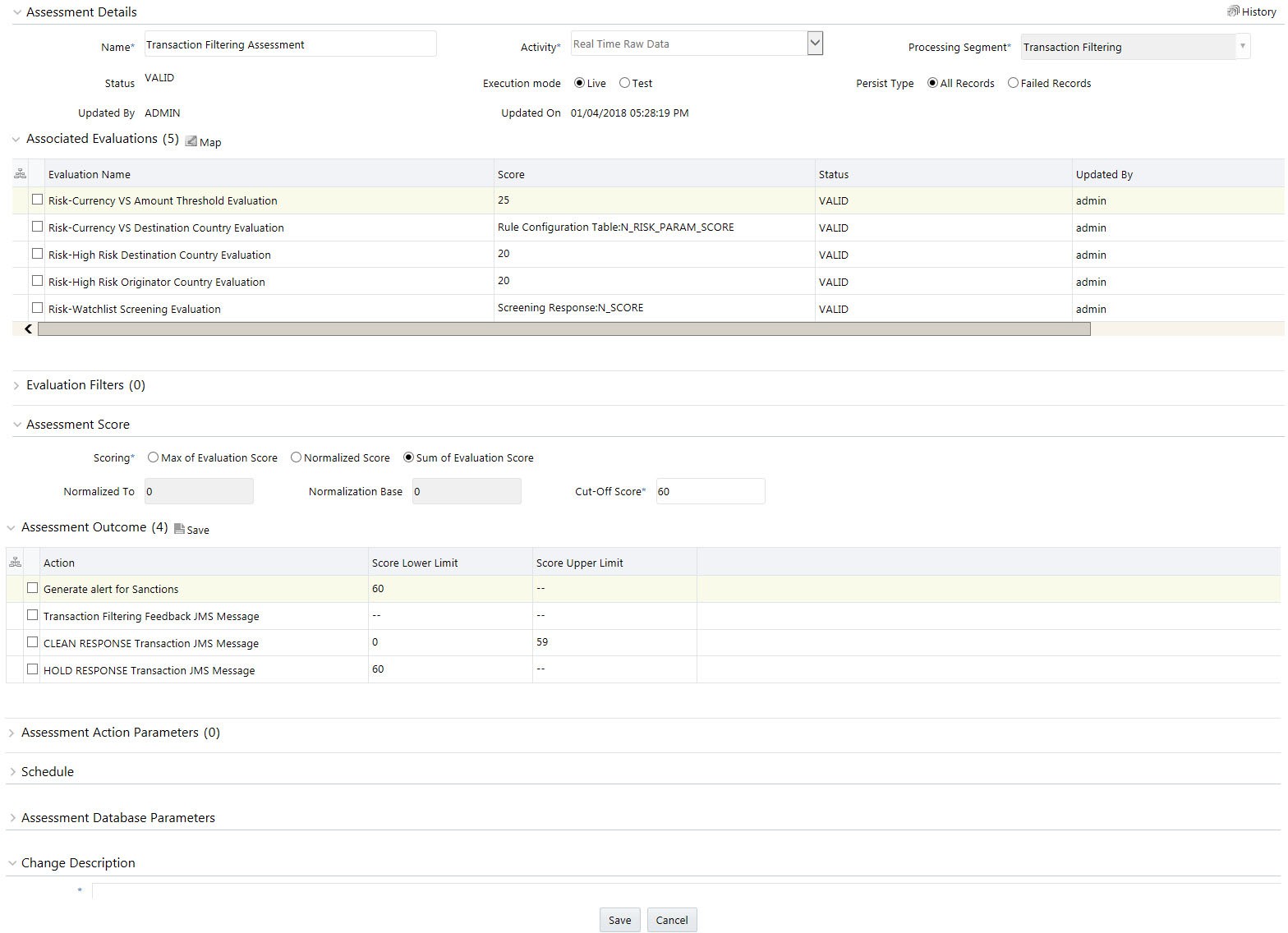
Figure 11-21 Sample Assessment
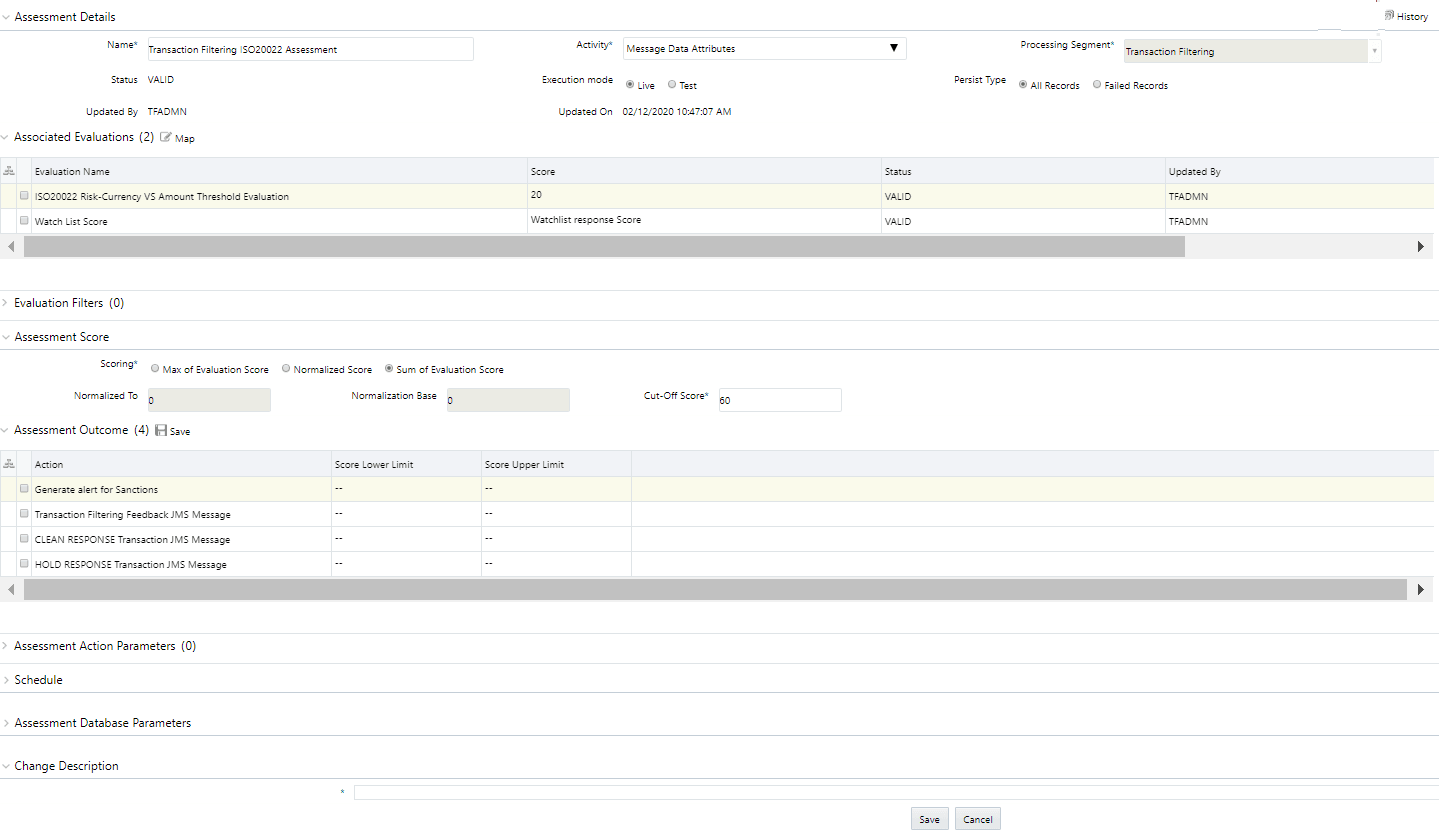
- Provide the assessment name, activity, processing segment, assessment scoring method, and change description for the assessment.
- Click Save. The new assessment is added to the list of assessments on the Assessments page. For more information on assessments, see the Managing Assessments section in the Oracle Financial Services Inline Processing Engine User Guide.