9.4 Enabling a Match Rule and WebService
By default, only stop keywords match rules are enabled. To enable any other match
rules:
- Open the Director menu in EDQ.
Figure 9-1 Director menu in EDQ

- In the Project Browser pane, expand the Transaction_Screeningproject.
- Expand the Processes nodeand double-click Narrative Match.In the
Narrative Match tab, all match rules aredisplayed.
Figure 9-2 Narrative Match Tab

- Double-click Match.
- Click the Match Rulestab.
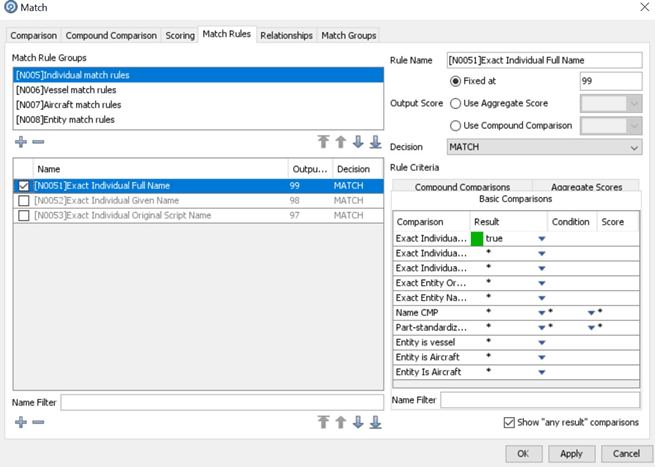
- In the Match window, select the match rule that you want to enable and
clickApply.
Figure 9-3 Match Window
- Click OK.The match rule that you have enabled is displayed with a tick
next to it in the Narrative Match tab.
Figure 9-4 Narrative Match Tab
To disable the match rule, deselect the match rule, click Apply, and click
OK. To view the match rules for any web services which are disabled:
- In the Narrative Match tab, Double-clickInput.
- In the Entity & Individual Name Match Processor window, select the
web service which you want to enable.
Figure 9-5 Entity Individual Name Match Processor Window

- Select the Enabled check box.
- ClickOK.The web service that you have enabled is highlighted in the
Narrative Match tab.
Figure 9-6 Narrative Match Tab

To disable the web service, deselect the Enabled check box and click OK.