4.1.2.1 Report Filters for User Analysis Report
To view the report filters, click Filter. The individual report filters appear in the Global Filters dialog box.
Figure 4-6 Report Filters for User Analysis Report
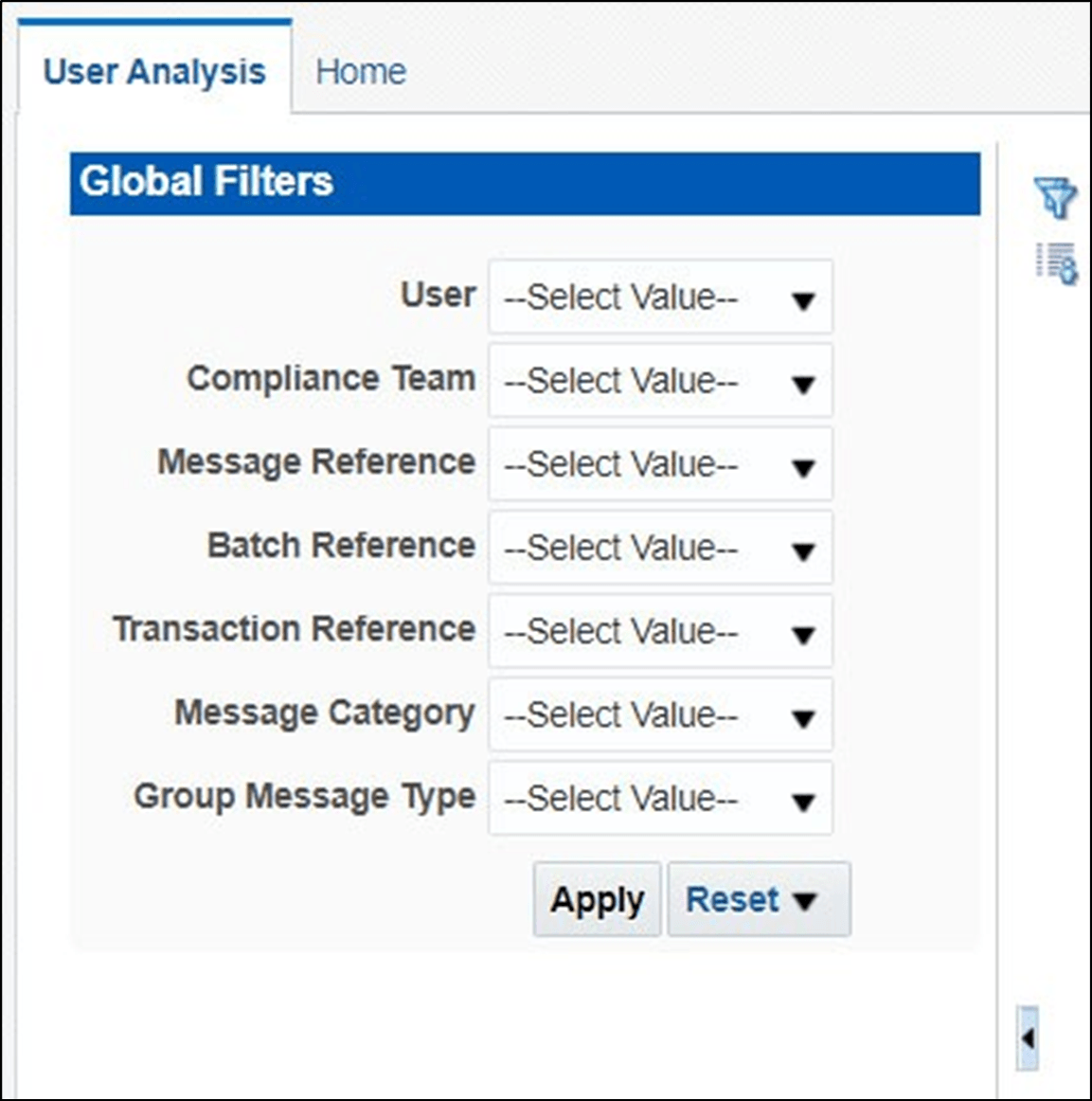
The following filters are available:
- User: This filter allows you to sort the report data for a specific user. To view the data, first select a user in the drop-down list and then click Apply.
- Compliance Team: This filter allows you to sort the report data based on a specific compliance team. To view the data, first select a compliance team in the drop-down list and then click Apply.
- Message Reference: This filter allows you to sort the report data based on the message reference name. To view the data, first select a name in the drop-down list and then click Apply.
- Batch Reference: This filter allows you to sort the report data based on the batch reference name. To view the data, first select a name in the drop-down list and then click Apply.
- Transaction Reference: This filter allows you to sort the report data based on the transaction reference name. To view the data, first select a name in the drop-down list and then click Apply.
- Message Category: This filter allows you to sort the report data based on the message category type. To view the data, first select a type in the drop-down list and then click Apply.
- Group Message Type: This filter allows you to sort the report data based on the message type. To view the data, first select a type in the drop-down list and then click Apply.
Click Reset to view the report without any filters applied.
To go back to the Transaction Filtering Home page, click the Home tab.