5.6.6 Running Alert Analyzer

Use this section to learn how to run Alert Analyzer.

Alert Analyzer enables fast, targeted evaluation of how a scenario pipeline behaves for a specific entity, without the need to run a full batch. It verifies whether the entity would trigger an alert under current configuration and, if not, pinpoints the configuration responsible. This makes it a useful tool when assessing and validating the behavior of scenarios on selected entities.
To analyze how a scenario would behave, follow these steps:
  1. On the Data Transformation Pipeline, click DTP Threshold Manager. The DTP Threshold page is displayed.
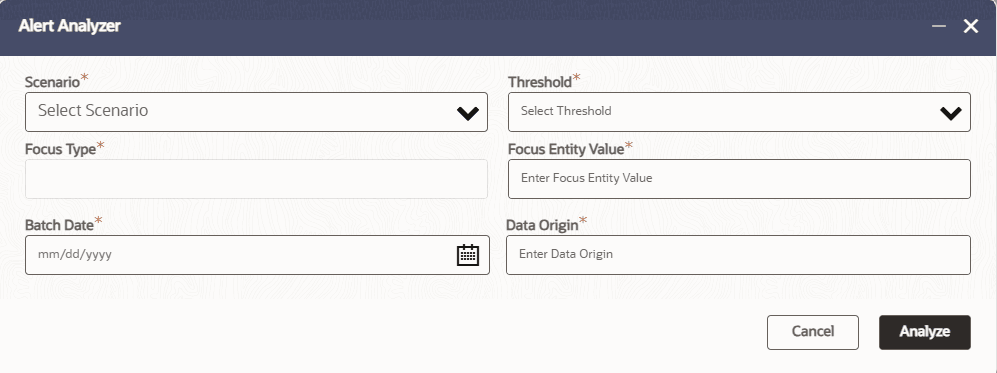
  2. Click Alert Analyzer. The Alert Analyzer dialog is displayed.

    Figure 5-1 Alert Analyzer

    Alert Analyzer

  3. Enter the following fields. The fields marked with * are mandatory.

    Table 5-1 Alert Analyzer

    Fields Description
    Scenario Select a scenario from the drop-down list. This option selects the pipeline to analyze.
    Threshold Select a threshold set from the drop-down list. This identifies the threshold set configuration that will be applied when running the pipeline simulation.
    Focus Type Automatically populated based on the selected pipeline. This helps user understand what business entity type the selected pipeline is designed to evaluate.
    Focus Entity Value Enter the focus entity value. This identifies the specific entity to be analyzed. It is the unique identifier of the entity within the focus type. Examples:
    • For Customer focus, the user enters the unique customer identifier
    • For Account focus, the user enters the account identifier
    Batch Date Select a batch date from the calendar. This is the effective processing date Alert Analyzer uses to evaluate the pipeline.
    Data Origin Enter the data origin. This parameter specifies which source system or feed Alert Analyzer must use when evaluating the pipeline for the selected entity.
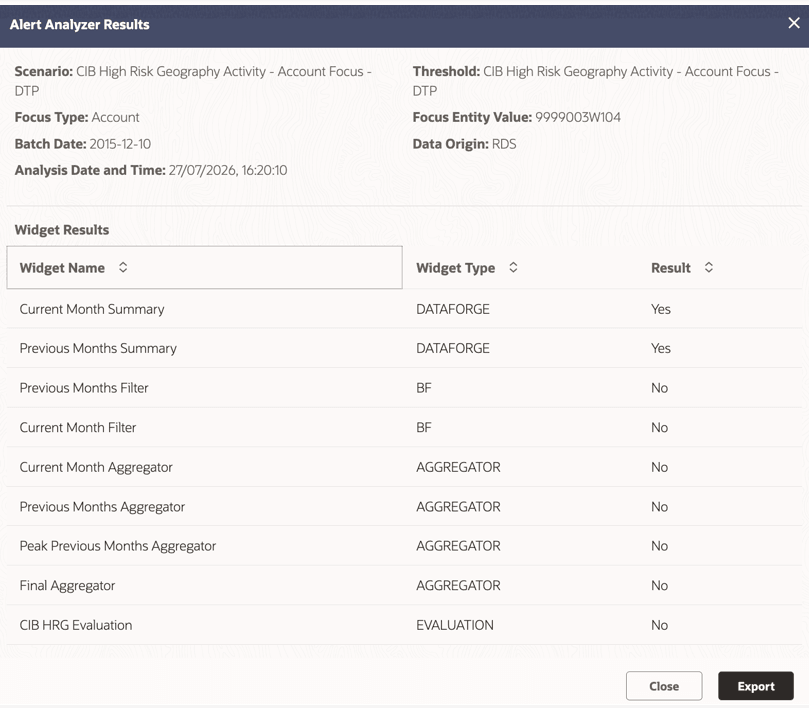
  4. Click Analyze. A status message appears, followed by the Alert Analyzer results page.

    Figure 5-2 Alert Analyzer Results

    Alert Analyzer Results

    The results list each widget present in the pipeline, in sequence, with a  Yes / No  response:
    • Yes = the specified entity is still being processed at that stage.
    • No = the specified entity is not present at that stage anymore, meaning it has been filtered out by some configuration or evaluation.
  5. Click Export to export the results to Excel. The export includes the run summary, the threshold values used, and widget-level results.