Connecting Bump Bars
Oracle MICROS offers both wired and wireless bump bars as
part of the Kitchen Display System.
-
The MICROS Wired Bump Bar is available in 10 and 20 button configurations (MBB-10 and 20 MBB-20).
-
The MICROS Wireless Bump Bar is available in 10 and 20 button configurations (MWBB-10 and 20 MWBB-20).
Connect a Wired Bump Bar
- Plug the bump bar USB cable into an available USB port on the KDC-210.
Connect a Wireless Bump Bar
-
Install batteries in the MWBB.
-
Connect the MWBB Dongle to a USB port on the KDC-210.
-
The MWBB Dongle and MWBB are paired to the same 5-byte ID at the factory. The following image shows the MWBB-20 and the MWBB Dongle with a matching 5-byte ID of ee21d.
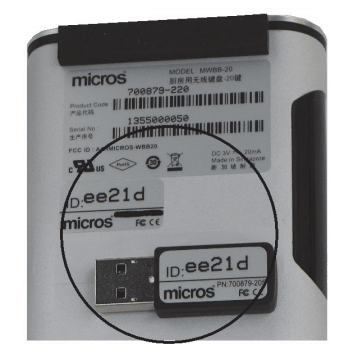
Refer to The MICROS Bumpbar MBB-10 and MBB-20 User’s Guide and The MICROS Wireless Bump Bar MWBB-10 and MWBB-20 User’s Guide on docs.oracle.com at https://docs.oracle.com/cd/E64361_01/index.html for comprehensive bump bar installation and configuration information.
Parent topic: KDC-210 – Initial Setup