2 Adyen SFO1 Setup
Inspect the Box
Verify that the box containing the terminal hasn't been opened and that the security seal is intact. The security seal is a label stuck across the lid of the box. If the security seal is not intact, do not unpack or use the terminal. Contact your Oracle MICROS representative for assistance.
Note:
The security seal on your box may differ from the image shown below.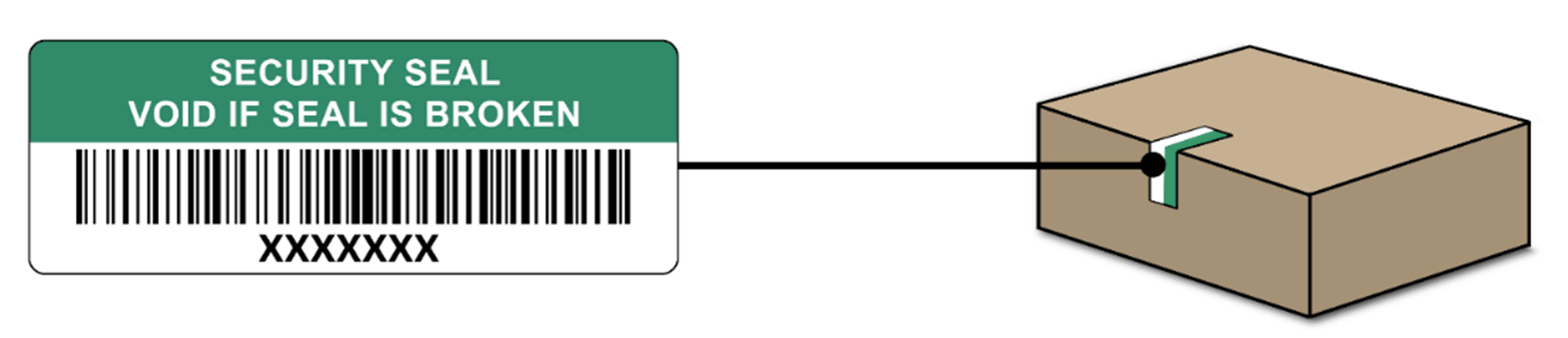
Unpack and Inspect the Terminal
-
Unpack the box and verify the serial number on the terminal is the same as the serial number on the box.
-
Inspect the terminal for tampering. Check for missing seals or screws, additional wires or labels, holes in the device, and anything inserted in or attached to any part of the terminal.
Getting Started
Connect your terminal to the internet so that it can communicate with the oracle payments platform.
Connect to Wi-Fi
-
On the terminal display, select Configure network, and then select Wi-Fi.
- Enable the Wi-Fi toggle switch.
-
Select the + icon to add a network. The terminal scans for Wi-Fi networks.
- Choose a network from the list and enter the Wi-Fi password, or select Add manually and enter the name (SSID) of the Wi-Fi network and the Wi-Fi password.
-
Select the check mark to confirm.
The terminal automatically sets the network as the default and connects to it. The Wi-Fi icon appears at the top of the display.
After Boarding the Terminal
To change Wi-Fi usage after boarding the terminal:
-
Select Settings > Network, and then enter your passcode.
-
Select Wi-Fi.
You can now turn Wi-Fi on or off using the WLAN toggle switch, and/or add another network as described above.
Turn the Power On/Off
Note:
If you turn on the payment terminal for the first time or after it is off for a long time, it may make a maintenance call to synchronize the configuration and update the software. This can take 10 to 20 minutes.Turn on the terminal: Connect the terminal to a power supply. During startup the display turns on and off a few times.
Reboot the terminal:
- Go to Settings and select Power.
- Enter your passcode.
- Select Restart and confirm.
-
Disconnect the terminal from the power supply.
SFO1 Menus
Your payment terminal has a menu with options related to payments, and a menu with options related to configuration. The access some menu options you must enter a passcode.
Table 2-1 SFO1 Menus
| Menu/Button | Description | Passcode |
|---|---|---|
|
Settings  |
|
|
|
Transactions  |
|
|
Device Info
To view information about the terminal, select Settings >Device info.
The Device info screen shows:
- Model, serial number, and IP address of the terminal.
- Software version and configuration version that the terminal currently uses.
- Merchant account and store that the terminal belongs to.
- A button to show a QR code with device info.