Configuring the SMTP and Backup SMTP Servers in the EMC

Multi-factor authentication (MFA) emails are sent from the enterprise cloud service using Oracle Simple Mail Transfer Protocol (SMTP) services in the data center. Customer or third-party SMTP services cannot be used for this purpose.

You can configure and save SMTP and Backup SMTP server settings at the enterprise level. To configure the SMTP servers:

  1. Select the Enterprise level, click Setup, click Enterprise Parameters, and then click the Login tab.
  2. In the Multi-Factor Authentication section, enable the Email One-Time Password option.

    To use the Can’t Sign In link for a forgotten EMC password, you must have an email server configured.

    Figure 2-12 EMC Enterprise Parameters Login Tab
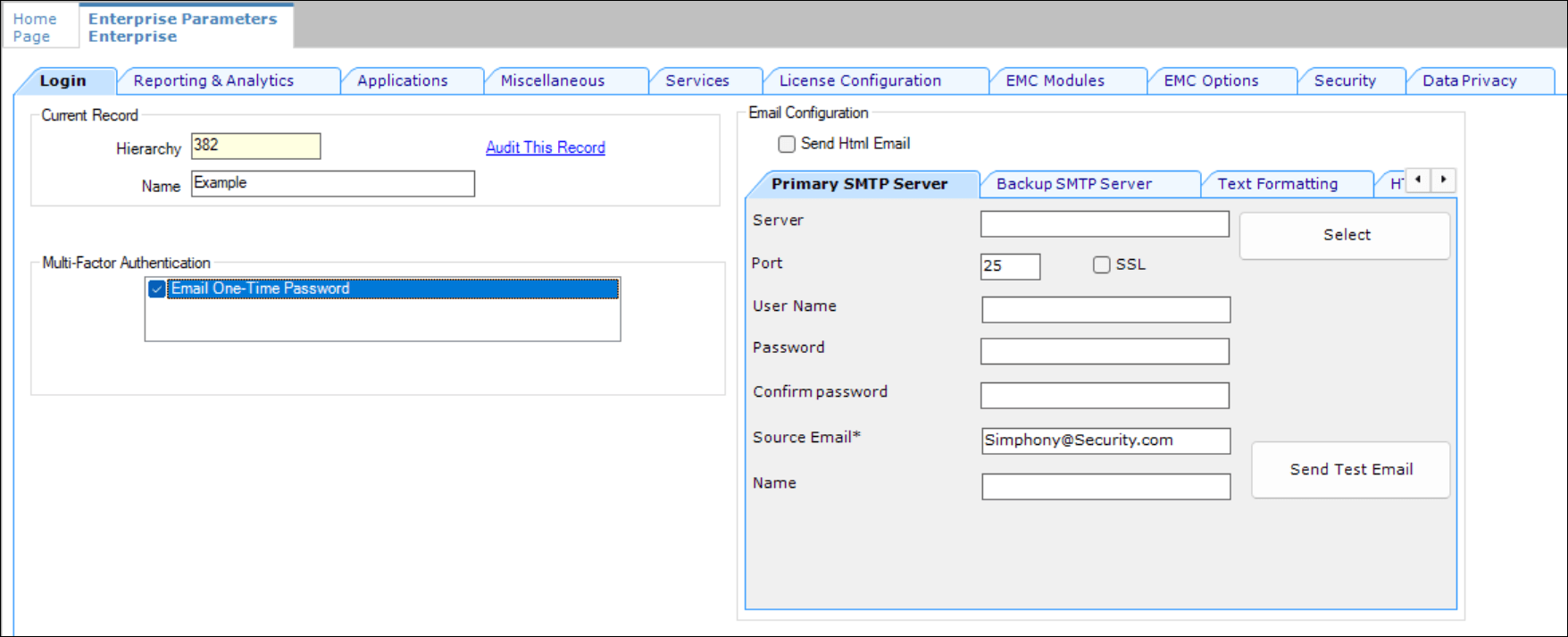

    This figure shows the EMC Enterprise Parameters Login tab and the SMTP Email server configuration sections.
  3. In the Email Configuration section, select the Primary SMTP Server subtab, and then enter the required settings in the fields listed in the following table.

    Table 2-14 Primary SMTP Server and Backup SMTP Server Fields

    Field Description

    Server

    Enter either the IP address (IPv4 Address) or the name of the Primary SMTP server. Click the Select button to choose an email provider, and then click OK. When you select an email provider, the Server field auto-populates with an SMTP server name that includes the selected email provider’s naming convention (for example, SMTP.EMAIL.COM).

    Port

    Enter a port number or use the defaults.

    SSL

    Select to enable a secure connection using HTTPS.

    User Name

    Enter a user name for access to the Primary SMTP server.

    Password

    Enter a password for access to the Primary SMTP server and re-enter it in the Confirm password field for verification.

    Source Email

    Enter your source email address. This email address is used as the sender of all OTP emails.

    (Optional) Name

    Enter an alternate (alias) name for the Source Email sender.

  4. Click the Backup SMTP Server subtab, and then enter the IP address or server name of the Backup SMTP server.
  5. Enter information in the fields as listed in the table above for the SMTP Backup server.
  6. Click Save.
  7. On the Primary SMTP Server tab, click the Send Test Email button to confirm the SMTP server’s configuration and that the OTP email is received. Repeat this step on the Backup SMTP Server tab to confirm the functionality.