Creating Allergen Classes
- Select the Enterprise, click Descriptors, and then click Allergen Names.
The Allergen Names module has several pre-configured allergen names/codes.
Figure 17-3 EMC Allergen Names Module
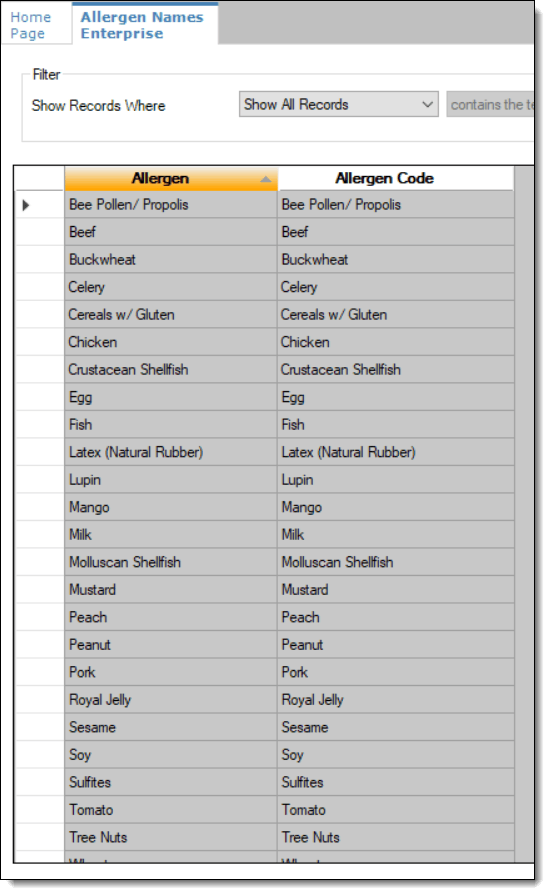
You cannot edit or delete the existing allergen names and codes, but the text can be translated.
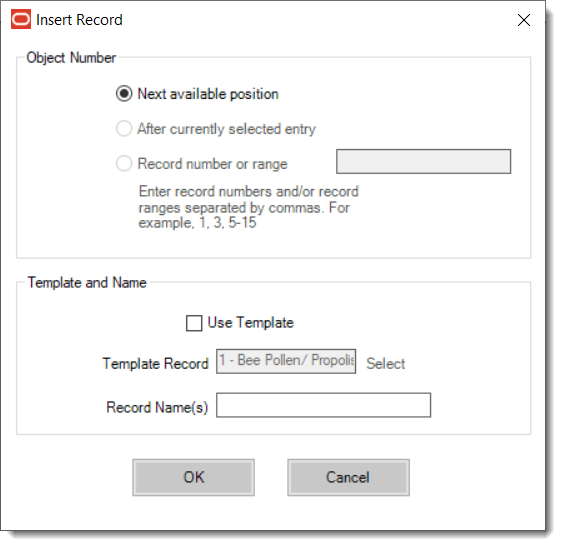
- To insert new allergen names:
- Click the insert icon
 on the toolbar.
- After adding a record, click OK, and then click Save.
The system does not allow duplicate allergen names.
Figure 17-4 Inserting Allergen Names
- Click the insert icon
- Insert a new record and enter a name for the allergen class.
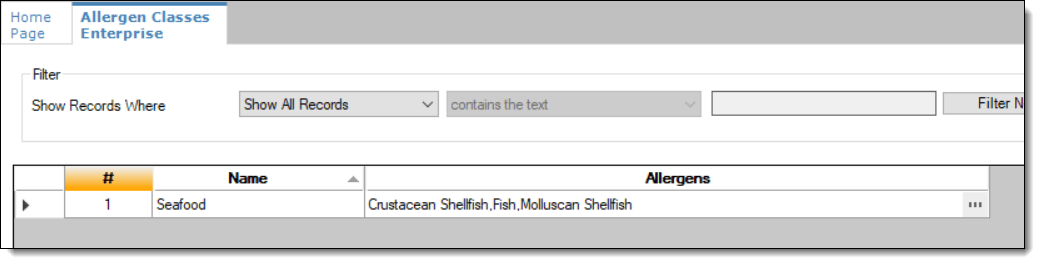
You can configure the Allergen Classes module from either table or form view. In table view, if more than one allergen is selected, allergens are listed and comma separated.
Figure 17-5 Allergen Classes - Table View
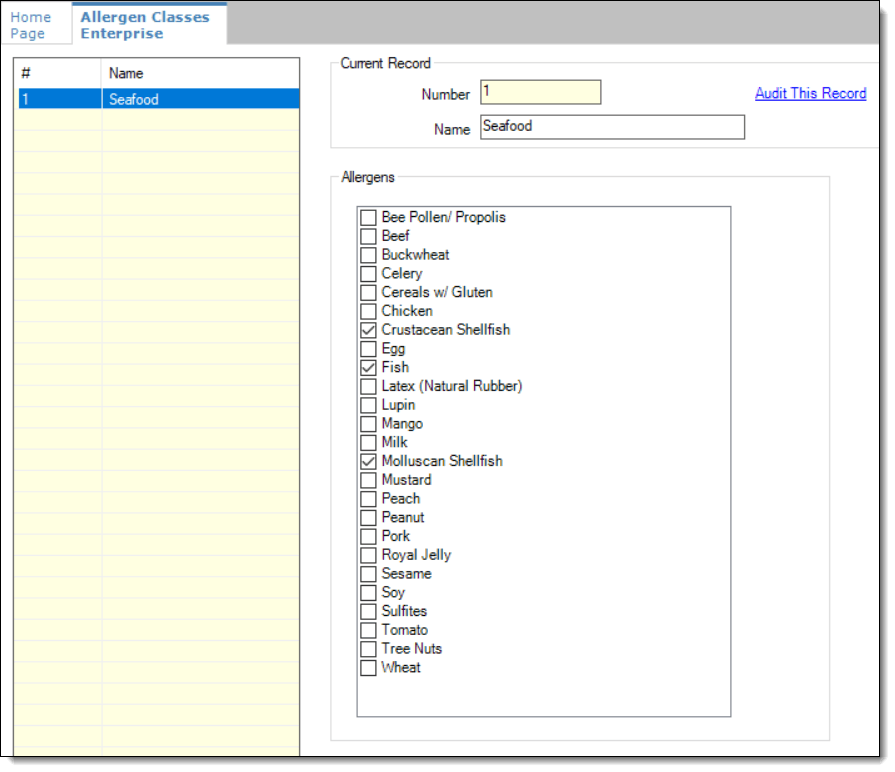
- Based on the allergy class’ name, select the allergen you
want to include in the class.
You can select more than one allergen. Switch to form view using the toggle icon on the toolbar
 , or double-click the record.
This is an example of an allergen class named Seafood. Each allergen selected here is seafood related.
Figure 17-6 Allergen Classes - Form View
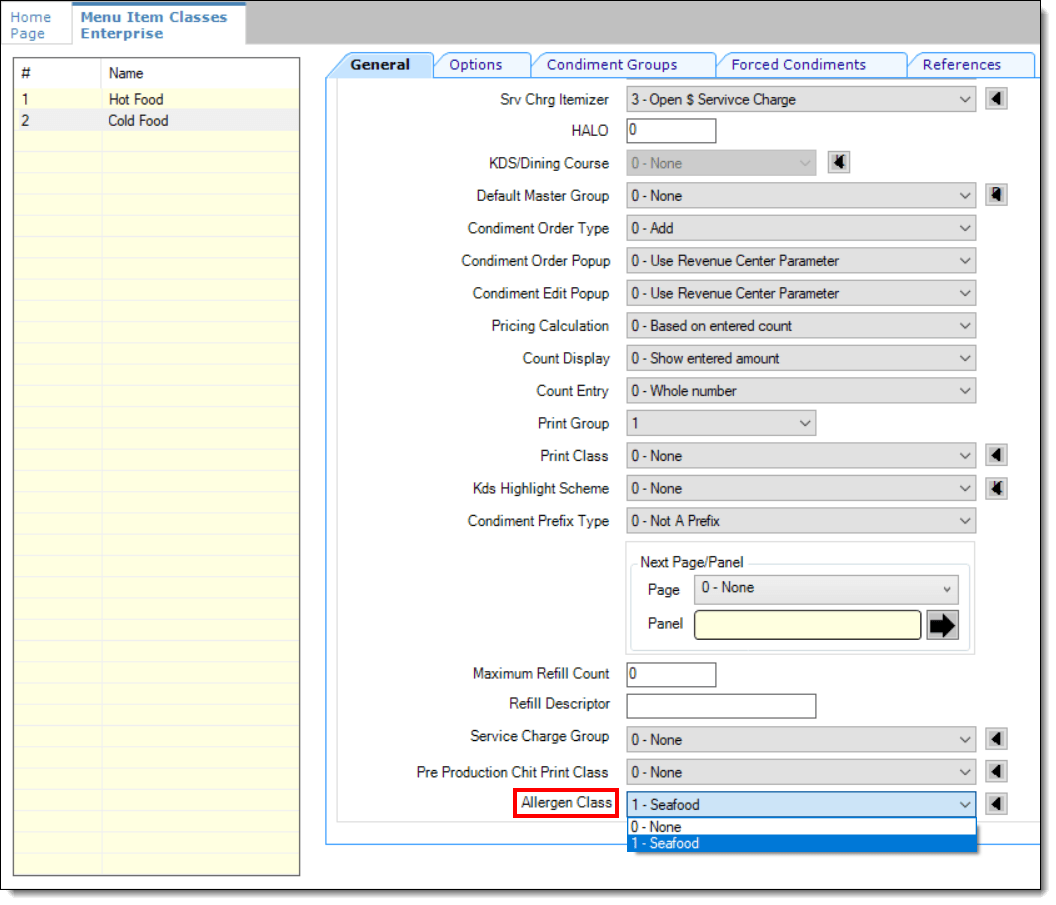
- On the General tab, assign an allergen
class from the drop-down list in the Allergen Class field, and then click Save.
Figure 17-7 Menu Item Classes - Allergen Class Field
- (Optional) Open a menu item definition record and enter
text in the Consumer Advisory Description text
box.
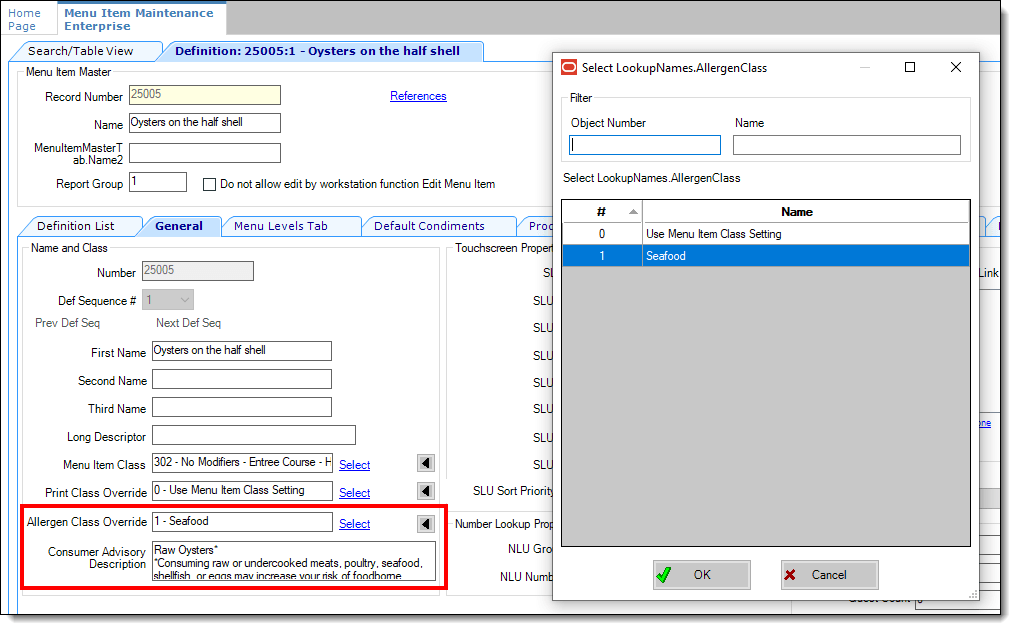
The text shown in the following image contains the disclosure in the Consumer Advisory Description field. There is a limit of 128 characters for this field (which is translatable).
Figure 17-8 Menu Item Definition - Allergen Class Override Field