Recording Confiscated Item
-
Click the Confiscate Item button on the ribbon bar.
-
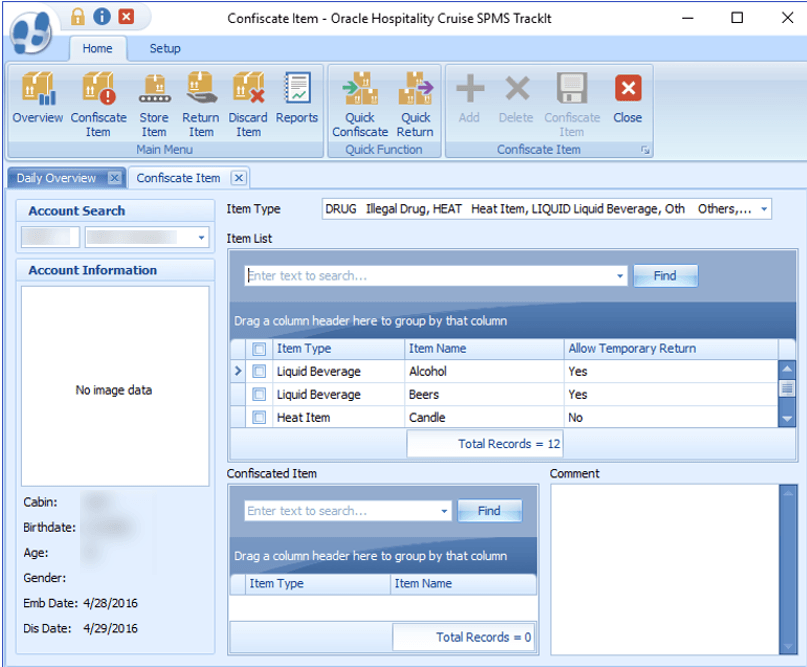
In the Account Search section, swipe the board card though the card reader to search for the account, or manually enter the cabin number/name in the Account Search field. Press F2 to reset the search information.
Figure 21-7 Confiscate Item Account Search
-
In the Item Type field, select the item category from the drop-down list, and click OK. Alternatively, you can search using the keyword search function by entering the work in the Item List text box and clicking Find.
-
Select the Item checkboxes and click Add to add the item to the Confiscated Item list.
-
If the same item is added to the list, the system prompts a warning message.
-
Click Yes to add the same item to the list or click No to cancel.
-
Insert a comment/description for the item, and click Confiscate Item.
-
If a signature device is connected, the system starts the Signature Capture dialog box.
-
Allow the passenger to sign on the signature pad, and press the Green Check icon on the signature pad.
-
If the signature device is not connected, a warning message will pop up, disallowing you to enter the item.
-
Once the item is added successfully, a bar code label item receipt printed.
-
To remove the item from the list, select the item, and click Delete.