Assigning Point-of-Sale (POS) Discount Level

  1. Search for the guest account in the Search panel.
  2. In the Guest Info tab, click Edit Information to open the Edit Guest Information window.
  3. In the Name section, select the discount template from the drop-down list.

    Figure 10-37 POS Discount Level Assignment
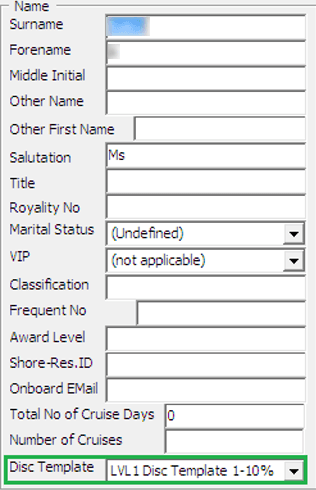

    This figure shows the Micros Discount Level Assignment
  4. Click OK to save.
  5. The assigned POS Discount template appears in the Passport/Custom Information section.

    Figure 10-38 Assigned POS Discount Template
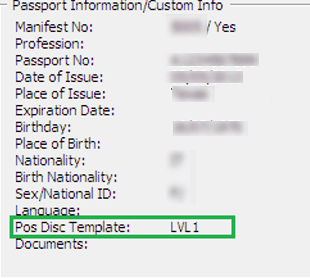

    Assigned POS Discount Template
  6. To view eligible POS Discounts by Itemizer level, go to the Disc, Route, Pkg, Micros Discount tab.

    See also Administration, POS Discount section on how to configure the Discount Itemizer.