Membership Management
For details on completing the following configurations, refer to Guest Loyalty Programs in the OPERA Cloud Services documentation.
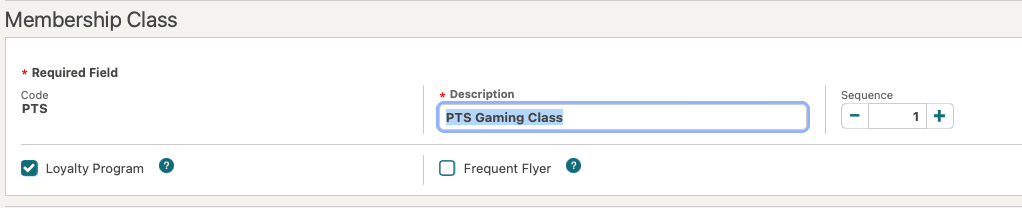
Membership Class
Note:
Only one membership class can be flagged as “Loyalty Program.”
Figure 7-1 Membership Class Screen
Membership Type
Note:
The name of this Membership Type must be entered exactly as "PTS."
For details on how to create a membership type, refer to Configuring Membership Types in the OPERA Cloud Services documentation.
-
Select the membership class you previously created.
-
Mark the membership as Primary.
-
Mark the membership as Centrally Managed. Only one membership type can be centrally managed.
Figure 7-2 Membership Type Details Screen

-
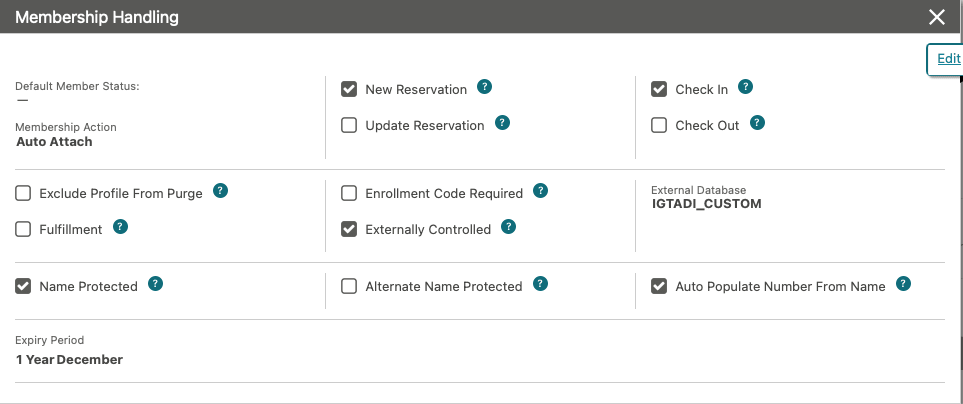
Set the External Databases to the one created in the OPERA Cloud Outbound Configuration chapter that is dedicated to the property you are configuring. It normally has with the same name as the outbound configuration that you previously created.
-
Set Membership Action to Auto Attach and select New Reservation.
Note:
If you did not set the 'Loyalty Program' flag on the associated Membership Class, you cannot set the External Databases. Without the External Databases, the Profile Statistics and Profile Enrollment functionalities will not work properly.Figure 7-3 Membership Handling Screen
-
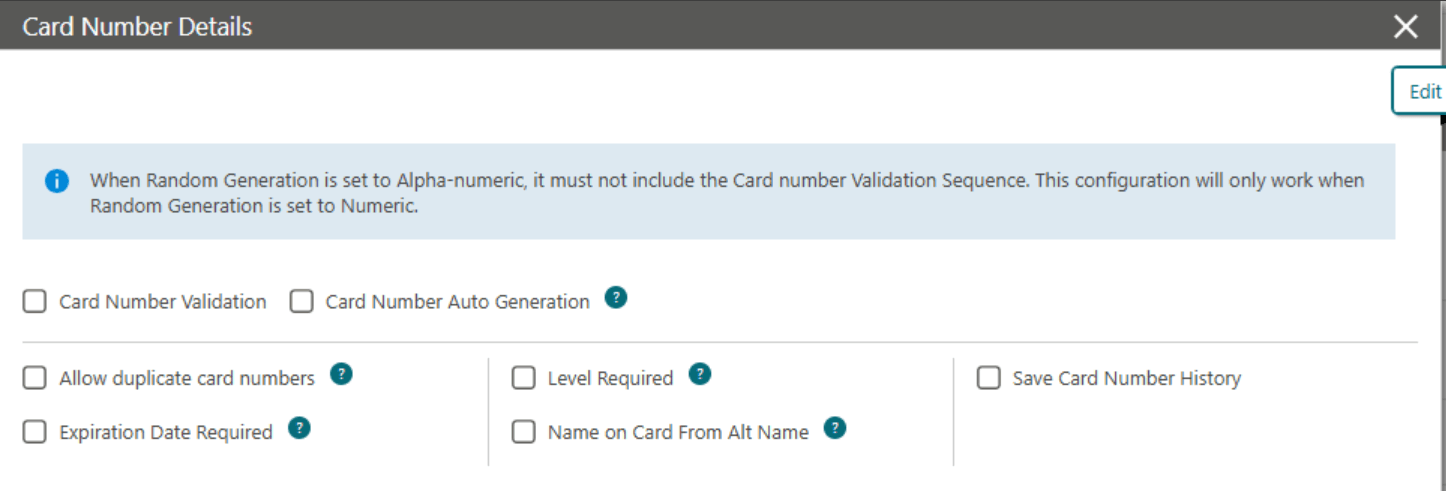
Deselect Expiration Date Required.
-
Deselect Allow duplicate card numbers.
Figure 7-4 Card Number Details Screen
Note:
In a multi-property scenario, if all properties use the same PTS system, you can create a single Membership Type, along with one set of External System & External Database, and a single Outbound configuration, since they will all share the same endpoint.Membership Levels
Note:
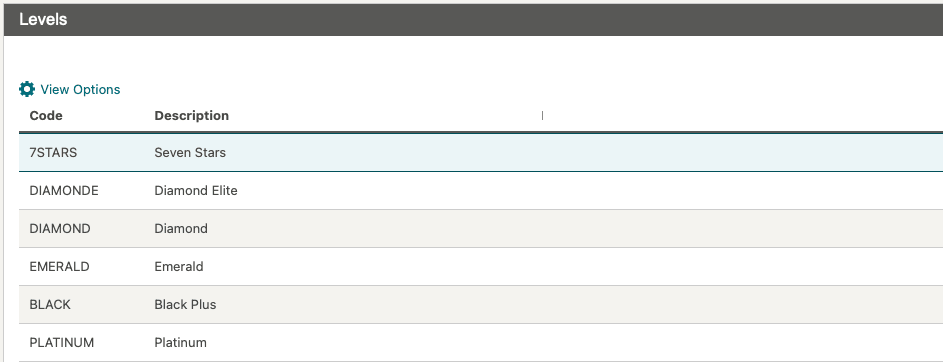
You are configuring the Membership Levels that will be displayed in the OPERA Cloud UI. These do not have to match the ones provided by the Casino. The relationship between the OPERA Cloud Membership Levels and the PTS Membership Levels is established in the Membership Levels DVM within the outbound connection configuration.Figure 7-5 Membership Levels Screen
Parent topic: Gaming Integration Configurations