Assigning and Removing Group Membership
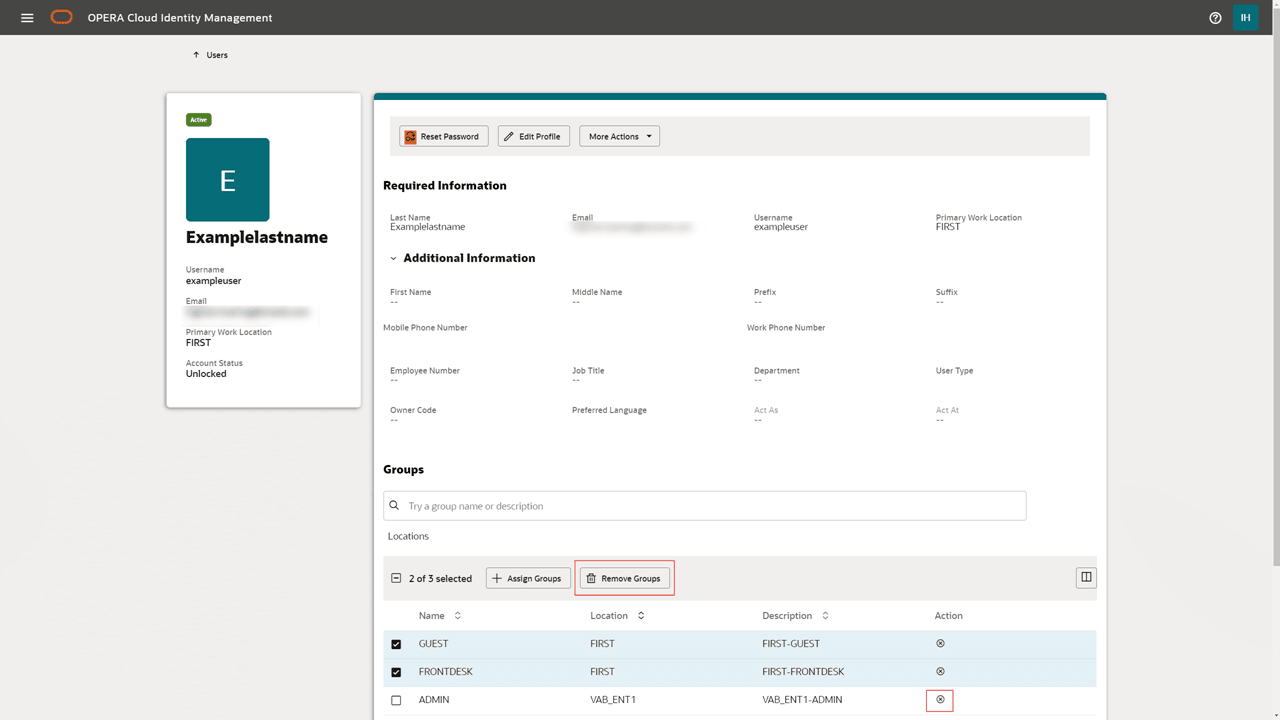
In the Groups section of the User Profile screen, you see
the group memberships that are currently assigned to the user.
Assigning Groups
-
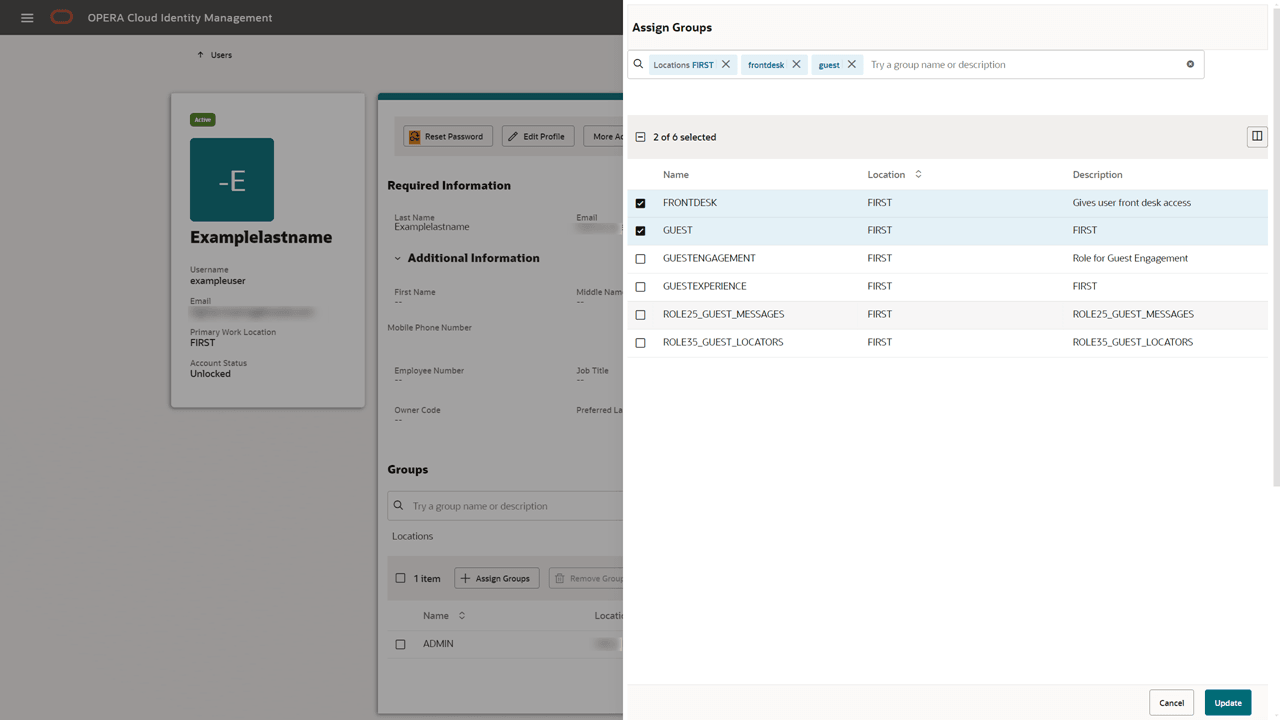
To assign an additional group to the user, select Assign Groups.
-
Search for and select one or multiple groups and select the Update button in the Assign Groups drawer.
Note:
OC_RNA Location Search
To search for Reporting and Analytics groups:
-
Click Locations and select the location OC_RNA (available for Enterprise and Chain administrators).
Removing Groups
-
To remove one group from the user, select the Delete icon in the Action column of the Groups table.
-
To remove multiple groups from the user at once, check all groups to be removed and select the Remove Groups button above the groups table.