Configuring Stationery Templates
Stationery templates are RTF files, customised in Microsoft Word. Each stationery template is based on a sample RTF file which is renamed, customised and uploaded to OPERA Cloud. When the Multi Language OPERA Control is active, you can translate the text in templates to generate localized stationery for guests and sales accounts based on the Language selected in the profile. A Stationery Substitution Language OPERA Control can be used to generate a substitution template when a language-specific template is not configured.
Note:
For multi-language stationery it is recommended to prefix or suffix filenames with the language code; for example:e_folio.rtf ,
fr_folio.rtf, de_folio.rtf.
- Download the sample RTF template to your workstation.
- Download the sample XML (data model) file to your workstation,
- Rename the sample RTF file to a unique file name.
- Launch Word and open the renamed RTF file and load the sample XML file.
- Customise the layout of the template, adding fields, text, tables and images.
- Save the changes to RTF on your workstation.
- Upload the customised RTF file to OPERA Cloud. Maximum size is 10MB
Adding Stationery Templates
-
From the OPERA Cloud menu, select Reports, then select Manage Reports.
-
Click New Report and complete the following:
-
Property: Enter or select a property.
-
Report Group: Select a stationery report group from the list. For more information, see Stationery Reports Groups.
-
Report Type: Select Customized Report.
-
Sample Report to base your Customized Report: Click to search and select a sample RTF template to customize.
Figure 9-12 Sample Report to base your Customized Report

-
Click Download Sample Report (RTF) and click Download Sample Data (XML) to download the sample template and sample data model.
Figure 9-13 Download Sample Report and Sample Data links

Note:
Once downloaded, the files are located in the default download folder (that is, the Downloads Folder on your local machine).
-
Navigate to the file location and right click the downloaded file and then click the Show in folder option. You can also navigate to the preset download folder to open or view the file.
Figure 9-14 Show in folder option

-
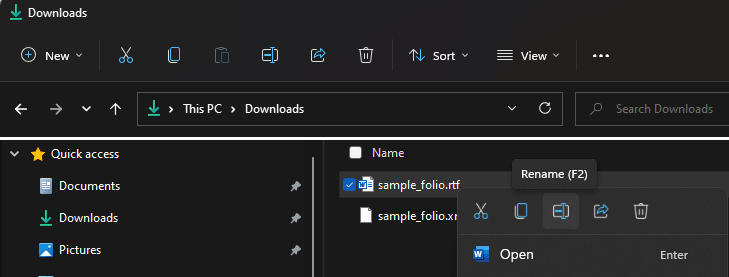
Rename the <sample>.rtf file (for example,
sample_folio.rtf) per your requirement and ensure the updated name does not begin with “SAMPLE.” No name changes are needed for the XML files. Right click the .rtf file and then select the Rename option to change the name or press F2. No name changes are needed for the XML filesFigure 9-15 Rename File
-
Customize the template as needed . For more information, see Using Stationery Template Editor.
-
Save the RTF file and close Microsoft Word.
-
In OPERA Cloud (Create Report), upload the customized RTF file by clicking Choose File and then select the file from the workstation location and click Open.
Note:
Templates must be less than 10MB in size.Figure 9-16 Choose File
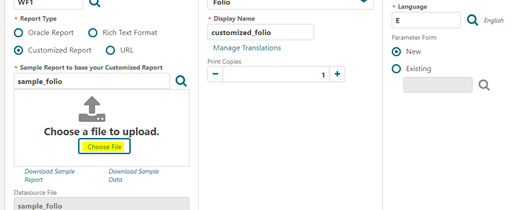 Once uploaded, the file display name in the Display Name field automatically updates to the uploaded .rtf file’s name.
Figure 9-17 Display Name matches the uploaded .rtf file’s name

-
Print Copies: Enter the number based on your requirements (for example, enter 1 or 2).
-
Language: Select the language of the template. When the Multi Language OPERA Control is active you must configure a template for each profile language or select a language for the Stationery Substitution Language OPERA Control.
-
Parameter Form: This step is not applicable for PMS stationery templates. For Simple Diary and Sales and Event Management stationery such as the Banquet Event Order and Sales Contract a parameter form is required. For more information, see Blocks and Groups Reports.
-
Click Save.
-
Parent topic: About Stationery Editor