Using Ask Oracle AI Agent
Important:
This feature is being released incrementally and availability may be delayed in some instances.Prerequisites for Using Ask Oracle AI Agent
Ask Oracle is an AI-powered assistant that lets you interact with OPERA Cloud using natural language. It retrieves relevant OPERA Cloud information and provides contextual guidance based on product knowledge.
Ask Oracle provides fast, contextually appropriate answers tailored to your needs. It helps you answer questions, understand how to perform tasks in OPERA Cloud, and ask OPERA Cloud how-to questions. Ask Oracle supports many languages.
Note:
Ask Oracle is enabled per property. When it is enabled for at least one property, it is also available from the hub level. For more information, see Logging Into a Hub or Different Property
Enabling Ask Oracle
- From the side menu, select Administration, select Enterprise, and then select OPERA Controls.
- Select or confirm a property.
- Select the General group.
- Enable the Ask Oracle parameter. For more information, see OPERA Controls — General.
Opening Ask Oracle
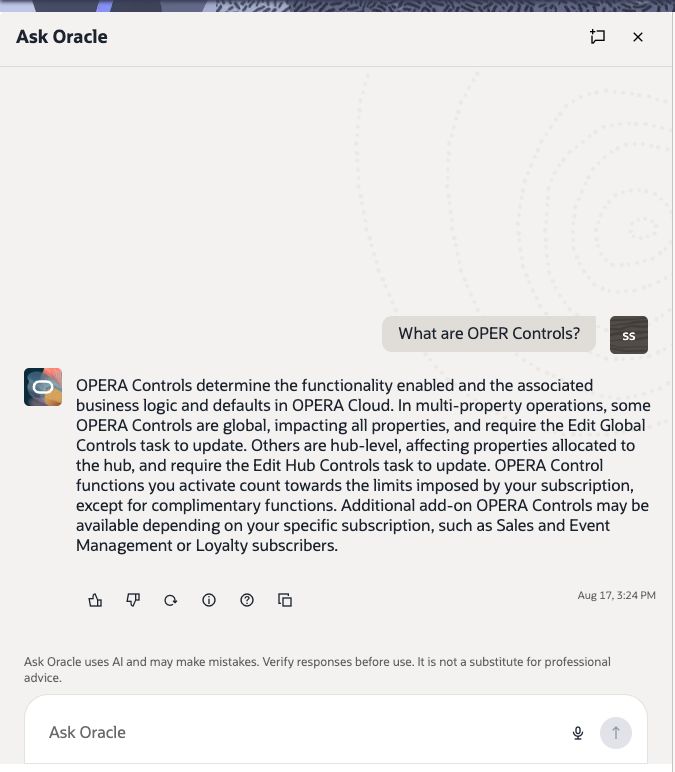
Select Ask Oracle in the OPERA Cloud navigation bar. The chat panel opens on the left of the current screen, so you can ask for help without navigating away. Ask Oracle uses relevant session context, such as the property, language, and current screen, to help provide useful answers.
The following example shows a question about OPERA Controls. Responses can differ for other questions.
Figure 1-1 Ask Oracle chat panel
Asking and Continuing a Conversation
Ask questions in everyday language and continue with related questions in the same chat. Ask Oracle welcomes you when a new chat begins.
- Ask a question: Type a question or request in the Ask Oracle field, then select Send or press Enter. You can ask in most languages.
- Compose a longer question: The message area grows as you type. Press Shift+Enter to add a new line without sending. A character counter shows the 2,000-character limit; you can send the question when it is within the limit.
- Review the response: A status or progress indicator can appear while Ask Oracle prepares the answer, and the response can stream into the panel as it is generated.
- Continue the conversation: Select a suggested question or enter another question to refine the answer. A selected suggestion is sent in the same chat, and the choices then become unavailable to prevent duplicate requests.
- Cancel generation when needed: While Ask Oracle is preparing an answer, select Cancel to stop generation. The conversation then shows Stopped. If Ask Oracle is temporarily unavailable, it prompts you to try again or contact the help desk.
Working with Responses
-
Regenerate: Select it to resubmit the same question. Ask Oracle adds the regenerated answer in the same conversation; its wording can be the same or different.
-
Source: Select it, when available, to open the related documentation PDF in a parallel tab. While the source is opening, the action shows progress and cannot be selected again.
-
Copy: Select it to copy the complete answer for use in another application or message. The Copy control briefly changes appearance when selected.
-
Message ID: Use the message ID when Oracle Support requests it to investigate an incorrect response.
Feedback and Support
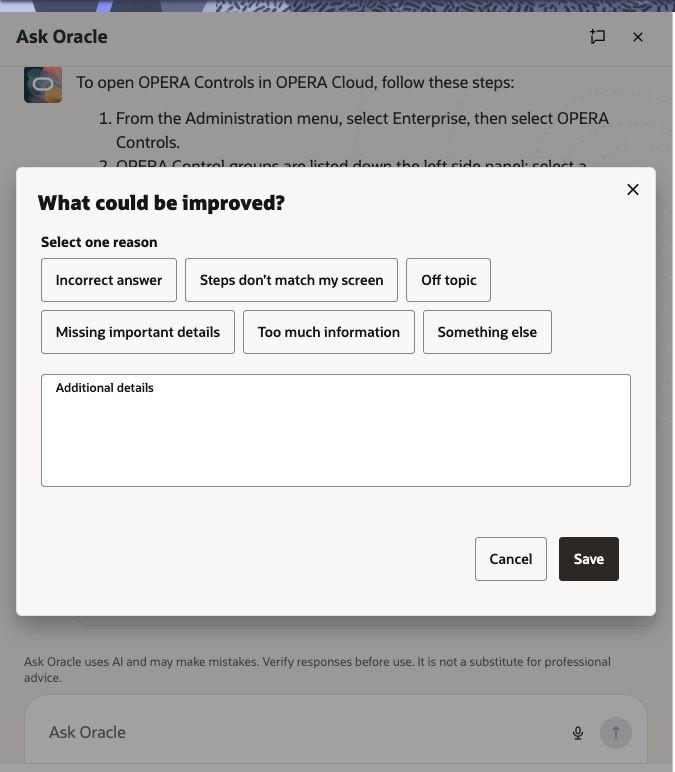
Select Like or Dislike below an answer. Like records positive feedback immediately. Dislike opens a feedback form where you can select one reason: Incorrect answer, Steps do not match my screen, Off topic, Missing important details, Too much information, or Something else.
-
Save or Cancel: Choose a reason and add optional details, then select Save. Select Cancel to close the form without saving the details. The Dislike reaction remains selected until you select Dislike again to remove it. Ask Oracle confirms when it receives saved feedback.
-
Change a reaction: You can change or remove a previous reaction. Feedback does not interrupt the conversation.
-
Contact Support: After negative feedback, Ask Oracle can offer the support-service link. It opens the Support site in a new tab, where you can create or manage a service request; the link does not start a live chat or automatically create a service request.
Figure 1-2 Negative feedback form
Chat History and New Chat
Where chat history is available, you can return to the active conversation and read earlier messages.
-
Review earlier messages: Scroll upward to load older messages. Your reading position is retained while they load. Select Scroll to latest messages to return to the newest part of the conversation.
-
If history cannot be loaded: Ask Oracle starts with a new greeting and offers Retry.
-
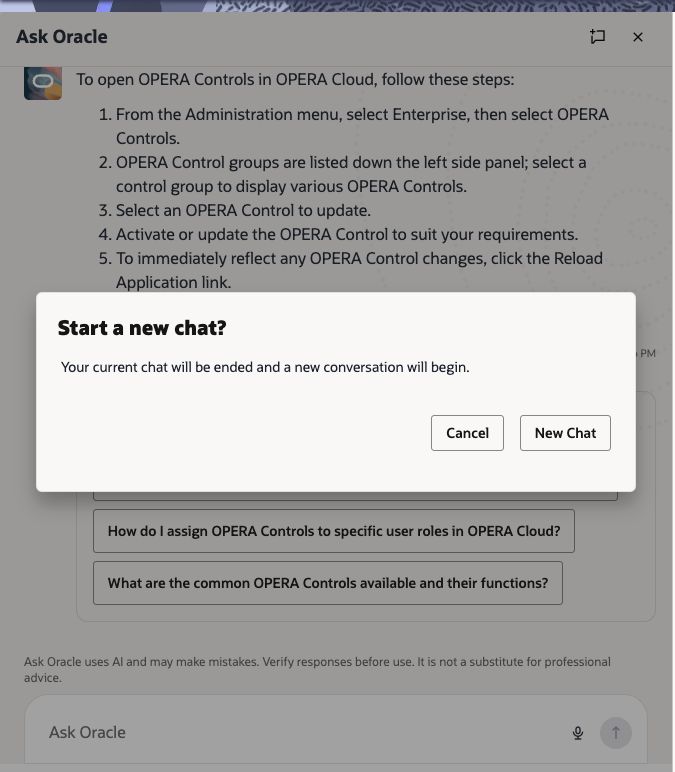
New Chat: Select it in the header. The confirmation explains that the current chat will end. Select New Chat to end it and begin a new conversation, or select Cancel to keep the current conversation. After confirmation, earlier messages are removed and a fresh greeting appears. If a new chat cannot be started, the current conversation remains available and you can retry.
Figure 1-3 New Chat confirmation
Using Voice Input
Where voice input is available, use the microphone icon in the Ask Oracle field to dictate a question instead of typing it.
- Select the microphone icon in the Ask Oracle field.
- Allow access: If the browser requests permission, select Allow to let OPERA Cloud use the microphone.
- Speak and review: Speak the question clearly, review the transcribed question, then send it to Ask Oracle.
Microphone access: You must allow microphone access in the browser before using voice input. If access was previously blocked, update the browser permission for the OPERA Cloud site and try again.
Closing Ask Oracle
Select Close in the upper-right corner of the panel. The Ask Oracle panel closes and you return to the surrounding OPERA Cloud work area.
Parent topic: Getting Started