Creating and configuring EFT Property through OPERA Cloud
Note:
-
Delete the old interface if there is an existing EFT Interface before setting up OPI CLOUD
-
While creating an EFT property, the IFC8 fields, such as Machine and Version, are not mandatory and should be left blank. However, these fields are not required for OPI Cloud.
-
Log in to OPERA Cloud using the URL provided.
-
Enter your User Name and Password in the fields provided.
-
From the Administration menu, go to Interfaces, and then select Property Interfaces. Click New to add the configuration for a new EFT interface.
-
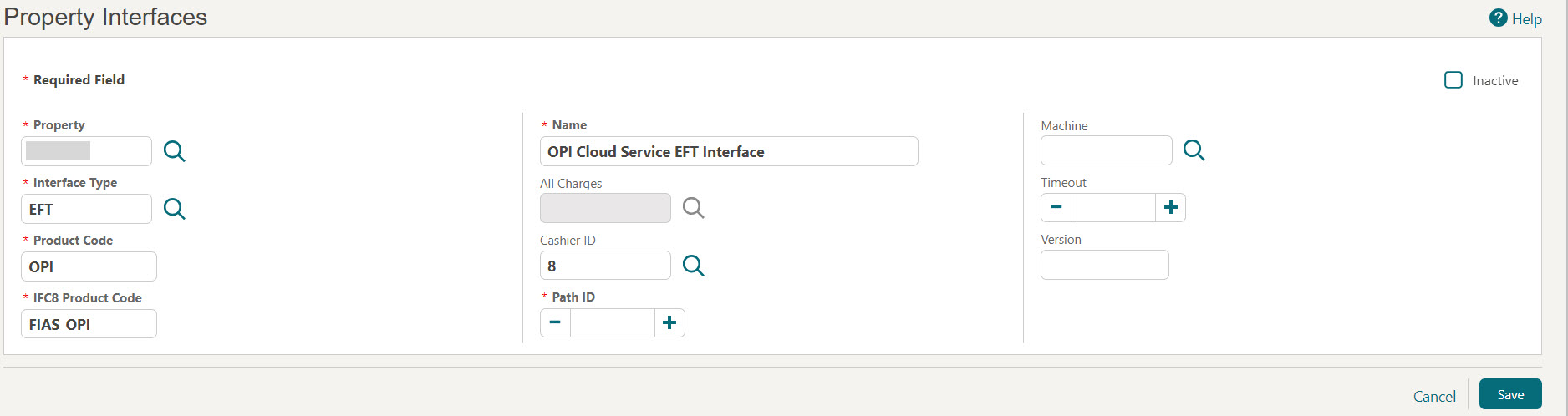
Enter the following options:
-
Property: Enter or select the property from the list. For example, OPICloudProp
-
Interface Type: Select the interface type as ‘EFT’ from the list.
-
Product Code: Enter the product ID of the validated system. For example, OPI.
-
IFC8 Product Code: Will auto-populate based on the Product Code. For example, FIAS_OPI
-
Name: Enter the display name of the system for identification. For example, EFT Interface.
-
Cashier ID: Select the cashier id for the interface from the list. For example, 8.
-
Path ID: Enter the Path ID of the interface. In most cases this is a 1. Only if the vendor is supporting multi-property with one interface, is there a need for more. If setting up a multi-property, the first property must be defined as 1, and all subsequent properties must follow sequentially and with no gaps. For example, 1.
-
Machine: For OPI Cloud, this Machine field should be left blank.
-
Timeout: Enter a timeout value in seconds on how long the UI will wait for response on outbound messages (Room key and credit card transaction requests). For example, 240.
-
Version: For OPI Cloud, this Version field should be left blank.
-
-
Click Save to add the configuration for a new EFT interface.
-
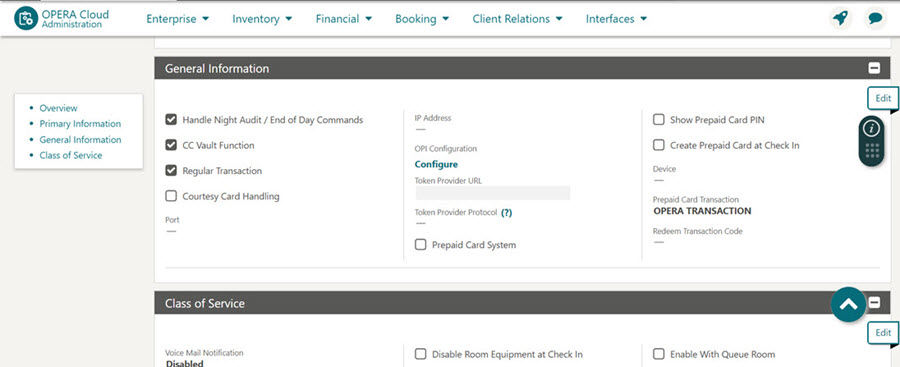
Once the EFT property interface details are created, go to Interfaces, select Property Interfaces, click edit EFT IFC, and then select General Information.
-
Select the check box to enable the Handle Night Audit / End of Day Commands.
-
Select the check box to enable the CC Vault Function.
Note:
You cannot view the OPI Cloud Credit Card Processing parameter until the EFT property interface details are created and the CC Vault Function check box is enabled in the General Information panel. -
Select the check box to enable the Regular Transaction.
-
The Token Provider URL should be in the format: https://OPIHostIP.example.com
Note:
The Token Provider URL is only required to be completed if the customer is using legacy integrations such as OXI or OWS. -
The Token Provider Protocol should be set to One Way Handshake which means for OPI only server side certificate is required.
-
Click Save to save the details.
-
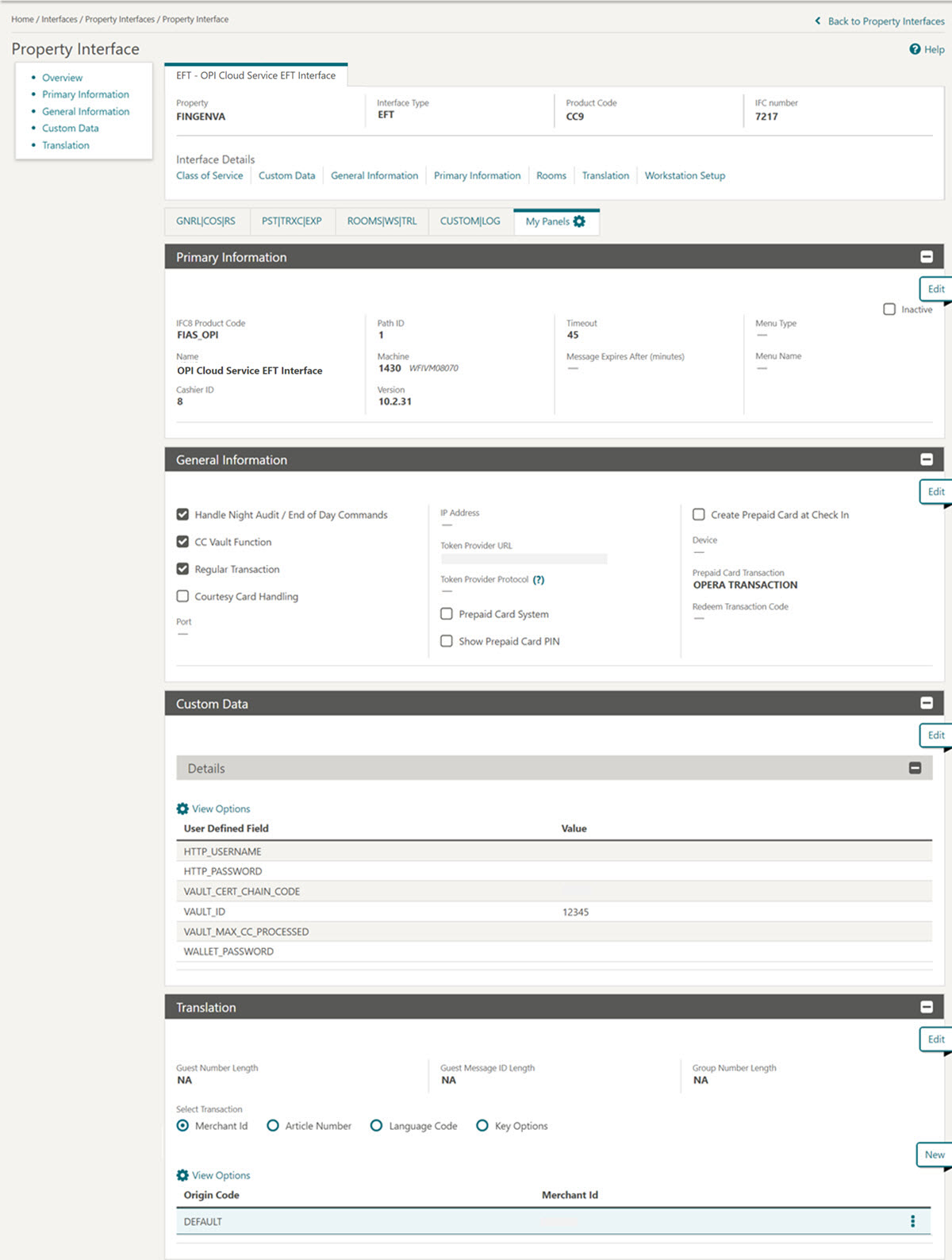
Go to Interfaces, select Property Interfaces, click edit EFT IFC, and then select Custom Data panel.
-
The HTTP_USERNAME and HTTP_PASSWORD should be set at the Token proxy service side that allows communication with the token proxy service URL.
Note:
HTTP credentials are only required to be completed if the customer is using legacy integrations such as OXI or OWS -
OPERA Cloud uses the VAULT_CERT_CHAIN_CODE for the certificate lookup and should be populated with what was entered during the OPI configuration for OPERA Cloud.
-
The VAULT_ID should be set to the same value as the auto populated IFC number.
-
The WALLET_PASSWORD is not used for One Way Handshake.
-
The VAULT_MAX CC PROCESSED is set to what the Payment Partner can support for the number of rows sent in one Token (GetID/GetCC) request. This is used during the bulk tokenization process and when multiple folio windows exist on OPERA Reservations. 50 is the default used when nothing is set here.
-
Click Save.
-
Go to Interfaces, select Property Interfaces, click edit EFT IFC, and then select Translation panel. Click New
-
Select the Origin Code as the DEFAULT code to run an EFT interface.
-
Enter the Merchant Id . The Merchant ID is mandatory while creating an EFT interface and it should match with the Merchant ID within the OPI Cloud Tenant Configuration. The Merchant Id is a combination of OPERA Chain | Property Code. For example, FIRST | FINPROP.
-
Click Save.
-
-
You can activate the OPI Cloud Credit Card Processing parameter once the control is available. See Activating OPI Cloud Service for more information.
Note:
You cannot view the Configure link if the OPI Cloud Credit Card Processing parameter is not activated. - Once the OPI Cloud Credit Card Processing parameter is active, click
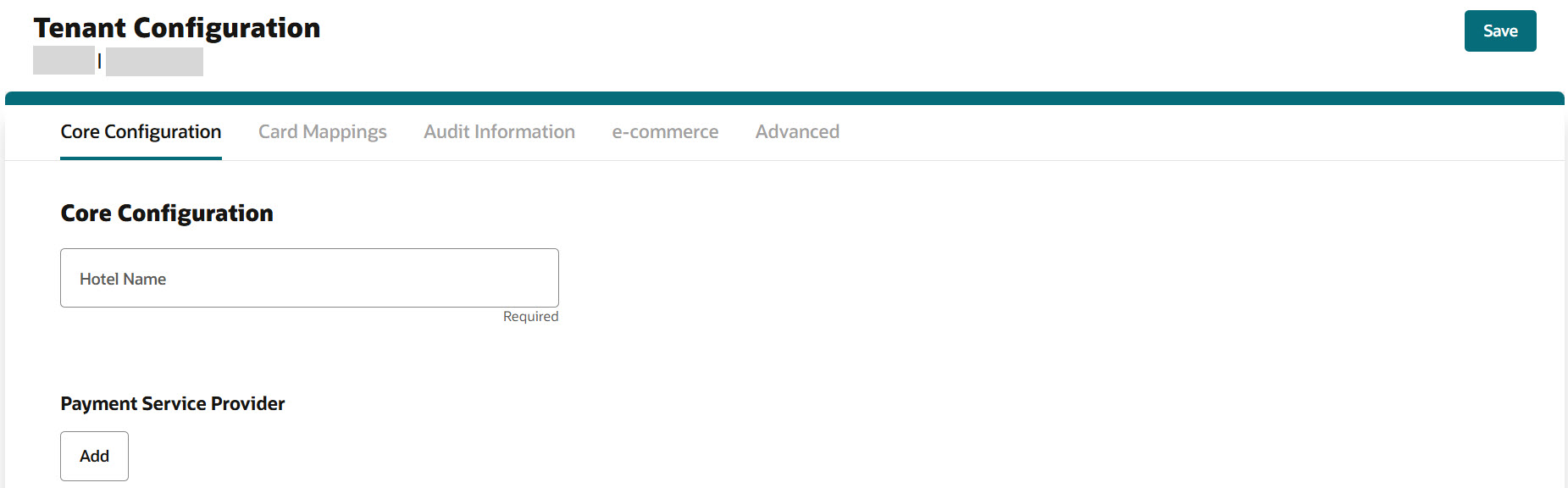
Configure under OPI Configuration. This will launch the OPI Cloud
Tenant Configuration portal where you can configure the Tenant information and map the Tenant
with the PSP endpoints for each Transaction type (Credit/Debit Card or Token Exchange) to
perform end-to-end transactions.