Retokenization for OPERA Cloud properties with Payment Service Provider (PSP) issued tokens
The Retokenization feature enables a seamless transition of a hotel from an existing PSP to a new PSP in OPI Cloud, during which existing tokens in OPERA Cloud issued by the existing PSP are converted to tokens issued by the new PSP. OPERA Cloud users with the CCCONF role and the 'Credit Card Retokenization' user task can retokenize all tokens in the OPERA Cloud database when the hotel switches from one PSP to another.
Note:
The old PSP must support the 'Get PAN' feature for retokenization to function correctly. The customer is required to ensure that the old PSP supports and enables the 'Get PAN' transaction in their environment. Additionally, the customer must confirm that the old PSP agrees to support bulk detokenization after the customer has switched to the new PSP.-
The Token Exchange Service sends a bulk Get PAN request to the detokenization endpoint. This endpoint must correspond to the PSP that originally issued the CC token.
-
Once the Get PAN response is received, the Token Exchange Service sends a bulk tokenization request to the token endpoint, which must be the endpoint of the new PSP being used by the hotel. The bulk tokenization request includes all the records received in the Get PAN response.
-
Once the bulk tokenization response is received, the Token Exchange Service sends the retokenization response back to OPERA Cloud. This response includes the new CC token for each record that was successfully retokenized.
-
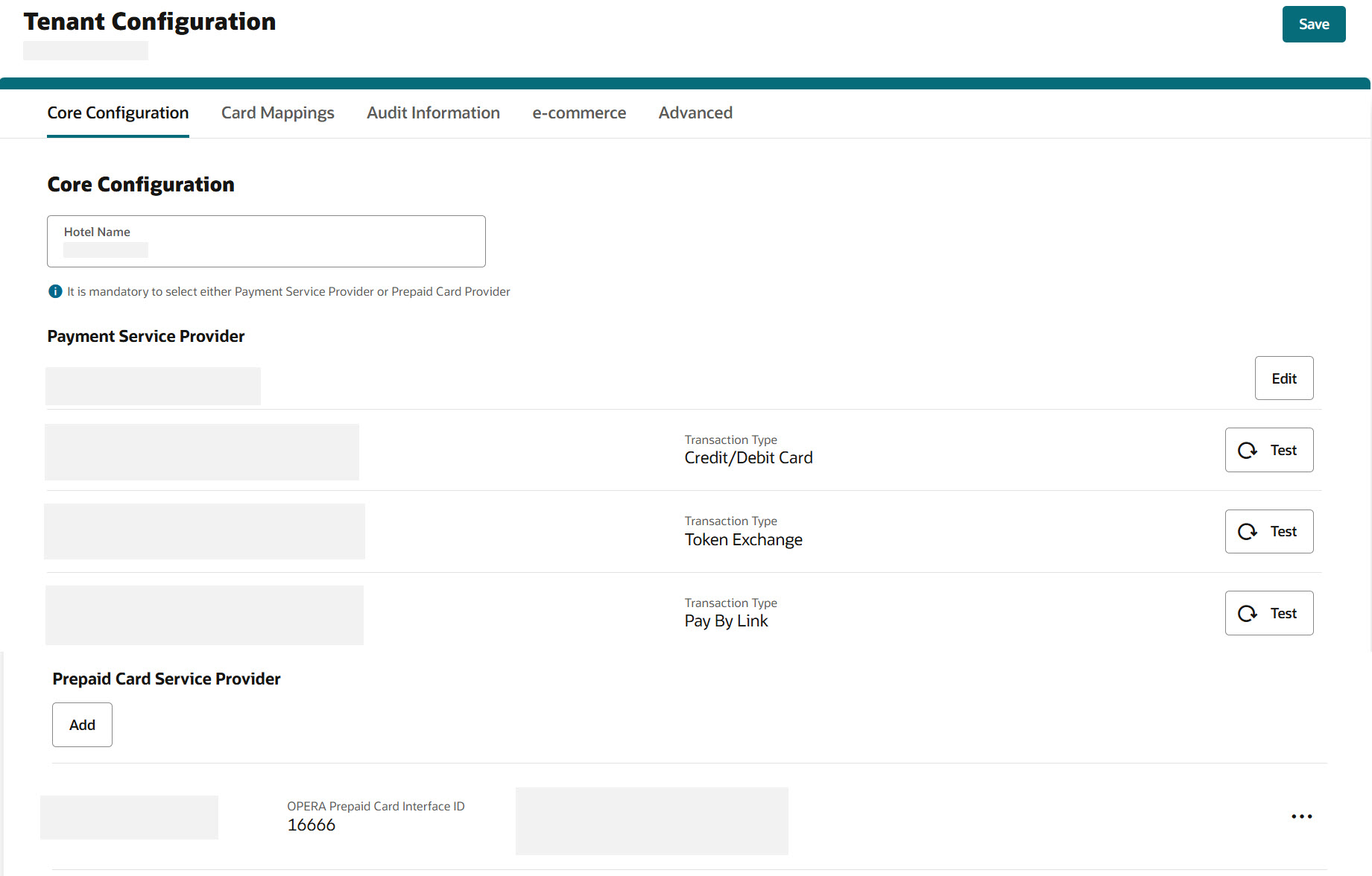
The OPI Cloud Tenant Configuration portal landing page appears once you create a brand new EFT interface when running retokenization. See Creating and configuring EFT Property through OPERA Cloud to configure the EFT property and follow the steps 1 through 8 for details.
-
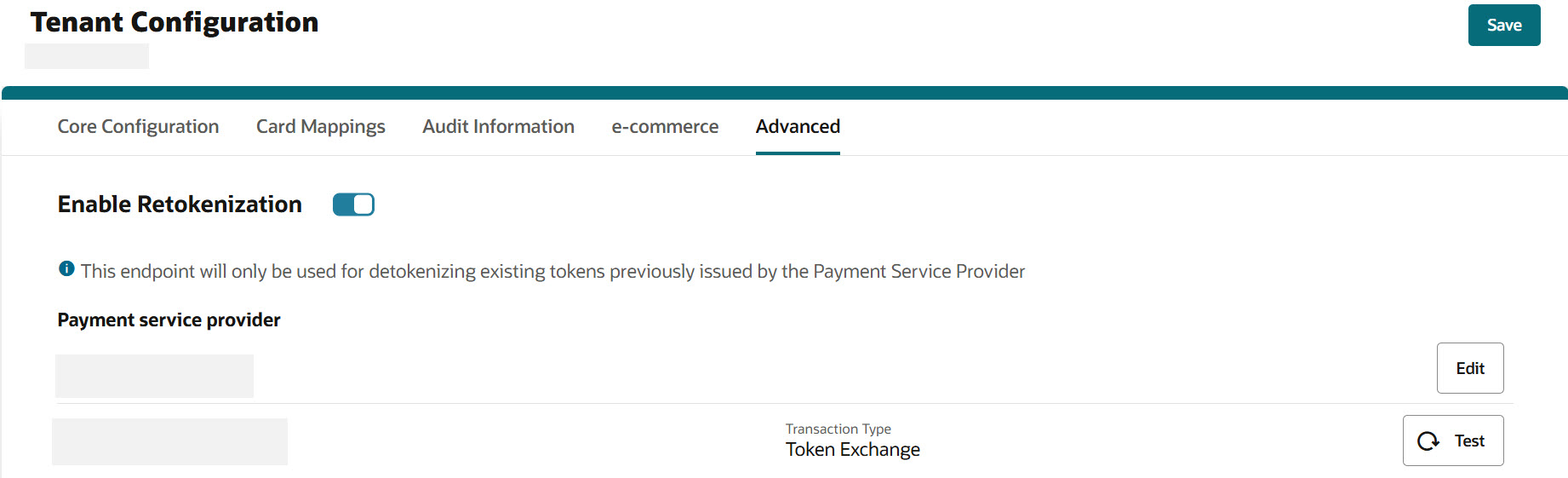
Select the Advanced tab.

-
Select Enable Retokenization checkbox for the property. Ensure that the property has a detokenization endpoint assigned.
Note:
If you click Save without adding a PSP, a message appears: “It is mandatory to select a Token Exchange Service Provider when retokenization is enabled.” -
Click Add.
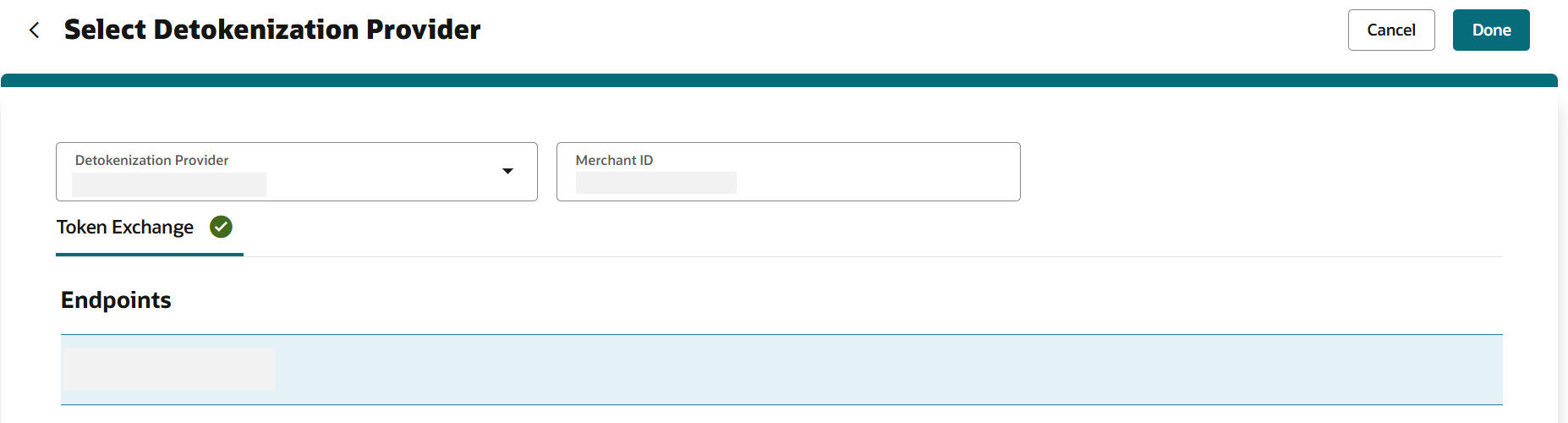
The Select Detokenization Provider screen appears.

-
Select the Detokenization Provider from the list. This PSP should be different from the PSP that is already configured in the Core Configuration tab.
-
Select an endpoint for Token Exchange from the Endpoints list. Once the endpoint is selected for the transaction type, you will see a tick mark next to the Token Exchange transaction type.
-
Enter the Merchant ID.
-
Click Done.
The Select Detokenization Provider screen appears with mapped token exchange endpoint.
-
Click the Test
 icon to test the endpoint connectivity.
-
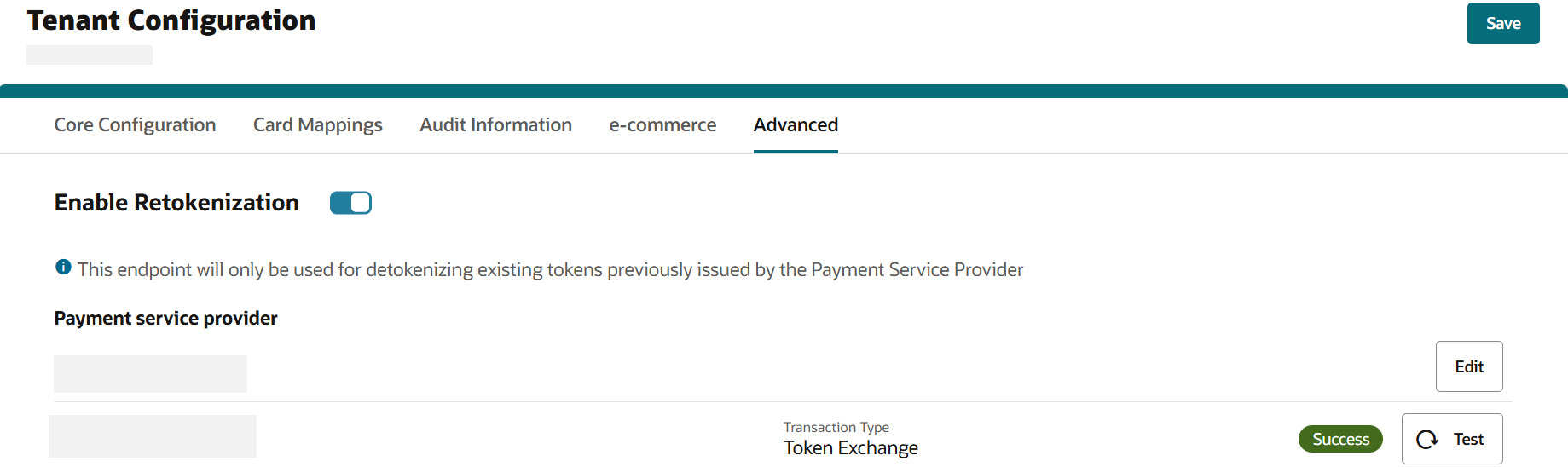
If the endpoint test is successful, the connection is successful.
-
If the endpoint test is unsuccessful, the connection fails.
If a test fails, you need to access the OPI Cloud logs to review the issue.
-
-
Click Save and you will see a confirmation that Advanced configuration has been updated successfully.
Whenever you are trying to update any of the fields, you will see a message ‘Configuration update may take up to 15 mins to reflect in runtime’.
Note:
The Sign Out option allows you to logout from the OPI Cloud Tenant Configuration portal. When you login next time, you will directly navigate to the Tenant Core Configuration landing page as you have already configured the property using OPERA Cloud.