Deposit Refund for Credit Card Payment Transactions
This feature allows refunds to be processed using the original credit card payment method from the initial transaction. To process the refund from the Deposit/Cancellation screen, you must have the Deposit Refund for Credit Card Payment user task.
Note:
-
The Post CC Refund menu option is not visible when the Deposit Refund Receipts OPERA Control is active.
-
The Post CC Refund menu is available only when the Advanced Deposit Handling OPERA Control setting is set to either 0, 1, or 2. It is not supported for the deposit folios.
-
From the OPERA Cloud menu, select Bookings, select Reservations, and then click Manage Reservation.
-
Search for and open the reservation.
-
Click I Want To… and select Deposit / Cancellation.
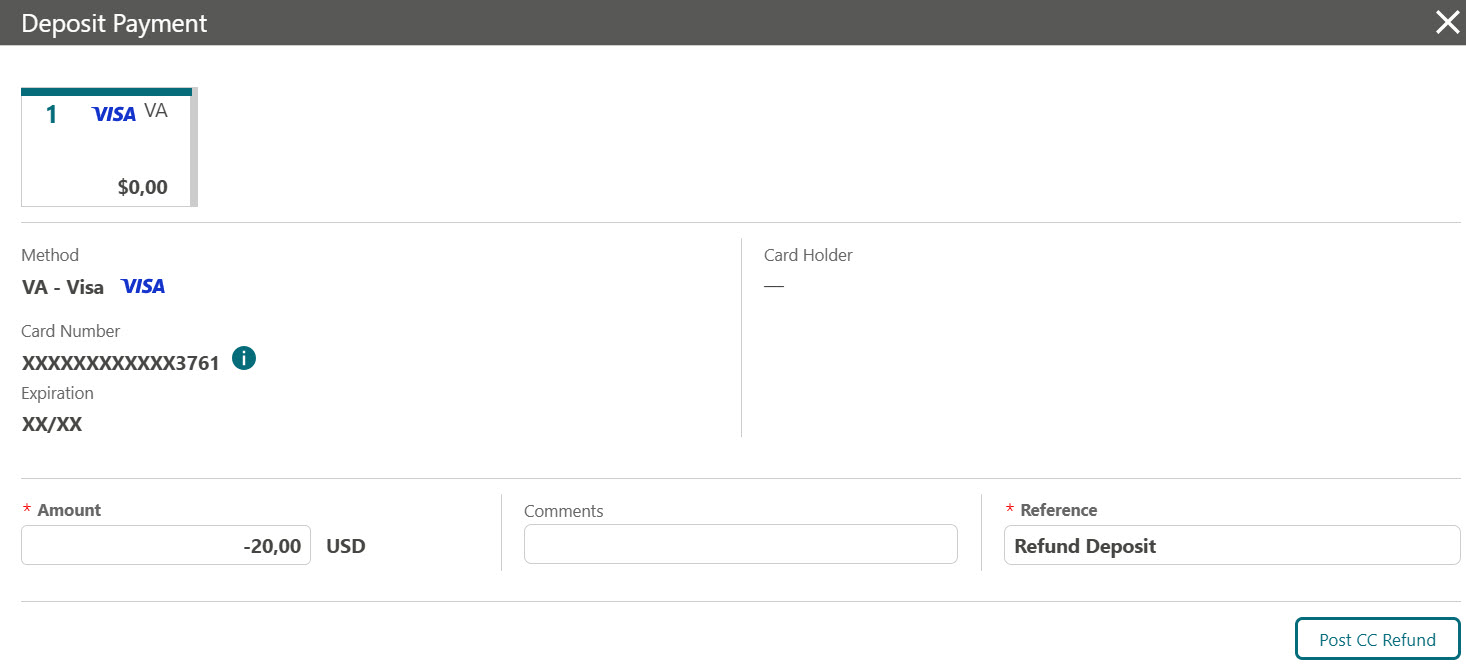
The Deposit Payment screen displays the original payment method used for the transaction, which cannot be modified. You can modify the Amount field to a lower or higher value. During the refund process, OPERA Cloud performs rebate validation (comparing the entered amount with the previous amount charged to the credit card token) if the Credit Card Rebate Validation OPERA Control is enabled. If this OPERA Control is disabled, OPERA Cloud skips the rebate validation.
-
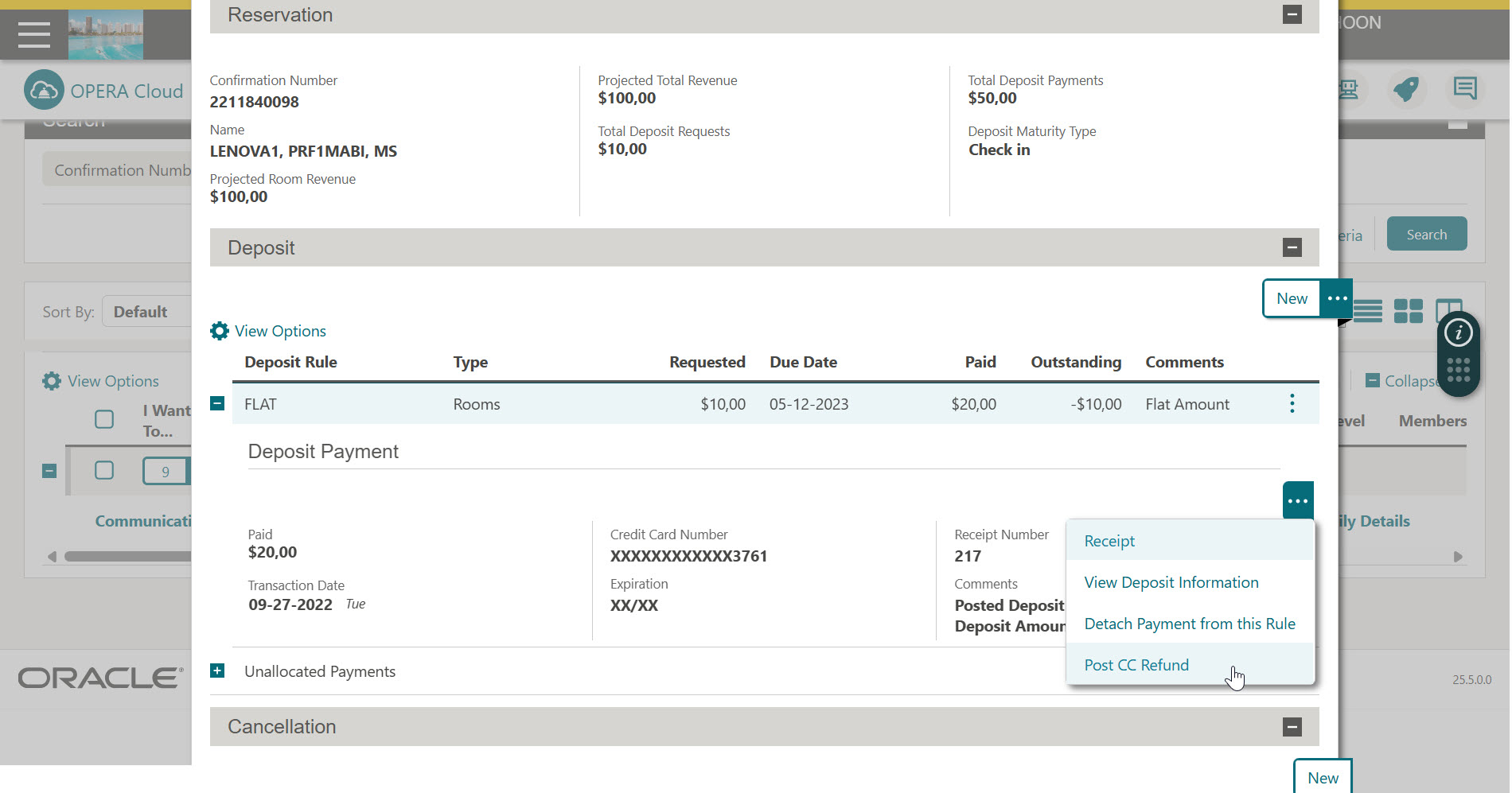
In the Deposit Payment panel, click Post CC Refund for the deposit payments made using the credit card payment method.
-
Enter a lower or higher value in the Amount field.
-
Provide Reference details, if any. This field is mandatory for refunds in OPERA Cloud.
-
Click Post CC Refund.
-
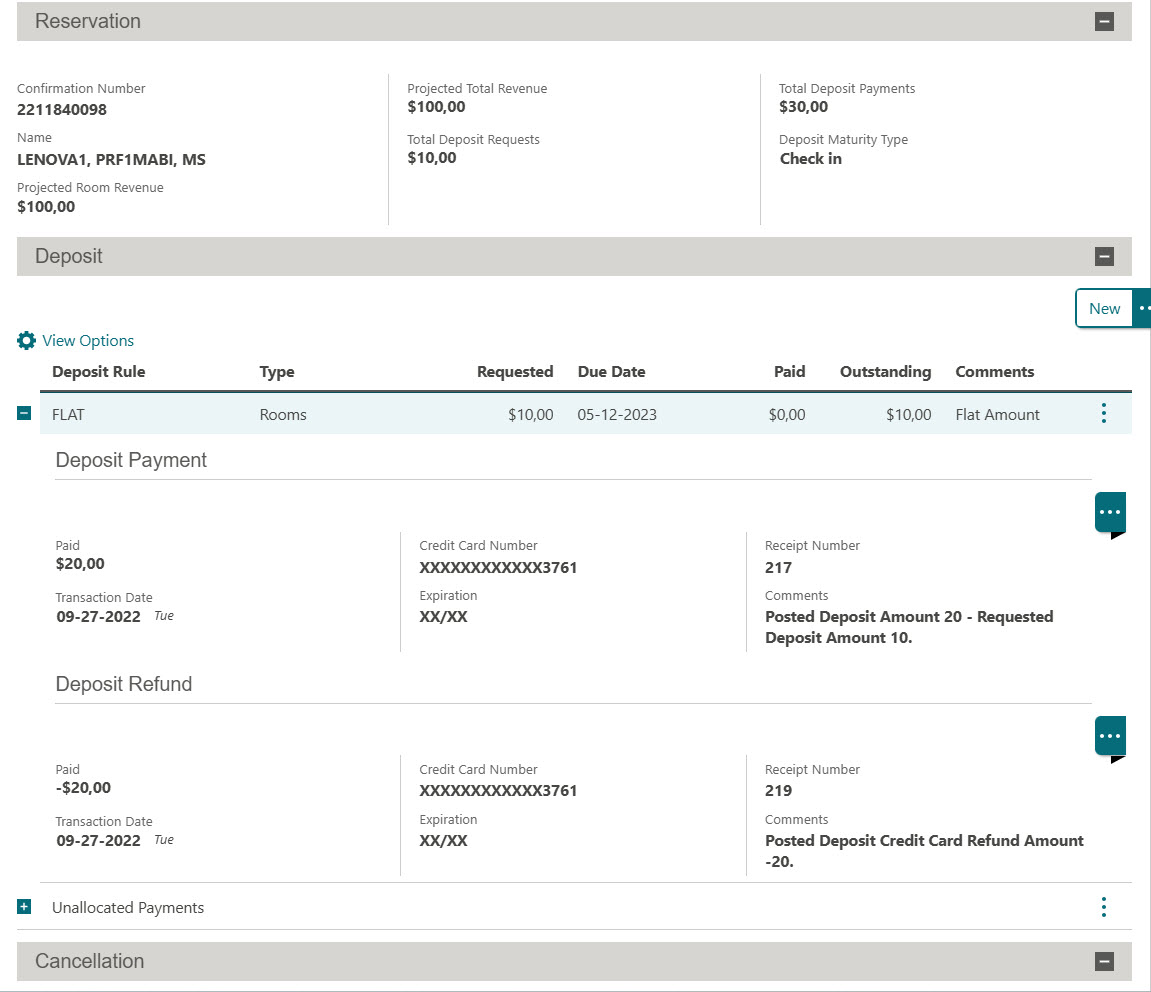
The Deposit refund transaction is posted below the deposit payment, and the reservation balance is adjusted accordingly based on the refund transaction.
Parent topic: Reservations