Auto Configure OPI Cloud for a Property
OPERA Cloud users with the CCCONF role have the ability to automatically configure OPI Cloud for a property that are yet be onboarded from the OPERA Cloud Application. You can select the PSP and the endpoints for each transaction type (Credit/Debit Card, Token Exchange, or Pay by Link) to perform end-to-end transactions. It allows users to configure the OPI Cloud settings within OPERA Cloud, where some of the configuration in OPERA Cloud is auto populated in the OPI Cloud Tenant Configuration Portal.
-
See Creating and configuring EFT Property through OPERA Cloud to configure the EFT property and follow the steps 1 through 8 for details.
-
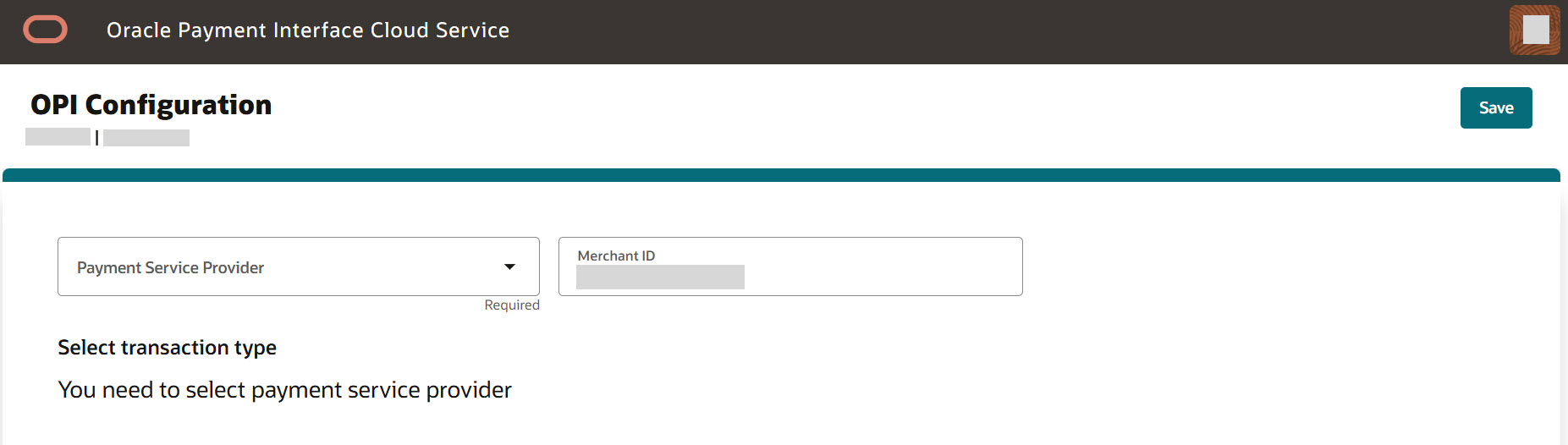
The OPI Configuration page appears for the hotels that are yet to be onboarded to select the PSP information.
-
Select the Payment Service Provider from the list.
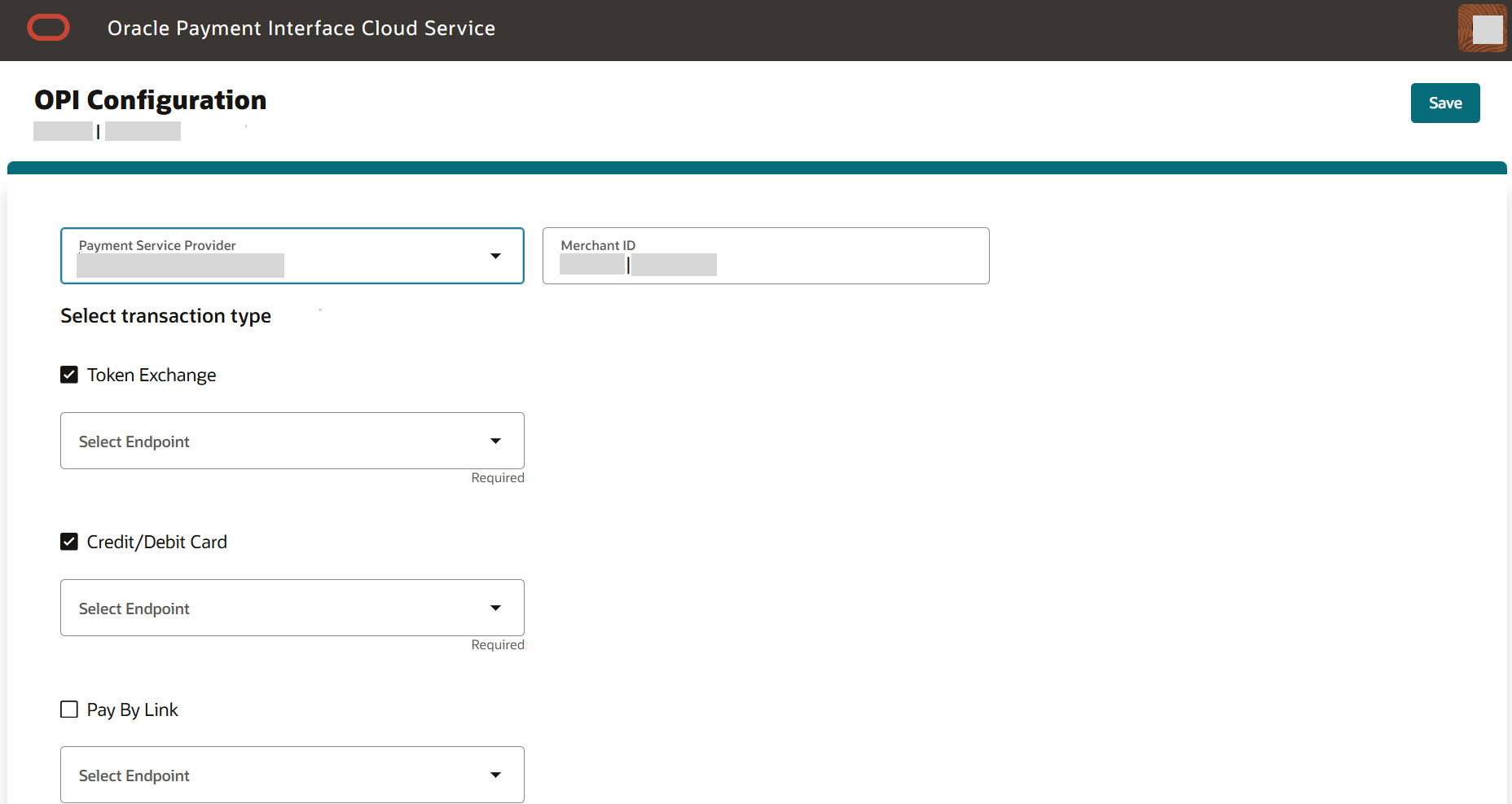
Once the PSP is selected, the lists of configured endpoints for each transaction type are displayed. You can select the endpoints for each transaction type (Credit/Debit Card, Token Exchange, or Pay by Link) to perform end-to-end transactions based on the endpoints available for the PSP.
Note:
If you deselect any transaction type that is already configured in OPERA Cloud, you will see the message: ‘The selected transaction types do not match the OPERA data received from OPI. This may cause the transaction to fail.’ -
Merchant ID: This field is auto-populated if the Merchant ID is configured in the Translation Panel of the EFT interface. Otherwise, you should enter the Merchant ID on the Registration screen, which will then be shared with OPERA Cloud to update the EFT interface.
-
Select the Payment Service Provider from the list.
Once the PSP is selected, you can configure the endpoint URLs for token exchange, credit card transactions and pay by link transactions in the OPI Tenant Configuration Portal.
-
Select an endpoint for each transaction type (Credit/Debit Card, Token Exchange, or Pay By Link) from the Endpoints list.
-
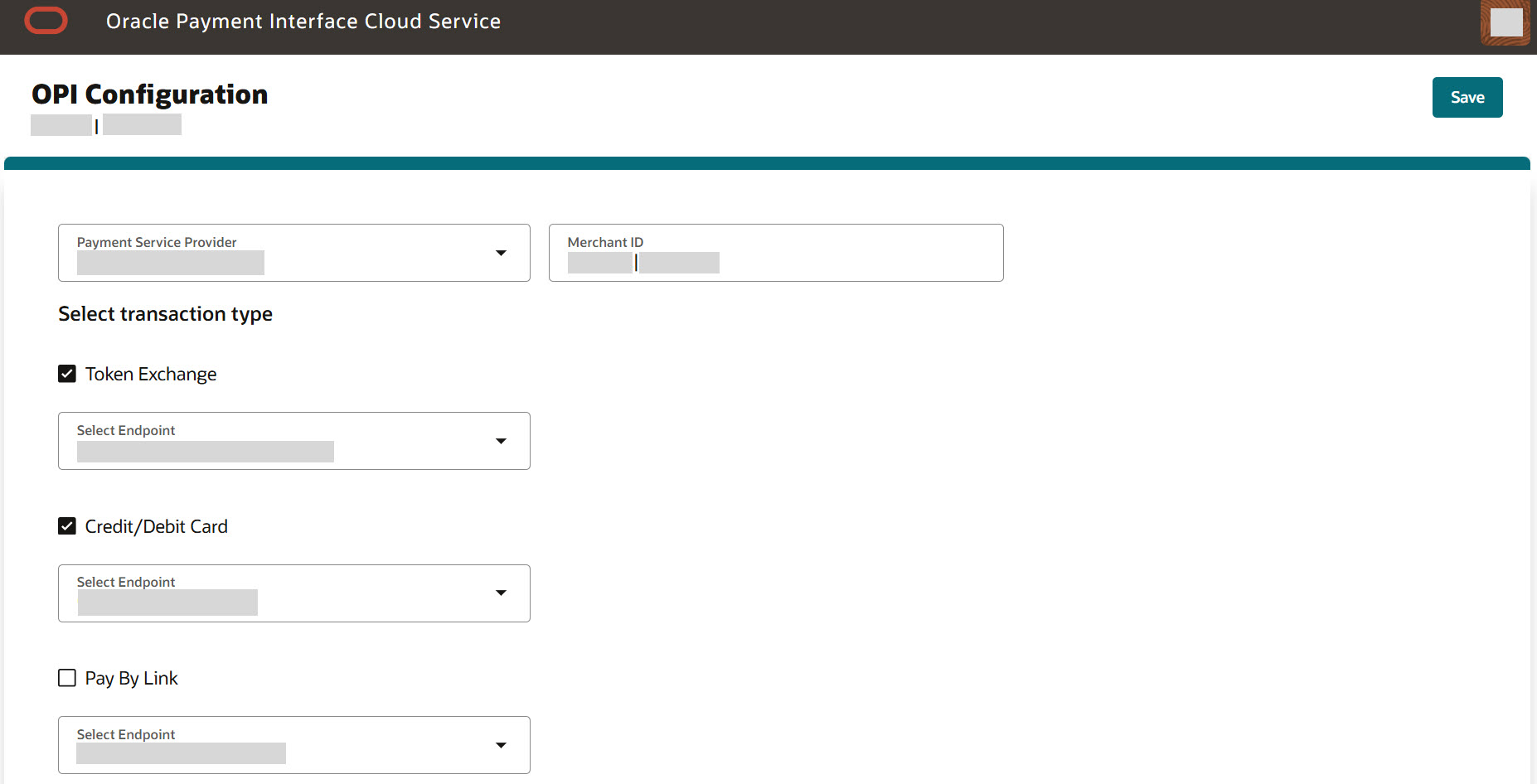
If the PSP is configured with a single endpoint URL to configure.
-
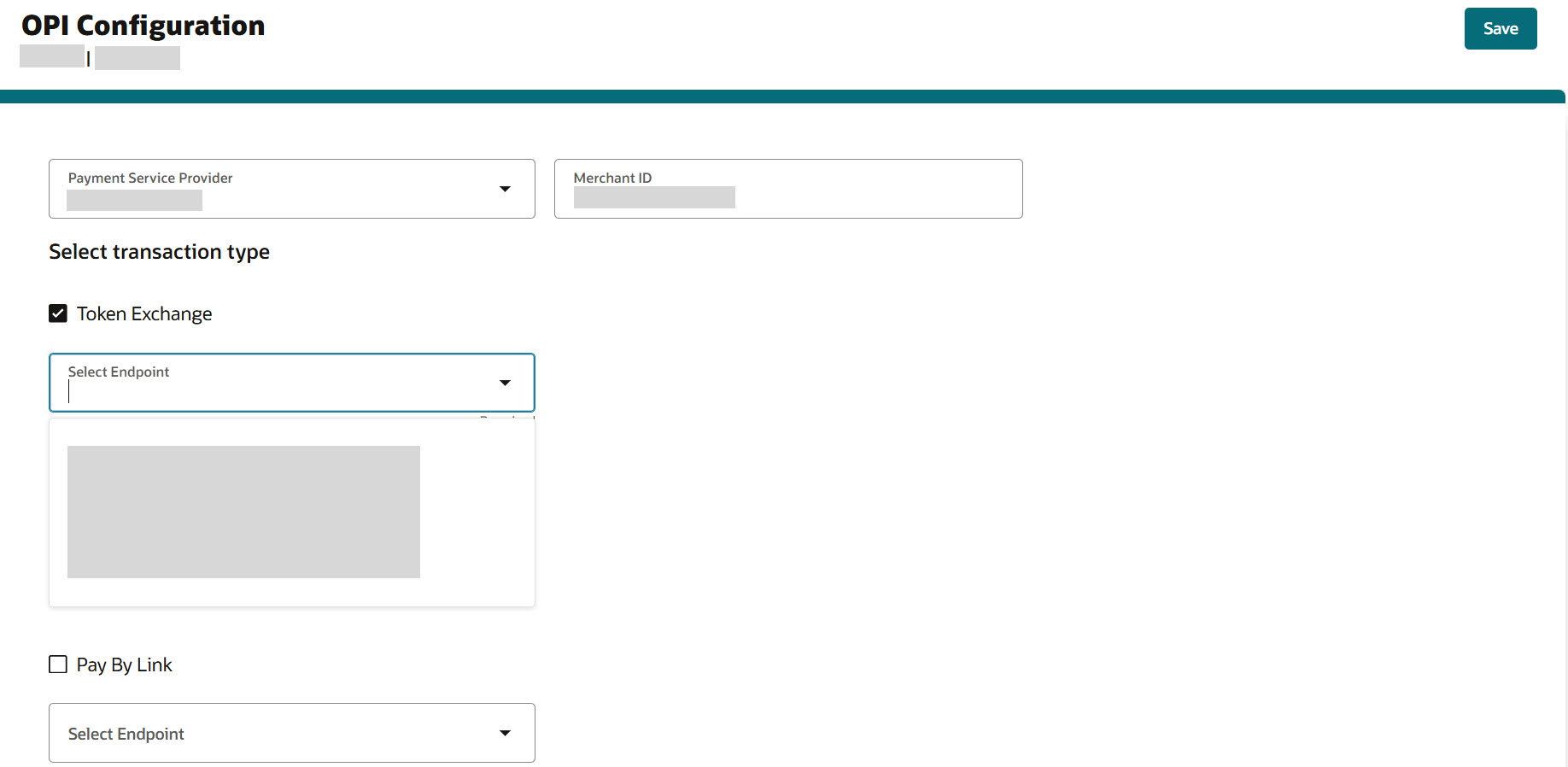
If the PSP is configured with multiple endpoints, you can select the appropriate endpoint URL from the list.
-
If the endpoint is for any specific Payment Service Provider, you can configure the required parameters.
-
OPERA 9 Terminal: Enter the OPERA 9 terminal value. If the URL contains 'OPERA 9 Terminal', the OPERA9TERMINAL field is auto-populated.
Note:
The field is present only if the chosen PSP requires this field to be configured. -
Custom Headers: Enter the header value that is unique to a tenant.
Note:
The field is present only if the chosen PSP requires this field to be configured.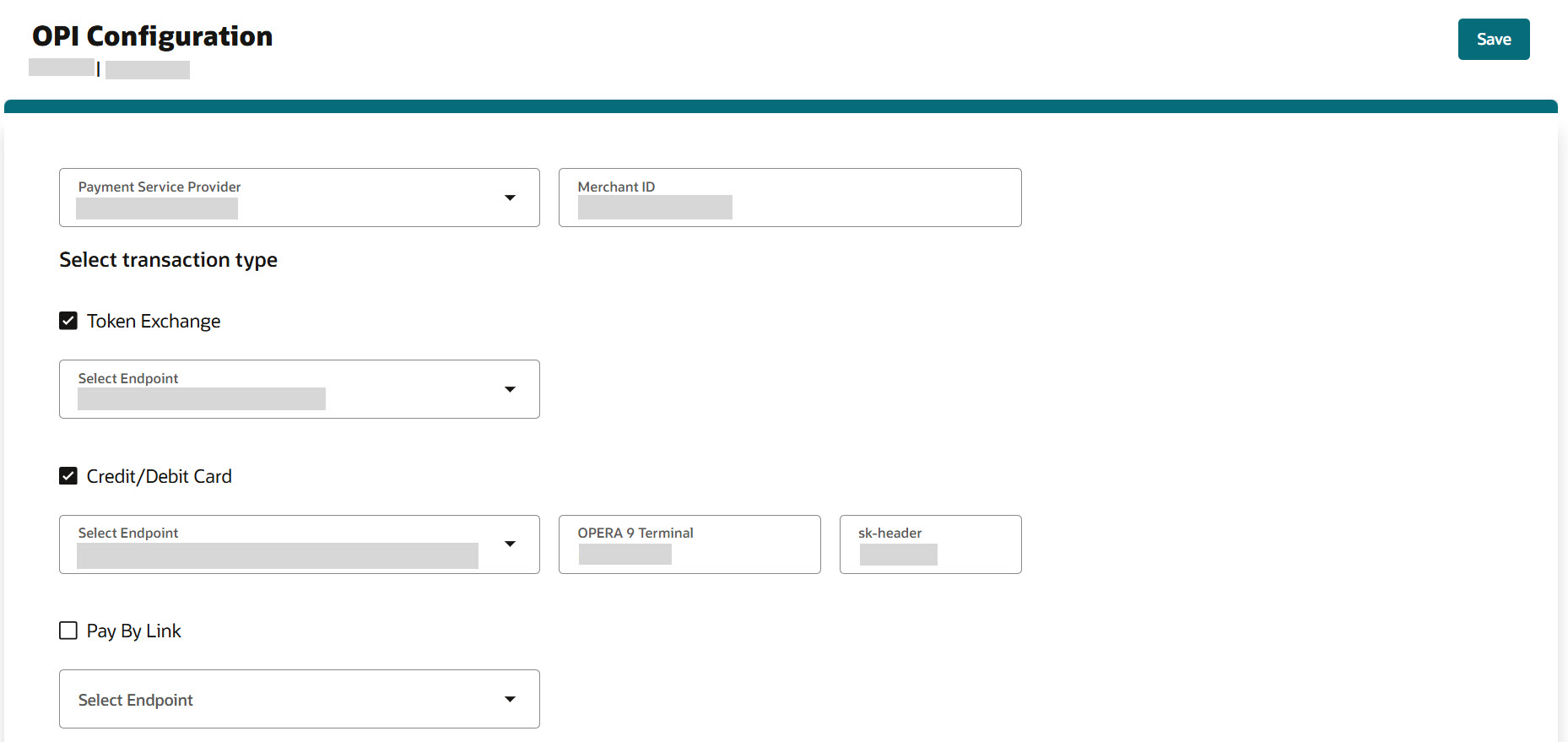
-
-
-
Click Save.
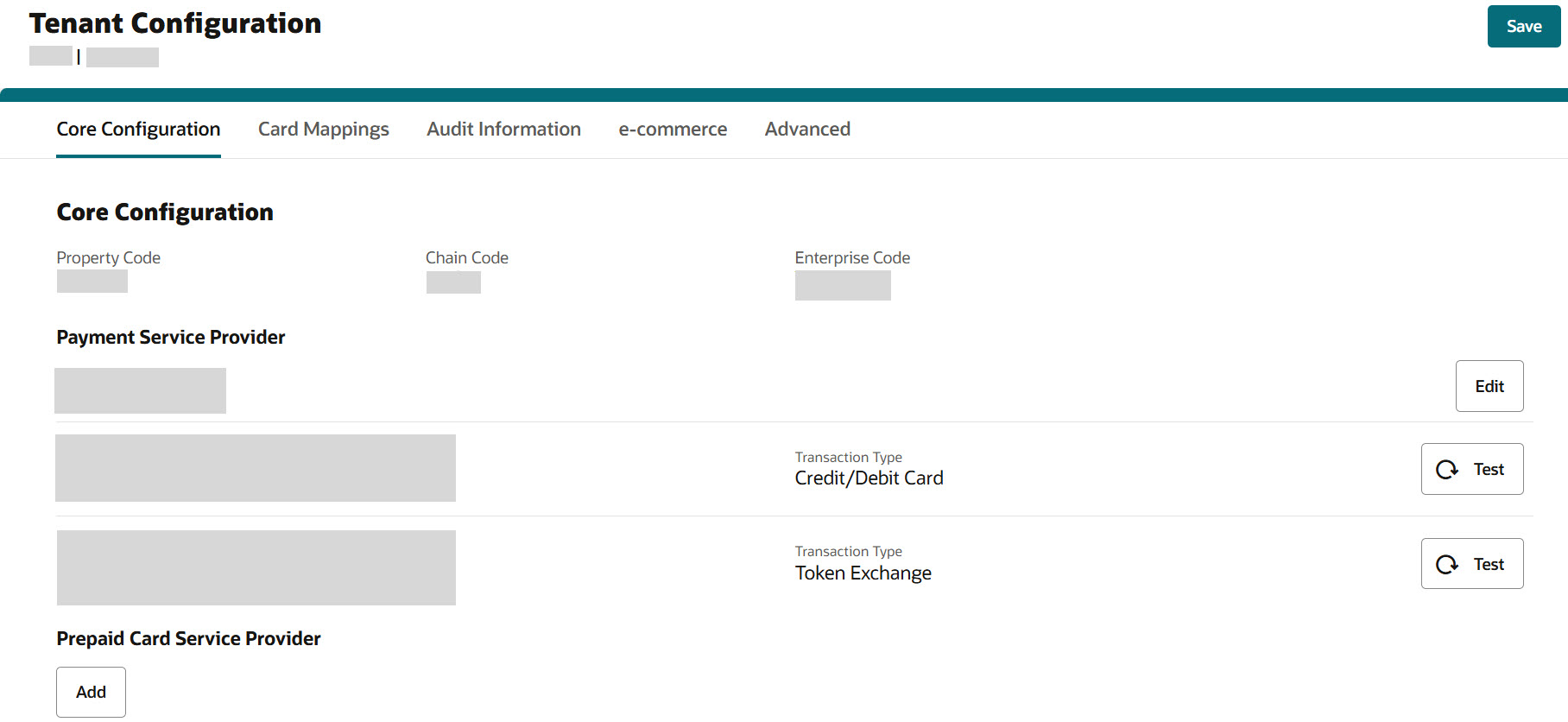
The Tenant Core Configuration screen appears with mapped PSP endpoints.
-
Click the Test
 icon to test the endpoint connectivity.
-
If the PSP endpoint test is successful, the connection is successful.
-
If the PSP endpoint test is unsuccessful, the connection fails.
If a test fails, you need to access the OPI Cloud logs to review the issue.
-
-
Click Save and you will see a confirmation that Core Configuration has been updated successfully.
Whenever you are trying to update any of the fields, you will see a message ‘Configuration update may take up to 15 mins to reflect in runtime’.
Note:
The Sign Out option allows you to logout from the OPI Cloud Tenant Configuration portal. When you login next time, you will directly navigate to the Tenant Core Configuration landing page as you have already configured the property using OPERA Cloud.