Updating Core Configuration with Payment Service Provider (PSP) Endpoints
Once the OPI Cloud Tenant Configuration portal is launched, OPERA Cloud users with the CCCONF role can update the Tenant core configuration details with PSP endpoints to perform credit card, token exchange, and pay by link transactions. OPI Cloud has only one merchant ID assigned for the hotel property regardless how many PSP providers are configured for the hotel. It is possible for the hotel to have one PSP provider for credit card and token exchange and another provider for gift card processing and it is likely different provider will require to use different merchant ID. OPI Cloud supports configuration of a different merchant ID for each PSP provider that user can configure for a hotel property.
-
The OPI Cloud Tenant Configuration portal landing page displays the Property Code, Chain Code, Enterprise Code and PSP details once you configure the property through OPERA Cloud.
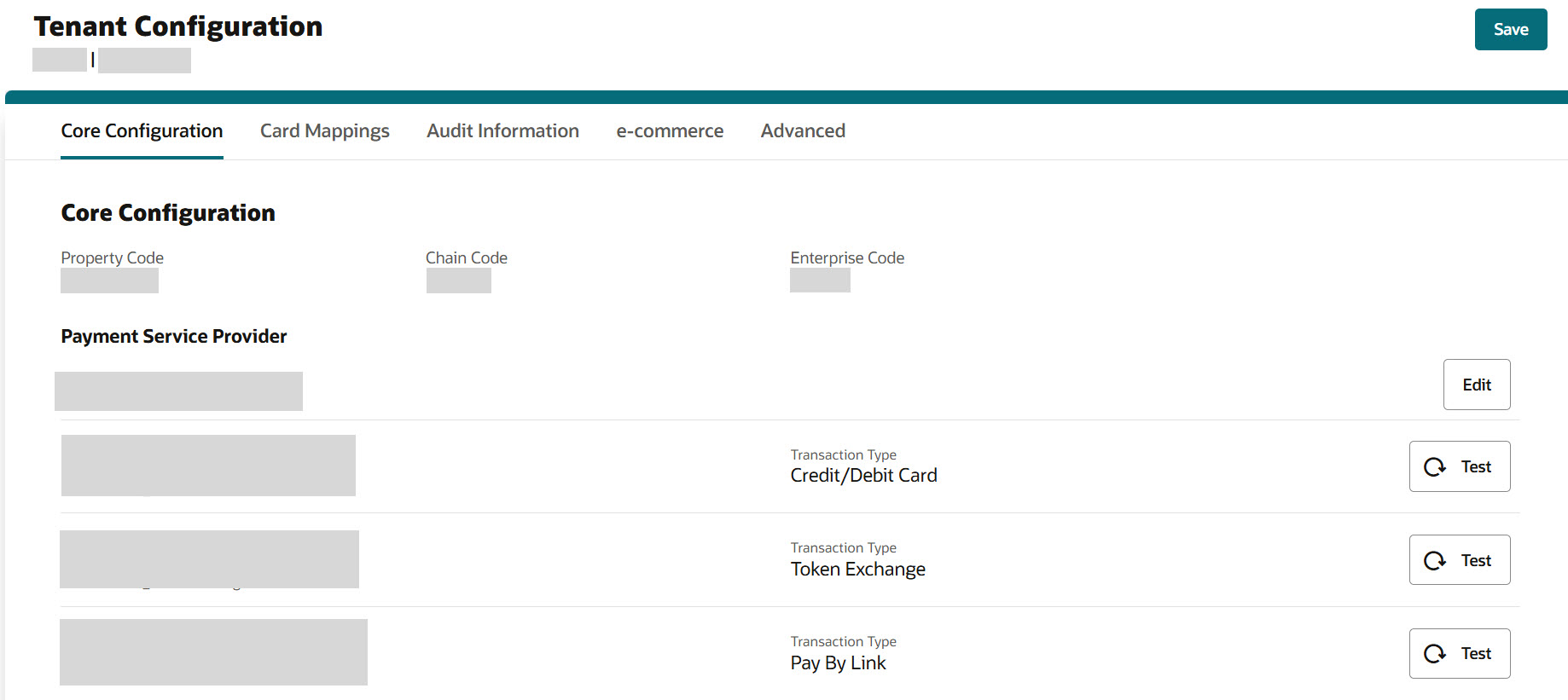
If needed you can modify the configured PSP endpoint details.
-
Under the Payment Service Provider header, click Edit to navigate to the Select Payment Service Provider screen.
-
To update the PSP endpoint details, select the Payment Service Provider from the list.
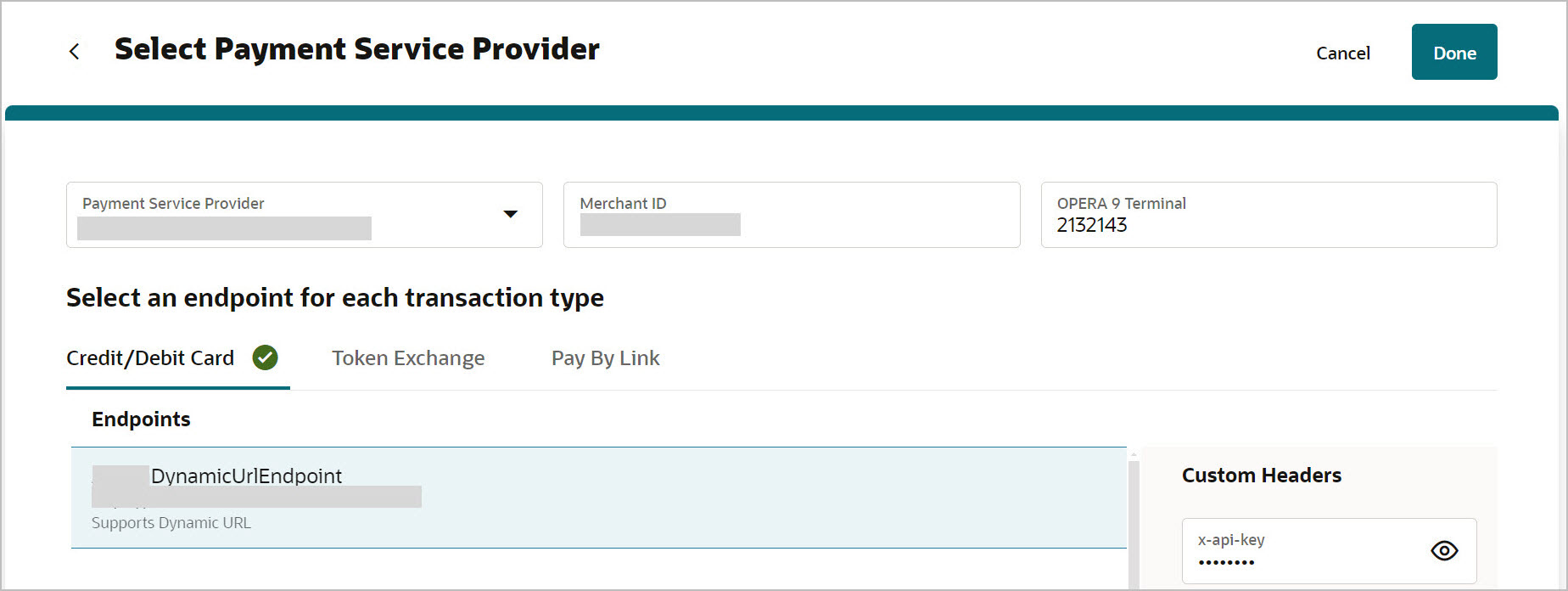
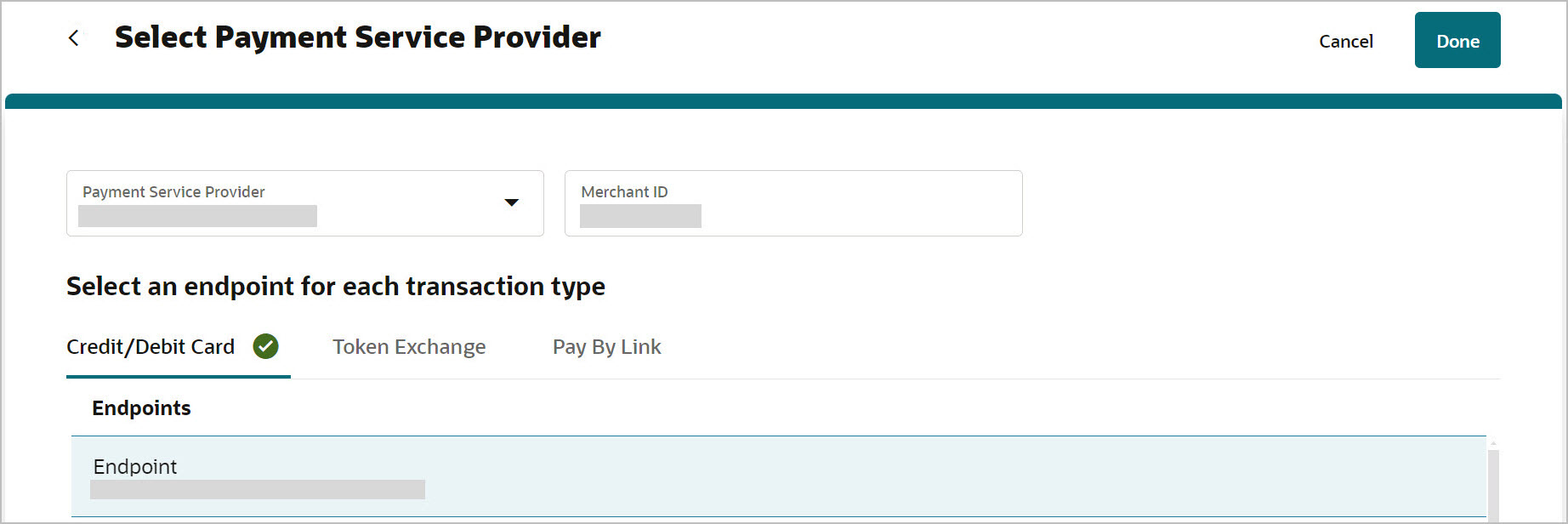
Once the PSP is selected, the lists of configured endpoints for each transaction type are displayed. The screen will be one of two variations you see below:
The screen appears with Custom Headers.
The screen appears without Custom Headers.
-
Merchant ID: Enter the Merchant ID.
The Merchant ID configured in OPERA Cloud should match exactly with the Merchant ID that is configured in the OPI Cloud for that property. If the ID is not the same, OPI will reject the transaction from that property due to a mismatched MerchantID. To locate the Merchant ID in OPERA Cloud Go to Administration Menu > Interfaces > Property Interfaces > Select the EFT Interface > Click Edit. Go to the Translation tab and the Merchant ID is configured here. This is the identifier sent to the Payment Service Provider.
-
OPERA 9 Terminal: Enter the OPERA 9 terminal value. This is provided by the Payment Service Provider specific to a Tenant. This value is used to map the pseudo workstation number that is typically used by OPERA Cloud in certain use cases to a specific terminal ID that is required by the chosen PSP.
Note:
The field is present only if the chosen PSP requires this field to be configured. -
Custom Headers: Enter the header value that is unique to a tenant. This is provided by the Payment Service Provider specific to a Tenant.
Note:
The field is present only if the chosen PSP requires this field to be configured. -
Select an endpoint for each transaction type (Credit/Debit Card, Token Exchange, or Pay By Link) from the Endpoints list.
Note:
-
A tenant can be configured with a Pay by Link endpoint only if it is configured with a Credit Card endpoint. The Pay by Link endpoint can be configured along with the Credit Card endpoint, as the Pay by Link payment response includes a token that will be used in the future.
-
If a tenant is not configured with the Credit Card endpoint along with the Pay by Link endpoint, the system displays a message saying, ‘Please select a Credit/Debit Card endpoint along with the Pay By Link endpoint, you cannot select only Pay By Link endpoint’.
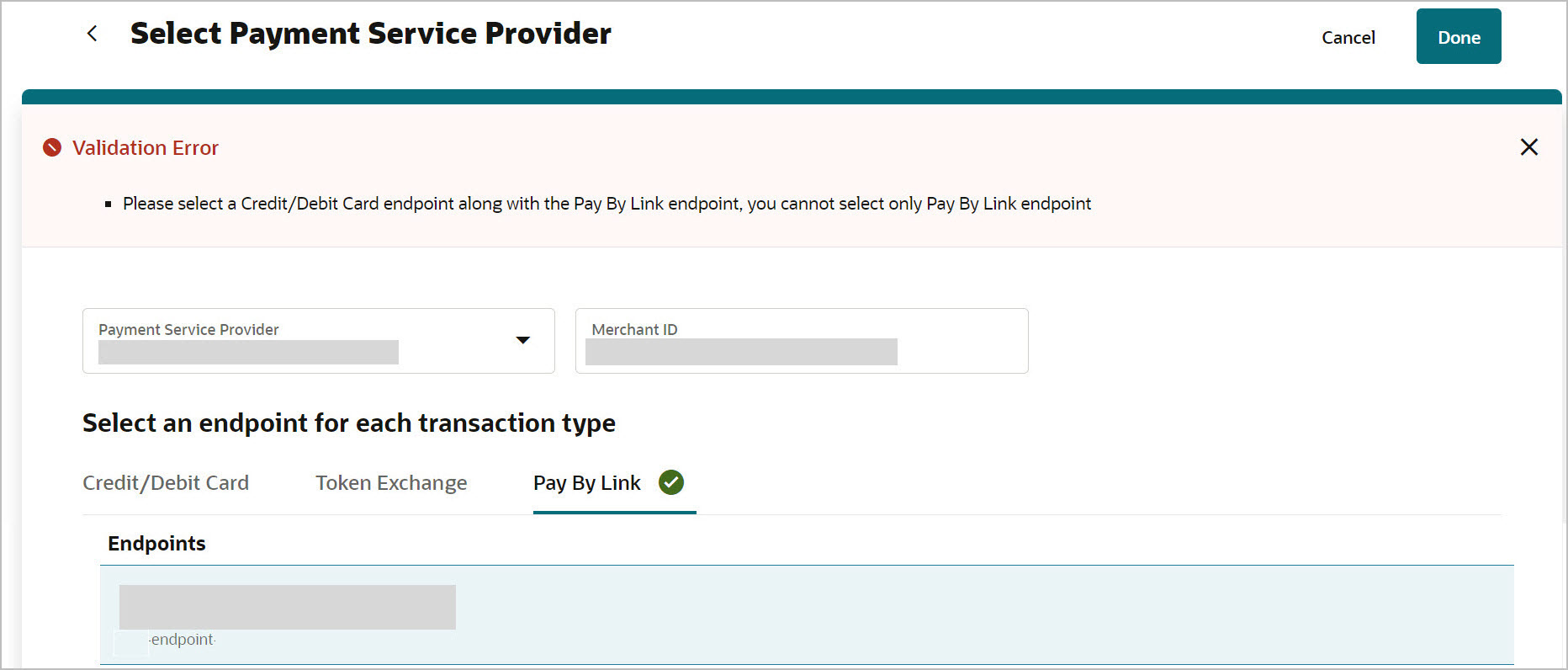
You can use the left arrow
 icon to navigate to Tenant Core Configuration screen.
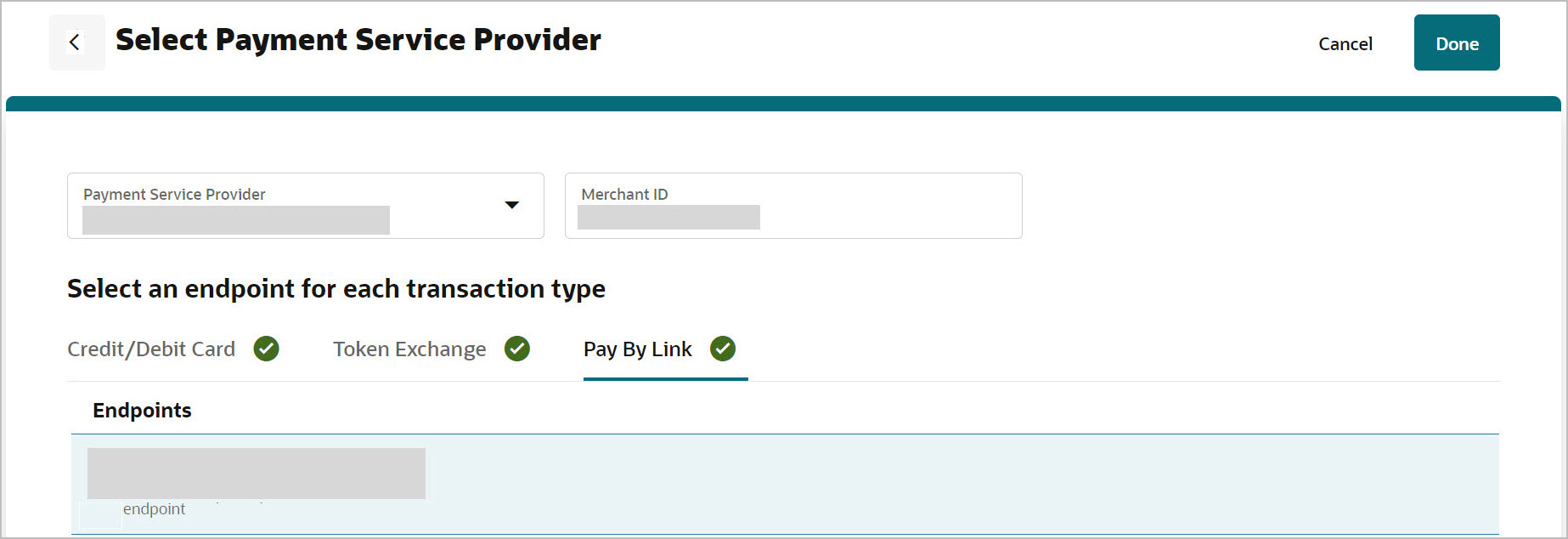
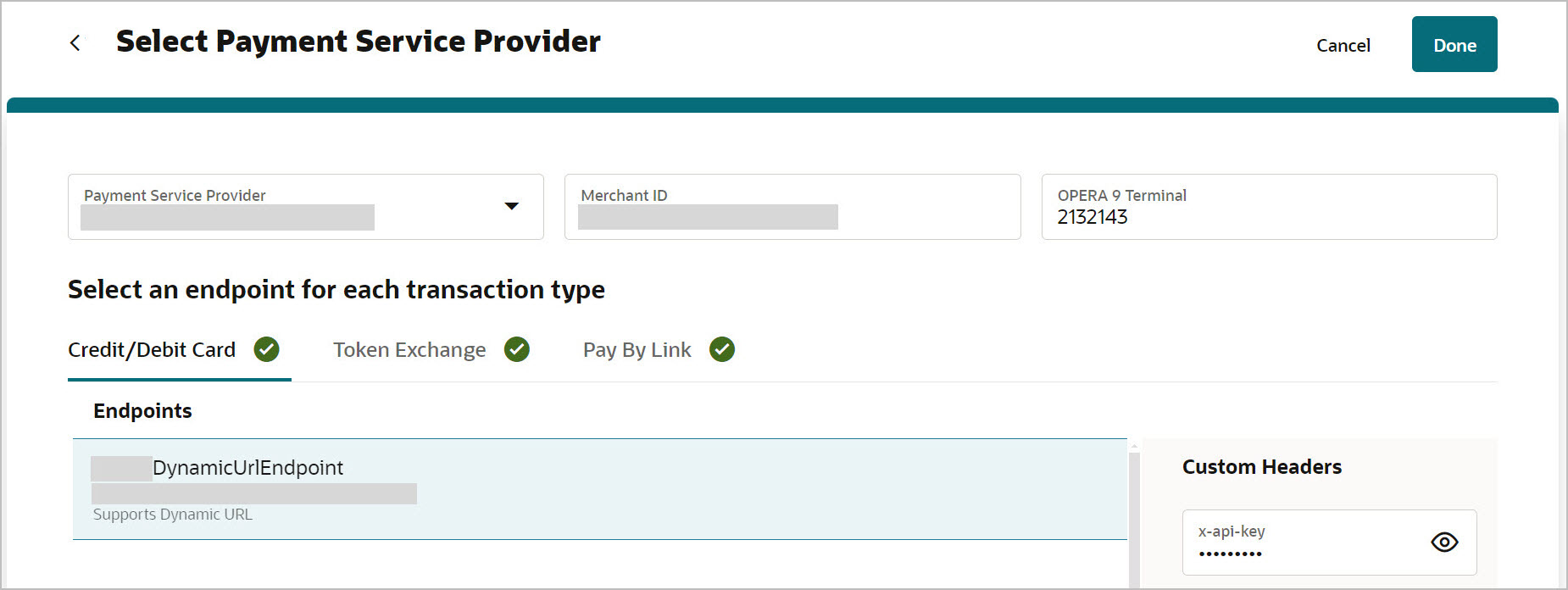
Once the endpoints are selected for each transaction type, you will see a tick mark next to the Transaction Type (Credit/Debit Card, Token Exchange, or Pay by Link).
-
-
Click Done.
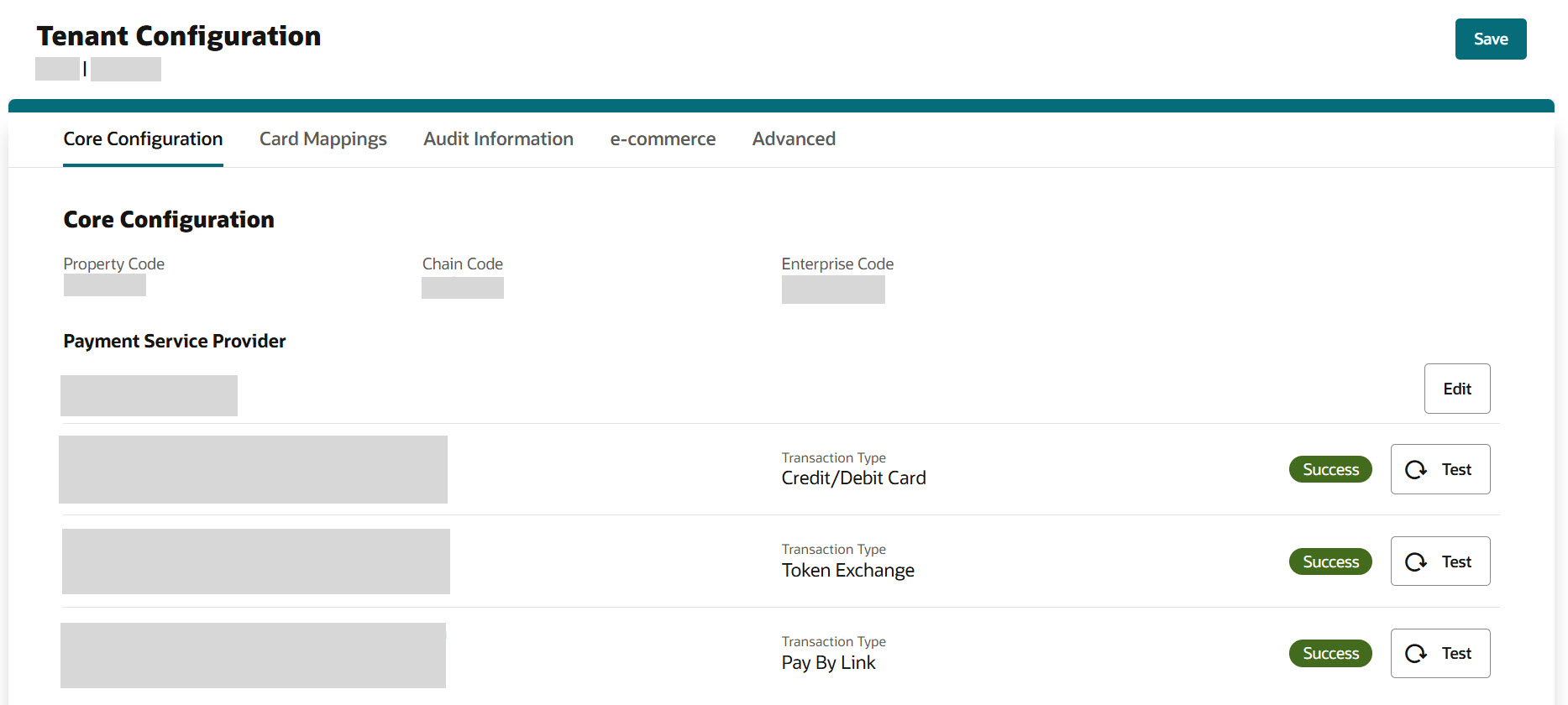
The Tenant Core Configuration screen appears with mapped PSP endpoints.
-
Click the Test
 icon to test the endpoint connectivity.
-
If the PSP endpoint test is successful, the connection is successful.
-
If the PSP endpoint test is unsuccessful, the connection fails.
If a test fails, you need to access the OPI Cloud logs to review the issue.
-
-
Click Save and you will see a confirmation that Core Configuration has been updated successfully.
Whenever you are trying to update any of the fields, you will see a message ‘Configuration update may take up to 15 mins to reflect in runtime’.
Note:
The Sign Out option allows you to logout from the OPI Cloud Tenant Configuration portal. When you login next time, you will directly navigate to the Tenant Core Configuration landing page as you have already configured the property using OPERA Cloud.